What Is System Latency in Gaming? The Click-to-Photon Chain Explained
Published
On this page
System latency is the total delay from your input — a click or a flick — to the pixels actually changing on screen, and it is the sum of five stages, not just your frame rate. Also called end-to-end or click-to-photon latency, it explains why two PCs running the same FPS can feel completely different. This guide breaks the chain into each stage, gives the real millisecond cost of each, and tells you which one to cut first.
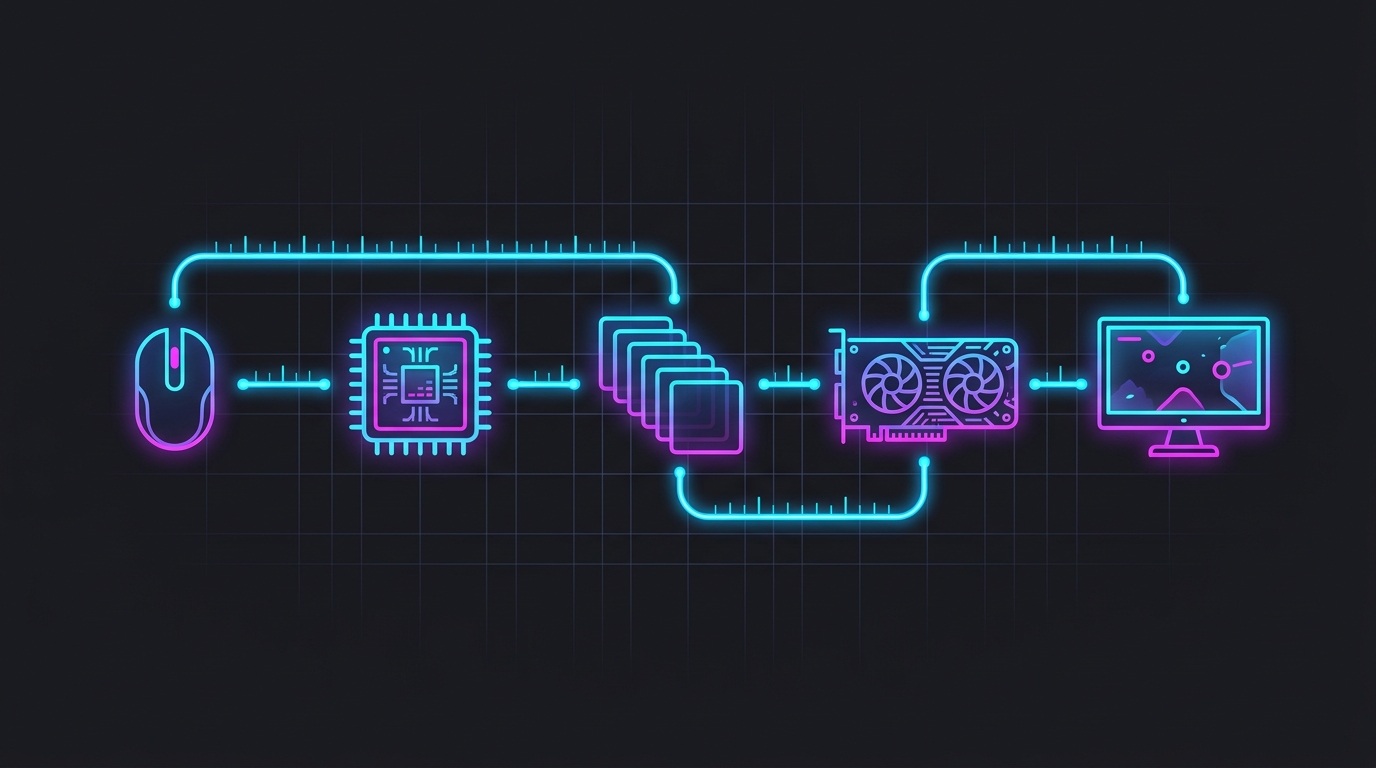
The click-to-photon chain in one table
Every input travels through the same five stages before you see the result. Here is the whole chain with realistic per-stage numbers for a modern gaming setup:
| Stage | What happens | Typical time | Biggest lever |
|---|---|---|---|
| Peripheral | Mouse sensor reads motion, polls, sends over USB | 1–8 ms | 1000 Hz+ polling mouse, wired or good wireless |
| CPU / game | OS and game engine process the input and build a frame | 1–10 ms | High, stable FPS; NVIDIA Reflex / AMD Anti-Lag |
| Render queue | Finished-or-waiting frames sit in line for the GPU | 0–20+ ms | Reflex / Anti-Lag, frame cap below refresh |
| GPU render | GPU actually draws the frame | 3–20 ms | Higher FPS, lower settings, no GPU bottleneck |
| Display | Monitor receives, processes, and scans out the pixels | 3–20 ms | High refresh rate, Game Mode on |
Add them up and a competitive, tuned rig lands around 10–25 ms; a stock 60 Hz setup around 50–90 ms; and a badly configured one (V-Sync queue, TV in movie mode, GPU pinned at 100%) well past 120 ms. The goal of every latency tweak is to shave milliseconds off one or more of these five boxes.
Stage 1: the peripheral
The chain starts at your hand. A gaming mouse reads motion, then reports it to the PC at its polling rate — 1000 Hz reports every 1 ms, 8000 Hz every 0.125 ms. A 125 Hz office mouse reports only every 8 ms, adding real delay before the PC even knows you moved. A wired or well-implemented wireless mouse at 1000 Hz or higher keeps this stage near the floor; see mouse polling rate explained and does a wireless mouse add input lag for the details.
Stage 2: the CPU and game engine
Once the input arrives, Windows and the game engine have to process it and start building the frame that reflects it. This is often called game latency. It scales inversely with frame rate: at 60 FPS a new frame begins roughly every 16.7 ms, at 240 FPS every 4.2 ms, so higher FPS means input waits less for its turn to be simulated. This stage is also where system-level tuning pays off — a tighter Windows timer keeps frame delivery and input handling consistent. Optimizing your timer resolution with the free Tier1Timer module raises the system tick rate so input registers on a finer schedule, which smooths this stage and 1% lows.
Stage 3: the render queue
This is the stage most people never think about and the one that most often balloons. To keep the GPU fed, the CPU can queue several frames ahead of what the GPU has finished. When it does, your fresh input lands at the back of that line, behind frames that were already built before you moved. That backlog can add anywhere from near-zero to 20+ ms.
Two things drain the queue:
- A low-latency mode — NVIDIA Reflex, AMD Anti-Lag 2, or Intel XeLL — caps how many frames the CPU is allowed to queue. See NVIDIA low latency mode explained and Reflex vs Anti-Lag vs XeLL.
- A frame cap slightly below your refresh rate, which stops the GPU hitting 100% and building a queue. See the best FPS cap for low latency.
Note the catch with frame generation: it adds to this stage because generated frames are inserted before display, so raw FPS on the counter goes up while responsiveness does not — see frame generation input lag explained.
Stage 4: the GPU render
Now the GPU draws the frame. Render time is set by your settings and resolution versus your card’s power. If the GPU is the bottleneck — pinned at 100% while the CPU waits — render time and the queue both grow, so latency climbs even though FPS may look fine. Lowering the heaviest settings (shadows, ray tracing, volumetrics) or using a super-resolution upscaler like DLSS/FSR/XeSS shortens render time and therefore this stage. Check whether you’re GPU- or CPU-limited first: how to check for a CPU or GPU bottleneck.
Stage 5: the display
The finished frame still has to reach your eyes. Two things happen here: the monitor’s internal processing (display lag) and the scanout — the time to physically paint the panel, which is gated by refresh rate. Refresh rate sets a hard floor on how fresh the image can be:
| Refresh rate | Frame interval (scanout floor) |
|---|---|
| 60 Hz | ~16.7 ms |
| 144 Hz | ~6.9 ms |
| 240 Hz | ~4.2 ms |
| 360 Hz | ~2.8 ms |
On top of that, a good gaming monitor adds only ~1–4 ms of processing lag; a TV in the wrong mode can add 40–100 ms. Turn on Game Mode, skip picture processing, and run the highest refresh you can. Note that response time (the “1ms GtG” sticker) is not this — it changes how motion looks, not how late the image is. See response time vs input lag and how to optimize your monitor for gaming.
How to cut your total, in order of impact
- Turn on a low-latency mode (Reflex / Anti-Lag 2) — biggest single win, drains the render queue.
- Cap FPS just below your refresh rate to stop a GPU-bound queue forming.
- Push FPS high and stable — every extra frame shortens stages 2–4.
- Run the highest refresh rate you can and enable Game Mode.
- Tune the system — timer resolution for consistent frame delivery, plus a 1000 Hz+ mouse.
Want to see your numbers rather than trust a spec sheet? How to measure input lag walks through capturing your own click-to-photon time. For a hands-on checklist of the tweaks above, read how to minimize input delay for competitive gaming.
The bottom line
System latency is a chain, and it is only as fast as its slowest link. Frame rate matters, but so does draining the render queue, running a high refresh panel in Game Mode, and using a fast-polling mouse. Fix the biggest link first — usually the render queue and a low, unstable FPS — and the whole chain tightens.
Frequently asked questions
What is system latency in gaming?
System latency is the total time from a physical input — a mouse click or movement — to the moment the resulting pixels actually change on your screen. It is also called end-to-end or click-to-photon latency, and it is the sum of five stages: your peripheral, the CPU and game engine, the render queue, the GPU, and the display. Frame rate is only one part of it, which is why two PCs at the same FPS can feel very different.
What is a good system latency in milliseconds?
A well-tuned competitive setup — high refresh monitor, high stable FPS, NVIDIA Reflex or AMD Anti-Lag on — lands around 10–25 ms of total click-to-photon latency. A typical 60 Hz setup at moderate FPS sits around 50–90 ms, and a TV in the wrong picture mode or a heavily GPU-bound game can exceed 120 ms. Under about 20 ms is where the game stops feeling like it is catching up to you.
Is system latency the same as ping?
No. Ping (network latency) is the round trip between your PC and the game server, and it affects when other players see you and register hits. System latency is entirely local — it is the delay inside your own machine and monitor between input and image. You can have a 5 ms ping and still feel sluggish if your local system latency is 100 ms, and the fixes for each are completely separate.
Does higher FPS lower system latency?
Yes, and often more than the refresh rate alone. Higher frame rates shorten how long input waits for the next frame to be simulated and rendered, so latency keeps dropping even past your monitor's refresh rate. This is why competitive players uncap or cap FPS high rather than matching it to a 60 Hz or 144 Hz panel — the extra frames cut latency even if you never see them all.
What is the single biggest cause of system latency?
For most people it is the render queue combined with a low or unstable frame rate. When the CPU queues several frames ahead of the GPU, your input waits in line behind already-finished frames. A low-latency mode like NVIDIA Reflex or AMD Anti-Lag 2 removes that backlog, and a frame cap slightly below your refresh rate keeps the queue from filling — together these are usually the two largest single wins available.