How to Measure Input Lag on Your PC (Free Tools)
Published
On this page
You can’t tune what you can’t measure. Most players change five settings at once, feel an improvement, and never know which change did anything. Measuring input lag turns latency tuning from superstition into engineering — and the tools are free.
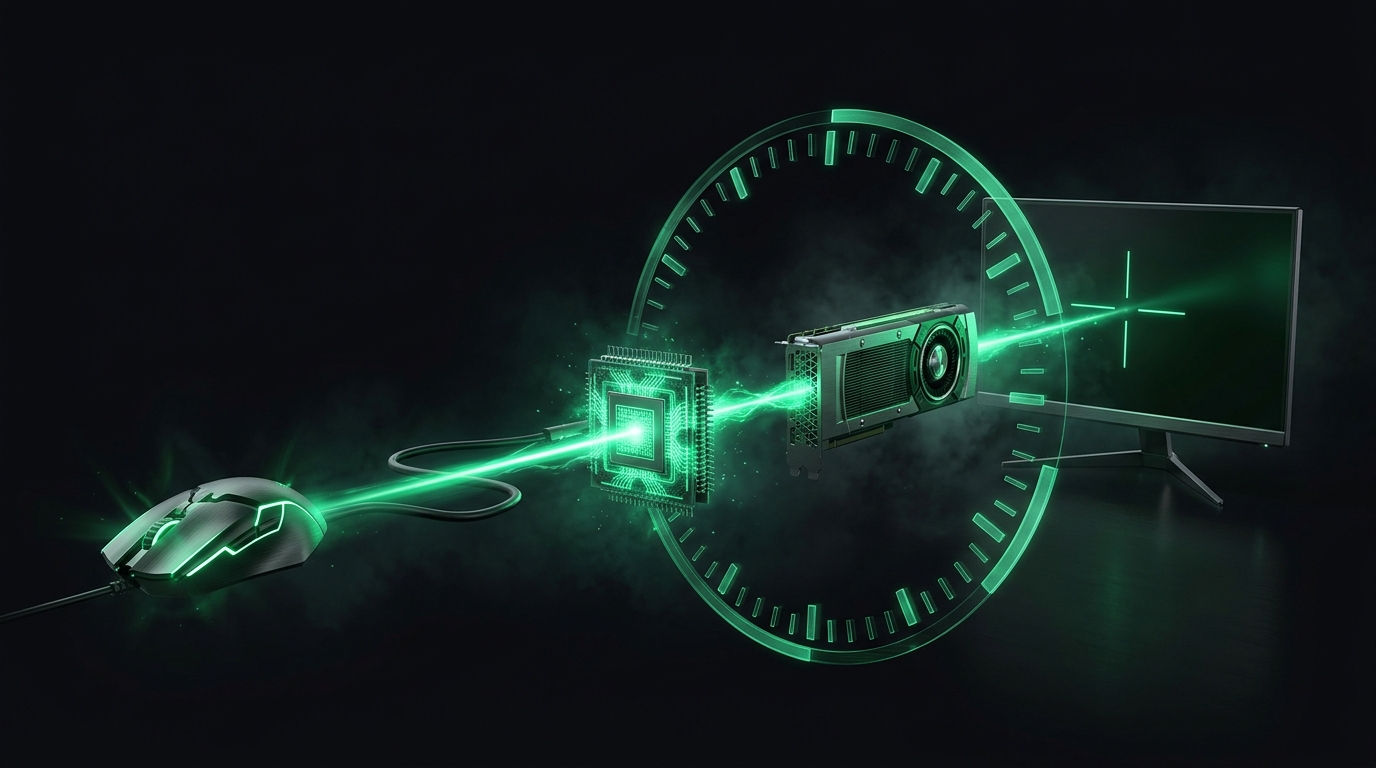
Click-to-photon: the time between your finger and the pixels. Every link in that chain is measurable.
What you’re measuring
Total (“click-to-photon”) latency stacks up like this:
| Stage | Typical share | You control it via |
|---|---|---|
| Peripheral | 1–5 ms | Polling rate |
| OS / input processing | 1–10 ms | Timer resolution, raw input |
| Game + render queue | 5–40 ms | FPS, Reflex, frame cap |
| Display | 2–15 ms | Refresh rate, monitor game mode |
Method 1: NVIDIA PC Latency overlay
On GeForce cards in Reflex-supported games:
- Open the NVIDIA overlay → Statistics → PC Latency (and Render Latency).
- Play a real match — menus lie; load matters.
- Note the average. This is your baseline.
It measures the OS+game+render portion — exactly the part your settings influence. It’s also the quickest way to see frame generation’s input lag cost for yourself: toggle frame gen in the same scene and watch the PC Latency number move while the FPS counter climbs.
Method 2: Tier1Suite’s latency benchmark
Tier1Suite includes a built-in latency benchmark — part of its Tier1Monitor module — that works regardless of GPU brand or game support:
- Run the benchmark to get your baseline timer and input-path numbers.
- Apply its timer-resolution optimization (0.5 ms).
- Re-run and compare — you’ll see precisely what the change bought you, in milliseconds, on your own system.
This is also the honest way to evaluate any tweak you read about (including ours): measure, change one thing, measure again.
Method 3: frame-time analysis
Latency and frame pacing are siblings. An RTSS frame-time graph won’t give you milliseconds-to-photon, but spikes in it are moments of added latency. A flat graph at high FPS is the foundation every other number sits on.
Method 4 (reference): the hardware way
Absolute click-to-photon needs hardware — NVIDIA’s LDAT, a 1000fps camera, or an Arduino photodiode rig. Worth knowing it exists; not needed for tuning. Software measurement of the PC-side chain is where all your actionable wins live.
The measure → fix → measure loop
- Baseline with Method 1 or 2.
- Apply the input delay checklist: Reflex on, V-Sync off or VRR done right, sane frame cap, fullscreen, timer resolution raised.
- Re-measure after each change. Keep what moves the number; revert what doesn’t.
Typical tuned result: a stock 40–60 ms system lands in the 15–25 ms range — a difference you can feel on every flick.
Related guides
Frequently asked questions
What is a good input lag number for competitive gaming?
Total system latency under 25 ms is excellent, 25 to 40 ms is solid, and above 50 ms is worth fixing. Pros on tuned setups with high-refresh monitors typically sit in the 10 to 20 ms range.
How do I check my input lag without special hardware?
Use NVIDIA's PC Latency overlay in supported games, or run a latency benchmark tool like Tier1Suite's built-in test. Software measurement covers the PC side of the chain, which is where your fixable latency lives.
Does a higher FPS always mean lower input lag?
Generally yes, but with diminishing returns, and a GPU running at 99% can have worse latency at higher FPS than a capped setup. That is why measuring beats guessing.
What adds the most input lag on a typical PC?
The render queue when the GPU is saturated, V-Sync, slow monitor response, and low frame rate — in roughly that order. Each one is fixable in settings.