Timer Resolution vs HPET: What's the Difference for Input Lag?
Published
On this page
Timer resolution and HPET both deal with time inside Windows, so they get mixed up constantly — but they are two completely different things. Timer resolution controls how often Windows’ software timer fires (lower = more precise scheduling and lower input lag); HPET is a separate hardware clock Windows reads the current time from, and forcing it on or off rarely helps. If you want lower latency, timer resolution is the lever, not HPET.
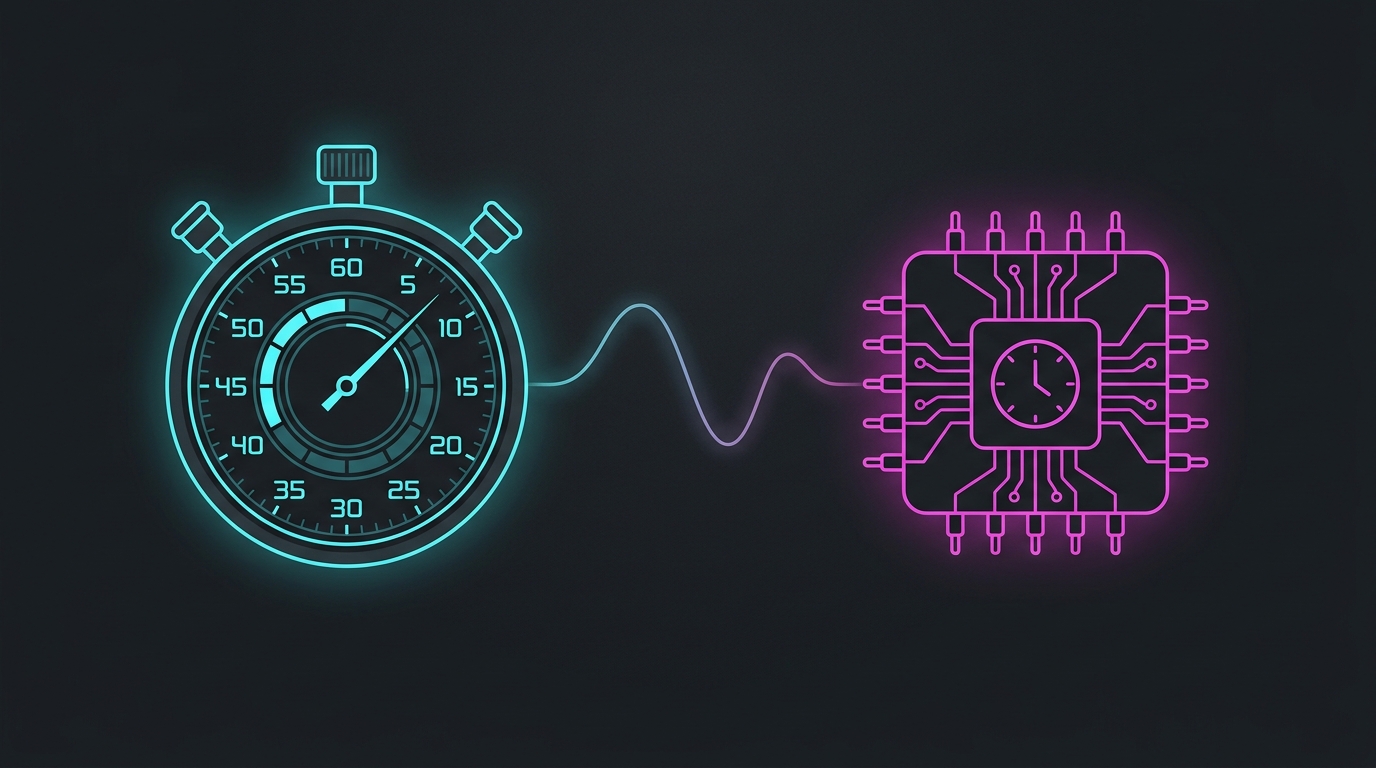
The one-line difference
- Timer resolution = how often the system timer interrupt fires. Default idle is 15.6 ms; lowering it to 0.5 ms makes thread wake-ups, input polling and frame pacing more precise. This is the one that affects input lag and frametime smoothness.
- HPET (High Precision Event Timer) = which hardware clock Windows reads timestamps from. It answers “what time is it now?”, not “how often do I get a tick.” On modern PCs Windows usually prefers the invariant TSC and only falls back to HPET when needed.
They are independent. You can run a 0.5 ms timer resolution with HPET at its default, and that is exactly the setup most competitive players want.
Timer resolution vs HPET side by side
| Aspect | Timer resolution | HPET |
|---|---|---|
| What it is | Software timer tick rate | Hardware timestamp clock source |
| Typical values | 15.6 ms (idle) → 0.5 ms | On / Off / platform default |
| What it affects | Thread scheduling, input handling, frame pacing | How Windows reads elapsed time |
| Effect on input lag | Small but real reduction at 0.5 ms | Usually none; forcing it can hurt |
| How you change it | An app requests it (e.g. Tier1Timer) | bcdedit platform clock flags / BIOS |
| Recommended for gaming | Yes — run 0.5 ms | Leave at default |
Why people confuse them
Both live under the umbrella of “Windows timers,” and a decade of forum posts told people to “disable HPET for lower latency” in the same breath as “set your timer to 0.5 ms.” On old hardware, forcing the platform clock away from HPET sometimes helped because HPET reads were slow. On modern CPUs that advice is stale — Windows already avoids HPET when a faster source exists, so forcing it off changes little and can introduce timing drift or stutter.
The part of that old advice that still holds up is the timer-resolution half. Tightening the timer tick to 0.5 ms is a genuine, measurable tweak. The HPET half is mostly cargo-cult.
Which one actually lowers input lag?
Timer resolution. At the default 15.6 ms idle tick, Windows can only wake a waiting thread on a coarse schedule, which adds a small, variable delay to input handling and frame delivery. At 0.5 ms the scheduler resolves ~30× finer, so:
- Input threads wake closer to when the event actually happened.
- Frame pacing is steadier, which shows up as smoother 1% lows, not a higher average FPS.
- The improvement is consistent rather than dramatic — think a few milliseconds and tighter frametimes.
HPET, by contrast, does not change how often threads get scheduled, so it does not move input lag on modern systems. For a full breakdown of the HPET decision on its own, see Should You Disable HPET for Gaming?.
What to actually do
- Leave HPET at the platform default. Don’t run
bcdedit /set useplatformclock trueorfalseunless you’re debugging a specific timing bug. Default is correct for almost everyone on Windows 10/11. - Set a 0.5 ms timer resolution and keep it applied. This is the tweak that helps. Windows won’t hold it for you — an app has to request it, and on Windows 11 24H2 the request only applies to the app that made it, so a “set and forget” background tool is the reliable route. Tier1Timer requests 0.5 ms globally and can auto-apply it per game.
- Verify it stuck. Confirm the timer is actually at 0.5 ms while a game is running, since a stray app or a Windows update can reset it.
Bottom line
Timer resolution and HPET are not the same setting, and only one of them is worth your time. Run a 0.5 ms timer resolution for a small, consistent input-lag win; leave HPET on its default. The confusion between the two is why so many “latency guides” waste a step disabling a hardware clock that modern Windows already handles for you.
Related guides
Frequently asked questions
Is timer resolution the same as HPET?
No. Timer resolution is how often Windows' software timer fires — lowering it to 0.5 ms makes waking threads, input handling and frame pacing more precise. HPET (High Precision Event Timer) is a separate hardware clock source Windows can read the current time from. They are two unrelated mechanisms, and changing one does not change the other.
Should I disable HPET to reduce input lag?
On modern Windows 10 and 11 you usually should not force HPET on or off at all — leave the platform default. Forcing HPET off via bcdedit rarely helps on current hardware and can cause timing drift. If your goal is lower input lag, the setting that reliably helps is a lower timer resolution (0.5 ms), not touching HPET.
Does lowering timer resolution actually reduce input lag?
Yes, modestly. A 0.5 ms timer resolution tightens how precisely Windows schedules threads and paces frames, which smooths 1% lows and shaves a small, consistent amount of latency versus the default 15.6 ms idle timer. It is not a magic FPS boost — expect steadier frametimes, not doubled frames.
Is HPET good or bad for gaming?
Neither by default. HPET is just a clock source; on modern CPUs Windows picks the best available timer (often the invariant TSC) automatically. Manually forcing HPET on can slightly increase overhead, and forcing it off can cause problems, so the safe answer for gaming is to leave HPET at its default and tune timer resolution instead.
How do I set a 0.5 ms timer resolution?
Windows does not expose timer resolution in Settings — an application has to request it, and Windows 11 24H2 changed the rules so the request only applies to the app that made it. A dedicated tool like Tier1Timer requests and holds 0.5 ms globally and can auto-apply it per game, which is the reliable way to keep it active while you play.