Tier1Stretch
Stretched resolution for competitive gaming in one click. Fills the screen with no black bars — no Control Panel, no CRU, no reboot. Works on NVIDIA, AMD and Intel.
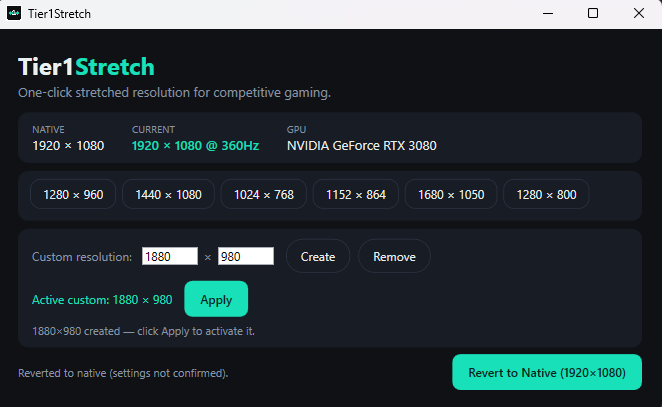
One click. Done.
Setting up stretched resolution normally means CRU, a driver restart, then a manual trip to your GPU's control panel — and one wrong setting gives you black bars. Tier1Stretch skips all of that. Pick a resolution, the screen stretches and fills, and a 15-second countdown lets you confirm it looks right. If anything's off, it reverts on its own.
What it does
- One-click stretch tiles
The most popular competitive resolutions — 1440×1080, 1280×960, 1024×768, 1152×864, 1680×1050, 1280×800 — are right there as buttons. Click one and you're done. Only resolutions your monitor supports are shown, so a click always works.
- Fills the screen — no black bars
Applying a stretch resolution automatically sets the GPU to fill your panel edge-to-edge. No manual trip to your GPU's control panel, no extra step. Works with G-Sync and FreeSync high-refresh displays.
- Always safe to try
Every change triggers a 15-second "Keep these settings?" countdown. Don't confirm and it reverts on its own. The "Revert to Native" button is always one click away, and the app shows your native resolution so you always know what you're going back to.
- Custom resolution creator NVIDIA
Want a width that isn't on your monitor's default list — like 1750×1080 or 1880×980? Type it in, hit Create, then Apply. No reboot, no extra software, anti-cheat safe.
How to use Tier1Stretch
- 1 Download and run
Download the
.exeand run it. Accept the admin prompt — it's needed to set GPU scaling. The app instantly shows your native resolution and the available stretch tiles. - 2 Click a tile
Pick the resolution you want — 1440×1080 for 4:3, 1280×960 for a wider stretch. The screen switches and fills edge-to-edge. A 15-second countdown appears — confirm to keep it, or just wait for it to revert.
- 3 Revert any time
Hit "Revert to Native" to go back instantly. The button always shows your original resolution so there's no guessing.
Works on NVIDIA, AMD and Intel. Tier1Stretch sets full-panel GPU scaling for you on all three — via NVAPI on NVIDIA, and through the display's EDID on AMD and Intel (v1.3.0+). On some hybrid laptops where an integrated GPU owns the panel, you may still need to set full-panel scaling manually in your GPU's control panel.
Want it automatic? Go Pro.
Everything you use today stays free — forever. Pro makes it automatic: your stretched resolution is applied the moment a game launches and native is restored the second you quit — with a different resolution per game, unlimited saved custom modes, and multi-monitor targeting.
These same Pro features now ship inside Tier1Suite Pro, which is where development continues — and a Tier1Stretch Pro licence activates it at no extra cost, so buying either one gets you both.
| Capability | Free | Pro |
|---|---|---|
| One-click preset stretch modes + GPU full-panel scaling | ✓ | ✓ |
| Hotkey revert, tray, benchmark, update check | ✓ | ✓ |
| Custom resolutions | 1 active custom mode | Unlimited saved custom modes |
| Auto mode — applies your stretched res the moment a game launches, reverts to native on exit | — | ✓ |
| Per-game profiles — a different resolution per detected game, auto-applied | — | ✓ |
| Multi-monitor: choose which display to stretch | — | ✓ |
| Priority support + early builds | — | ✓ |
from $3.99 /month — or annual, or lifetime — as Tier1Suite Pro
See Pro plansOne license, 3 PCs · Monthly, annual or lifetime · 14-day refund · Unlocks every Pro feature above, plus the rest of Tier1Suite
Tier1Stretch Pro FAQ
Is Tier1Stretch Pro a subscription?
Not unless you choose one. Pro is now sold as Tier1Suite Pro — monthly, annual, or a one-time lifetime licence — and unlocks everything Tier1Stretch Pro does. If you already bought Tier1Stretch Pro, your key keeps working and also activates Tier1Suite Pro at no extra cost. Standalone Tier1Stretch is feature-complete rather than actively developed; Tier1Suite is where new features and updates land.
How many PCs can I use it on?
One license covers 3 activations, so you can use Pro on up to 3 PCs. Moving to a new machine? Deactivate the license in Settings on the old PC to free up a seat.
What’s the refund policy?
If Pro isn’t for you, you can get a full refund within 14 days of purchase — no questions asked.
Ready to go stretched?
Tier1Stretch is free, takes under a minute, and reverts safely if anything looks wrong.
Download Tier1Stretch — FreeWant the full manual method first? Read How to get stretched resolution (CRU guide). Or cut input lag further with Tier1Timer.