Why FPS Drops After Hours of Gameplay (Memory Leaks Explained)
Published
On this page
If your game starts at 120 FPS and sags to 60 after a few hours but snaps back to full the moment you relaunch it, that’s a memory leak in the game — not failing hardware, not thermal throttling, and not something a new GPU will fix. The game allocates memory it never releases, and once the pool runs short the system starts evicting and re-streaming assets, which shows up as falling frame rate and rising stutter. This guide covers how to confirm it in two minutes and what genuinely helps.
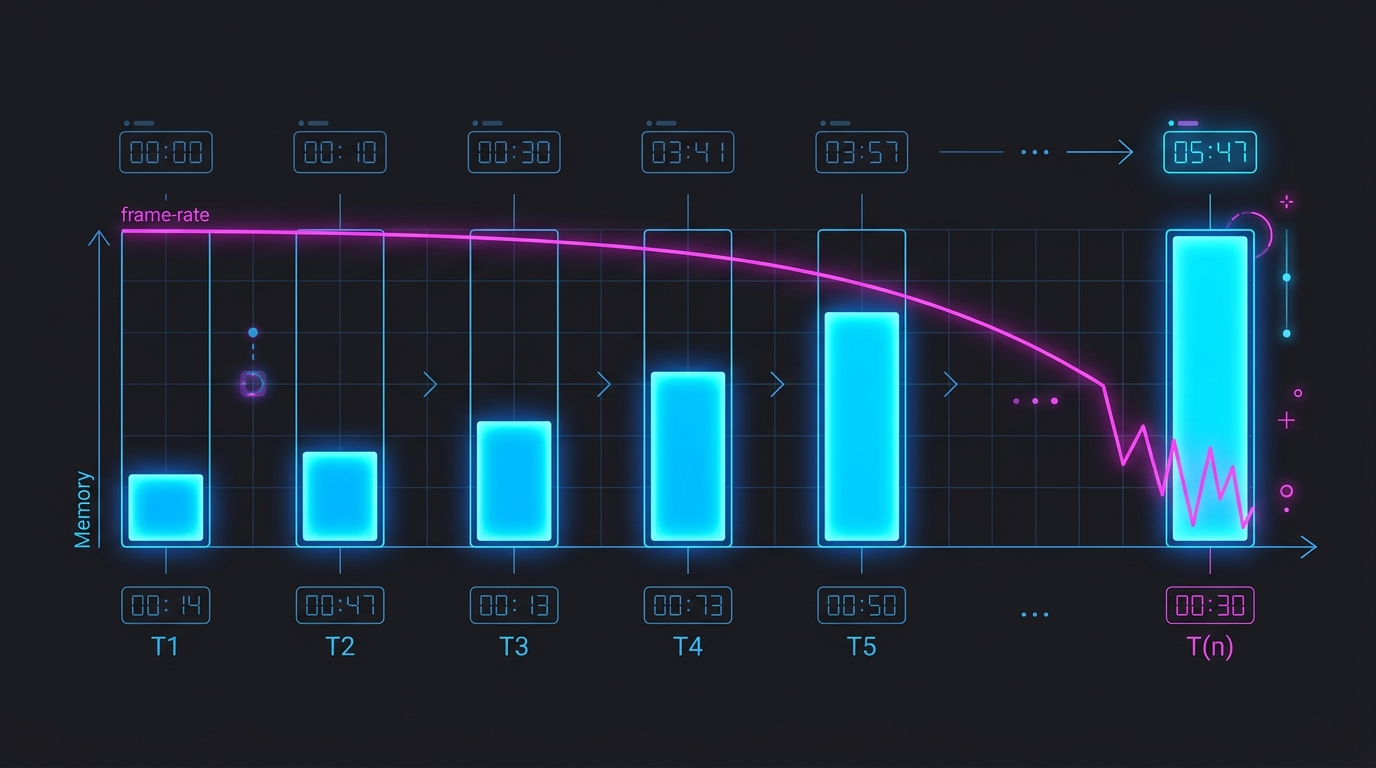
A leak is slow enough to feel fine for an hour and severe by hour four.
The two-minute diagnosis
Run this before changing a single setting:
- Play until performance is clearly degraded. Note the frame rate.
- Quit the game and relaunch it. Do not reboot the PC.
- Load the same save, stand in the same place, and compare.
| Result | What it means |
|---|---|
| Performance fully restored | Memory leak in the game (or its driver). Software problem. |
| Still degraded after relaunch | Not a leak — look at thermals, driver state or a dying component |
| Restored only after a full reboot | Leak in a driver or background process, not just the game |
This test matters because it cleanly separates a leak from the thing people usually assume: overheating. Failing or throttling hardware does not recover because you relaunched an application. If a relaunch fixes it, stop investigating your cooling.
What a leak actually looks like
The numbers from documented cases are useful because they explain the timeline. In affected titles, players have measured roughly:
- ~29 MB per minute of committed system memory growth
- ~12–15 MB per minute of dedicated VRAM growth
At that rate, an hour costs under 1 GB of VRAM — unnoticeable. Four hours costs around 3 GB, which on an 8 GB card is the difference between comfortable and thrashing. That’s why the complaint is almost always “it’s fine at first”.
Real reported examples:
| Game | Reported behaviour |
|---|---|
| The First Descendant | VRAM climbed from ~4 GB at launch to ~11 GB after some hours; performance fell from ~160 FPS to unplayable |
| S.T.A.L.K.E.R. 2 | Severe slowdown after roughly 2–4 hours, fixed by restarting |
| World of Warcraft: Forever | ~110 → ~40 FPS over 88 minutes; +29 MB/min RAM, +12–15 MB/min VRAM |
We cover three of those directly: WoW Forever FPS drops and memory leak fix — the best-measured case of this problem anywhere, with a working mid-session mitigation — plus The First Descendant stuttering fix and S.T.A.L.K.E.R. 2 stuttering fix.
Why survival and open-world games hit this hardest
Nothing about these genres makes them leakier by design — they’re over-represented for a simpler reason: sessions are long. A competitive shooter match lasts 20 minutes, so a leak never gets time to matter. A survival base-building session runs four to eight hours, which is exactly the window where a slow leak becomes obvious.
Long sessions also compound with the genre’s other performance problems. If your frame rate is already strained by a large base, a leak eats the remaining headroom sooner — see why base building tanks FPS in survival games.
What actually helps
Things that work:
- Restart the game periodically. Unglamorous, but it is the only complete fix for a leak you don’t control. Treat it like a scheduled server restart — the same logic applies to dedicated servers.
- Turn frame generation off and retest. In several reported cases this resolved progressive decay outright. Frame generation holds extra frame buffers in VRAM, so on a card near its limit it brings the cliff forward.
- Lower texture quality one step. This doesn’t stop the leak, but it lowers the starting VRAM baseline, so it takes longer to reach the point where eviction begins.
- Update GPU drivers — and clean-install if you’ve updated several times. Some decay is driver-side rather than game-side.
- Close overlays and background capture. Overlays, browser tabs and capture software all consume the same memory the leak is eating into.
- Check for a game patch. Leaks are bugs. Most get fixed, and the fix is usually in the game’s own patch notes.
Things that don’t work:
- Buying more RAM or a bigger GPU — a leak expands until it exhausts whatever is available. More memory delays the slowdown; it doesn’t prevent it. It’s a legitimate workaround only if it pushes the problem beyond your normal session length.
- “RAM cleaner” and memory-booster utilities — these cannot reclaim memory the game still holds a reference to. See best tools to fix stuttering in games for which tools are real and which are placebo.
- Reinstalling Windows — a leak in a specific game follows the game.
Don’t confuse it with the other three
Progressive decay is one of four problems that all feel like “my game runs badly”, and they have entirely different fixes.
| Symptom | Cause | Fix |
|---|---|---|
| Gets worse each hour, fine after relaunch | Memory leak | This guide |
| Bad only near your base | CPU object load | Base building FPS |
| Brief freezes on new effects/areas | Shader compilation | Clear shader cache |
| Hard crash with a VRAM error | VRAM exhaustion | Out of video memory fix |
If the game crashes outright rather than slowing down, that last row is your page — a leak that runs long enough can end in exactly that error.
The short version
- FPS that degrades over hours and recovers on relaunch is a memory leak, full stop.
- Confirm it with the relaunch test — hardware faults don’t recover that way.
- Typical documented rates: ~29 MB/min RAM, ~12–15 MB/min VRAM.
- Turn frame generation off and lower textures one step to buy time.
- More RAM delays it; only a patch or a restart ends it.
- Survival and open-world games show it most because sessions are long, not because they leak more.
Frequently asked questions
Why does my FPS get worse the longer I play?
Almost always a memory leak in the game: it allocates RAM or VRAM over the session and never releases it, so the pool of usable memory shrinks until the system starts evicting and re-streaming assets. Reported leak rates in affected games run around 29 MB per minute of system memory and 12–15 MB per minute of VRAM, which is slow enough to feel fine for an hour and severe by hour four.
How do I know if it's a memory leak or failing hardware?
Restart the game without rebooting the PC. If performance returns to full immediately, it is a software memory leak, not hardware — failing or overheating hardware does not recover just because you relaunched an application. This single test is the fastest way to tell the two apart, and it rules out thermal throttling as well.
Does adding more RAM fix a memory leak?
No, it only delays it. A leak grows until it exhausts whatever memory is available, so more RAM buys you a longer session before the slowdown appears rather than preventing it. It can be a reasonable workaround if it pushes the problem past your typical play session, but the actual fix is a game patch, a driver update, or restarting periodically.
Can frame generation cause performance to degrade over time?
It can. In several reported cases, turning frame generation off resolved progressive frame-rate decay and allowed hours of stable play. Frame generation holds additional frame buffers in VRAM, so on a card that is already close to its VRAM limit it can accelerate the point at which a session starts degrading. If you see decay and use frame generation, test with it off before anything else.
Which games are known for this problem?
It appears across many titles and engines rather than being specific to one. Well-documented examples include The First Descendant, where VRAM use climbed from about 4 GB to 11 GB over a session, and S.T.A.L.K.E.R. 2, where players reported severe slowdown after roughly 2–4 hours that a restart fixed. Survival and open-world games are over-represented because their sessions are long.