How to Show FPS in Any Game — 5 Free Overlays
Updated Published
On this page
To show FPS in any game, the fastest option is Steam’s built-in counter (Settings → In Game → In-game FPS counter) or Xbox Game Bar with Win+G — and four more free overlays are below. More importantly, this guide shows how to read the frame-time graph, which tells you what the raw FPS number hides.
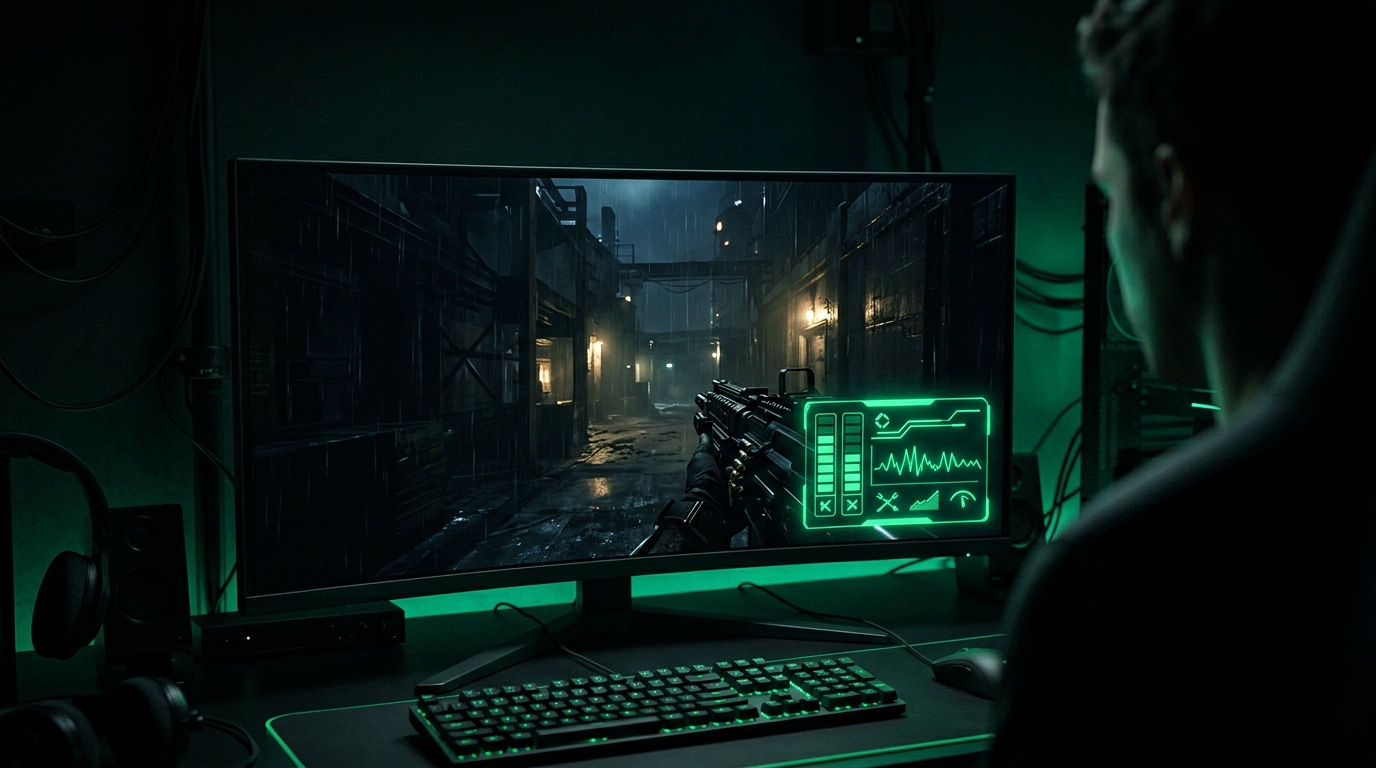
The FPS number says how many frames. The frame-time graph says whether they arrived on time.
1. Steam overlay (fastest)
Steam → Settings → In Game → In-game FPS counter → pick a corner.
Works in every Steam game, costs nothing, shows one number. Perfect for a quick check; useless for diagnosing stutter.
Rather not do this by hand? Tier1Suite sets timer resolution per game and applies Windows tweaks for you, each with a working revert. Get Tier1Suite free →
2. Xbox Game Bar (built into Windows)
Press Win+G → Performance widget → pin it.
Shows FPS, CPU, GPU and RAM usage in any game without installing anything. Note: if you’ve followed our Game Bar/DVR guide, you disabled the recording features — the performance widget is also gone in that case, so use Steam or RTSS instead.
3. RTSS via MSI Afterburner (the proper tool)
The standard for actual tuning work:
- Install MSI Afterburner (RTSS comes bundled).
- In Afterburner: Settings → Monitoring → tick Framerate, Frametime, GPU usage, CPU usage, GPU temperature → for each, enable Show in On-Screen Display.
- Set Frametime display type to graph.
- In game, the overlay appears automatically; configure position/size in RTSS.
4. NVIDIA FPS overlay (GeForce / NVIDIA App)
If you’re on a GeForce card, you already have an FPS overlay built in:
- Open the NVIDIA App (or GeForce Experience) and press Alt+R for the in-game overlay.
- Go to Statistics and pick a layout — you get FPS, latency, GPU/CPU usage, and temps on supported games.
- On RTX cards, the latency readout pairs perfectly with input lag measurement and NVIDIA Reflex.
No extra software needed — it’s the fastest FPS overlay for NVIDIA users.
5. AMD FPS overlay (Adrenalin)
Radeon users have an equally capable overlay in the driver:
- Open AMD Software: Adrenalin Edition and press Ctrl+Shift+O to toggle the Performance Overlay in-game.
- Under Performance → Metrics → Overlay, enable FPS, frame time, GPU/CPU usage, and temperatures.
- Full driver setup is in the best AMD Adrenalin settings guide.
No extra software on Radeon systems — it’s the fastest FPS overlay for AMD users.
How to actually read it
| What you see | What it means | Fix |
|---|---|---|
| Flat frame-time line | Healthy | Nothing — enjoy |
| Regular small spikes | Background process polling | Debloat, Game Bar off |
| Spikes when new areas load | Storage or VRAM streaming | NVMe, lower textures |
| Spikes after patch/driver update | Shader compilation | Clear shader cache |
| GPU usage 99% + rising latency | GPU saturated | Cap FPS |
| GPU usage low + low FPS | CPU bound | Bottleneck guide |
Once you can see frame times, tools like Tier1Suite become measurable: run its latency benchmark, raise the timer resolution, and watch the pacing tighten.
Related guides
Frequently asked questions
What is the best FPS counter for PC?
RTSS (bundled with MSI Afterburner) is the most capable: FPS, frame-time graph, CPU/GPU usage and temperatures, all configurable. For a quick number, Steam's built-in counter is the lightest.
Do FPS overlays lower performance?
Lightweight ones like Steam or RTSS cost a frame or two at most. Heavier overlays with capture features enabled can cost more — disable recording features you do not use.
How do I see frame times instead of just FPS?
Use RTSS via MSI Afterburner and enable the frametime graph. Frame times reveal stutter that an FPS average completely hides.
Why does my average FPS look fine but the game feels choppy?
Frame-time spikes. Sixty even frames per second feels smooth; the same 60 with a few 80 ms frames feels broken. The frame-time graph shows it, the FPS counter does not.