Disable Xbox Game Bar and Game DVR for More FPS
Published
On this page
Game DVR quietly records gameplay in the background so Windows can offer you “the last 30 seconds” — which means an encoder is running while you play, whether you ever press the button or not. On weaker systems it’s worth real FPS; on strong ones it shows up as periodic micro-stutter. Two minutes to switch off.
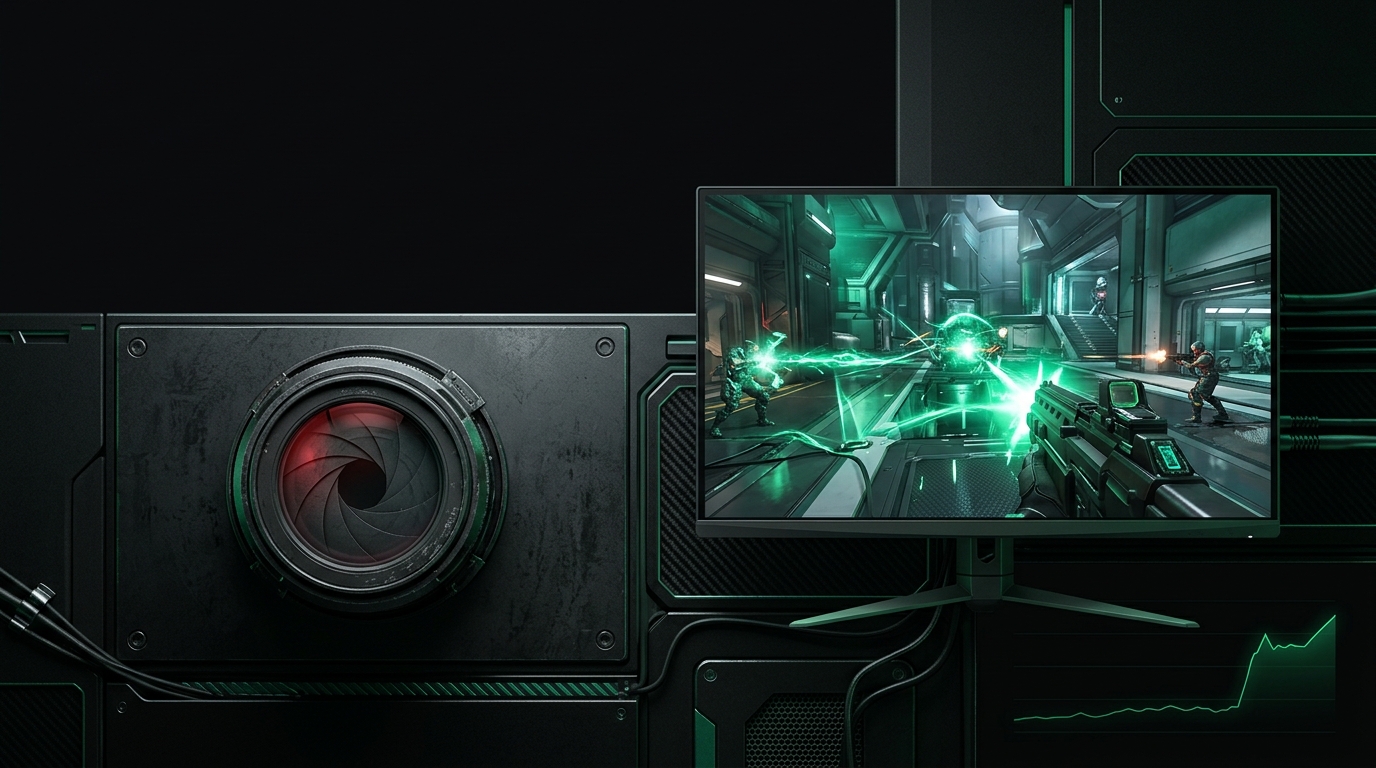
An encoder you never asked for, running in every match. Turn it off and take the frames back.
Step 1: turn off background recording (the big one)
Windows 11: Settings → Gaming → Captures → turn off Record what happened.
Windows 10: Settings → Gaming → Captures → turn off Background recording.
This alone delivers the performance benefit.
Step 2: disable Game Bar
Windows 11: Settings → Gaming → Xbox Game Bar → off (newer builds: Apps → Installed apps → Xbox Game Bar → Advanced options → disable).
Windows 10: Settings → Gaming → Xbox Game Bar → off.
Note: this removes the Win+G performance widget — use RTSS or another overlay instead.
Step 3 (optional): kill Game DVR via registry
For a belt-and-suspenders disable on managed or stubborn systems:
- Win+R →
regedit HKEY_CURRENT_USER\System\GameConfigStore→ setGameDVR_Enabled=0HKEY_CURRENT_USER\Software\Microsoft\Windows\CurrentVersion\GameDVR→ setAppCaptureEnabled=0- Reboot.
Standard registry care applies: change only these values. (Comfortable in an elevated prompt? Our command prompt guide has you covered.)
Keep Game Mode ON
Don’t confuse the two: Game Mode (Settings → Gaming → Game Mode) deprioritizes background work during play and should stay on in current Windows builds. It’s Game DVR that costs you frames. More in the Windows 11 24H2 gaming settings guide.
Replace the features you lose
| Lost feature | Better replacement |
|---|---|
| Performance widget | RTSS overlay |
| Instant replay clips | ShadowPlay / ReLive / OBS Replay Buffer |
| Full recording | OBS |
Verify the gain
Put a frame-time graph up before and after — the periodic spikes Game DVR causes are obvious on the graph. While you’re doing background cleanup, finish the set: power plan, debloat pass, and timer resolution via Tier1Suite.
Related guides
Frequently asked questions
Does Xbox Game Bar lower FPS?
The bar itself is light; the problem is Game DVR background recording, which keeps an encoder running while you play. Disabling background recording is where the FPS and stutter win comes from.
Is it safe to disable Game Bar completely?
Yes. Nothing in Windows depends on it for gaming to work. You lose Win+G features like the performance overlay and clip capture, which other tools replace.
Will disabling Game DVR stop me from recording clips?
It stops Windows' built-in capture. NVIDIA ShadowPlay, AMD ReLive, OBS Replay Buffer and Medal all work fine and are better tools for the job.
Why does my game hitch every few seconds even at high FPS?
Periodic micro-stutter at fixed intervals is the signature of a background process polling or encoding — Game DVR is one of the most common culprits, alongside overlays and RGB software.