Does a Wireless Mouse Add Input Lag? The Honest 2026 Answer
Published
On this page
“Wireless mice have too much lag for competitive gaming” is one of the most repeated bits of PC folklore — and in 2026 it’s simply out of date. This guide gives the honest, tested answer: what a modern wireless mouse actually costs you in latency, where the myth came from, and the settings that matter far more than the cable.
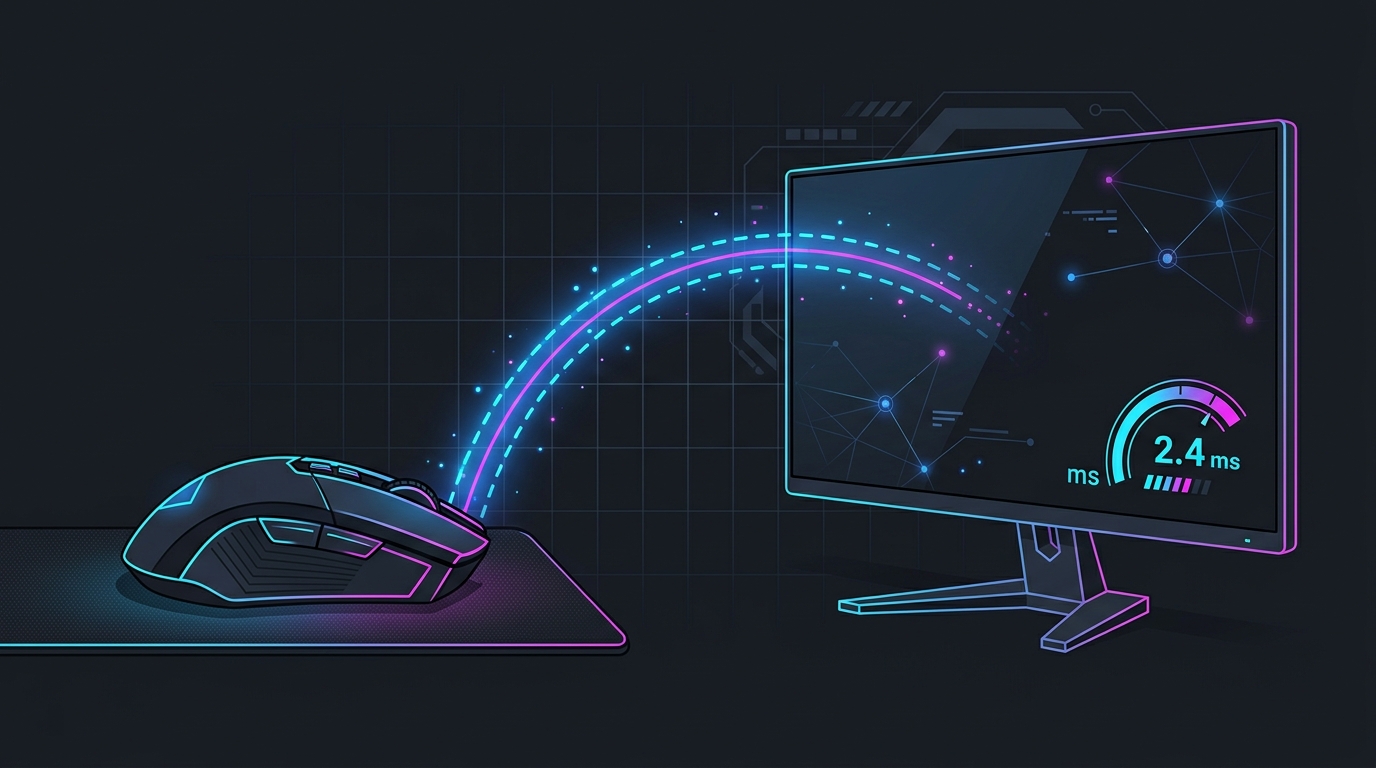
On a modern 2.4GHz gaming mouse, polling rate and dongle placement affect input lag far more than “wired vs wireless” ever will.
The short answer
A modern 2.4GHz wireless gaming mouse adds no meaningful input lag compared to a wired one. Independent latency measurements of top mice — Logitech’s Lightspeed and Razer’s HyperSpeed lines — land within a fraction of a millisecond of a cable, and several test faster than budget wired mice because their sensors and radios are simply newer and better.
The one real exception is Bluetooth, which is a different technology and genuinely slower. If you game on the included 2.4GHz USB dongle, the connection is not your bottleneck.
Where the “wireless is laggy” myth came from
Two things earned wireless its bad name, and both are largely fixed:
- Early wireless mice (2000s–early 2010s) had slow radios, low polling rates, and real, feelable lag. That experience stuck.
- Bluetooth mice — which many people tried first — poll slowly and prioritize battery life over speed. People felt Bluetooth lag and blamed “wireless” as a whole.
Dedicated 2.4GHz gaming radios changed the picture years ago. The lag people remember is real history, not current hardware.
2.4GHz vs Bluetooth: use the dongle
This is the single most important distinction:
- 2.4GHz dongle — the small USB receiver in the box. Built for gaming: high polling, low latency, stable link. Always use this for aiming.
- Bluetooth — convenient and cable-free, but higher latency and occasional micro-stutter. Fine for a laptop or office work; not for competitive play.
If your mouse supports both, connect the 2.4GHz dongle for games and leave Bluetooth for travel.
What actually affects your input lag
On a good 2.4GHz mouse, these matter far more than the connection type:
- Polling rate — how often the mouse reports position. 1000Hz = every 1ms; 4000/8000Hz shave a little more at a CPU cost. This has a bigger measurable latency effect than wired-vs-wireless. See Mouse Polling Rate Explained.
- Sensor and firmware — a current flagship sensor with up-to-date firmware is lower-latency than an old wired mouse.
- Dongle placement — a receiver buried behind the PC or in a crowded USB 3.0 hub can drop packets. Use the included extension cradle to sit it on the desk near the mouse.
- Mouse acceleration — a software setting, not a hardware one, but it distorts aim regardless of connection. Turn off mouse acceleration.
Get the lowest latency from a wireless mouse
- Connect the 2.4GHz dongle, never Bluetooth, for gaming.
- Set polling to 1000Hz (or higher if your CPU handles it) in the mouse software.
- Put the dongle on the desk with its extension cradle, in a front port, away from USB 3.0 ports and Wi-Fi routers to avoid interference.
- Update the mouse firmware for the latest radio and stability fixes.
- Tighten the rest of the input chain — a steady timer resolution via a resident tool like Tier1Suite keeps input timing and frame pacing even, so the low latency your mouse delivers isn’t wasted downstream.
Should you buy wireless for competitive gaming?
Yes — if it’s a 2.4GHz gaming model. The best wireless mice are lighter (no cable drag), just as fast, and remove the cable snag that can throw off a flick. The only reasons to stay wired are budget (wired is cheaper per performance tier) and never wanting to think about charging. Latency is no longer one of them. If you’re shopping, see the best wireless gaming mice for low input lag.
Bottom line
A modern 2.4GHz wireless gaming mouse does not add input lag you can feel or that costs you competitively — the myth is a holdover from early wireless and from Bluetooth. Use the 2.4GHz dongle, set 1000Hz polling, place the receiver well, and spend your attention on polling rate, sensor quality, and the rest of the latency chain instead of the cable. Then measure your input lag to confirm rather than guess.
Related guides
Frequently asked questions
Does a wireless mouse add input lag?
A modern 2.4GHz gaming mouse adds no meaningful input lag versus wired — independent latency tests put the best Lightspeed and HyperSpeed mice within a fraction of a millisecond of a cable, sometimes faster. The old 'wireless is laggy' reputation came from early wireless and from Bluetooth, which is genuinely slower. If you use the included 2.4GHz USB dongle at a high polling rate, wireless input lag is a non-issue for competitive play.
Is Bluetooth or 2.4GHz better for gaming mouse latency?
2.4GHz (the dedicated USB dongle) is far better for gaming. Bluetooth is built for power efficiency, not speed — it typically polls slower and adds noticeably more latency and occasional stutter, so it's fine for a laptop on the couch but not for aiming. Always game on the 2.4GHz dongle, and save Bluetooth for travel or office use.
Does polling rate matter more than wired vs wireless?
Yes. Polling rate — how often the mouse reports its position — has a bigger, more measurable effect on input lag than the connection type on a good 2.4GHz mouse. 1000Hz reports every 1ms; 4000Hz and 8000Hz shave that further at a CPU cost. A 1000Hz wireless mouse beats a 125Hz wired one, so set your polling rate before worrying about the cable.
Do I need to keep my wireless mouse charged for low latency?
Battery level doesn't change latency on most modern gaming mice — they run at full report rate until they die. What can add lag is a weak dongle signal: a dongle plugged into a crowded USB hub or hidden behind the PC. Use the included extension cradle to put the dongle near the mouse, and keep it in a front USB port for a clean 2.4GHz link.
Why does my wireless mouse feel laggy or stutter?
Usually 2.4GHz interference or a poor dongle position, not the mouse itself. A USB 3.0 port or hub near the dongle, a crowded 2.4GHz band, or the dongle plugged directly into the back of the case can cause dropouts. Move the dongle onto the desk with its extension cradle, keep it away from USB 3.0 ports and Wi-Fi routers, set 1000Hz polling, and update the mouse firmware.