How to Reduce Controller Input Lag for Gaming
Published
On this page
Controller input lag is the delay between moving your stick or pressing a button and seeing it happen on screen. On PC most of it comes from the connection type, the controller’s polling rate, extra software layers like Steam Input, and the same in-game latency settings that affect a mouse. This guide walks through each lever, from the fastest connection to Windows-level tweaks, so your pad feels snappy and consistent.
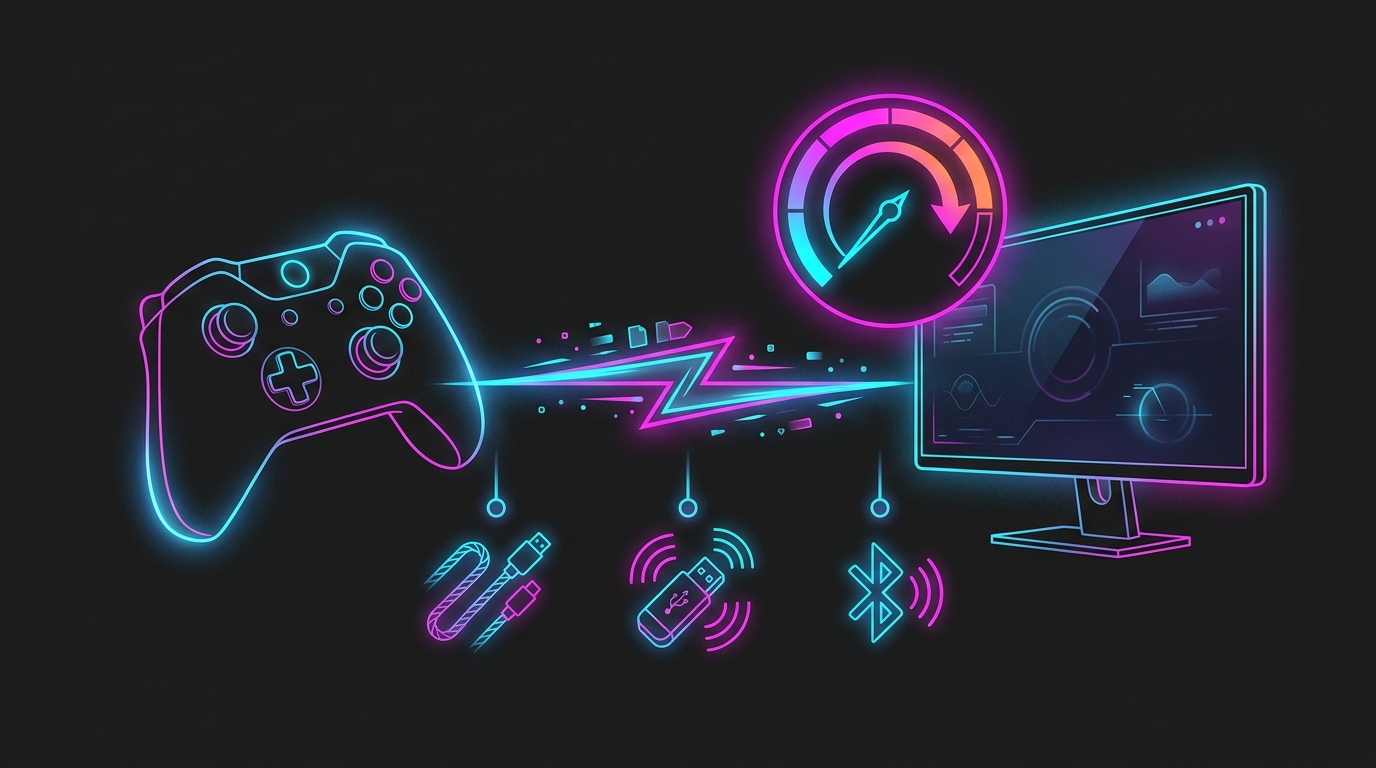
If your aim feels a beat behind your thumb, the fix is usually the connection and polling rate — not a new controller.
Pick the fastest connection
The single biggest controller-latency factor is how it connects to your PC:
- Wired USB — lowest and most consistent latency, no radio overhead, no battery. Best for competitive play.
- 2.4 GHz dongle — the controller’s own USB dongle is very close to wired and fine for almost everyone. Plug it into a rear USB port, not a hub.
- Bluetooth — the highest and least consistent latency of the three. Convenient, but avoid it when response matters.
If you’re chasing the lowest possible delay, play wired. Otherwise a dedicated 2.4 GHz dongle is the sweet spot.
Raise the polling rate to 1000 Hz
Polling rate is how often the controller reports its state. Many pads still default to 125 Hz (8 ms), which adds avoidable latency.
- Open your controller’s companion app (or a trusted community tool) and set the polling rate to 1000 Hz (1 ms) if supported.
- Confirm the rate with a polling-rate tester so you know it applied.
- On wireless, 1000 Hz may need the dongle rather than Bluetooth — another reason to skip Bluetooth.
The idea is the same as a mouse — see Mouse Polling Rate Explained for how polling affects latency.
Cut software layers: Steam Input and overlays
Every layer between the pad and the game can add delay.
- If a game supports your controller natively, disable Steam Input for that title (Properties → Controller → “Disable Steam Input”) so the game reads the pad directly.
- Keep remapping tools like Steam Input or DS4Windows only when you actually need remapping or an unsupported pad — they add a small latency cost.
- Close unnecessary overlays (Discord, browser, hardware monitors) that hook into games.
Tune deadzones and response curve
Deadzones don’t add timing latency, but a big deadzone feels like lag because small stick movements do nothing until you push past the threshold.
- Set the smallest deadzone that still eliminates stick drift.
- Use a linear or lightly adjusted response curve so aim tracks your input immediately.
- Replace a worn or drifting stick — mechanical drift forces a larger deadzone, which hurts responsiveness.
Cut in-game and display latency
These settings affect controller and mouse latency alike, so they stack on top of the fixes above:
- Cap your FPS a few frames below your monitor’s refresh so the GPU never backs up — How to Cap Your FPS Correctly.
- Turn on NVIDIA Reflex or your engine’s low-latency mode where available — NVIDIA Reflex: Should You Turn It On?.
- Set up G-SYNC/FreeSync with V-Sync off for tear-free frames without the V-Sync latency penalty — G-SYNC, V-Sync and Reflex Low-Latency Setup.
- Run Fullscreen exclusive rather than borderless for the lowest present latency — Fullscreen vs Borderless vs Windowed for Gaming.
Windows-level tweaks
- Set your power plan to High Performance so USB and CPU never idle mid-input — Best Power Plan for Gaming.
- Disable USB selective suspend so the controller port doesn’t power down.
- Keep background load low; a busy CPU adds jitter to input timing — see How to Minimize Input Delay for Competitive Gaming.
For the timing layer underneath all of this, a fine timer resolution keeps Windows polling and scheduling on an even beat — read The Ultimate Guide to Timer Resolution for Gaming and let Tier1Suite apply it automatically.
Related guides
- How to Minimize Input Delay for Competitive Gaming
- Mouse Polling Rate Explained
- NVIDIA Reflex: Should You Turn It On?
- How to Cap Your FPS Correctly
- The Ultimate Guide to Timer Resolution for Gaming
The fastest controller setup is simple: connect wired or on a 2.4 GHz dongle (never Bluetooth for competitive play), push polling to 1000 Hz, strip out unnecessary software layers, shrink your deadzone, and stack on the usual low-latency display settings. Together those changes take a mushy, delayed pad and make it feel immediate.
Frequently asked questions
Does a wired controller have less input lag than wireless?
Yes, a little. A wired USB connection is the lowest-latency and most consistent option, with no radio overhead and no battery to manage. A good 2.4 GHz dongle is very close and fine for almost everyone. The connection that clearly adds lag is Bluetooth — it has the highest and least consistent latency of the three, so prefer wired or a 2.4 GHz dongle for competitive play.
How do I lower my controller's input lag on PC?
Connect wired or via the controller's 2.4 GHz dongle instead of Bluetooth, raise its polling rate to 1000 Hz if the controller and its software support it, and avoid running the input through extra layers like Steam Input when the game already supports your pad natively. Then cut in-game delay with an FPS cap, Reflex or a low-latency mode, and V-Sync off, since those affect controller and mouse latency alike.
Does Steam Input add input lag?
It can. Steam Input remaps your controller through an extra software layer, which is great for remapping and unsupported pads but adds a small amount of latency and can conflict with games that read the controller natively. If a game supports your controller directly, disable Steam Input for that title (or launch it outside Steam) and let the game read the pad natively for the lowest delay.
What polling rate should a controller use?
1000 Hz (1 ms) if the controller and its software support it — many modern pads default to 125 Hz (8 ms) and can be raised in their companion app or via a community tool. Higher polling reports your stick and button state more often, which slightly lowers and smooths input latency. Beyond 1000 Hz the returns are tiny, so 1000 Hz is the practical target.
Do controller deadzones cause input lag?
Deadzones don't add latency in the timing sense, but a large deadzone makes the stick feel unresponsive because small movements are ignored until you push past the threshold — which reads as lag. Set the smallest deadzone that still stops stick drift, and use a linear or lightly adjusted response curve so aim tracks your input immediately.