Response Time vs Input Lag: What 1ms Actually Means
Published
On this page
Response time and input lag are two different specs, and only one of them is on the box. Monitors advertise “1ms” everywhere, but that number describes pixel transitions — not how long your monitor takes to show your input. This guide explains what each one actually measures, how much each costs you in milliseconds, and where to spend your attention if you’re chasing the lowest felt latency.
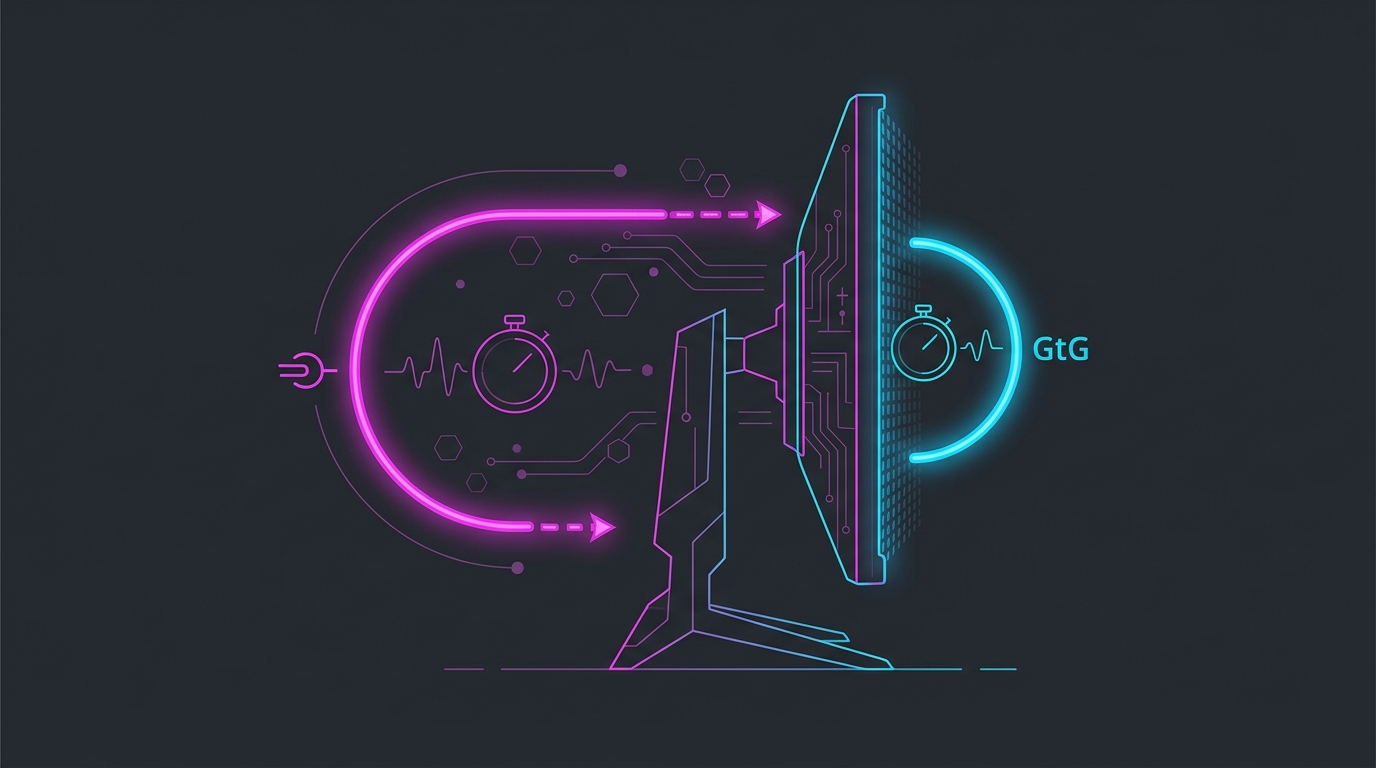
Two different stages of the same pipeline: pixel transition speed at the panel, and processing delay inside the monitor.
The one-line difference
- Response time = how fast a pixel changes from one colour to another. Measured in milliseconds, usually gray-to-gray (GtG). Affects how clean motion looks (ghosting, smearing, trails).
- Input lag (properly, display lag) = how long the monitor takes to receive a frame, process it, and light it up. Affects how late the image is.
A monitor with a fantastic 1ms GtG rating can still have sloppy display lag, and a panel with a 3–4ms rating can be one of the fastest displays you can buy. They are measured at different points in the chain and do not predict each other.
What “1ms GtG” really is
The advertised figure is a best-case transition, typically between two mid-gray shades, with overdrive turned up. Real-world transitions — especially dark-to-light — are usually slower, and average measured response times across the full range are often 2–4× the advertised number.
Worse, pushing overdrive hard enough to hit that number causes overshoot: the pixel overshoots the target value and produces a bright trailing edge, known as inverse ghosting. That looks worse than a slightly slower, properly tuned transition.
Practical takeaway: treat advertised response time as a rough class indicator, not a measurement. A “1ms” TN, a “1ms” IPS, and a “0.03ms” OLED are not on the same scale at all.
What display lag actually costs you
Display lag is the part that genuinely delays your input reaching your eyes. Rough real-world ranges:
| Display / mode | Typical added lag |
|---|---|
| OLED / high-end gaming monitor, Game Mode | ~1–3ms |
| Decent gaming monitor at native refresh | ~3–5ms |
| Office / budget monitor | ~8–15ms |
| TV with picture processing on | ~40–100ms+ |
That spread is enormous compared to the 1–2ms difference between response-time ratings. Getting a display out of a processing-heavy picture mode is worth more than any response-time upgrade.
Two things reliably reduce it:
- Enable Game Mode / PC mode in the monitor’s OSD. This bypasses motion interpolation, dynamic contrast, noise reduction, and other processing that buffers frames.
- Run the panel at its full refresh rate. Display lag is usually quoted at max refresh; running a 240Hz panel at 60Hz increases both the scan-out time and, on many monitors, the processing delay.
Where each one sits in the chain
End-to-end latency — click to photon — is roughly:
mouse sensor + polling → OS/game input handling → CPU sim → GPU render
→ render queue → display scan-out → display processing → pixel transition
Display processing is second-to-last. Pixel response is dead last. Everything ahead of them is larger and more controllable:
- Frame time itself: at 60 FPS a frame is ~16.7ms; at 240 FPS it’s ~4.2ms. See does higher FPS reduce input lag.
- A V-Sync frame queue can add a full frame or more — see G-Sync + V-Sync + Reflex, done right.
- A saturated GPU backs up the render queue; NVIDIA Reflex or an FPS cap fixes that.
- Peripheral polling: mouse polling rate and keyboard input lag.
Chasing 1ms of pixel transition while sitting on a V-Sync queue is optimising the last link of a chain whose first links are 10× longer.
So does response time matter at all?
Yes — for motion clarity, which is a real competitive advantage even though it isn’t latency.
Slow transitions leave trails behind moving enemies, which makes tracking harder at high refresh rates. That’s a visibility problem, not a timing one. If enemies smear when you flick, response time (and overdrive tuning) is your issue. If your shots feel late, response time is not.
For motion clarity specifically, the bigger lever is usually persistence, not transition speed — which is what backlight strobing / motion blur reduction addresses, and why CRTs still look so clean in motion.
How to set overdrive correctly
Most monitors expose overdrive as “Response Time / OD / Trace Free / Rampage Response” with 3–4 levels.
- Set it to the middle setting first.
- Run a moving-object test (UFO-style motion tests work well) or just strafe past a high-contrast wall in game.
- Look for a bright/white trail behind the object — that’s overshoot. Step overdrive down one level.
- Look for a dark smear behind it — that’s undershoot. Step overdrive up one level.
The correct setting is the highest level that shows no bright halo. On most panels that is not the “Extreme” mode the 1ms rating is measured in.
What to actually optimise, in order
- High, stable FPS — the single biggest latency lever.
- Monitor in Game Mode, running at full refresh rate.
- No V-Sync queue — use a VRR setup or a cap below refresh.
- A low-latency mode — Reflex / Anti-Lag 2.
- A steady system timer and clean background load — see the timer resolution guide; Tier1Suite keeps the Windows timer pinned while you play.
- Overdrive tuned properly — for clarity, not latency.
- Response-time rating — the number on the box. Last.
The short version
Response time = how the motion looks. Display lag = how late the image is. The 1ms sticker tells you almost nothing about the second one. Put the monitor in Game Mode, run it at full refresh, fix the frame queue, and tune overdrive by eye — then stop worrying about whether your panel is 1ms or 3ms.
Related guides
Frequently asked questions
Is response time the same as input lag?
No. Response time measures how fast a pixel changes colour (usually gray-to-gray, in milliseconds), which affects motion blur and smearing. Input lag — more precisely display lag — is how long the monitor takes to process an incoming frame and put it on screen. A panel can have a 1ms response time and still add 10ms+ of display lag, because they are two completely different parts of the pipeline.
Does a 1ms response time monitor reduce input lag?
Not directly. 1ms GtG makes moving objects look cleaner by shortening pixel transitions, but it does nothing about the monitor's internal processing delay. Manufacturers advertise response time because it is easy to market; display lag is rarely on the spec sheet and has to be measured by review sites. Judge a competitive monitor on measured display lag plus refresh rate, not on the 1ms sticker.
How much input lag does a monitor add?
A good modern gaming monitor adds roughly 1–4ms of display lag at its native refresh rate. A mediocre one adds 8–15ms, and a TV in a non-game mode can add 40–100ms+. That range matters far more than the difference between a 1ms and 3ms response-time rating, which is why enabling Game Mode and disabling picture processing is one of the cheapest latency wins available.
Is 1ms response time good for gaming?
It's fine, but it's mostly a marketing number. Advertised 1ms figures are typically best-case gray-to-gray transitions measured with overdrive pushed hard, which can introduce overshoot and inverse ghosting. A well-tuned 3ms panel often looks cleaner in motion than an aggressively overdriven 1ms one. Look for measured average response times from a review site instead of the box figure.
What actually lowers my total input lag?
The full chain is peripheral → PC → display. The biggest levers are high and stable FPS, a high refresh rate, a low-latency mode like NVIDIA Reflex, avoiding a V-Sync frame queue, and putting the monitor in Game Mode so it skips picture processing. Response time is at the very end of that list — it changes how the motion looks, not how quickly your click reaches the screen.