Does Higher FPS Reduce Input Lag? The Honest Answer
Published
On this page
Short answer: yes, higher FPS reduces input lag — but not for the reason most people think, and with real diminishing returns. More frames per second means each frame is produced faster and the image you’re reacting to is fresher, so your input reaches the screen sooner. This guide explains exactly how much it helps, where it stops helping, and how to make sure you’re actually getting the benefit.
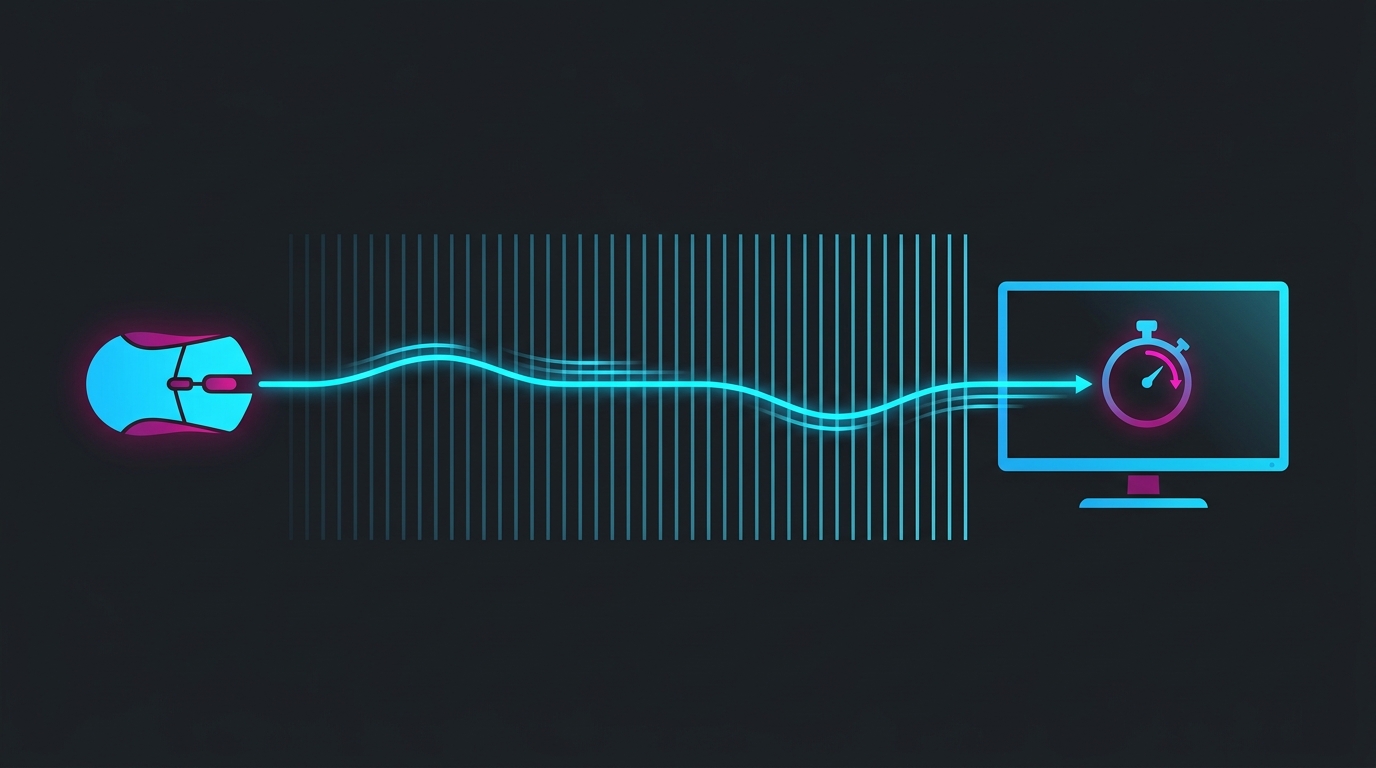
More frames means fresher frames — but V-Sync, a full render queue, or a GPU at 100% can eat the latency gain entirely.
The core relationship: frame time
Input lag is measured in milliseconds, and so is the time it takes to draw one frame. That frame time is simply:
frame time (ms) = 1000 ÷ FPS- 60 FPS → ~16.7ms per frame
- 120 FPS → ~8.3ms per frame
- 144 FPS → ~6.9ms per frame
- 240 FPS → ~4.2ms per frame
- 360 FPS → ~2.8ms per frame
Every frame is a fresh snapshot of the game world that includes your latest input. The shorter the frame time, the fresher that snapshot when it hits your screen. That’s the main way FPS lowers input lag — plus a secondary effect where a higher, steady frame rate keeps the GPU’s render queue shorter so frames don’t sit waiting.
Diminishing returns are real
Notice the gaps between those numbers. Going 60 → 120 FPS saves ~8.4ms per frame. Going 240 → 360 FPS saves only ~1.4ms. Both are improvements, but the first is worth far more latency than the second.
That’s why the jump from 60 to 144 FPS feels transformative, while 240 to 360 is a refinement most players can’t feel blind. If you’re choosing where to spend effort: getting off 60 FPS is the single biggest latency win, and everything above 144 is polish.
FPS above your refresh rate still helps
A common myth: “there’s no point running more FPS than my monitor’s refresh rate.” For visible frames, true — a 144Hz monitor shows 144 updates a second. But for input lag, extra FPS still helps, because the GPU is producing fresher frames for the monitor to grab at each refresh. Running 240 FPS on a 144Hz panel means each displayed frame is more recent than it would be at exactly 144 FPS.
The practical move competitive players use: uncap FPS, or cap it just above your refresh rate, then add a low-latency mode. That captures the freshness benefit without running the GPU flat-out (which causes heat, coil whine, and the queue problem below).
Where higher FPS does NOT help your input lag
More FPS only lowers latency if nothing else is bottlenecking it. Watch for these:
- V-Sync on — it holds finished frames in a queue to sync with refresh, adding up to a full frame (or more) of lag. High FPS can’t outrun a V-Sync queue. Use G-Sync/V-Sync/Reflex the right way instead.
- GPU at 99–100% usage — a fully saturated GPU backs up the render queue, so frames finish and then wait. Cap FPS or lower settings to keep GPU usage around 90–95%, or turn on NVIDIA Reflex / AMD Anti-Lag which cap the queue automatically.
- Already very high FPS — at 300+ FPS the per-frame savings are fractions of a millisecond; other factors (mouse, display, network) dominate.
How to actually get the latency benefit
To turn your frame rate into low input lag:
- Uncap or cap just below refresh — see the best FPS cap for low latency.
- Turn on a low-latency mode — NVIDIA Reflex or NVIDIA Low Latency Mode / AMD Anti-Lag.
- Run exclusive Fullscreen, not borderless, where the game allows it.
- Keep GPU usage under ~95% so the render queue stays shallow.
- Tighten the rest of the chain — a finer timer resolution with a resident tool like Tier1Suite steadies frame pacing and input timing, and a high-polling mouse shortens the input side.
Bottom line
Higher FPS does reduce input lag — each frame is fresher and the render queue stays shorter — and it’s one of the biggest latency levers you have. But the returns shrink fast above 144 FPS, and V-Sync or a maxed-out GPU can erase the gain entirely. Chase FPS up to a comfortable point above your refresh rate, pair it with Reflex and a sane FPS cap, and measure the result with an input-lag test rather than assuming more frames alone will do it.
Related guides
Frequently asked questions
Does higher FPS reduce input lag?
Yes. Each frame takes 1000 ÷ FPS milliseconds to produce, so at 60 FPS a frame is ~16.7ms and at 240 FPS it's ~4.2ms. More frames per second means the on-screen image is fresher and your input is sampled and shown sooner, which lowers input lag. The effect is real but has diminishing returns — going from 60 to 120 FPS cuts far more latency than 240 to 360.
How much input lag does going from 60 to 240 FPS save?
Roughly 10–15ms of end-to-end latency in most games, from the shorter frame time plus a shallower render queue. The jump from 60 to 144 FPS gives you most of that; 240 and above adds smaller, still-measurable gains. It's one of the single biggest latency levers available, which is why competitive players chase high frame rates even on a 144Hz monitor.
Does more FPS than my monitor's refresh rate still reduce input lag?
Yes, within reason. Running 240 FPS on a 144Hz monitor still lowers latency because the GPU is producing fresher frames for the monitor to grab, even though you only see 144 of them. That's why pros uncap or cap just above refresh. The catch is heat, coil whine, and wasted power at very high uncapped rates — a cap slightly above your refresh usually captures the benefit without the downsides.
Why doesn't higher FPS help my input lag?
Usually because something else is capping latency: V-Sync (which adds a queue), a GPU-bound setup running at 99–100% usage (which backs up the render queue), or a frame rate already so high that the frame-time savings are tiny. Turn on a low-latency mode like NVIDIA Reflex, cap FPS just below refresh to stay off the V-Sync queue, and keep GPU usage under ~95% to get the latency benefit of your frame rate.
Is high FPS or a high refresh monitor more important for input lag?
High FPS reduces the input-lag portion (how fresh each frame is), while a high refresh monitor reduces how long you wait to see each frame. They work together: 240 FPS on a 60Hz panel still lowers input lag but you only see 60 updates, and 240Hz with only 60 FPS shows old frames faster. For the lowest felt latency you want both high FPS and a high refresh rate.