Best Anti-Aliasing for Competitive Gaming (TAA vs DLAA vs Off)
Published
On this page
For competitive gaming, low or medium TAA (or SMAA) is the best default — it cleans up jaggies and shimmer cheaply while keeping enemies readable — with DLAA the sharpest option if your GPU has headroom. Anti-aliasing smooths the stair-step edges on distant geometry so moving targets don’t shimmer and distract you, and the right mode costs only a few frames. This guide compares TAA, DLAA, SMAA, MSAA, and no anti-aliasing for competitive play, and tells you what to actually pick.
What anti-aliasing does and why it matters competitively
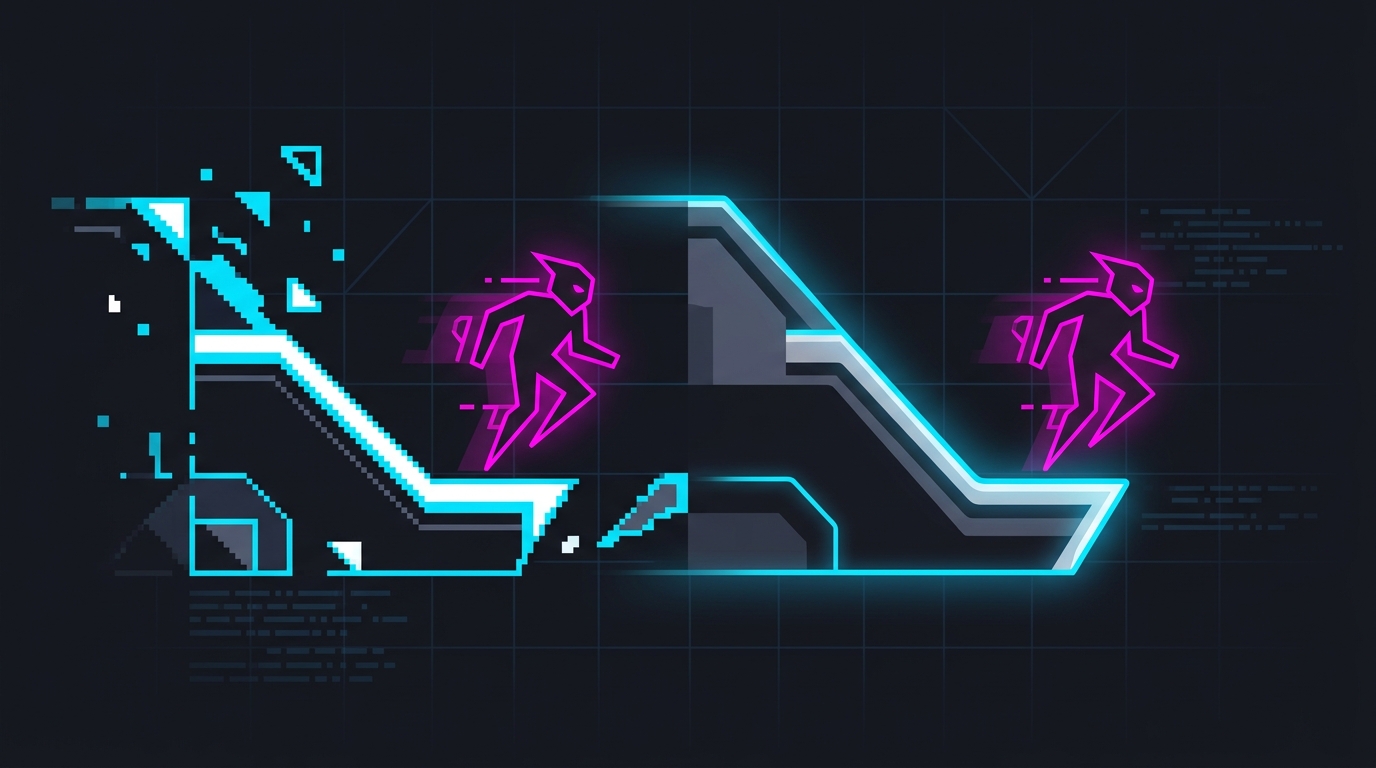
Without anti-aliasing, hard edges — a distant rooftop, an enemy’s shoulder against the sky — break into visible stair-steps called jaggies, and worse, those edges shimmer and crawl as you move. That shimmer is visual noise, and in a competitive game it fights against the one thing you need: spotting a moving player early. Anti-aliasing removes the jaggies and calms the shimmer so distant targets read cleanly.
The trade-off is that some methods soften the whole image to do it, and a softer image can make far-away enemies slightly harder to pick out. So the competitive question is not “on or off” — it is “which method keeps edges clean without blurring the detail I need?”
The methods, compared
| Method | How it works | Motion clarity | FPS cost | Best for |
|---|---|---|---|---|
| Off | No smoothing | Sharpest stills, shimmering edges | None | Weak GPUs chasing max FPS |
| SMAA | Light post-process filter | Sharp, some residual shimmer | Very low (~2-5%) | Sharpness-first players |
| TAA (low) | Blends frames over time | Clean, mild softening | Low (~3-8%) | Best all-round default |
| TAA (high) | Heavier temporal blend | Very clean, more blur in motion | Low-moderate | Players who hate shimmer |
| DLAA | AI model at native res | Cleanest and sharp | Moderate (needs RTX) | Headroom + NVIDIA GPU |
| MSAA | Samples edges directly | Clean, no blur | High in modern engines | Older/lighter games only |
FPS costs are approximate and vary by game, resolution, and GPU. The pattern holds: TAA and SMAA are cheap, DLAA costs more but looks best, and MSAA is rarely worth it in a modern deferred-rendering game.
What to actually pick
- Have an NVIDIA RTX GPU with frame headroom? Use DLAA where the game offers it — it removes jaggies at full native resolution and stays sharp, giving the best of both worlds. If you need frames instead, use DLSS at Quality, which includes its own anti-aliasing.
- Want the safest all-round setting? Use TAA on low or medium. It is available in nearly every modern game, costs few frames, and kills shimmer. If it looks too soft, drop it to the lowest TAA level.
- Hate TAA’s blur and want maximum sharpness? Use SMAA if the game has it — sharper than TAA, with some shimmer as the trade.
- On a weak GPU chasing a specific high frame rate? Turn anti-aliasing off and accept the shimmer. It is usually only a few percent of FPS, so do this only if you truly need those frames.
- Playing an older or light esports title? MSAA can look great there without the modern performance penalty.
Avoid FXAA if anything better is available — it is the cheapest option but blurs the whole image without cleanly fixing edges.
The TAA blur debate, settled
TAA gets criticized for making games look soft, and the complaint is fair — because it blends information from previous frames, fast motion can smear fine detail, which is exactly the wrong thing when you are tracking a far target. But the fix is usually not “turn all AA off.” It is:
- Lower the TAA level if the game exposes it — most of the shimmer reduction remains with less blur.
- Switch to SMAA or DLAA where available for a sharper result.
- Add a small sharpening pass — many GPUs and games offer image sharpening that counteracts TAA softening without reintroducing jaggies.
Test any change with an FPS overlay on and, more importantly, judge it in motion against a moving target — a still screenshot flatters every method and hides exactly the smearing that matters competitively.
Anti-aliasing and your frame rate
Anti-aliasing does not touch input lag directly — it changes how edges are smoothed, not how fast your clicks register. It only matters to latency through frame rate: an expensive mode like MSAA can lower FPS enough to add a little lag, while cheap TAA and SMAA have a negligible effect. Pick anti-aliasing on image quality, then recover any lost frames the usual way — cap your FPS correctly, enable a low-latency mode, and set a 0.5ms timer resolution so the whole latency chain stays tight.
The bottom line
There is no single “best” anti-aliasing — there is the best for your GPU and your tolerance for softness. Low/medium TAA or SMAA is the right default for most competitive players, DLAA is the quality pick if you have an RTX card and headroom, and off is a valid choice only when you need every frame and shimmer does not bother you. Whatever you choose, judge it in motion, not in a screenshot.
Related guides
Frequently asked questions
What is the best anti-aliasing for competitive gaming?
For most competitive players, low or medium TAA, or SMAA where a game offers it, gives the best balance of clean edges and readable motion at a small FPS cost. If your GPU has headroom and the game supports it, DLAA is the sharpest option because it removes jaggies without the smeary blur TAA can add. Turning anti-aliasing fully off gives the most frames and sharpest still image but leaves shimmering edges that can distract during movement.
Is TAA bad for competitive gaming?
TAA is not bad, but it has a real trade-off: it removes jaggies and shimmer very cheaply, yet it softens the image and can smear fine detail in motion, which some players dislike for spotting distant enemies. If a game lets you set TAA to low, that usually keeps most of the anti-aliasing while reducing the blur. If TAA looks too soft, SMAA or DLAA are sharper alternatives depending on what the game supports.
Should I turn off anti-aliasing for more FPS?
Only if you need the frames and can tolerate shimmering edges. Anti-aliasing usually costs a modest amount of FPS — often 3-10% for TAA/SMAA and more for MSAA — so turning it off is a small performance gain, not a huge one. For most players the readability of clean edges is worth the small cost. Turn it off when you are chasing a specific high frame rate on weaker hardware and edge shimmer does not bother you.
What is the difference between TAA, DLAA, SMAA, and MSAA?
TAA (temporal) blends multiple frames to smooth edges cheaply but can blur motion. SMAA is a light post-process filter that stays sharp but handles shimmer less completely. MSAA samples edges directly for a clean look but is very expensive in modern games. DLAA uses NVIDIA's AI upscaling model at full native resolution to remove jaggies while keeping the image sharp, at a higher GPU cost than TAA. Availability differs per game and GPU.
Does anti-aliasing affect input lag?
Not directly. Anti-aliasing changes how edges are smoothed, not how quickly your inputs register. It only affects input lag indirectly: a very expensive mode like MSAA can lower your frame rate, and lower FPS means slightly higher latency. Cheap modes like TAA and SMAA have a small enough FPS cost that their latency impact is negligible. Choose anti-aliasing on image quality, not latency.