Anisotropic Filtering On or Off for Gaming? (2x vs 16x)
Published
On this page
Turn anisotropic filtering on and set it to 16x — it sharpens angled surfaces like floors and roads into the distance for a near-zero FPS cost, so there’s almost never a reason to lower it. Anisotropic filtering (AF) is one of the cheapest, highest-value graphics settings, yet many players leave it low out of habit. This guide explains what AF does, why 16x is the near-universal answer, and the rare cases where dialing it back makes sense.
What anisotropic filtering does
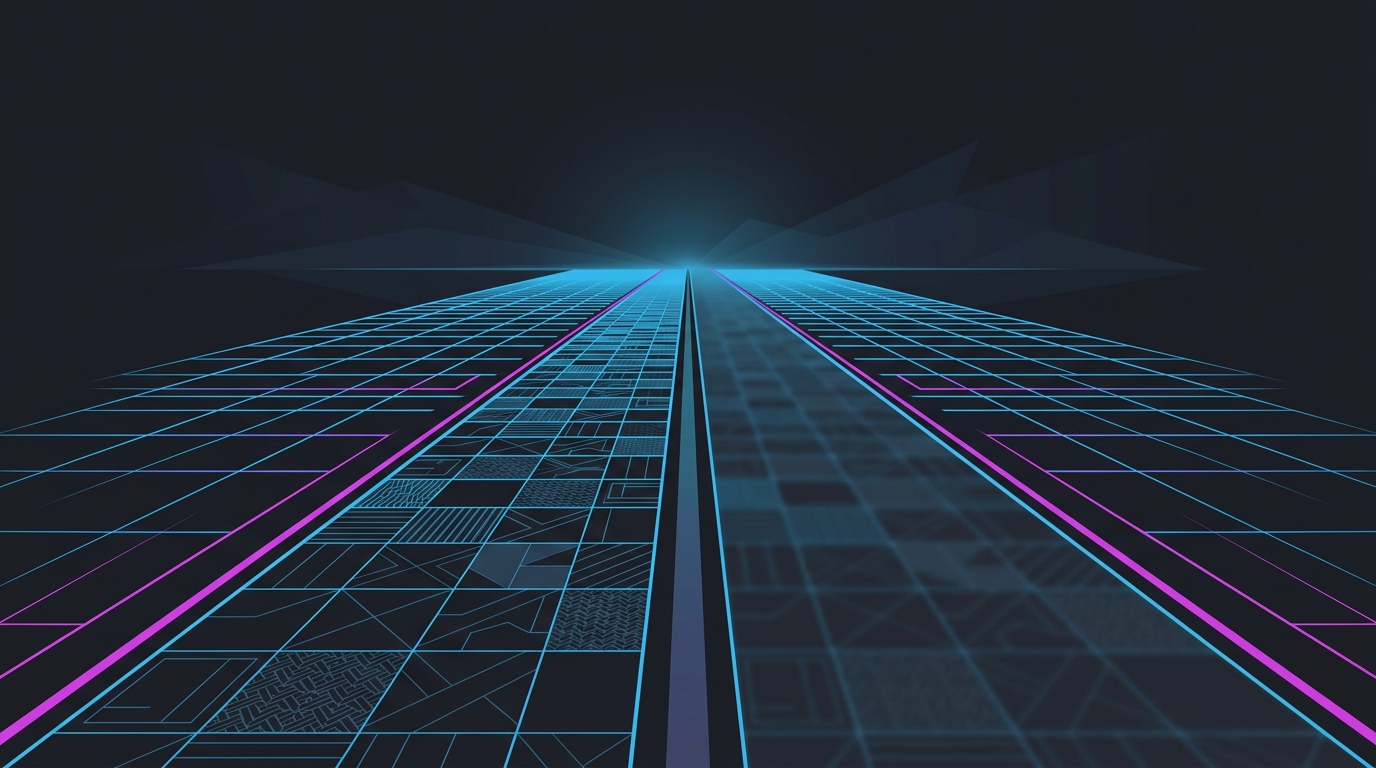
When you look at a texture that stretches away from you — a road, a hallway floor, a runway — the surface is viewed at a steep angle, and older/basic texture filtering blurs it into a muddy smear well before the horizon. Anisotropic filtering sharpens those angled surfaces, keeping the texture detail crisp much further into the distance.
The effect is easiest to see by looking down a long floor or road: without AF, the detail dissolves a few meters out; with 16x AF, it stays sharp almost to the vanishing point. It does not affect surfaces you’re looking at straight-on — only the angled ones, which is exactly where the blur was worst.
Anisotropic filtering levels, compared
| Level | Distant angled detail | FPS cost | Recommendation |
|---|---|---|---|
| Off / 1x | Blurs out quickly | None | Avoid — free quality left on the table |
| 2x | Slight improvement | Negligible | Only on ancient hardware |
| 4x | Decent mid-distance | Negligible | Acceptable minimum |
| 8x | Sharp, near-16x look | ~1% | Good if squeezing frames |
| 16x | Sharp to the horizon | ~1-3% | Default choice for everyone |
The pattern is clear: the FPS cost stays tiny all the way up to 16x, while the image keeps improving. That combination — big visual gain, almost no performance hit — is why 16x is the standard recommendation across essentially every game and GPU.
Why 16x is almost always right
Modern GPUs have dedicated texture-mapping hardware that performs anisotropic filtering extremely efficiently, so maxing it out barely moves your frame rate. Unlike shadows, ray tracing, or volumetric effects — where max settings can cost 20-50% of your FPS — AF at 16x typically costs a few percent at most.
That makes AF a “set it and forget it” setting: crank it to 16x, and spend your real FPS budget lowering the heavy settings instead. It also has no downside for competitive play — sharper distant ground textures never hurt, and there is no input-lag cost.
The rare cases to lower it
There are only a couple of situations where dropping AF below 16x is reasonable:
- Very old or extremely weak GPUs (integrated graphics, decade-old cards) chasing every last frame. Even here, 8x looks nearly identical to 16x for a hair more performance, so drop to 8x before going lower.
- A specific game with a broken AF implementation that costs more than it should — rare, but if you measure a real FPS hit, force 16x in the driver (NVIDIA Control Panel or AMD Adrenalin) instead, which is often more efficient than the in-game option.
For everyone else on modern hardware, leave it at 16x.
Where to set it
Set anisotropic filtering to 16x in-game if the option exists (sometimes labeled “Texture Filtering Quality”). If a game has no AF setting or applies it weakly, force 16x in the driver:
- NVIDIA: Control Panel → Manage 3D Settings → Anisotropic filtering → 16x. See Best NVIDIA Control Panel Settings for Gaming.
- AMD: Adrenalin → Graphics → Anisotropic Filtering → 16x.
Don’t set it in both the game and the driver expecting them to add up — they don’t stack, and the higher value applies. Pick one place and set 16x.
Related guides
- Best Anti-Aliasing for Competitive Gaming (TAA vs DLAA vs Off)
- Is DLDSR Worth It for Gaming? (DLDSR vs DSR vs Native)
- Best NVIDIA Control Panel Settings for Gaming
- Should You Turn Off Ray Tracing for Competitive Gaming?
- How to Minimize Input Delay for Competitive Gaming
- The Ultimate Guide to Timer Resolution for Gaming
Frequently asked questions
Should anisotropic filtering be on or off for gaming?
Turn anisotropic filtering on, and set it to 16x. AF sharpens textures on surfaces viewed at an angle — floors, roads, walls stretching into the distance — and on modern GPUs its FPS cost is nearly zero, usually under 1-2%. There is almost no reason to turn it off. The only time to lower it is on very old or extremely weak hardware where every fraction of a frame counts, and even then 8x looks nearly identical to 16x.
Does anisotropic filtering affect FPS?
Barely. On any modern GPU, going from off to 16x anisotropic filtering costs roughly 1-3% of your frame rate at most, and often less than that. AF is one of the cheapest image-quality settings there is because the hardware has dedicated texture units to do it. This is why it is safe to max out even while you lower heavier settings like shadows, ray tracing, and volumetrics to chase frames.
What is the difference between 2x, 4x, 8x, and 16x anisotropic filtering?
The number is how aggressively the GPU sharpens textures viewed at steep angles — higher keeps distant surfaces crisp further into the distance. 2x sharpens a little, 16x keeps floors and roads sharp almost to the horizon. The visual jump from 8x to 16x is small, but because the performance cost of 16x is still tiny, 16x is the standard recommendation. Below 8x you start to see textures blur out noticeably in the mid-distance.
Does anisotropic filtering add input lag?
No. Anisotropic filtering changes how textures are sampled on angled surfaces; it does not add a latency pass and does not measurably affect input lag. Its FPS cost is so small that any indirect latency change from frame rate is negligible. You can set AF to 16x for competitive gaming without any input-lag concern — choose it purely on image quality and the tiny performance cost.
Should I set anisotropic filtering in-game or in the NVIDIA/AMD control panel?
Either works, but in-game is usually simplest. If a game exposes an anisotropic filtering or texture filtering quality setting, set it to 16x there. If a game has no AF option or applies it weakly, force 16x in the NVIDIA Control Panel (Manage 3D Settings → Anisotropic filtering) or AMD Adrenalin — the driver override reliably applies it. Don't set it in both places expecting them to stack; the higher of the two applies.