Is DLDSR Worth It for Gaming? (DLDSR vs DSR vs Native)
Published
On this page
DLDSR is worth it in slower single-player games where you have GPU headroom and want a sharper image than native — but skip it in competitive shooters, where it trades frames for quality you don’t need. DLDSR (Deep Learning Dynamic Super Resolution) renders the game above your monitor’s resolution and uses NVIDIA’s AI to shrink it back down, removing shimmer and sharpening detail. This guide compares DLDSR, older DSR, and plain native resolution, covers the FPS and input-lag cost, and tells you when to use it.
What DLDSR actually does
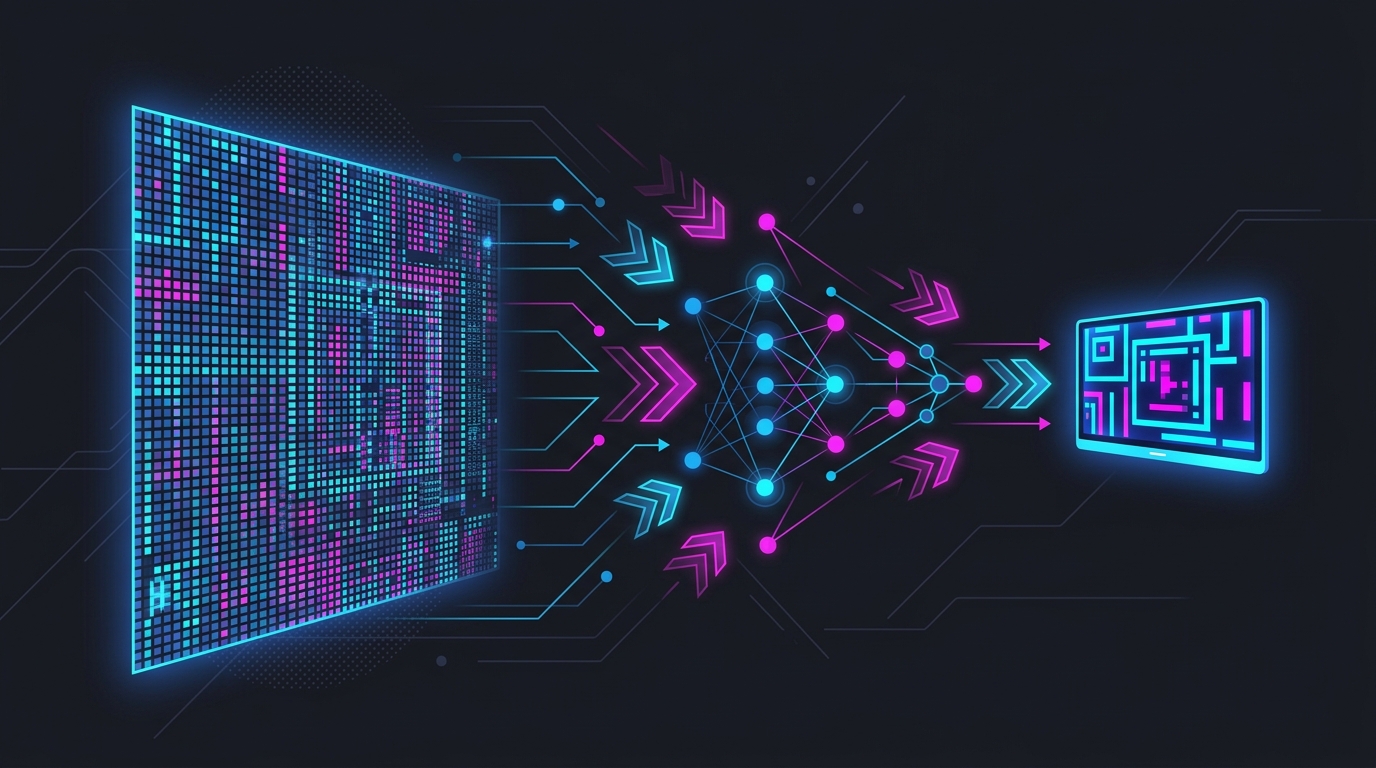
Downsampling means rendering a game at a resolution higher than your screen, then scaling it back down to fit. Averaging all those extra pixels into your monitor’s grid removes jagged edges and shimmer and reveals fine detail — it is one of the best-looking forms of anti-aliasing, at the cost of rendering more pixels.
- DSR (Dynamic Super Resolution) is the original brute-force version: 4x DSR renders four times the pixels, which looks superb but is very expensive.
- DLDSR (Deep Learning DSR) uses an AI network to reconstruct the downscaled image, so a smaller 2.25x multiplier looks close to old 4x DSR while costing far fewer frames. On RTX cards, DLDSR replaces DSR for most people.
Both are enabled in the NVIDIA Control Panel → Manage 3D Settings → DSR - Factors, after which the higher resolution appears in each game’s resolution list.
DLDSR vs DSR vs native, compared
| Native | DLDSR 2.25x | DSR 4x | |
|---|---|---|---|
| Image sharpness | Baseline | Noticeably sharper | Sharpest |
| Shimmer / aliasing | Present | Strongly reduced | Strongly reduced |
| FPS cost | None | ~20-35% | ~50-60% |
| Best hardware | Any | RTX 20-series and newer | High-end, any brand |
| Input lag | Lowest | Slightly higher | Higher |
| Best for | Competitive, low FPS | Single-player with headroom | Screenshots, light games |
FPS costs are approximate and vary by game and GPU. The takeaway: DLDSR gets you most of DSR’s quality for roughly half the cost, which is why it is the sensible downsampling choice on modern NVIDIA cards.
When DLDSR is worth it
Use DLDSR when image quality matters more than raw frame rate and you have performance to spare:
- Slower single-player games — RPGs, action-adventures, strategy, sim titles where a sharper, shimmer-free image is pure upside.
- Older or light games that already run far above your refresh rate — spend the spare frames on clarity.
- The DLDSR + DLSS combo — set a DLDSR resolution, then turn on DLSS at Quality to upscale from a lower internal resolution. You recover much of the FPS while keeping a sharper-than-native result. This is the trick that makes downsampling affordable.
Start with DLDSR 2.25x and a smoothness of 50-75% (NVIDIA’s 33% default over-sharpens), then judge by eye.
When to skip DLDSR
Skip it — run native resolution — when frames and latency matter most:
- Competitive shooters and battle royales. DLDSR lowers your FPS for sharpness that doesn’t help you win duels, and lower FPS means slightly higher latency. Native + high FPS is the competitive default.
- When your frame rate is already marginal. DLDSR only makes sense with headroom; if you’re fighting for frames, it’s the wrong lever — lower settings or use upscaling instead.
- If you’d rather use that GPU budget on high refresh rate. Feeding a 240Hz or 360Hz monitor with high FPS does more for competitive play than a sharper still image.
For the lowest input lag, native resolution and a high, stable frame rate beat any downsampling mode.
Related guides
Frequently asked questions
Is DLDSR worth it for gaming?
DLDSR is worth it in slower single-player games where you have spare GPU headroom and want a sharper, cleaner image than native resolution. It renders the game at a higher resolution and shrinks it down, which removes shimmer and sharpens detail for a modest FPS cost. It is usually not worth it in competitive shooters, because it lowers your frame rate for visual quality you do not need while aiming. Try DLDSR 2.25x with the smoothness slider around 50-75% first.
What is the difference between DLDSR and DSR?
DSR (Dynamic Super Resolution) renders the game at a higher resolution and downscales it, which looks great but is expensive — 4x DSR means rendering four times the pixels. DLDSR (Deep Learning DSR) uses NVIDIA's AI to get similar or better image quality from a smaller multiplier, so DLDSR 2.25x looks close to DSR 4x while costing far fewer frames. On RTX cards, DLDSR is the better-value option and largely replaces old DSR.
Does DLDSR reduce FPS?
Yes. DLDSR renders the game at a higher internal resolution before shrinking it to your monitor, so it always costs frames — DLDSR 2.25x typically drops FPS by roughly 20-35% depending on the game and GPU. That is why it suits games where you already have headroom rather than titles where you are fighting for every frame. If your FPS is already marginal, DLDSR is the wrong tool; use it only with performance to spare.
Does DLDSR add input lag?
Only indirectly. DLDSR does not add a latency pass of its own, but by lowering your frame rate it raises latency slightly, because lower FPS means each frame — and your inputs — arrive a little later. The effect is small at high frame rates and larger if DLDSR pushes you well below your refresh rate. For the lowest latency in competitive play, run native resolution and high FPS instead of DLDSR.
Can I use DLDSR with DLSS?
Yes, and it is a popular combo: DLDSR raises the output resolution while DLSS upscales from a lower internal resolution to hit it, so you get much of DLDSR's clarity back at a lower FPS cost. It is often called DLDSR + DLSS or 'the DLDSR trick'. Results vary per game, but on RTX cards it can look sharper than native while staying playable. Test DLDSR 2.25x with DLSS Quality and compare to native.
What DLDSR smoothness setting should I use?
Start with the DLDSR smoothness slider at about 50-75% (NVIDIA's default is 33%, which can look over-sharpened). Lower smoothness means more sharpening and more shimmer; higher smoothness softens the image and hides ringing artifacts. There is no single correct value — set it per game by eye until edges look clean without an artificial, over-sharpened halo. Enable DLDSR in the NVIDIA Control Panel first, then pick the DLDSR resolution in-game.