Stretched Resolution With Dual Monitors: Fix the Second-Screen Problem
Published
On this page
Stretched resolution works fine on a dual-monitor setup — you just apply the custom resolution to your primary gaming monitor only, run the game in exclusive Fullscreen, and set GPU scaling to Full-panel. The classic dual-monitor problems (a black second screen, the game snapping back to native, the cursor sliding onto the wrong display) all trace back to Borderless/Windowed mode and global scaling, not to the second monitor itself. This guide fixes each one.
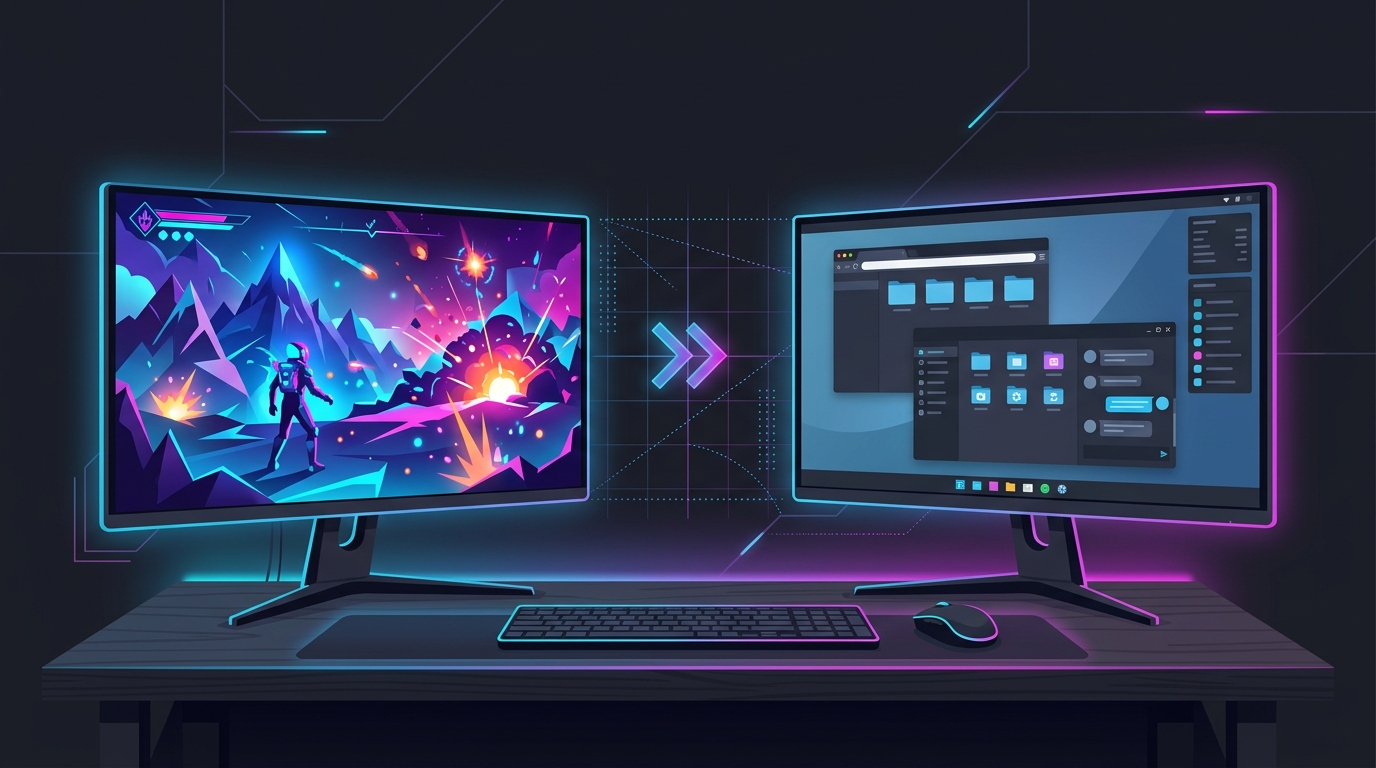
The core rule: stretch the primary, leave the secondary native
A custom stretched resolution like 1728×1080 or 1280×960 belongs to one display — your main gaming monitor. Your second monitor should stay at its native resolution and refresh rate. Windows treats each monitor independently, so there is no reason to change the second screen at all.
Where people go wrong is creating the stretched resolution and then wondering why the second monitor misbehaves. It misbehaves because of how the game presents the image, which is what the rest of this guide fixes.
Dual-monitor problems and their fixes
| Symptom | Real cause | Fix |
|---|---|---|
| Second monitor goes black / “no signal” | Borderless mode re-arranges the desktop on resolution change | Run the game in exclusive Fullscreen |
| Game resets to native on alt-tab | Borderless hands the display back to the desktop every tab-out | Fullscreen + on-boot stretched profile |
| Cursor slides onto the second monitor | Pointer not locked to the game window | Fullscreen or the game’s “lock cursor” option |
| Stretched image has black bars | GPU scaling set to aspect-ratio | Full-panel / Full-screen GPU scaling |
| Second monitor flickers on launch | Display topology change when primary switches modes | Set stretched res as the desktop default, or disable the 2nd screen |
Fix 1 — Run the game in exclusive Fullscreen
This single setting solves most dual-monitor stretched-resolution problems. In Borderless or Windowed mode the game is really a desktop window, so every resolution change, alt-tab, or focus loss makes Windows re-lay-out both monitors — that’s the black-screen flicker and the reset.
Exclusive Fullscreen takes ownership of only the primary display’s mode. The second monitor is untouched, the cursor is confined to the game, and the stretched resolution holds. Set Display Mode → Fullscreen in the game’s video options, not Borderless.
Fix 2 — Set GPU scaling to Full-panel on the primary
If your stretched resolution shows black bars instead of filling the screen, the GPU is preserving aspect ratio. Force it to stretch:
- NVIDIA: Control Panel → Adjust desktop size and position → select your primary monitor → Scaling mode Full-screen, Perform scaling on GPU, and tick Override the scaling mode set by games and programs.
- AMD: AMD Software → Display → turn GPU Scaling On and set Scaling Mode → Full Panel for the primary monitor.
Because you selected the primary monitor before applying, the second screen keeps its normal scaling. For a deeper walk-through see how to fix black bars with stretched resolution.
Fix 3 — Stop the resolution resetting
If the stretched resolution keeps reverting — on reboot, on alt-tab, or after a driver update — two things lock it in:
- Exclusive Fullscreen (Fix 1) so tabbing out doesn’t hand the display back.
- An auto-reapply profile so the resolution restores itself instantly. Doing this by hand through NVIDIA Control Panel or CRU every session is slow, and a single reset mid-match is a lost round.
Tier1Stretch creates the custom stretched resolution and reapplies it with a hotkey (or automatically on launch), so a reset costs you one keypress instead of a menu dive. If your resolution won’t stick at all, see stretched resolution keeps resetting fix.
Fix 4 — Cursor drift onto the second monitor
In a stretched competitive game, the last thing you want is your crosshair-flick sending the mouse onto the second display. Two clean fixes:
- Exclusive Fullscreen locks the pointer to the primary monitor automatically.
- If the game only offers Borderless, enable its “lock cursor to window” / “confine cursor” option (many shooters have one), or disable the second monitor for the session.
To toggle the second screen off fast, press Win+P and choose “PC screen only” — then Win+P → Extend to bring it back afterward.
Fix 5 — Flicker or topology changes on launch
Some setups flash the second monitor black for a second whenever the game switches the primary into stretched mode. This is Windows re-scanning the display topology. Two ways to stop it:
- Set the stretched resolution as your desktop default so the primary never has to switch modes when the game launches — the game just adopts the resolution already active.
- Or disable the second monitor during play (Win+P → PC screen only). This removes topology changes entirely and is what many competitive players do for ranked.
Quick setup checklist
- Create the stretched custom resolution for your primary monitor only.
- Set GPU scaling → Full-panel (NVIDIA override / AMD Full Panel) on the primary.
- In-game: Display Mode → exclusive Fullscreen.
- Leave the second monitor at native resolution.
- Set an auto-reapply profile (or the stretched res as your desktop default) so it survives reboots and alt-tabs.
- Optional: Win+P → PC screen only to remove cursor drift and flicker during ranked.
Related guides
Frequently asked questions
Can you use stretched resolution with dual monitors?
Yes. Apply the stretched custom resolution only to your primary gaming monitor and leave the second monitor at its native resolution. The problems people hit — a black second screen, the game resetting to native, or the cursor sliding onto the wrong display — come from GPU scaling and Windowed/Borderless mode, not from having two monitors. Set GPU scaling to Full-panel on the primary, run the game in exclusive Fullscreen, and both screens behave.
Why does my second monitor go black when I apply stretched resolution?
A black or signal-lost second monitor almost always means the game is running in Borderless or Windowed mode and Windows briefly re-arranges the desktop when the primary switches to the stretched resolution. Switch the game to exclusive Fullscreen so only the primary display mode changes, and make sure the custom resolution is created for the primary monitor only, not applied globally.
How do I stop stretched resolution from resetting when I alt-tab on two monitors?
Alt-tab resets are worst in Borderless mode because the game hands the display back to the desktop every time you tab out. Run the game in exclusive Fullscreen, enable 'Override the scaling mode set by games and programs' in the NVIDIA Control Panel (or Full Panel GPU scaling on AMD), and set an on-boot stretched profile so the resolution reapplies automatically. Tier1Stretch reapplies your stretched resolution instantly so a reset costs you one hotkey, not a menu dive.
My mouse cursor slides onto the second monitor during a stretched game — how do I fix it?
Cursor drift onto a second monitor happens in Borderless/Windowed because the pointer isn't locked to the game window. Use exclusive Fullscreen, which confines the cursor to the primary display, or enable the game's 'lock cursor to window' option. Some players disable the second monitor entirely while playing competitively to remove the problem completely.
Should I disable my second monitor for competitive gaming?
You don't have to, but disabling it removes cursor drift, stops the second screen from waking or flickering on resolution changes, and frees a small amount of GPU overhead. If you use the second screen for Discord, a stream, or stats, keep it on and rely on exclusive Fullscreen instead. Pressing Win+P and choosing 'PC screen only' is a fast way to toggle it off before a ranked session.