Best Stretched Resolution for Valorant — 1280×960, 1440×1080 & Setup
Updated Published
On this page
Plenty of Radiant and pro Valorant players run stretched resolution because it widens enemy models and can make tracking feel easier. Valorant doesn’t have a true in-game stretched mode, so you force it with GPU scaling. This guide covers the best stretched res values and the exact setup so it applies cleanly.
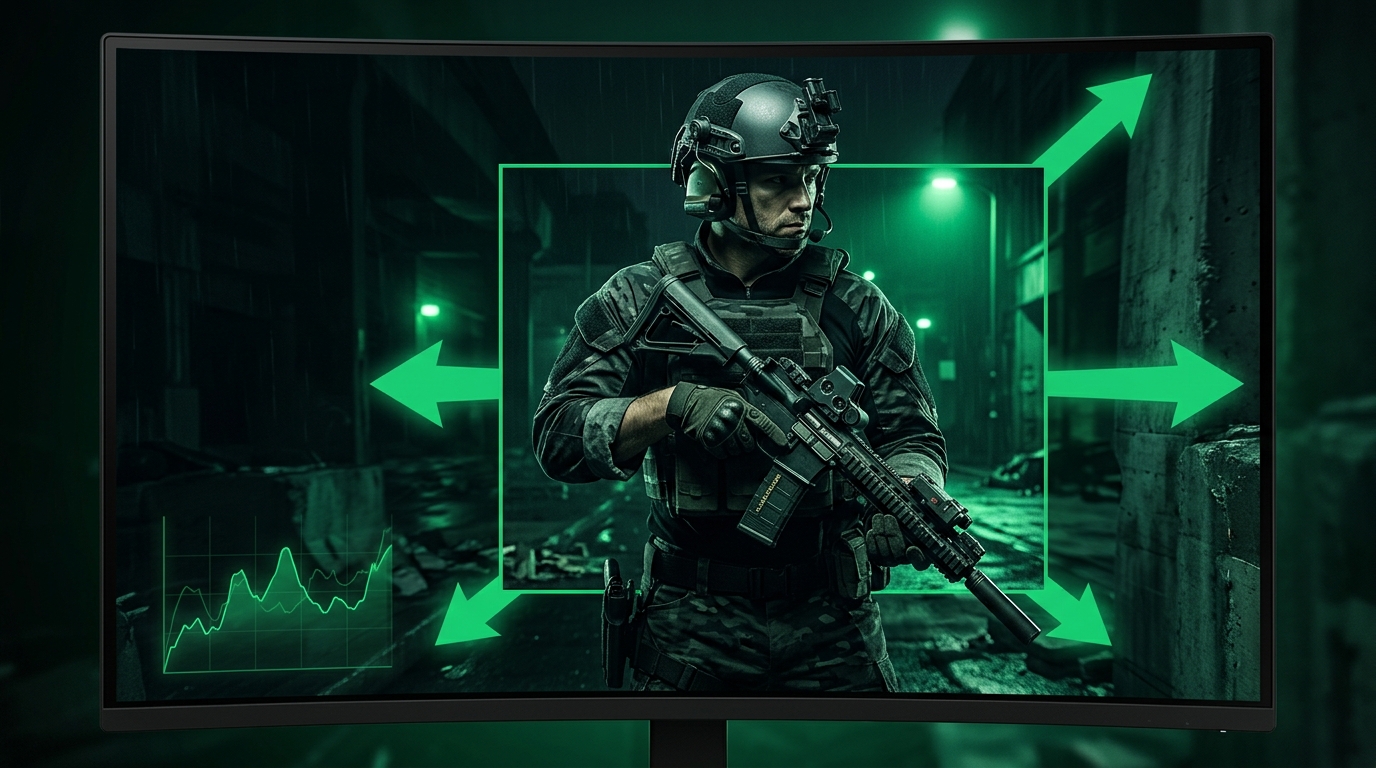
Stretched res is a preference, and Vanguard is fine with GPU-level scaling — this is a display setting, not a cheat. Test it against native and keep what feels better.
Best stretched resolutions for Valorant
| Base resolution | Stretched to | Aspect | Feel |
|---|---|---|---|
| 1280 x 960 | 1920 x 1080 | 4:3 | Widest models, classic stretch |
| 1440 x 1080 | 1920 x 1080 | 4:3 | Wide models, slightly sharper |
| 1680 x 1050 | 1920 x 1080 | 16:10 | Subtle stretch |
1280 x 960 and 1440 x 1080 are the popular 4:3 choices. Valorant runs at very high FPS anyway, so most players pick based on feel rather than performance.
Skip the manual setup: Tier1Suite creates this custom resolution and sets full-panel GPU scaling for you, with a 15-second auto-revert if anything looks off. Get Tier1Suite free →
Step 1 – Create the custom resolution
NVIDIA
- NVIDIA Control Panel → Change resolution → Customize → Create Custom Resolution.
- Enter
1440 x 1080(or1280 x 960) at your refresh rate, test, and save.
AMD
- AMD Software → Settings → Display → Custom Resolutions → Create.
- Add your chosen base resolution at your refresh rate and save.
Step 2 – Force full-screen GPU scaling (this is the key step)
Without this, Valorant shows pillarbox black bars instead of a stretched image.
NVIDIA
- Adjust desktop size and position → Scaling mode: Full-screen.
- Perform scaling on: GPU.
- Tick Override the scaling mode set by games and programs and Apply.
AMD
- Display → GPU Scaling: On, Scaling Mode: Full Panel.
Step 3 – Apply it in Valorant
- Launch Valorant → Settings → Video → General.
- Set Display Mode to Fullscreen (not Windowed Fullscreen — stretched won’t apply there).
- Set Resolution to your custom res (e.g.
1440 x 1080). - Apply.
How to Get True Stretched Res in Valorant
“True stretched res” (or just true stretch) is the community’s term for a fully stretched image: the game world and the HUD fill your entire monitor, with zero black bars or letterboxing. The opposite — what players call fake or partial stretch — is when Valorant pillarboxes the image with bars at the sides, or the resolution changes but the picture stays boxed in the middle because nothing is actually scaling it to the panel.
The difference isn’t a special resolution — it’s who does the scaling. Valorant has no native stretched mode, so if the GPU isn’t forcing full-screen scaling, you don’t get true stretch. Steps 1–3 above are exactly the true stretch method; here’s the checklist that separates true stretch from a fake one:
- Custom resolution created at the GPU level — e.g.
1280 x 960or1440 x 1080(Step 1). Any 4:3 res becomes a true stretched res once the scaling below is in place. - GPU scaling forced to Full-screen — NVIDIA: Scaling mode Full-screen, performed on GPU, with Override the scaling mode set by games and programs ticked. AMD: GPU Scaling On + Full Panel (Step 2). Aspect ratio scaling gives you bars, not true stretch.
- Valorant in exclusive Fullscreen — Windowed Fullscreen ignores GPU scaling and is the most common reason a “stretched” setup isn’t truly stretched (Step 3).
- Monitor OSD scaling set to Full/Wide — if the monitor itself is set to Aspect Ratio, it re-letterboxes the image after the GPU stretched it.
When all four line up, 1280 x 960 and 1440 x 1080 are true stretched resolutions — the full image, edge to edge. If any one is off, you’re back to bars or a half-applied stretch, which the next section troubleshoots.
If you still get black bars
This is the #1 issue and it’s nearly always the scaling step:
- Display Mode is Windowed Fullscreen — switch to Fullscreen.
- NVIDIA scaling is set to Aspect ratio instead of Full-screen, or “Override” is unticked.
- AMD GPU Scaling is off, or Scaling Mode isn’t Full Panel.
- Your monitor’s own scaling is overriding the GPU — set the monitor’s OSD aspect/scaling to Full.
Stretched res and Valorant performance
Valorant is light, so stretched res is about feel more than FPS. If you’re chasing maximum frames and lowest latency anyway, see Best Valorant Settings for FPS and Low Input Delay and keep NVIDIA Reflex on.
Related guides
- Best Valorant Settings for FPS and Low Input Delay
- How To Get Custom Resolution / Stretch Res for Fortnite, Apex Legends, Halo, and any other game
- How to Minimize Input Delay for Competitive Gaming
- How to Optimize Your Monitor for Gaming
- Best Monitor for Valorant
The best Valorant stretched resolution comes down to 1280 x 960 or 1440 x 1080 with full-screen GPU scaling and Valorant set to Fullscreen. Nail the scaling step and the black bars disappear for good.
Frequently asked questions
How do I get stretched resolution in Valorant?
Valorant does not have a native stretched mode, so you force it at the GPU level. Create a custom resolution such as 1440x1080 or 1280x960 in NVIDIA Control Panel or AMD Software, enable full-screen GPU scaling, then launch Valorant and set Display Mode to Fullscreen and Resolution to your custom res. Windowed Fullscreen will not apply the stretch.
Does stretched resolution boost FPS in Valorant?
The FPS gain in Valorant is usually smaller than in heavier games because Valorant is already well-optimized and most systems are CPU-limited at high frame rates. Running 1280x960 does reduce the pixel load on your GPU, so you may see a modest improvement. Most Valorant players choose stretched res for the wider enemy models and aim feel rather than a significant FPS jump.
Is stretched resolution bannable in Valorant?
No. GPU-level scaling is a display setting and Vanguard does not flag it. The guide on this page notes that Vanguard is fine with GPU-level scaling because you are not modifying game files or injecting into the game process. It is a standard feature of NVIDIA and AMD drivers used by players at every rank.
What stretched resolution do Valorant pros use?
1280x960 and 1440x1080 are the most common pro choices, both running a 4:3 aspect ratio for the widest possible player models. Some players prefer 1680x1050 for a subtler 16:10 stretch that keeps more detail while still widening models slightly. Because Valorant runs at very high FPS on most rigs, the choice is almost entirely about aim feel rather than performance.
How do I get true stretched res in Valorant?
True stretched res means the game and HUD fill the entire monitor with no black bars. To get it, create a custom resolution such as 1280x960 or 1440x1080 in NVIDIA Control Panel or AMD Software, force GPU scaling to Full-screen (NVIDIA: Scaling mode Full-screen, perform scaling on GPU, Override ticked; AMD: GPU Scaling on with Full Panel), then set Valorant to Fullscreen display mode and select the custom resolution. If any of those steps is missed you get letterboxing or a partial stretch instead of true stretch.
What is true stretch in Valorant?
True stretch is the community term for a fully stretched image: every pixel of the 4:3 resolution is scaled to fill the whole 16:9 screen, including the UI, with zero black bars. It is the opposite of a letterboxed or partial setup where Valorant pillarboxes the image or the stretch only applies on the desktop but not in-game. Any 4:3 resolution like 1280x960 becomes a true stretched res once full-screen GPU scaling is handling the image and Valorant runs in exclusive Fullscreen.
Why is Valorant showing black bars instead of stretching?
Black bars mean GPU scaling is not overriding what Valorant does with the image. Check that Display Mode is set to Fullscreen and not Windowed Fullscreen. On NVIDIA confirm that scaling is set to Full-screen performed on GPU with the Override checkbox ticked. On AMD make sure GPU Scaling is on and Scaling Mode is Full Panel. Your monitor's own OSD scaling setting can also override the GPU if it is set to Aspect Ratio.