Best Valorant Visibility Settings to See Enemies Clearly
Published
On this page
Valorant is a game of split-second reads, and the right visibility settings make enemy agents jump out of the environment instead of blending into it. The best Valorant visibility settings set a high-contrast Enemy Highlight Color (Purple/Yellow), turn off Bloom, Distortion, and all Shadows, and raise brightness just enough to read dark corners — so you spot bodies through utility and shadow before they spot you.
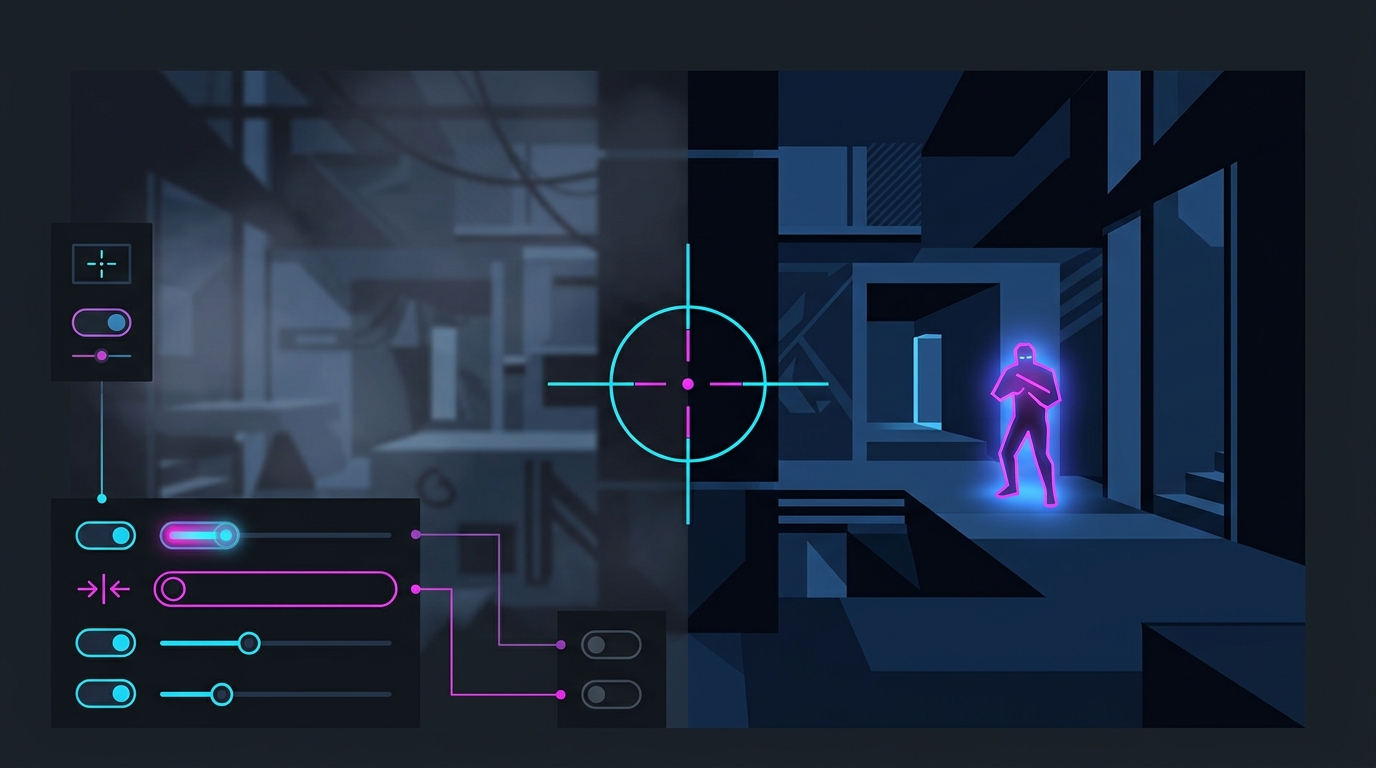
In a game decided by who sees whom first, a clean high-contrast image is a direct competitive edge.
Best Valorant visibility settings
Set these in Settings → Video → General, Video → Graphics Quality, and Accessibility:
| Setting | Recommended value |
|---|---|
| Enemy Highlight Color | Purple/Yellow (Tritanopia) — test alternatives |
| Bloom | Off |
| Distortion | Off |
| Cast Shadows | Off |
| First Person Shadows | Off |
| Detail Quality | Low |
| UI Quality | Low |
| Vignette | Off |
| Experimental Sharpening | On (test) |
| Brightness | Slightly raised for dark maps |
These settings clean the image and separate agents from the map. Valorant runs fast on almost any PC, so lowering quality options here is about clarity, not frames — though you gain a few frames too.
Set a high-contrast enemy highlight color
This is the single most important visibility setting in Valorant. Accessibility → Enemy Highlight Color changes the tint applied to enemy agents so they contrast harder with the environment.
- Purple/Yellow (Tritanopia) is the most common competitive pick — purple enemies pop against Valorant’s warm, sandy maps.
- Yellow/Blue (Deuteranopia) works well on darker maps like Split.
- Try each option on a live round and keep the one that makes enemy bodies easiest to catch in your peripheral vision.
You do not need to be colorblind to benefit — the setting exists to boost contrast, and pros use it purely for that.
Turn off Bloom, Distortion, and Shadows
Valorant’s cosmetic effects actively hurt enemy reads:
- Bloom off — removes the glow that washes over enemies near bright surfaces and flashes.
- Distortion off — stops heat-haze and warp effects from smearing agents behind utility.
- Cast Shadows off and First Person Shadows off — no dark pools hiding crouched enemies, and your own weapon shadow stops flickering in your view.
- Vignette off — keeps screen edges bright so wide peeks stay readable.
Every one of these both cleans the image and gives back a small amount of GPU headroom, so there is no downside for competitive play.
Brightness and sharpening
On darker maps, dial your monitor or in-game brightness up a touch so shadowed corners — B Site interiors, deep corners on Split — are readable. Do not overdo it: too much brightness flattens contrast and makes agents harder to separate, not easier.
Turn on Experimental Sharpening and test it. It adds edge definition that can make distant enemies crisper, but on some setups it over-sharpens into shimmer — keep it only if the image looks cleaner to you.
Pair clean visuals with a responsive setup
Seeing the enemy first only helps if your aim lands instantly. Combine these visibility settings with a fast, stutter-free setup:
- Best Valorant Settings for FPS
- Valorant Stuttering Fix
- Valorant Lowest Input Lag Settings
- Best Valorant Audio Settings for Competitive Play
Locking a lower timer resolution keeps frame delivery consistent, so a peek that looks clean also feels sharp when you click.
Related guides
- Best Valorant Settings for FPS
- Valorant Stretched Resolution Guide
- How to Minimize Input Delay for Competitive Gaming
- How to Optimize Your Monitor for Gaming
The best Valorant visibility settings force enemies to contrast with the map and strip away the effects that hide them. Pick a high-contrast enemy highlight, kill Bloom, Distortion, and Shadows, and tune brightness per map — then let your aim do the rest.
Frequently asked questions
What are the best visibility settings in Valorant?
Set Enemy Highlight Color to Purple/Yellow (Tritanopia) for maximum contrast, turn Bloom, Distortion, and Cast Shadows off, and keep First Person Shadows off. Then set your in-game brightness so dark corners like B Site interiors are readable without washing out the whole screen. These make agent models separate cleanly from the map and abilities.
What is the best enemy highlight color in Valorant?
Purple/Yellow (the Tritanopia option) is the most popular competitive choice because purple enemies stand out strongly against Valorant's mostly warm, sandy maps. Yellow/Blue (Deuteranopia) is a good alternative on darker maps. Open Settings → Accessibility, try each highlight color on an actual round, and keep whichever makes enemy bodies easiest to pick out of the environment.
Should I turn off Bloom in Valorant?
Yes. Bloom adds a soft glow around bright surfaces and ability effects that can wash over an enemy at the edge of a flash or utility. Turning Bloom off in Video → General keeps the image crisp and makes agents easier to track through smokes, mollies, and bright sightlines. It also gives a small FPS gain.
Does Valorant visibility depend on the map?
Partly. Warm, bright maps like Bind and Breeze hide warm-toned agents, while darker maps like Split and Fracture swallow detail in shadowed corners. A high-contrast enemy highlight color plus a slightly raised brightness solves both — the highlight forces enemy models to pop regardless of the map's palette.
Do visibility settings lower FPS in Valorant?
No — they raise it slightly. Turning off Bloom, Distortion, Cast Shadows, and First Person Shadows removes GPU work while also cleaning up the image, so you get clearer enemy reads and a few extra frames at the same time. Valorant already runs at high FPS on most hardware, so these are pure wins.