GPU Scaling vs Display Scaling for Stretched Resolution
Published
On this page
If you’ve set up a stretched resolution and it’s still showing black bars — or it looks different on two monitors — the problem is usually where the scaling happens: on your GPU or on the display itself. Those are two different scalers, and only one of them reliably fills the screen. This guide explains the difference and tells you exactly which to use for a competitive stretch.
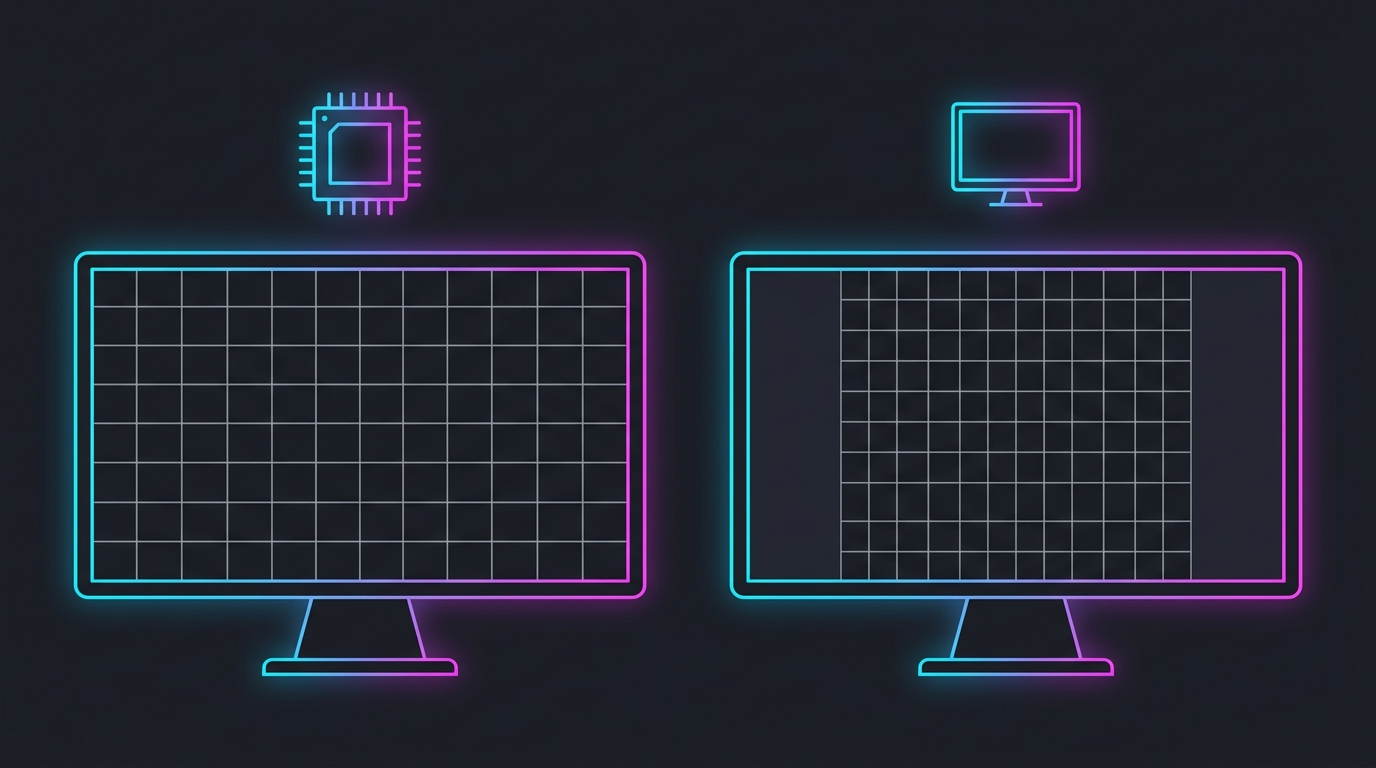
Two scalers, one image. GPU scaling stretches on the graphics card; display scaling hands the job to the monitor.
The two places scaling can happen
When you run a non-native resolution — say 1280×960 (4:3) on a 16:9 panel — something has to decide how that smaller-aspect image fills a wider screen. There are two candidates for that job:
- GPU scaling — your graphics card resizes the frame to the panel’s dimensions before sending it over the cable. The monitor receives a signal that already fills the screen.
- Display scaling — the GPU sends the raw resolution to the monitor, and the monitor’s built-in scaler decides what to do with it, based on its own OSD settings.
Both can technically stretch an image. The difference is control and consistency — and that’s what decides which one you want.
Why GPU scaling wins for stretched resolution
For competitive stretched resolution, GPU scaling set to full-panel is the right answer in almost every case:
- It’s consistent across monitors. The driver stretches the same way regardless of which panel you plug into. Display scaling depends on each monitor’s firmware, and cheaper scalers letterbox by default or add processing lag.
- You can lock it. On NVIDIA you can tick Override the scaling mode set by games and programs, so a game can’t quietly revert your stretch to aspect-ratio bars on launch.
- It behaves predictably in exclusive Fullscreen. GPU scaling governs the frame the driver presents, which is exactly the mode competitive players run.
Display scaling isn’t “wrong,” but it puts the outcome in the hands of the monitor’s OSD, which frequently defaults to Aspect or 1:1 — and that’s the number-one cause of unexplained black bars.
Set full-panel GPU scaling (NVIDIA and AMD)
NVIDIA
- Open NVIDIA Control Panel → Display → Adjust desktop size and position.
- Set Scaling mode to Full-screen.
- Set Perform scaling on to GPU.
- Tick Override the scaling mode set by games and programs.
- Click Apply.
AMD
- Open AMD Software (Adrenalin) → Settings → Display.
- Turn GPU Scaling On.
- Set Scaling Mode to Full Panel (not Preserve Aspect Ratio or Center).
If you’d rather not touch the Control Panel at all, Tier1Suite sets NVIDIA full-panel scaling for you automatically when it applies a stretch, so the GPU-vs-display decision is handled — no black bars, no manual override step.
When the monitor’s scaler still gets involved
Here’s the catch that trips people up: even with GPU scaling on, the monitor’s own OSD scaling can re-process the image after the GPU is done with it. If your monitor’s OSD is set to Aspect or 1:1, it can re-letterbox a frame the GPU already stretched.
So the clean setup is:
- GPU scaling = Full-screen / Full Panel (the driver does the stretch).
- Monitor OSD scaling = Full / Wide (the monitor doesn’t undo it).
With both aligned, there’s only one stretch happening and it fills the panel. If you’re still seeing bars, work through the black bars fix in order.
Does GPU scaling hurt latency?
The cost of GPU scaling is a fraction of a millisecond to resize the frame — imperceptible in play and far smaller than the latency you’d add by running Borderless or leaving V-Sync on. A stretched image that’s consistent and correctly full-screen is worth infinitely more than chasing a sub-millisecond scaling saving. If low latency is your priority, the bigger levers are exclusive Fullscreen, a frame cap below refresh, and the input-lag fundamentals.
Quick decision guide
- Want a reliable competitive stretch? GPU scaling, Full-screen / Full Panel, override on, exclusive Fullscreen.
- Seeing black bars? Check GPU scaling mode first, then the monitor OSD — one of the two is set to Aspect.
- Switching between monitors or PCs a lot? GPU scaling keeps the behavior identical everywhere; display scaling won’t.
Related guides
- How to Fix Black Bars with Stretched Resolution (NVIDIA, AMD, Intel)
- How to Fix Blurry Stretched Resolution
- Stretched Resolution Keeps Resetting? How to Make It Stick
- True Stretched Resolution Explained
- Does Stretched Resolution Cause Input Lag?
For stretched resolution, the scaler you choose decides whether the image reliably fills the screen. Put the work on the GPU with full-panel scaling, lock it with the override, and make sure the monitor’s OSD isn’t re-letterboxing behind it. Get that right and your stretch looks the same, edge to edge, every time you launch.
Frequently asked questions
What is the difference between GPU scaling and display scaling?
GPU scaling makes the graphics card resize the image to fill the panel before sending it to the monitor. Display scaling sends the raw resolution to the monitor and lets the monitor's own scaler handle it. For stretched resolution you almost always want GPU scaling set to full-panel, because it gives you consistent full-screen stretching that the driver controls, independent of each monitor's scaler quality.
Should I use GPU scaling or display scaling for stretched resolution?
Use GPU scaling set to Full-screen / Full Panel. It reliably stretches a 4:3 or 16:9 custom resolution to fill a wider panel, works the same across monitors, and can be locked with the NVIDIA override so games can't revert it. Display scaling depends entirely on the monitor's OSD and often defaults to aspect-ratio bars, so it's less predictable for competitive stretched setups.
Does GPU scaling add input lag?
The added latency from GPU scaling is negligible — a fraction of a millisecond to resize the frame — and is not something you'll feel in game. It's far smaller than the delay from V-Sync or running in Borderless windowed mode. The competitive benefit of a clean, consistent stretch outweighs the tiny scaling cost.
Why do I get black bars even with GPU scaling on?
Usually because the scaling mode is set to Aspect Ratio instead of Full-screen, the NVIDIA override isn't ticked, the game is running Borderless instead of exclusive Fullscreen, or the monitor's own OSD scaling is re-letterboxing the image after the GPU. Set full-panel GPU scaling, tick override, use Fullscreen, and set the monitor OSD to Full/Wide.
Where do I set GPU scaling on NVIDIA and AMD?
On NVIDIA it's in NVIDIA Control Panel under Adjust desktop size and position — set Scaling mode to Full-screen and Perform scaling on to GPU. On AMD it's in AMD Software (Adrenalin) under Display, where you turn GPU Scaling On and set Scaling Mode to Full Panel.