How to Fix Black Bars with Stretched Resolution (NVIDIA, AMD, Intel)
Published
On this page
Black bars instead of a stretched image are the number one stretched-resolution problem, and the cause is almost always one of four things. This guide fixes them on NVIDIA, AMD and Intel, in order of how often each one is the culprit.
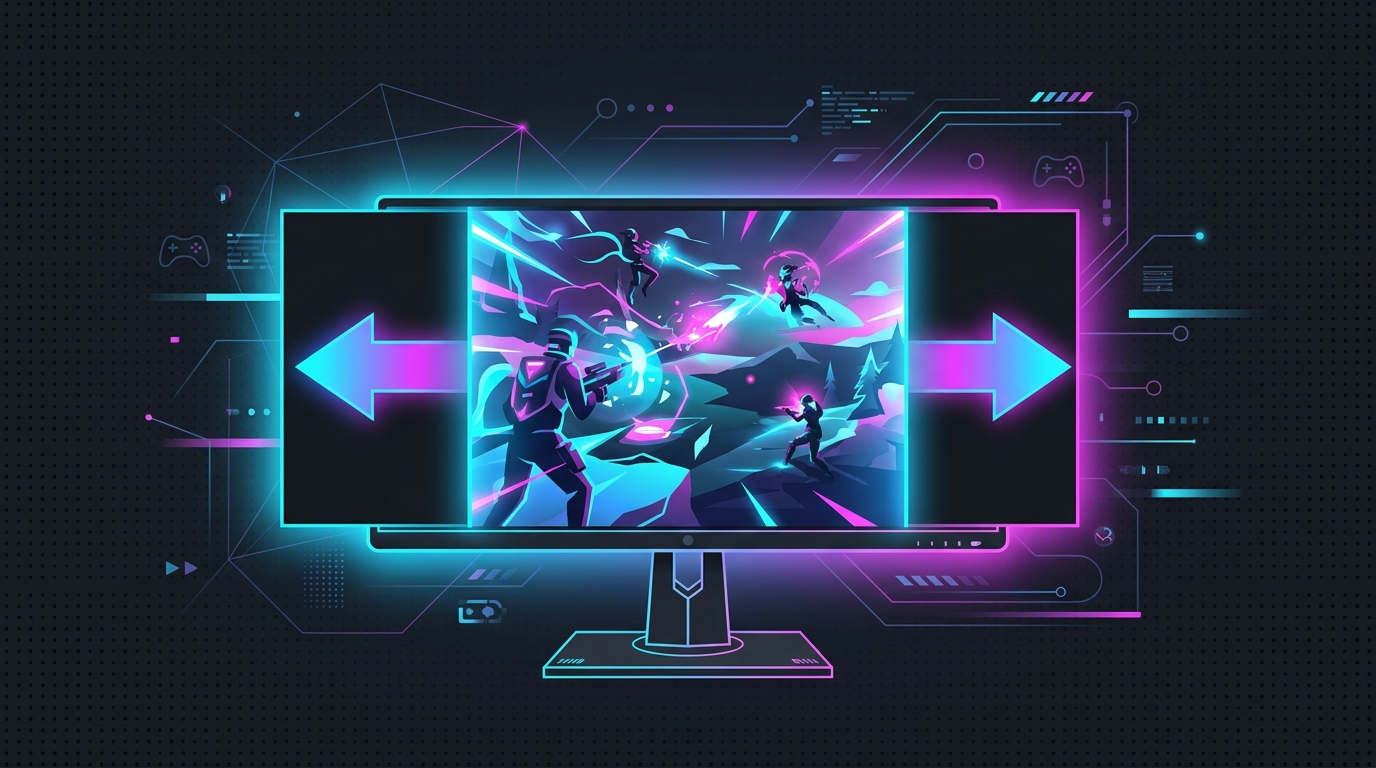
When you run a 4:3 resolution like 1280×960 on a 16:9 panel, the GPU has a choice: shrink the image to keep its shape (black bars on the sides) or stretch it to fill the screen. Black bars mean it chose the first. You need to force the second.
The four causes of black bars
- GPU scaling isn’t set to Full-screen / Full Panel — the most common cause by far.
- The “Override” option is unticked, so the game’s own preference overrides your scaling.
- The game is in Windowed or Borderless mode instead of exclusive Fullscreen.
- The monitor’s own OSD scaling is set to Aspect or 1:1 and overrides the GPU.
Work through them in that order and the bars disappear.
Skip the manual setup: Tier1Suite creates this custom resolution and sets full-panel GPU scaling for you, with a 15-second auto-revert if anything looks off. Get Tier1Suite free →
Fix 1 — Set full-panel GPU scaling (per vendor)
This is the key step. It tells the GPU to stretch, not letterbox.
NVIDIA
- Open NVIDIA Control Panel → Display → Adjust desktop size and position.
- Under Scaling, set Scaling mode to Full-screen.
- Set Perform scaling on to GPU.
- Tick Override the scaling mode set by games and programs.
- Click Apply.
On NVIDIA, Tier1Suite sets full-panel scaling automatically when it applies a stretch, so black bars never happen in the first place — download it free if you’d rather skip the Control Panel.
AMD
- Open AMD Software (Adrenalin) → Settings → Display.
- Turn GPU Scaling On.
- Set Scaling Mode to Full Panel (not Preserve Aspect Ratio or Center).
- The setting applies immediately.
Intel
- Open Intel Graphics Command Center → Display → Scale.
- Choose Stretched (or Full Screen) instead of Maintain Aspect Ratio or Center Image.
- On the older Intel Graphics Control Panel: Display → Display Settings → Scaling → Scale Full Screen, then Apply.
Fix 2 — Tick the Override option (NVIDIA)
Even with Full-screen scaling selected, NVIDIA lets games override it unless you tell it not to. The Override the scaling mode set by games and programs checkbox is what locks your stretch in. If it’s unticked, many games quietly revert to aspect-ratio bars on launch. Tick it and Apply. AMD’s Full Panel and Intel’s Stretched settings behave as overrides by default.
Fix 3 — Use exclusive Fullscreen, not Borderless
GPU scaling only governs exclusive Fullscreen. In Borderless or Windowed mode the desktop compositor handles the image, and it keeps the game’s aspect ratio — so you get bars no matter what the driver says.
In the game’s video settings, set Display Mode to Fullscreen (sometimes labelled “Exclusive Fullscreen”). If the only options are “Fullscreen” and “Windowed Fullscreen,” pick plain Fullscreen. For why this matters beyond stretching, see Fullscreen vs Borderless vs Windowed.
Fix 4 — Check the monitor’s own OSD scaling
This one catches people who have done everything right at the GPU level. Many monitors have their own image-scaling option in the on-screen display (OSD) menu, often called Aspect, 1:1, Full or Wide. If it’s set to Aspect or 1:1, the monitor re-letterboxes the image after the GPU has already stretched it.
Open your monitor’s OSD with its physical buttons, find the Aspect / Image Scaling setting, and set it to Full or Wide.
Still seeing bars? Quick checklist
- Custom resolution created at your native refresh rate (not a mismatched one).
- GPU scaling = Full-screen / Full Panel / Stretched.
- NVIDIA Override ticked.
- Game in exclusive Fullscreen.
- Monitor OSD scaling = Full / Wide.
- Re-check GPU scaling after any driver update — updates can reset it, which also makes a stretch keep resetting.
Related guides
- Stretched Resolution Keeps Resetting? How to Make It Stick
- Best 4:3 Stretched Resolutions for Competitive FPS
- How To Get Custom Resolution / Stretch Res for Fortnite, Apex Legends, Halo, and any other game
- Fullscreen vs Borderless vs Windowed for Gaming
Black bars are a scaling problem, not a resolution problem. Set full-panel GPU scaling, tick the override, run exclusive Fullscreen, and confirm the monitor isn’t re-letterboxing. Get those four right and the image fills the screen every time.
Frequently asked questions
Why do I get black bars instead of stretched resolution?
Black bars mean the GPU is preserving the original aspect ratio instead of stretching to fill the panel. The fix is to set GPU scaling to Full-screen / Full Panel, enable the override so games can't undo it, and run the game in exclusive Fullscreen rather than Borderless. A monitor's own OSD scaling can also force aspect-ratio bars.
How do I remove black bars on NVIDIA stretched resolution?
In NVIDIA Control Panel go to Adjust desktop size and position, set Scaling mode to Full-screen, set Perform scaling on to GPU, and tick Override the scaling mode set by games and programs. Apply, then run the game in exclusive Fullscreen at your custom resolution.
How do I fix black bars on AMD stretched resolution?
In AMD Software open Display settings, turn GPU Scaling On, and set Scaling Mode to Full Panel. Then launch the game in Fullscreen at your custom resolution. If bars remain, check that your monitor's OSD image scaling isn't set to Aspect or 1:1.
Does Intel graphics support stretched resolution without black bars?
Yes. In Intel Graphics Command Center go to Display, then Scale, and choose Stretched (or Full screen) rather than Maintain Aspect Ratio or Center Image. Older Intel control panels list this under Display Settings → Scaling → Scale Full Screen.
I set full-panel scaling but still get black bars — why?
The two most common causes are running the game in Borderless/Windowed instead of exclusive Fullscreen, and the monitor's own OSD scaling overriding the GPU. Switch the game to Fullscreen and set your monitor's OSD aspect/scaling option to Full or Wide. A driver update can also reset GPU scaling, so re-check it.