NVIDIA Stretched Resolution Not Working? Full-Screen Fix
Published
On this page
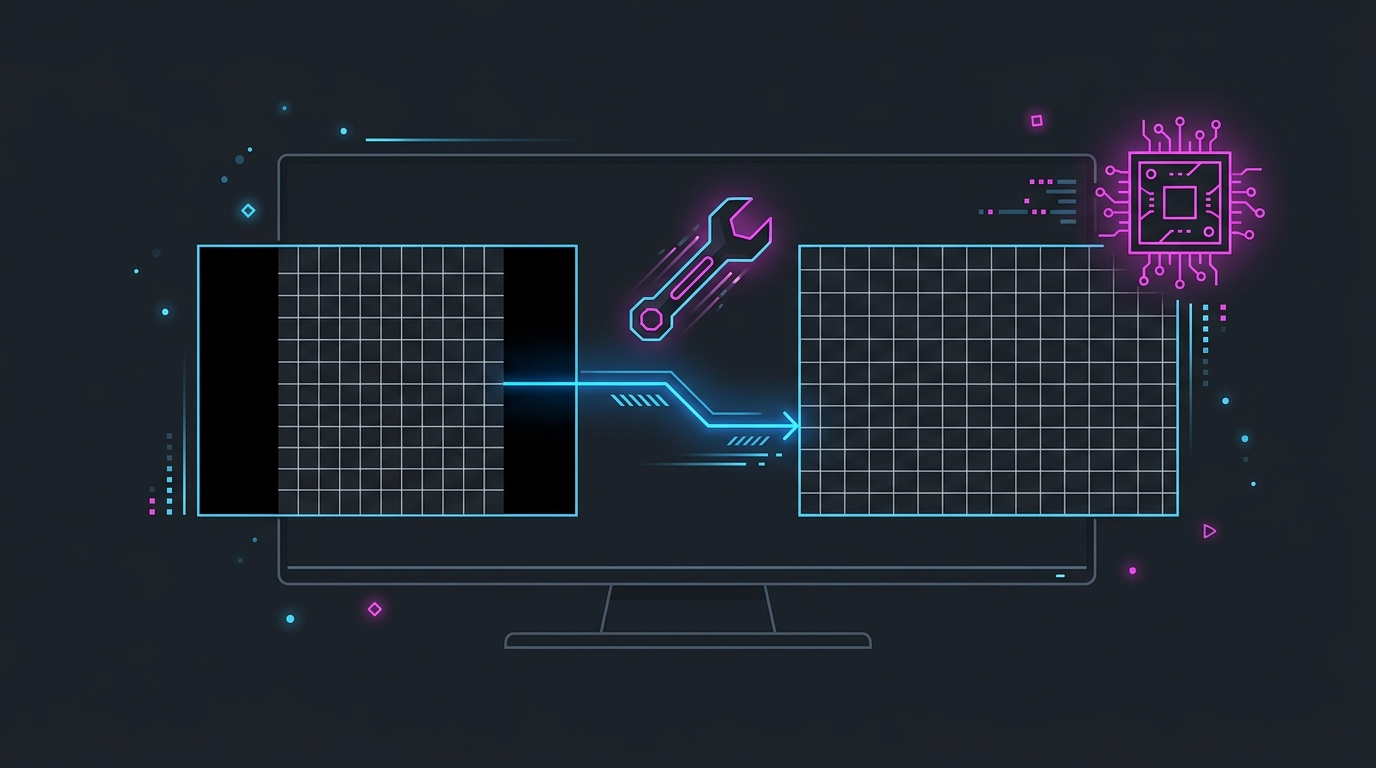
If NVIDIA stretched resolution isn’t filling the screen, scaling is set to Aspect ratio or is being done on the display — set Scaling mode to Full-screen, choose “Perform scaling on: GPU,” and tick “Override the scaling mode set by games and programs” in the NVIDIA Control Panel. That one scaling step is what everyone gets wrong: the custom resolution exists, but the GPU is letterboxing it into a box with black bars instead of stretching it edge to edge. This guide fixes the four ways NVIDIA stretched resolution breaks — black bars, resets, in-game dropdowns, and laptops.
Fix black bars: force full-panel GPU scaling
Black bars mean the GPU is preserving the source aspect ratio instead of stretching to the panel. Force full-screen scaling on the GPU:
- Right-click the desktop → NVIDIA Control Panel.
- Under Display, open Adjust desktop size and position.
- Set Scaling mode to Full-screen.
- Set Perform scaling on to GPU.
- Tick Override the scaling mode set by games and programs.
- Click Apply, then re-select your stretched resolution (e.g. 1440x1080) in Windows Display settings.
If you haven’t created the custom resolution yet, do that first in Change resolution → Customize → Create Custom Resolution, then come back and set scaling. The full setup is covered in our NVIDIA stretched resolution guide; this page is specifically for when it won’t apply.
Why it keeps resetting to black bars
The most common complaint is that stretched resolution works, then snaps back to bars after a game or a reboot. Two causes:
- A game re-asserts its own scaling in exclusive fullscreen. The Override the scaling mode set by games and programs checkbox is what stops this — without it, any game can flip you back to Aspect-ratio scaling.
- A driver update wiped the setting. A clean install or DDU wipe resets scaling to Aspect ratio and can clear driver-level custom resolutions entirely. After every driver update, re-check Full-screen + Perform scaling on GPU.
If you’re tired of re-applying it after every update, a one-click tool like Tier1Stretch (bundled in Tier1Suite) sets the custom resolution and full-panel GPU scaling together, so a reset is one click to fix instead of a menu dig. See stretched resolution keeps resetting for the full reset checklist.
The custom resolution won’t show up in-game
If the resolution stretches on the desktop but the game’s dropdown doesn’t list it:
| Game display mode | Does the custom res appear? | Fix |
|---|---|---|
| Exclusive Fullscreen | Yes, if the game reads the full mode list | Select it in the in-game resolution dropdown |
| Borderless windowed | No — inherits the desktop resolution | Set the desktop to the stretched res first |
| Windowed | No — inherits the desktop resolution | Set the desktop res, or switch to Fullscreen |
So either set the game to Fullscreen, or set your Windows desktop to the stretched resolution and use Borderless — the borderless window then inherits the stretched desktop. If the Create Custom Resolution button itself is disabled, that’s a separate problem — see custom resolution greyed out.
NVIDIA vs display scaling — why the source matters
| Scaling source | Result | Use for stretched res? |
|---|---|---|
| Perform scaling on: GPU | GPU stretches the image to fill the panel | ✅ Yes — required |
| Perform scaling on: Display | Monitor decides; many panels letterbox | ❌ No — causes black bars |
| Scaling mode: Aspect ratio | Preserves 4:3/16:9 box, adds bars | ❌ No |
| Scaling mode: Full-screen | Fills the whole panel | ✅ Yes — required |
Doing scaling on the GPU matters because many monitors default to preserving aspect ratio in hardware, so leaving it on the display re-introduces the bars no matter what NVIDIA is set to.
On a laptop? Check which GPU owns the panel
On NVIDIA Optimus laptops, the built-in display is often wired to the Intel or AMD integrated GPU, not the RTX card — so NVIDIA Control Panel scaling has no effect on the internal screen. Options:
- Set full-panel scaling in the Intel Graphics Command Center or AMD Software instead.
- In the NVIDIA Control Panel, check whether you can route the display through the dGPU.
- An external monitor plugged directly into the dGPU’s port takes NVIDIA scaling normally.
Does GPU scaling add input lag?
No meaningful amount. Full-panel GPU scaling adds latency far smaller than the difference between V-Sync on and off, and it’s a fixed cost you won’t feel in competitive play. The wider aim models and possible FPS gain from a lower stretched resolution matter far more than this overhead — see does stretched resolution cause input lag. For the rest of your latency chain, pair this with our input delay guide and the timer resolution pillar.
Related guides
Frequently asked questions
Why is my NVIDIA stretched resolution not filling the screen?
Because scaling is set to Aspect ratio or is being done on the display instead of the GPU. In the NVIDIA Control Panel, open Adjust desktop size and position, set Scaling mode to Full-screen, choose 'Perform scaling on: GPU', and tick 'Override the scaling mode set by games and programs.' That combination is what stretches the image edge to edge; without it, NVIDIA preserves the source aspect ratio and adds black bars. Click Apply, then re-select your custom stretched resolution.
Why does my NVIDIA stretched resolution reset back to black bars?
Fullscreen games and some driver updates re-assert Aspect-ratio scaling, which brings the black bars back even though your custom resolution still exists. Enable 'Override the scaling mode set by games and programs' in Adjust desktop size and position so games can't change it, and re-apply Full-screen + Perform scaling on GPU after any driver update. A one-click tool that re-applies the resolution and full-panel scaling together avoids re-doing the menus each time.
Why won't my NVIDIA custom resolution show up in-game?
A custom resolution created in the NVIDIA Control Panel only appears in a game that reads the full Windows mode list and runs in exclusive Fullscreen. Borderless and Windowed modes inherit the desktop resolution instead, so the custom res never appears in the in-game dropdown. Set the game to Fullscreen, or set your Windows desktop to the stretched resolution first so borderless games inherit it.
Does stretched resolution work on all NVIDIA cards?
Full-screen GPU scaling works across modern GeForce GTX and RTX desktop cards through the NVIDIA Control Panel. Laptops with NVIDIA Optimus, where the Intel or AMD iGPU owns the panel, sometimes route scaling through the iGPU instead — on those you may need to set scaling in the Intel/AMD control panel, or run the display from the dGPU. On a standard desktop RTX card, Full-screen + Perform scaling on GPU is all you need.
How do I stop black bars in one specific game on NVIDIA?
If the desktop stretches correctly but one game still shows black bars, that game is overriding scaling in exclusive fullscreen. Enable 'Override the scaling mode set by games and programs' in the NVIDIA Control Panel, set the game's own resolution to your stretched value, or switch the game to Borderless so it inherits the desktop's full-panel scaling. This is the same fix whether it's Fortnite, Valorant, or Apex.