AMD Stretched Resolution Not Working? Full-Screen Fix
Published
On this page
If your AMD stretched resolution shows black bars or won’t fill the screen, the cause is almost always GPU Scaling being off or Scaling Mode set to Preserve Aspect Ratio instead of Full Panel — fix both in AMD Software: Adrenalin Edition and the image stretches edge to edge. This is a per-setting problem, not an AMD limitation: Radeon fully supports stretched resolution once Full Panel scaling is on. Here’s the fast fix and the common follow-on issues.
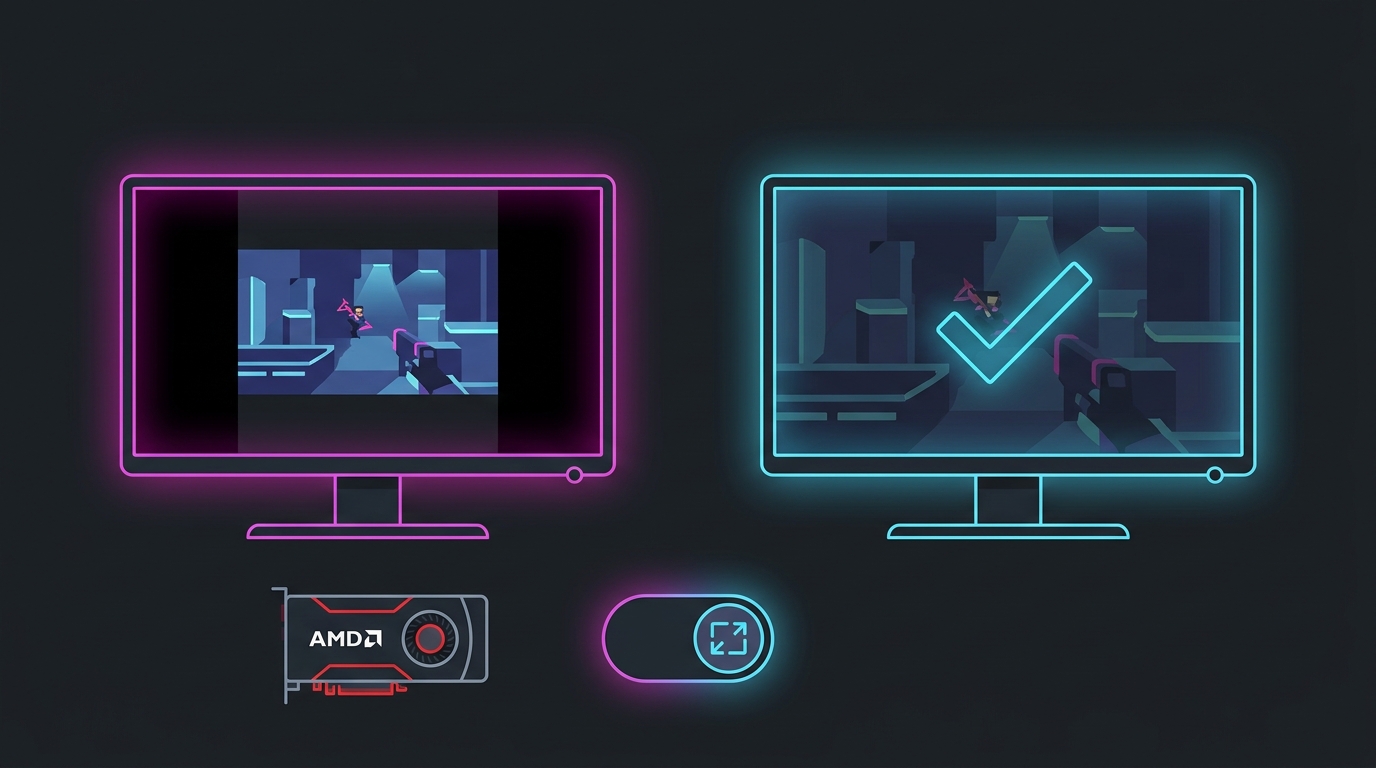
Black bars on AMD almost always mean one setting: Scaling Mode is on Preserve Aspect Ratio, not Full Panel.
Fix 1 — Turn on GPU Scaling + Full Panel (the usual cause)
This fixes 90% of “not filling the screen” cases.
- Open AMD Software: Adrenalin Edition (right-click desktop > AMD Software, or search it).
- Go to Settings (gear icon) > Display.
- Set GPU Scaling to On.
- Set Scaling Mode to Full Panel. (The other modes — Preserve Aspect Ratio and Center — deliberately keep or letterbox the image; Full Panel is the only one that stretches.)
- Re-select your stretched resolution (e.g. 1440x1080 or 1280x960) in Windows Settings > System > Display.
The image should now stretch to fill the whole panel. If you still don’t see your resolution in the list, create it first via the AMD Radeon stretched resolution guide.
Fix 2 — Stop it resetting after a driver update
If stretched resolution worked and then black bars came back, an AMD driver update or a fullscreen game reset GPU Scaling to Preserve Aspect Ratio. Your custom resolution is still there — only the scaling flipped.
- Re-enable GPU Scaling + Full Panel in Adrenalin (Fix 1, steps 3–4).
- After every major driver update, expect to re-check this one setting.
- To avoid the round trip, Tier1Suite re-applies the custom resolution and full-panel scaling together in one click (it supports AMD as of v1.3.0 via the display’s EDID), so a reset is a one-second fix instead of a menu hunt.
Fix 3 — The resolution won’t show up in-game
The setting is right on the desktop, but the game won’t offer the stretched resolution:
- Set the game to Borderless or Windowed. In those modes the game inherits the desktop resolution, so your stretched res + full-panel scaling apply automatically. See fullscreen vs borderless vs windowed.
- Or set the stretched resolution inside the game if it runs exclusive fullscreen — that keeps GPU scaling in control instead of the game forcing native.
- Create the custom mode at your native refresh rate (e.g. 1440x1080 @ 144Hz, not an odd refresh), or some games filter it out of their list.
- Persistent black bars in one title only? Work through how to fix black bars with stretched resolution.
Fix 4 — The “Custom” option is greyed out
If you can’t even create the custom resolution because the button is disabled, that’s a different root cause (duplicate/adapter display state, or the driver blocking custom timings). The AMD-specific steps for that are in custom resolution greyed out or not showing up.
Fix 5 — Skip the manual path entirely
Every fix above exists because Adrenalin’s scaling toggles are easy to knock out of place. If you’d rather not manage them, Tier1Suite creates the custom resolution and sets full-panel GPU scaling in a single step on AMD, NVIDIA and Intel, with a 15-second auto-revert if the image looks wrong — so you never touch GPU Scaling or the Scaling Mode dropdown, and it re-applies cleanly after driver updates.
Why this happens on AMD (not a limitation)
AMD Radeon supports stretched resolution fully — the black-bar problem is purely that Scaling Mode defaults to preserving aspect ratio, and driver updates or fullscreen games can reset it. Once Full Panel is set (and re-set when a driver update clears it), Radeon stretches exactly like any other GPU. If you’re weighing brands, both handle it identically — see AMD vs NVIDIA for stretched resolution.
Related guides
Frequently asked questions
Why is my AMD stretched resolution not filling the screen?
Because GPU Scaling is off or Scaling Mode is set to Preserve Aspect Ratio instead of Full Panel. In AMD Software: Adrenalin Edition, open Settings > Display, turn GPU Scaling on, and set Scaling Mode to Full Panel. That single setting is what stretches the image edge to edge; without it, AMD keeps the original aspect ratio and adds black bars on the sides. Re-select the stretched resolution afterward to apply it.
Why does my AMD stretched resolution reset after a driver update?
AMD driver updates and some fullscreen games reset GPU Scaling back to Preserve Aspect Ratio, which brings the black bars back even though your custom resolution still exists. Re-enable GPU Scaling + Full Panel in Adrenalin after any driver update. A one-click tool that re-applies the resolution and scaling mode together avoids digging through the menus each time it resets.
Why won't my AMD custom resolution show up in-game?
Usually because the game runs in exclusive fullscreen and only lists standard resolutions, or because the custom mode was added at a refresh rate the game filters out. Try setting the game to Borderless or Windowed so it inherits the desktop's stretched resolution, create the custom resolution at your panel's native refresh rate, and confirm you selected it in Windows Display settings first. If the resolution won't create at all, the custom option may be greyed out — that's a separate fix.
Does AMD stretched resolution work on all Radeon cards?
GPU Scaling with Full Panel works across modern Radeon RX cards and Radeon integrated graphics through Adrenalin. Very old cards or laptop hybrid setups where an Intel or AMD iGPU owns the panel can behave differently, but on a standard Radeon desktop the Full Panel setting is all you need. The one-click Tier1Suite tool also supports AMD as of v1.3.0 by writing the custom mode through the display's EDID.
How do I fix black bars with stretched resolution on AMD?
Black bars mean the GPU is preserving aspect ratio. Fix it in AMD Software: Adrenalin Edition by setting GPU Scaling to On and Scaling Mode to Full Panel, then re-selecting the stretched resolution. If bars persist in one specific game, that game is likely overriding scaling in exclusive fullscreen — set the game itself to the stretched resolution, or switch it to borderless so the desktop's full-panel scaling applies.