AMD vs NVIDIA for Stretched Resolution: Any Difference?
Published
On this page
Neither AMD nor NVIDIA is better for stretched resolution — both create a custom resolution and apply full-panel GPU scaling, and the image on screen is identical. The only difference is where you click: AMD uses Adrenalin’s GPU Scaling + Full Panel, NVIDIA uses the Control Panel’s GPU scaling. GPU brand does not change your stretched-resolution FPS, input lag, or the result. This guide shows how each does it and what actually differs.
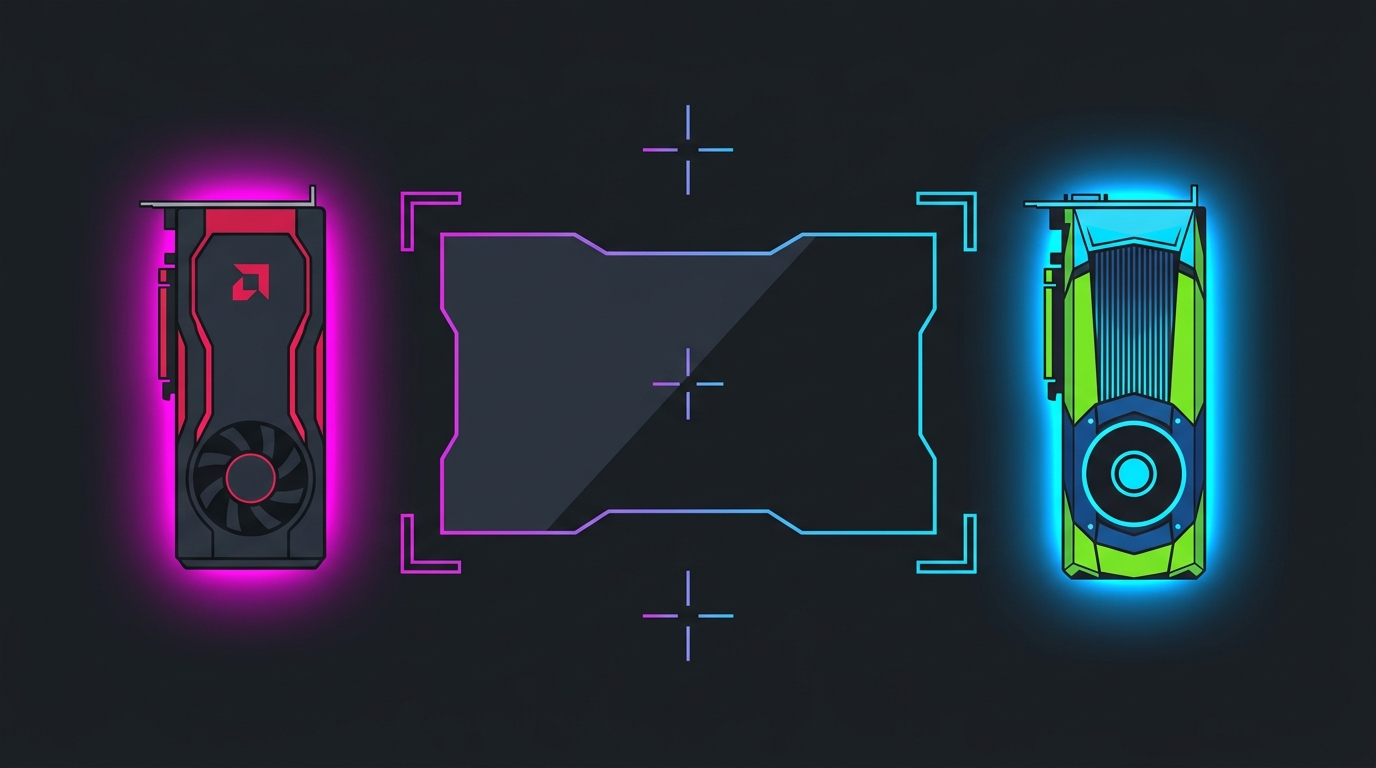
Same custom resolution, same full-panel scaling, same result — only the menu path differs between the two brands.
AMD vs NVIDIA at a glance
| Factor | AMD Radeon | NVIDIA |
|---|---|---|
| Where you set it | AMD Software: Adrenalin Edition | NVIDIA Control Panel |
| Create the custom res | Display > Custom Resolutions | Change resolution > Customize > Create Custom Resolution |
| Full-screen scaling toggle | GPU Scaling: On + Scaling Mode: Full Panel | Adjust desktop size/position > Full-screen + Perform scaling on: GPU |
| Result on screen | Identical stretched image | Identical stretched image |
| FPS / input lag impact of brand | None | None |
| Resets after driver update / fullscreen | Sometimes | Sometimes |
| One-click tool support | Yes (Tier1Suite, via EDID) | Yes (Tier1Suite, via NVAPI) |
How AMD does it
In AMD Software: Adrenalin Edition:
- Go to Settings (gear) > Display. If you need a resolution the panel doesn’t list, use Custom Resolutions to create one (e.g. 1440x1080 or 1280x960).
- On the same Display page, turn GPU Scaling on and set Scaling Mode to Full Panel. This is the make-or-break step — Full Panel is what fills the screen instead of leaving black bars.
- Select the stretched resolution in Windows Display settings or directly in-game.
The full walkthrough with the best AMD resolutions is in the AMD Radeon stretched resolution guide.
How NVIDIA does it
In the NVIDIA Control Panel:
- Change resolution > Customize > Create Custom Resolution to add the stretched mode if it isn’t already listed.
- Adjust desktop size and position > set Scaling to Full-screen and Perform scaling on to GPU, then Apply.
- Select the resolution in Windows or in-game.
The NVIDIA-specific walkthrough is in the NVIDIA stretched resolution guide.
What actually differs (and what doesn’t)
- The menu layout differs; the outcome doesn’t. AMD separates “create the custom resolution” from “turn on Full Panel scaling”; NVIDIA keeps them closer together. Once both are set, the stretched image is pixel-for-pixel the same job — the GPU renders your lower aspect ratio and the hardware scaler stretches it to fill the panel.
- Brand does not change FPS or input lag. Your frame rate at a stretched resolution comes from the pixel count you render, not the logo on the card, and full-panel scaling adds no meaningful input lag on either brand.
- Both can reset scaling. A driver update or an exclusive-fullscreen game can knock scaling back to aspect-ratio, which brings the black bars back on either brand. That’s the single most common “it stopped working” cause — not a brand flaw.
- GPU Scaling vs Display Scaling matters more than brand. Make sure scaling is done on the GPU, not the display, or the monitor’s own scaler may letterbox you. See GPU scaling vs display scaling.
The one-click route now works on both
Historically the automatic tool only handled NVIDIA. That is no longer the case: Tier1Suite creates the custom resolution and sets full-panel GPU scaling in a single click on NVIDIA, AMD and Intel — it uses NVAPI on NVIDIA and writes the custom mode through the display’s EDID on AMD and Intel, with a 15-second auto-revert if the image looks wrong. Because it re-applies the resolution and scaling together, it also fixes the “it reset itself after a driver update” problem on either brand.
If stretched resolution isn’t filling the screen on your Radeon card specifically, work through the AMD stretched resolution not working fix.
Bottom line
Choose your GPU on price and performance for the games you play — stretched-resolution support is a wash between AMD and NVIDIA. Both create a custom resolution and stretch it full-panel with the same result; the only thing that changes is which menu you click, and a one-click tool removes even that on both.
Related guides
Frequently asked questions
Is AMD or NVIDIA better for stretched resolution?
Neither is better — both produce an identical stretched image. Stretched resolution works the same way on both: you create a custom resolution (like 1440x1080) and set the GPU to scale it full-panel so it fills the screen with no black bars. AMD does this in AMD Software: Adrenalin Edition (Display > GPU Scaling + Scaling Mode: Full Panel); NVIDIA does it in the NVIDIA Control Panel (Adjust desktop size and position > Full-screen + Perform scaling on: GPU). The menus and wording differ, but the result on screen is the same, and neither brand has a stretched-resolution advantage.
Does stretched resolution work on AMD Radeon?
Yes. AMD Radeon fully supports stretched resolution through GPU Scaling with Full Panel mode in Adrenalin, and the one-click Tier1Suite tool now supports AMD as well (it writes the custom mode through the display's EDID). The most common reason stretched resolution fails to fill the screen on AMD is that GPU Scaling is off or Scaling Mode is left on Preserve Aspect Ratio instead of Full Panel — set both correctly and the image stretches edge to edge.
Does GPU brand affect FPS or input lag at stretched resolution?
No. Frame rate at a stretched resolution is set by the pixel count you render, not by whether the card is AMD or NVIDIA — a 1440x1080 image costs the same fraction of frames on comparable cards from either brand. Full-panel GPU scaling adds no meaningful input lag on either; the scaler runs in hardware. Pick your GPU on price and raw performance for your games, not on stretched-resolution support, because both handle it equally.
Is setting stretched resolution easier on AMD or NVIDIA?
They're comparable, with one small difference: AMD splits the job across two spots (create the custom resolution, then enable GPU Scaling + Full Panel), while NVIDIA sets scaling and the custom resolution in the same Control Panel area. Both can also silently reset scaling after a driver update or a fullscreen game, which is the usual cause of black bars returning. A one-click tool that re-applies the resolution and scaling together removes that friction on either brand.
Why does my stretched resolution show black bars on AMD but not NVIDIA (or vice versa)?
Because the scaling setting isn't applied, not because of the brand. Black bars mean the GPU is preserving aspect ratio instead of stretching to fill. On AMD, set Scaling Mode to Full Panel with GPU Scaling on; on NVIDIA, choose Full-screen with 'Perform scaling on: GPU'. A game running in exclusive fullscreen can also override the desktop scaling — set the game to the stretched resolution directly, or use borderless, so the GPU scaler stays in control.