What Are 1% Lows? Why Frametimes Matter More Than Average FPS
Published
On this page
1% lows are the average frame rate of the slowest 1% of your frames — the number that actually decides whether a game feels smooth, because average FPS hides stutter. A game at 140 FPS average with 60 FPS 1% lows feels choppier than a game at 120 average with 100 1% lows, because the gap between your best and worst frames is what your eyes read as a hitch. This guide explains what 1% and 0.1% lows mean, how frametimes work, why the average number lies, and how to fix bad lows.
Frametimes, not frames
Your GPU doesn’t produce a tidy “144 frames per second.” It produces individual frames, each taking a certain number of milliseconds (ms) to render — the frametime. Frames per second is just a summary of those frametimes over a whole second.
Here’s the conversion that makes everything else click:
| Frame rate | Frametime per frame |
|---|---|
| 30 FPS | 33.3 ms |
| 60 FPS | 16.7 ms |
| 120 FPS | 8.3 ms |
| 144 FPS | 6.9 ms |
| 240 FPS | 4.2 ms |
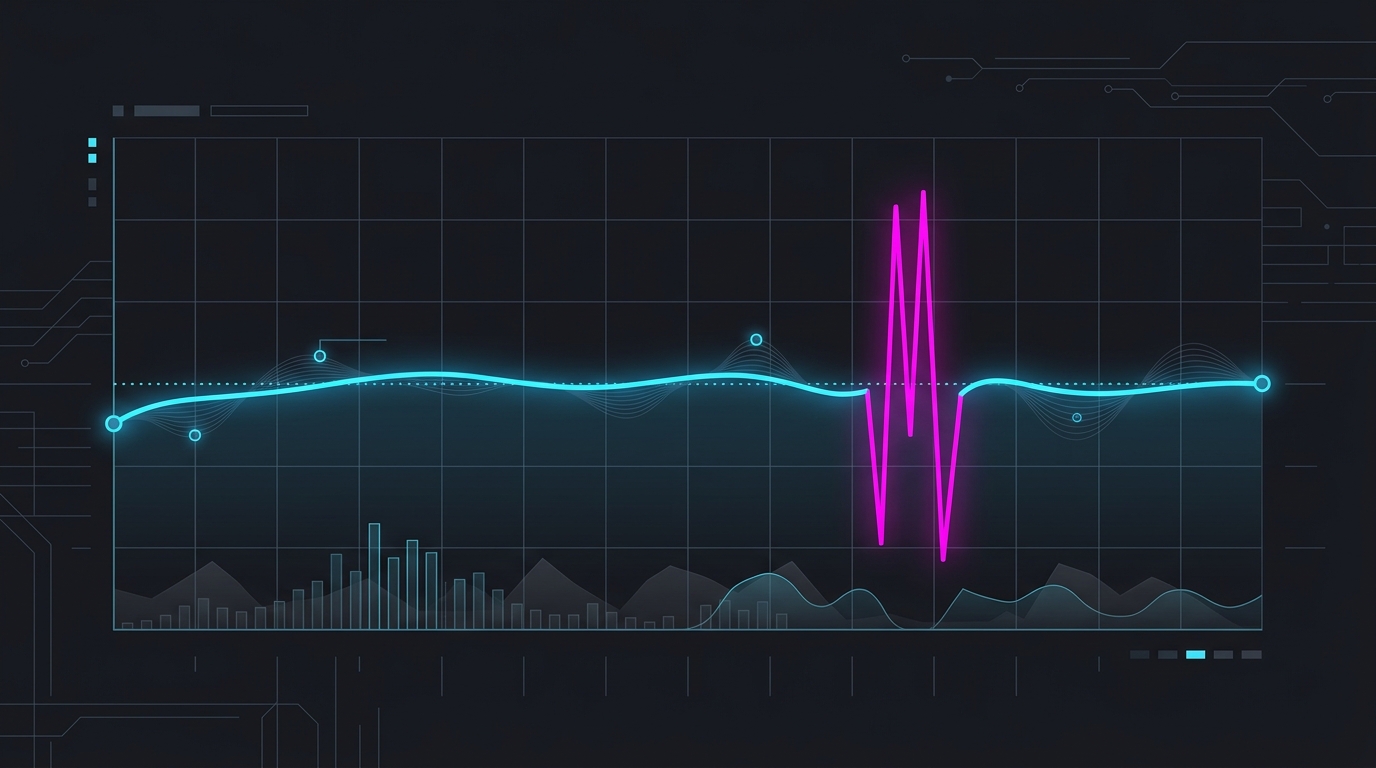
Smoothness is about frametime consistency, not the average. If every frame takes 6.9 ms, the game feels perfectly fluid at 144 FPS. If most frames take 6.9 ms but one takes 40 ms, you get a visible hitch — even though the average frame rate barely changed. That single long frame is a stutter, and it’s exactly what average FPS is bad at showing you.
What 1% and 0.1% lows measure
To capture stutter, benchmarks sort every frame from a run by frametime and report the worst ones:
- Average FPS — total frames divided by time. Smooths over everything, including hitches.
- 1% low — the average frame rate of the slowest 1% of frames. This is your general “how bad do the dips get” number.
- 0.1% low — the average frame rate of the slowest 0.1% of frames. These are the rare, severe spikes — a shader-compilation stall, a traversal stutter, a background process waking up.
A healthy result has the three numbers close together: 140 average / 118 1% low / 95 0.1% low describes a smooth game. A result like 140 average / 55 1% low / 28 0.1% low describes a game that benchmarks at 140 but feels like a stuttery mess. Same headline number, completely different experience.
Why average FPS lies
Imagine one second of gameplay: 143 frames at a clean 6.9 ms, plus one frame that takes 45 ms because the engine compiled a shader. Your average is still about 140 FPS — the counter looks great. But you felt that 45 ms frame as a stutter, because for one moment the screen froze roughly six frames’ worth of time.
This is why “I get 140 FPS but the game stutters” is one of the most common complaints in PC gaming, and why chasing a bigger average number is the wrong goal. The average tells you how fast the game is; the 1% lows and frametime graph tell you how smooth it is. For competitive play, consistency wins — steady frametimes mean predictable motion and predictable input feel, which is the whole point of tuning a PC.
How to measure your 1% lows
An ordinary FPS counter isn’t enough — you need a frametime graph and percentile logging:
- MSI Afterburner + RivaTuner Statistics Server (RTSS) — the standard free combo. Enable the frametime graph and log 1%/0.1% lows. See our MSI Afterburner guide and RivaTuner (RTSS) guide for setup.
- CapFrameX — a free tool built specifically for capturing frametime data. Record a benchmark pass and it calculates average, 1% low, and 0.1% low, plus a frametime chart that makes stutters obvious.
- In-game benchmark tools — many titles report 1% lows in their built-in benchmark. If you just want a live number, our FPS overlay guide shows how to display frametimes in any game.
Watch the frametime line, not just the FPS number. A flat line is smooth; a spiky line is stutter, even when the average looks fine.
What causes bad 1% lows — and how to fix them
Bad 1% lows almost always trace to something specific. The most common causes, and the fix for each:
- Shader compilation stutter — the game compiles shaders on the fly the first time it needs them. Fix: let the game pre-compile, and clear the shader cache if it’s corrupted.
- CPU bottleneck — crowds, physics, and open-world traversal hammer the CPU, tanking your lows in towns and busy scenes. Fix: cap your FPS below the rate the CPU can always hold so frametimes stay flat.
- Slow or unstable RAM — running memory at stock JEDEC speeds starves the CPU. Fix: enable XMP or EXPO.
- VRAM overflow — textures set too high for your card force streaming stalls. Fix: drop texture quality one notch so the working set fits in VRAM.
- Background processes and interrupts — overlays, browsers, and driver issues cause periodic spikes. Fix: close background apps and check for high DPC latency.
- Inconsistent Windows timer — a coarse system timer makes frame pacing and scheduling less precise. This is exactly what timer resolution tuning addresses, and why we built Tier1Timer — a steady 0.5 ms timer helps frames arrive on a more even cadence.
Work through those in order and your frametime graph flattens: the average may barely move, but your 1% lows climb toward your average, and that is what makes a game feel smooth.
The takeaway
Stop judging your PC by its biggest FPS number. A high average with poor 1% lows is a game that looks good in a screenshot and stutters in your hands. Measure your frametimes, watch the 1% and 0.1% lows, and tune for consistency — flat frametimes, high lows, no spikes. That’s the difference between “fast” and “smooth,” and smooth is what you actually feel.
Related guides
Frequently asked questions
What are 1% lows in gaming?
1% lows are the average frame rate of the slowest 1% of frames in a benchmark — the frame rate during your worst moments, when the game is dipping and stuttering. If a game runs at 140 FPS average but 60 FPS 1% low, it spends most of its time at 140 but regularly drops to 60, and those drops are what you feel as hitches. 1% lows are a better measure of how smooth a game feels than the average FPS.
What is the difference between 1% lows and 0.1% lows?
Both measure your worst frames, just at different depths. 1% lows are the average of the slowest 1% of frames — your general dips. 0.1% lows are the average of the slowest 0.1% of frames — the rare, severe spikes, like a shader-compilation hitch or a traversal stutter. A game can have healthy 1% lows but ugly 0.1% lows if it stutters occasionally but badly. Watch 1% lows for overall smoothness and 0.1% lows for isolated stutters.
Why does my game stutter even with high FPS?
Because average FPS hides stutter. A stutter is a single frame that takes far longer than the others — a frametime spike — and one 50 ms frame in a second of 6.9 ms frames barely moves the average, but you see it as a hitch. High average FPS with low 1% lows means the game is fast most of the time but drops hard in between. Common causes are shader compilation, CPU bottlenecks, VRAM overflow, background apps, and high DPC latency.
How do I measure my 1% lows?
Use a frametime-aware overlay. MSI Afterburner with RivaTuner Statistics Server (RTSS) shows a live frametime graph and can log 1% and 0.1% lows. CapFrameX is a free tool built specifically for capturing frametime data and calculating percentile lows over a run. Both let you record a benchmark pass, then read the average, 1% low, and 0.1% low so you can see stutters that an FPS counter alone would hide.
Are 1% lows more important than average FPS?
For how a game feels, yes. Two PCs can post the same average FPS while one feels buttery and the other feels choppy — the difference is the 1% lows. A game at 120 average with 100 1% lows feels smoother than one at 140 average with 60 1% lows, because the gap between your best and worst frames is what your eyes register as stutter. Chase consistent frametimes and high 1% lows, not just a big average number.