XMP BIOS Setting: How to Enable XMP or EXPO for More FPS
Updated Published
On this page
To enable XMP or EXPO, enter your BIOS with Del or F2, switch to Advanced/OC mode, and set the memory profile to Profile 1 — this runs your RAM at its rated speed instead of the JEDEC default. If you bought fast RAM but never enabled XMP (Intel) or EXPO (AMD), your kit is almost certainly running slow. Out of the box, most boards default DDR4/DDR5 to a safe JEDEC speed like 4800 MT/s instead of the 6000 MT/s you paid for. Turning on XMP/EXPO is one of the biggest free FPS and 1%-low improvements you can make, and it takes about two minutes in BIOS.
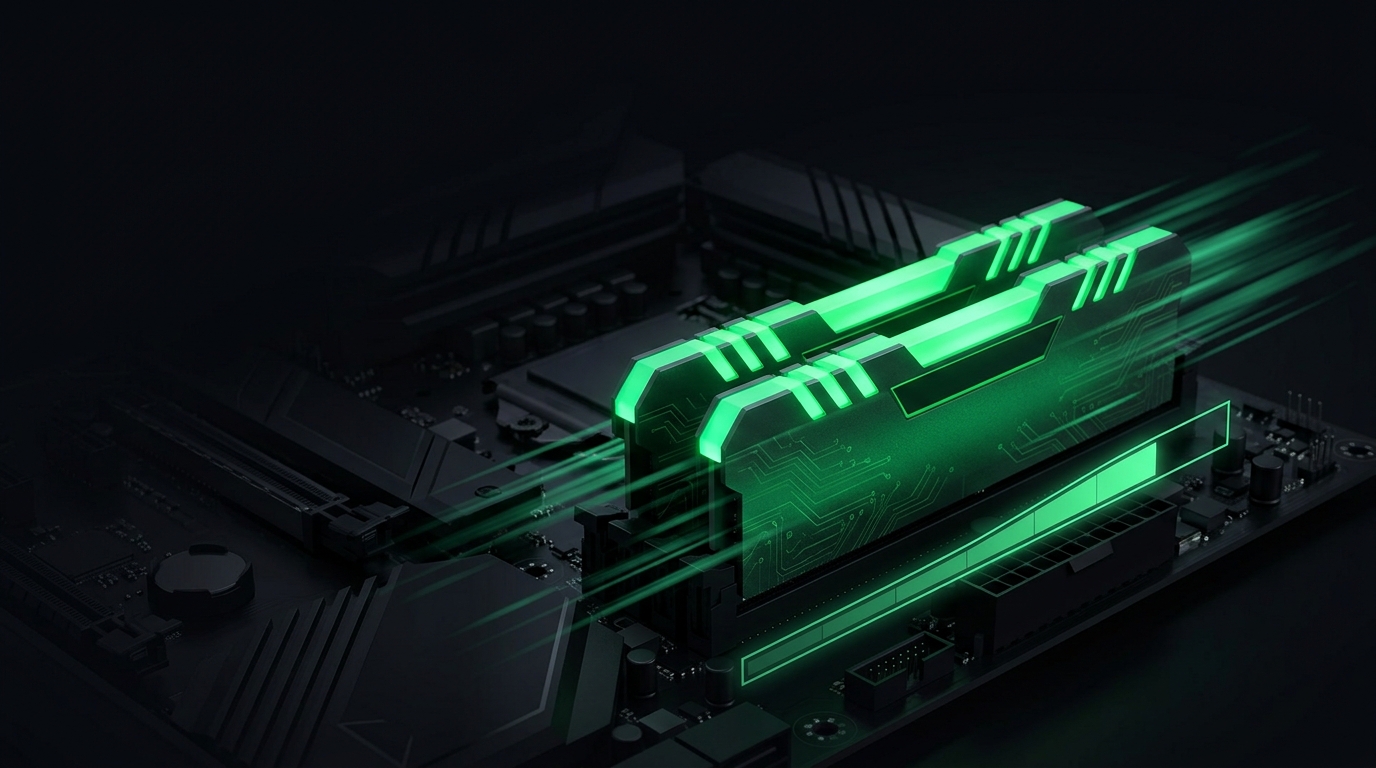
XMP and EXPO are the same idea from different camps: XMP is Intel’s memory profile standard (also used on Intel platforms), and EXPO is AMD’s equivalent for Ryzen. Your RAM box lists its rated speed — that’s the speed XMP/EXPO unlocks.
Step 1 – Check what speed your RAM is actually running
- Open Task Manager → Performance → Memory.
- Look at Speed. If it shows something like
4800 MT/sbut your kit is rated6000, XMP/EXPO is off.
You can also use CPU-Z → Memory tab to confirm the current frequency (remember CPU-Z shows half the rated number for DDR — 3000 MHz = 6000 MT/s).
Rather not edit this by hand? Tier1Tune (in Tier1Suite) applies this kind of tweak for you, shows what it changes, and reverts in one click. Get Tier1Suite free →
Step 2 – Enter BIOS
- Fully shut down your PC.
- Power on and tap
Del(orF2) repeatedly at the motherboard logo. - Switch to Advanced Mode if your board opens in EZ/Easy Mode.
Step 3 – Enable the memory profile
The setting is on the main/overclocking page on every major brand:
- ASUS: Ai Overclock Tuner → set to XMP / EXPO → pick Profile 1
- MSI: top of the screen → XMP / EXPO toggle → Enabled (or Profile 1)
- Gigabyte: Tweaker tab → XMP / EXPO → Profile 1
- ASRock: OC Tweaker → Load XMP / EXPO Setting → Profile 1
Most kits ship Profile 1 as the rated speed. If your board lists Profile 2, it’s usually a slightly different timing set — Profile 1 is the safe default.
Already in your BIOS for another reason? These per-brand walkthroughs show the same menus while you’re there: ASUS, MSI, Gigabyte, and ASRock BIOS layouts. If your board firmware is old, memory compatibility improves a lot after a safe BIOS update.
Step 4 – Save, reboot, and verify
- Press F10 to Save & Exit.
- Let the PC boot — it may restart once or twice while training the memory. That’s normal.
- Back in Windows, check Task Manager → Performance → Memory and confirm the rated speed.
If the PC won’t boot after enabling XMP/EXPO
Memory training can occasionally fail at the highest profiles, especially with four DIMMs or DDR5.
- Clear CMOS (most boards have a button or jumper) to get back into BIOS.
- Re-enter BIOS and try a slightly lower speed — e.g. drop a DDR5 kit from
6400to6000. - Make sure your RAM is in the correct slots (usually A2/B2, the 2nd and 4th from the CPU) — check your manual.
- Update to the latest BIOS; memory compatibility improves a lot with newer firmware.
How much FPS does XMP/EXPO add?
It varies, but the gains are real and most visible in:
- CPU-bound competitive shooters at high frame rates
- 1% lows and frame-time smoothness
- simulation and open-world games that hammer memory bandwidth
On Ryzen especially, running rated EXPO speed (and the matching Infinity Fabric) can be a meaningful jump over stock JEDEC.
Pair this with the rest of your tuning
- How to Choose a CPU for Your Gaming PC
- Testing PC Components Using Benchmarking Tools
- How to Minimize Input Delay for Competitive Gaming
- The Ultimate Guide to Timer Resolution for Gaming + Tier1Suite
Summary
- Check current RAM speed in Task Manager.
- Enable XMP (Intel) or EXPO (AMD) → Profile 1 in BIOS.
- Save, reboot, and verify the rated speed in Windows.
- If it won’t boot, clear CMOS and try a slightly lower speed.
Enabling XMP/EXPO is the single easiest way to stop leaving FPS on the table from RAM you already own.
Frequently asked questions
How do I enable XMP in BIOS?
Reboot and tap Del (or F2) at the motherboard logo to enter BIOS, switch to Advanced Mode, then find the memory profile setting: ASUS Ai Overclock Tuner → XMP/EXPO → Profile 1, MSI's XMP/EXPO toggle at the top, Gigabyte's Tweaker tab, or ASRock's OC Tweaker. Set Profile 1, press F10 to save and exit, and confirm the rated speed in Task Manager → Performance → Memory.
Is enabling XMP or EXPO safe?
Yes. XMP and EXPO are official, manufacturer-validated memory profiles built into your RAM and supported by every modern motherboard. They run your kit at the speed and voltage it was rated and sold for — well within spec. The only occasional hiccup is a failed boot from memory training on high-end kits, which a CMOS clear and a slightly lower speed fixes.
Why is my RAM not running at its rated speed?
Because XMP/EXPO is off by default. Out of the box most boards run DDR4/DDR5 at a safe JEDEC speed like 4800 MT/s instead of the 6000 MT/s printed on the box. Until you enable the memory profile in BIOS, you're leaving the speed you paid for on the table.
Does enabling XMP increase FPS?
It can, especially in CPU-bound competitive shooters at high frame rates and in memory-heavy simulation or open-world games. The biggest, most consistent gains show up in 1% lows and frame-time smoothness rather than the average FPS. On AMD Ryzen, running rated EXPO speed is a particularly meaningful jump over stock JEDEC.
What's the difference between XMP and EXPO?
They're the same idea from different camps. XMP (Extreme Memory Profile) is Intel's memory-profile standard, also used on Intel platforms; EXPO (Extended Profiles for Overclocking) is AMD's equivalent for Ryzen and DDR5. Your RAM kit ships with whichever profile matches its intended platform, and the BIOS setting is often labeled 'XMP/EXPO' together.