Gaming Laptop Optimization Guide: Maximum FPS and Lowest Input Lag
Published
On this page
A gaming laptop has the same chips as a desktop, but it has to run them inside a tiny shared power and thermal budget. That gap between the sticker specs and what you actually get is almost entirely tunable — and most of the wins are free. This guide ranks the levers by impact so you spend effort where it counts.
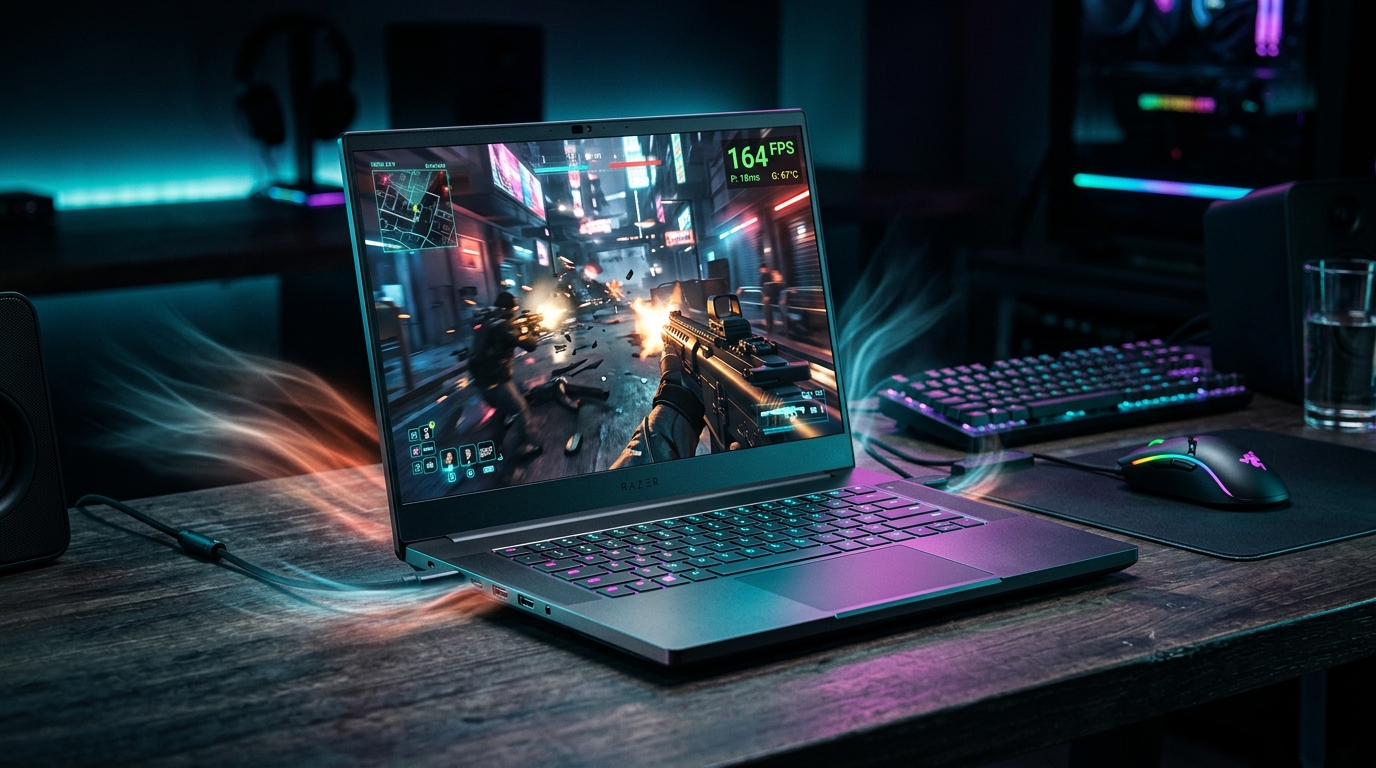
A laptop GPU never gets desktop headroom. Your job is to give it back as much power and cooling as the chassis allows — and stop throwing frames away.
Why laptops are different
On a desktop, the CPU and GPU each get their own power and cooling. On a laptop they share both. When the chip heats up, it lowers clock speeds to stay safe — that’s thermal throttling, and it’s why a laptop that benchmarks well for thirty seconds slowly loses FPS over a match. Almost every laptop tweak below is really about one thing: keeping clocks high for longer.
The five levers, ranked by impact
1. Power: plug in and pick the right profile
On battery, laptops cut the power delivered to the chip dramatically — FPS can halve. Always game plugged in, and set the manufacturer’s performance mode (Turbo/Performance in Armoury Crate, Legion Vantage, MSI Center, etc.), which raises the power limit further than any Windows setting can. Full walkthrough: Best Windows Power and Battery Settings for a Gaming Laptop.
2. Thermals: stop the throttle
Once you’ve unlocked the power, the chassis has to dissipate the heat or the chip throttles it right back. Cleaning fans, improving airflow, adjusting fan curves, and (for the brave) repasting keep clocks from collapsing mid-game. See How to Stop Your Gaming Laptop From Thermal Throttling.
3. GPU routing: force the discrete GPU
Most laptops route the display through the integrated GPU by default to save battery, which costs FPS and adds latency in games. A MUX switch (or Advanced Optimus) sends frames straight from the discrete GPU to the screen. This is one of the largest free FPS gains available — see MUX Switch and Advanced Optimus Explained.
4. Undervolting: more clocks at the same heat
Lowering the voltage the chip requests lets it hold higher clocks within the same thermal ceiling — which matters far more on a heat-limited laptop than on a desktop. See How to Undervolt a Gaming Laptop CPU and GPU, built on our CPU undervolt and GPU undervolt guides.
5. In-game and Windows settings
With the hardware unlocked, tune the software. Use Windows 11 24H2 Best Gaming Settings, enable Hardware-Accelerated GPU Scheduling, set up your NVIDIA Control Panel or AMD Adrenalin, and apply per-game tuning from guides like best Valorant settings and best CS2 settings.
The free win laptop users skip: timer resolution
You can’t bolt a bigger GPU into a laptop — which makes the free gains far more valuable than they are on a desktop. The Windows system timer is one of the best: a higher-resolution timer tightens frame pacing and shaves input latency without touching a single hardware setting.
Read The Ultimate Guide to Timer Resolution for Gaming, then grab Tier1Suite to apply and lock the optimal timer automatically every time you game. On a power- and thermal-limited machine, a free latency win is exactly the kind of edge you want.
Quick-win checklist
- Plug in and set the manufacturer’s performance mode.
- Cool it — clean fans, raise the rear, set an aggressive fan curve.
- Force the discrete GPU via the MUX switch.
- Undervolt the CPU (and GPU) for higher sustained clocks.
- Tune Windows — Game Mode, HAGS, high-performance plan, trimmed startup apps.
- Cap your FPS for stable frame pacing — see How to Cap Your FPS Correctly.
- Apply timer resolution with Tier1Suite.
- Tune each game with our per-game settings guides.
Related guides
- How to Stop Your Gaming Laptop From Thermal Throttling
- MUX Switch and Advanced Optimus Explained
- Best Windows Power and Battery Settings for a Gaming Laptop
- How to Undervolt a Gaming Laptop CPU and GPU
- How to Get More FPS on a Low-End PC or Integrated Graphics
- The Ultimate Guide to Timer Resolution for Gaming
The best gaming-laptop setup is plugged in, running cool on its performance mode, with the discrete GPU forced, an undervolt holding clocks high, Windows tuned, and an optimized timer doing the free latency work. Stack those and your laptop finally performs like the specs promised.
Frequently asked questions
How can I get more FPS on a gaming laptop?
In order of impact: always game plugged in on the manufacturer's performance mode, stop thermal throttling so clocks hold, route the display through the discrete GPU with a MUX switch, undervolt to claw back sustained clocks, then tune in-game settings. The first two are free and account for most of the gain.
Why is my gaming laptop slower than its specs suggest?
A laptop GPU shares a power and thermal budget with the CPU and never gets the headroom its desktop namesake does. Once it heats up it throttles clocks to stay cool, so real-world FPS drops below the on-paper numbers. Cooling and power settings recover most of that gap.
Does plugging in really matter for laptop gaming?
Yes — it is the single biggest setting. On battery, laptops slash the power limit to the chip, often halving FPS, and most throttle hard regardless of your Windows settings. Always game plugged in.
Is a gaming laptop good for competitive FPS games?
Absolutely, once tuned. The same low-latency principles apply: hold high clocks, cap FPS for stable frame pacing, force the discrete GPU, and optimize Windows. A well-tuned laptop is fully competitive.