Full vs Limited RGB for Gaming (Fix Washed-Out Blacks)
Published
On this page
On a PC monitor, use Full RGB (0-255) — Limited RGB (16-235) is what makes your blacks look grey and washed out, and switching to Full restores true blacks and full contrast with zero FPS cost. If your games and desktop look slightly hazy or flat, an RGB range mismatch is the usual culprit. This guide explains the difference, why it happens (especially over HDMI), and exactly how to fix it.
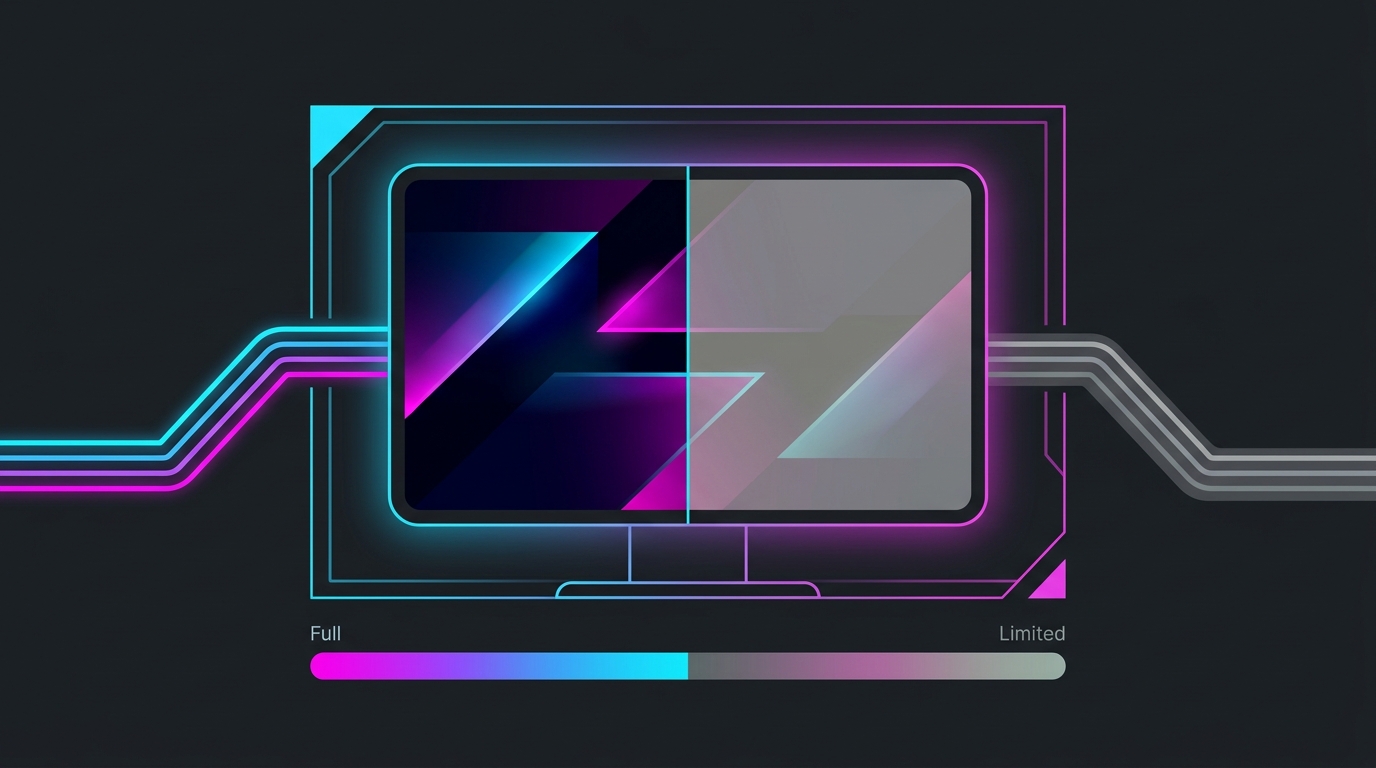
What Full and Limited RGB mean
RGB range is how many brightness levels the signal between your GPU and monitor uses:
- Full RGB (0-255) uses the complete range — 0 is true black, 255 is peak white. This is what PC monitors are designed for.
- Limited RGB (16-235) compresses the signal into a narrower band, reserving the extremes for video broadcast standards. This is what TVs typically expect.
When the range matches the display, everything looks correct. When it doesn’t, the picture breaks in a specific, recognizable way.
Why your blacks look grey
The classic symptom is washed-out, grey blacks and a flat, hazy image. It happens when there’s a mismatch:
- Your GPU outputs Limited (16-235), but your monitor expects Full (0-255). The darkest level the GPU sends is 16, not 0 — so “black” is displayed as dark grey, and the whole image loses contrast.
This mismatch is extremely common over HDMI, which often defaults to Limited RGB because HDMI began as a TV standard. DisplayPort more often defaults to Full, but not always. The fix is to force Full RGB in your GPU settings.
| Full RGB (0-255) | Limited RGB (16-235) | |
|---|---|---|
| Black level | True black (0) | Lifted grey (16) |
| Contrast | Full | Compressed |
| Right for | PC monitors | TVs / video |
| FPS / input lag impact | None | None |
| Common default over | DisplayPort | HDMI |
How to set Full RGB
Set the output range in your GPU control panel, then confirm the desktop blacks get deeper:
- NVIDIA: NVIDIA Control Panel → Display → Change resolution → Output dynamic range → Full. (Also check Output color format is set to RGB — see Best NVIDIA Control Panel Settings for Gaming.)
- AMD: Adrenalin → Display → Pixel Format → choose an RGB 4:4:4 Full option. See Best AMD Adrenalin Settings for Gaming.
- Intel: Intel Graphics Command Center → Display → Quantization Range → Full.
After applying, your blacks should visibly deepen. If a game still looks off, check for an in-game brightness/black-level slider or a monitor OSD RGB range setting that’s forcing Limited.
RGB format vs RGB range — don’t confuse them
Two separate settings often get mixed up:
- Color format: RGB vs YCbCr (how color is encoded).
- Dynamic range: Full vs Limited (how many brightness levels).
For a desktop monitor, the ideal combination is RGB format + Full range. Some HDMI connections quietly default to YCbCr 4:2:2 with Limited range, which causes both washed-out blacks and slightly fuzzy text. Setting the output explicitly to RGB Full fixes both at once.
Does it affect performance?
No. RGB range is purely a signal-encoding setting — it changes how blacks and whites look, not your frame rate or input lag. There’s no performance penalty for Full RGB and no latency benefit to Limited, so pick it entirely on image quality. Full RGB on a PC monitor is correct, free, and better-looking.
Getting the range right is one part of a properly set-up display — pair it with correct monitor optimization and input-delay settings and a fine Windows timer resolution via Tier1Suite so the rest of the chain keeps pace.
Related guides
Frequently asked questions
Should I use Full or Limited RGB for gaming?
On a PC monitor, use Full RGB (0-255). PC monitors expect the full range, and setting Limited (16-235) is what makes blacks look grey and washed out. Full RGB gives you true blacks, brighter whites, and the complete range of shades your monitor can display. Limited RGB exists for TVs and video standards; only use it if your display specifically expects a limited signal, which is rare for a computer monitor connected over DisplayPort or HDMI.
Why do my blacks look grey or washed out?
The most common cause is an RGB range mismatch: your GPU is outputting Limited RGB (16-235) while your monitor expects Full RGB (0-255), so the darkest shades get lifted to grey and the image looks flat and hazy. This often happens automatically over HDMI, which frequently defaults to Limited. Set the output to Full RGB in the NVIDIA Control Panel or AMD Adrenalin and the blacks snap back to true black. It is a signal setting, not a broken panel.
Does RGB range affect FPS or input lag?
No. Full vs Limited RGB is purely how the color signal is encoded between the GPU and monitor — it changes how blacks and whites look, not frame rate or input lag. There is no performance cost to using Full RGB, and no latency benefit to Limited. Choose it entirely on image quality: Full RGB on a PC monitor for correct, punchy blacks and whites.
Where do I change Full vs Limited RGB?
On NVIDIA, open the NVIDIA Control Panel → Display → Change resolution → Output dynamic range, and set it to Full. On AMD, open Adrenalin → Display → Pixel Format and choose an RGB Full range option. Intel uses the Intel Graphics Command Center → Display → Quantization Range. After changing it, your desktop and games should show noticeably deeper blacks. If a game still looks off, also check for an in-game or monitor RGB/black-level setting.
Is Full RGB the same as RGB vs YCbCr?
No, they are related but different settings. RGB vs YCbCr is the color format (how color is encoded); Full vs Limited is the range within that format. For a PC monitor, the ideal is RGB format with Full range. Some HDMI connections default to YCbCr 4:2:2 with Limited range, which can cause both washed-out blacks and slightly fuzzy text. Set the output to RGB Full for the cleanest, most accurate image on a desktop monitor.
Does Limited RGB ever make sense on a monitor?
Rarely. Limited RGB (16-235) is the correct range for most TVs and standard video content, so if you game on a television it may expect Limited. But dedicated PC monitors are built for Full RGB (0-255), and forcing Limited on them crushes the shadow and highlight detail into a narrower band, producing the grey-black, low-contrast look. Unless your specific display documents that it needs Limited, Full RGB is the right choice on a computer.