HDMI vs DisplayPort for Gaming: Which Should You Use?
Published
On this page
The short answer: on a PC monitor, use DisplayPort unless your display has HDMI 2.1 on both ends. Neither interface adds latency you can feel, so the choice comes down entirely to bandwidth — which refresh rate and resolution the connection can actually carry, and whether variable refresh works properly. This guide covers what each standard supports, how to check what you’re running, and the handful of cases where HDMI is the better pick.
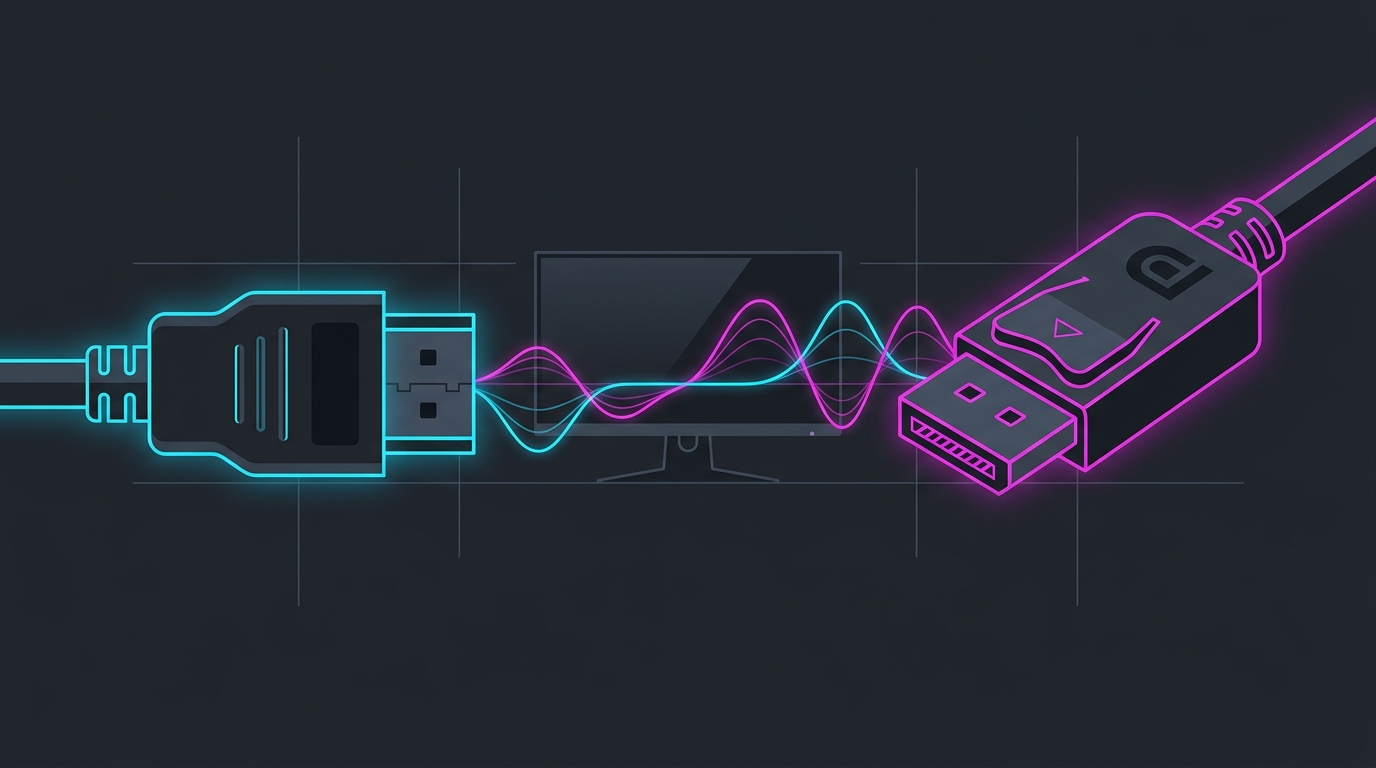
Same picture, different pipe. The only thing that separates them for gaming is how much bandwidth they carry.
The bandwidth table that decides it
Refresh rate, resolution, and colour depth all consume bandwidth from the same budget. These are the usable data rates after encoding overhead:
| Standard | Usable bandwidth | Typical max (no compression) |
|---|---|---|
| HDMI 2.0 / 2.0b | ~14.4 Gbps | 1080p 240Hz, 1440p 144Hz, 4K 60Hz |
| HDMI 2.1 | ~42 Gbps | 1440p 360Hz, 4K 144Hz |
| DisplayPort 1.2 | ~17.3 Gbps | 1080p 240Hz, 1440p 165Hz |
| DisplayPort 1.4 | ~25.9 Gbps | 1440p 240Hz, 4K 120Hz |
| DisplayPort 2.1 (UHBR13.5/20) | ~52–77 Gbps | 4K 240Hz+ |
Two things this table hides:
- DSC (Display Stream Compression) lets DisplayPort 1.4 and HDMI 2.1 exceed those numbers — 4K 240Hz over DP 1.4 is routine with DSC. It’s visually lossless in practice and does not add perceptible latency, but it can interfere with some multi-monitor and Nvidia DSR configurations.
- Colour depth costs bandwidth. 10-bit colour and HDR consume roughly 25% more than 8-bit SDR. If your monitor refuses the top refresh rate, dropping from 10-bit to 8-bit often unlocks it.
Does either one add input lag?
No — not in any amount you can measure by feel. The interface itself contributes a fraction of a millisecond. What genuinely changes latency is:
- Refresh rate. Going from 144Hz to 240Hz cuts roughly 3ms off the average time a finished frame waits to be displayed. That’s why bandwidth matters — not because the cable is slow, but because it gates your refresh rate.
- Which input you plug into. On a monitor, every port feeds the same scaler, so it makes no difference. On a TV, the HDMI ports often differ, and picture processing can add 40–100ms unless you enable Game Mode — see our guide to reducing input lag on a TV for PC gaming.
- Chroma subsampling. If bandwidth is short, the display may fall back to 4:2:2 or 4:2:0, which makes text look fringed but doesn’t add lag. It’s a picture-quality symptom of a bandwidth problem, not a latency one.
If you’re chasing genuine end-to-end latency wins, the cable is the last place to look — the full input-lag guide covers the levers that actually move the number.
Which one should you actually plug in?
Use DisplayPort if:
- Your monitor is 1440p at 165Hz or above, and its HDMI port is 2.0
- You have a native G-Sync module and adaptive sync isn’t appearing over HDMI
- You’re daisy-chaining monitors over MST
Use HDMI if:
- Both your GPU and monitor have HDMI 2.1 (then it’s equal or better — 42 Gbps beats DP 1.4’s 25.9)
- You’re on a TV, or a console shares the display
- Your GPU has run out of DisplayPort outputs
It genuinely doesn’t matter if: you’re at 1080p 144Hz or below. Every modern version of both standards carries that comfortably.
How to check what you’re actually getting
- Open Settings → System → Display → Advanced display. Confirm the refresh rate matches your panel’s rating — Windows frequently defaults new connections to 60Hz.
- In the same panel, check bit depth and colour format.
8-bit+RGBis the safe competitive default;4:2:2means bandwidth is being rationed. - In the NVIDIA Control Panel (Change resolution) or AMD Adrenalin (Display), verify the output colour format and that the highest mode is selectable.
- Check the monitor’s own OSD. Many panels ship with high-bandwidth mode disabled per port — look for
HDMI 2.1,DP 1.4,Enhanced, orUltra HD Deep Colourand turn it on. - Confirm adaptive sync is live — see how to set up G-Sync and FreeSync correctly.
If the highest refresh rate simply isn’t offered anywhere, you’re bandwidth-limited: switch ports, use a certified cable of the right standard, or drop to 8-bit.
Cables: what to buy, what to ignore
Digital signalling means a cable works or it obviously doesn’t. Failure looks like black-screen flicker, random signal drops, or sparkling artifacts — never a gradual softening or added lag.
- HDMI 2.1: buy an Ultra High Speed certified cable (48 Gbps). This is the one place certification genuinely matters, because a lot of “8K” cables are mislabelled.
- DisplayPort 1.4: any DP8K/VESA-certified cable. For DP 2.1 UHBR rates you need DP40 or DP80.
- Length: passive cables get unreliable past ~3m at high bandwidth. Longer runs need an active or optical cable.
- Price: past certification, spending more buys nothing. There is no latency, colour, or smoothness benefit to a premium cable.
Related guides
Frequently asked questions
Does HDMI or DisplayPort have less input lag?
Neither adds meaningful input lag on its own — the difference between the two interfaces is well under a millisecond and not something you can feel. What actually matters is whether the connection can carry your monitor's full refresh rate and whether the input you plug into runs through extra picture processing. On a PC monitor both ports feed the same scaler, so pick the one that supports your highest refresh rate.
Is DisplayPort better than HDMI for 144Hz or 240Hz?
On most PC monitors, yes — DisplayPort 1.4 carries 25.9 Gbps of usable bandwidth versus 18 Gbps for HDMI 2.0, so a 1440p 240Hz panel will often run its full refresh rate on DisplayPort but cap out at 144Hz or 165Hz over HDMI 2.0. If your monitor and GPU both have HDMI 2.1 (48 Gbps), that limitation disappears and either port is fine.
Do I need an expensive HDMI or DisplayPort cable for gaming?
No. Cables are digital — a certified cable of the right standard either carries the full signal or it visibly fails with black screens, flickering, or sparkle artifacts. Buy a cable certified for the standard you need (Ultra High Speed for HDMI 2.1, DP40/DP80 for DisplayPort 2.1) and ignore price tiers above that. Expensive 'gaming' cables do not reduce latency.
Why is my monitor stuck at 60Hz over HDMI?
Almost always a bandwidth or negotiation issue. Check that you're on the right HDMI version on both ends, that the cable is rated for the standard, and that Windows is actually set to the higher refresh rate in Settings → System → Display → Advanced display. Some monitors also have a per-port setting (often labelled HDMI 2.1, Enhanced, or DP 1.4) that must be enabled manually before the higher modes appear.
Does G-Sync or FreeSync work over HDMI?
FreeSync works over both HDMI and DisplayPort on virtually all monitors. Native G-Sync modules historically required DisplayPort, and while HDMI 2.1 VRR support is now common, some G-Sync monitors still only expose full variable refresh over DisplayPort. If adaptive sync is missing from your driver panel, switching to DisplayPort is the first thing to try.