How to Stop Your Gaming Laptop From Thermal Throttling
Published
On this page
If your gaming laptop screams along for the first few minutes and then quietly loses FPS for the rest of the session, you’re watching thermal throttling in real time. The chip hit its temperature limit and started lowering clocks to cool down. Here’s how to confirm it and claw those clocks back.
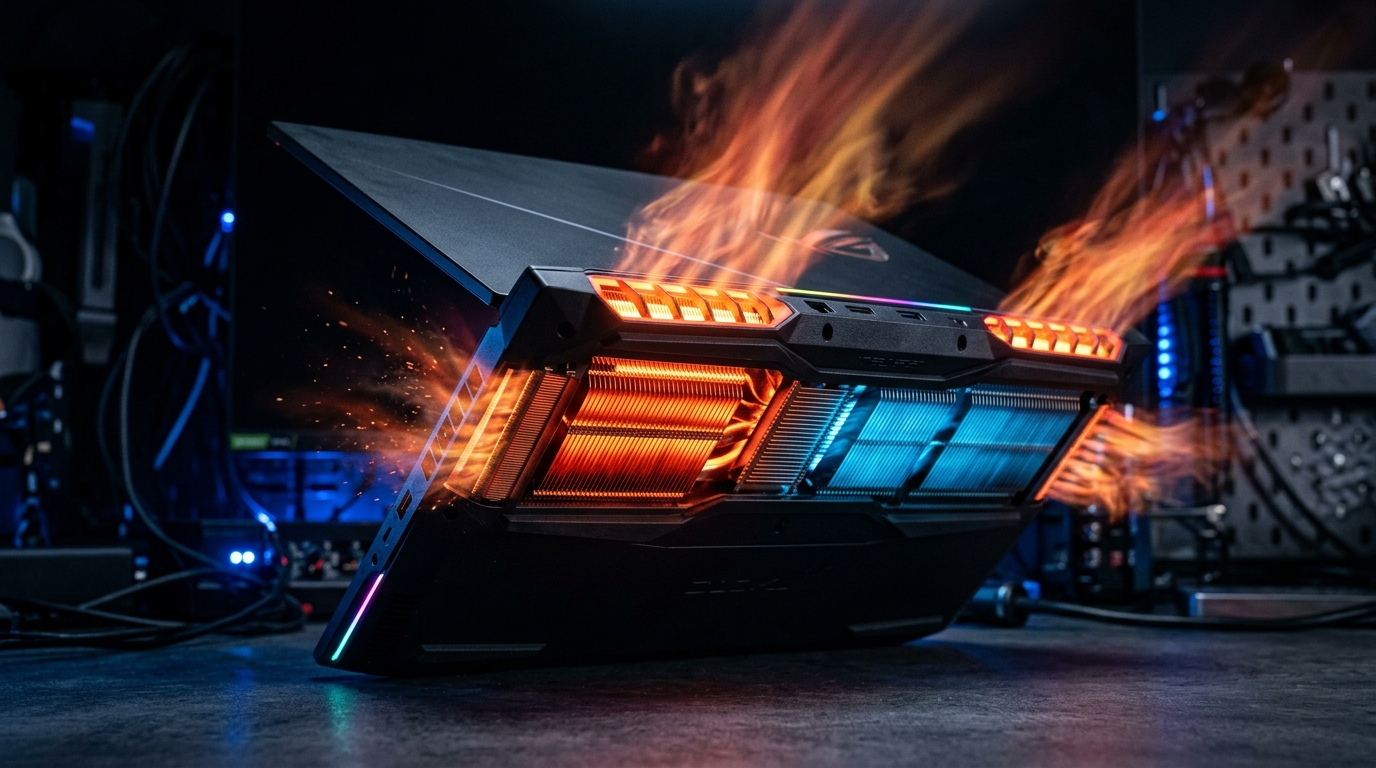
A hot chip is a slow chip. Every degree you shave off lets the laptop hold higher clocks for longer — which is the whole game.
First, confirm it’s actually throttling
- Install HWiNFO (or use the overlay in MSI Afterburner).
- Play for 10–15 minutes while logging CPU/GPU temperature and clock speed.
- If temps pin at a hard ceiling (often ~95–100°C) and clocks drop below their rated boost as that happens, you’re throttling.
If clocks stay high and FPS is still low, the bottleneck is elsewhere — check our guide on CPU vs GPU bottlenecks instead.
Fix 1: Set an aggressive fan curve
Your laptop’s vendor app (Armoury Crate, Legion Vantage / Legion Space, MSI Center, Omen Gaming Hub, etc.) has performance modes that ramp the fans harder.
- Select the Performance / Turbo mode while gaming — it raises both the power limit and fan speed.
- If a custom fan-curve editor is available, set fans to spin up earlier and higher under load.
- Yes, it’s louder. Use a headset; the clocks are worth it.
Fix 2: Improve airflow
Most gaming laptops pull cool air from underneath, so intake is everything:
- Lift the rear with a stand or a cheap cooling pad — even a couple of centimeters helps intake.
- Game on a hard, flat surface, never a bed or couch that blocks the vents.
- Keep the exhaust vents clear of walls and clutter.
Fix 3: Clean out the dust
Dust-clogged fins are one of the most common causes of creeping temperatures on a laptop more than a year old.
- Blow out the intake and exhaust vents with compressed air.
- If you’re comfortable opening the chassis (warranty permitting), clean the fan blades and heatsink fins directly.
Fix 4: Repaste or repad (advanced)
On older laptops the factory thermal paste dries out and temps climb year over year.
- Replacing it with quality paste — or liquid metal on supported chips — can drop temps 5–15°C.
- This carries real risk and can void your warranty. Only do it if you’re confident, and never use liquid metal near aluminium components.
Fix 5: Undervolt to make less heat in the first place
The most elegant fix is to stop the chip from generating the heat at all. Lowering its voltage lets it hit the same clocks while running cooler, so it throttles later or not at all. See How to Undervolt a Gaming Laptop CPU and GPU.
Don’t forget the free stuff
Lower temperatures let your laptop sustain performance — but make sure you’re not wasting the frames you do have. Cap your FPS for stable pacing (how to cap FPS correctly) and apply the Windows timer resolution tweak with Tier1Suite for lower input latency at zero thermal cost — ideal when every watt is already spoken for.
Related guides
- Gaming Laptop Optimization Guide
- How to Undervolt a Gaming Laptop CPU and GPU
- Best Windows Power and Battery Settings for a Gaming Laptop
- MSI Afterburner Guide
- How to Check for a CPU or GPU Bottleneck
Stop a gaming laptop from throttling by confirming it with HWiNFO, running an aggressive fan curve on performance mode, improving intake airflow, clearing dust, and — if you’re comfortable — undervolting or repasting. Hold the clocks high and the FPS stops sliding mid-match.
Frequently asked questions
Why does my laptop lose FPS after 10 minutes of gaming?
That is classic thermal throttling. The chip starts at full clocks while it is cool, then lowers them to stay within its temperature limit as it heats up. Better cooling, an aggressive fan curve, and an undervolt let it hold high clocks for longer.
Is a laptop cooling pad worth it?
For laptops that pull air from the bottom, yes — a cooling pad or even a small stand that lifts the rear improves intake airflow and can drop temperatures several degrees, which directly translates to higher sustained clocks. It will not fix dried-out thermal paste, though.
Is 90C too hot for a gaming laptop?
Brief spikes to the high 80s or low 90s are normal for gaming laptops and within spec for modern chips. The problem is sustained temperatures that force the chip to throttle clocks below its rated speed. The goal is lower steady-state temps, not a specific magic number.
Does repasting a laptop actually help temperatures?
Often significantly, especially on laptops more than two or three years old where the factory paste has dried out. Fresh quality paste or liquid metal can drop temps by 5 to 15C, but it voids some warranties and carries risk, so weigh it carefully.