Best Windows Power and Battery Settings for a Gaming Laptop
Published
On this page
This is the most important guide in the laptop cluster, because it covers the single biggest gaming-laptop setting: whether you’re plugged in. Everything else is fine-tuning around it. Here’s how to get full power to the chip and stop Windows from quietly throttling you.
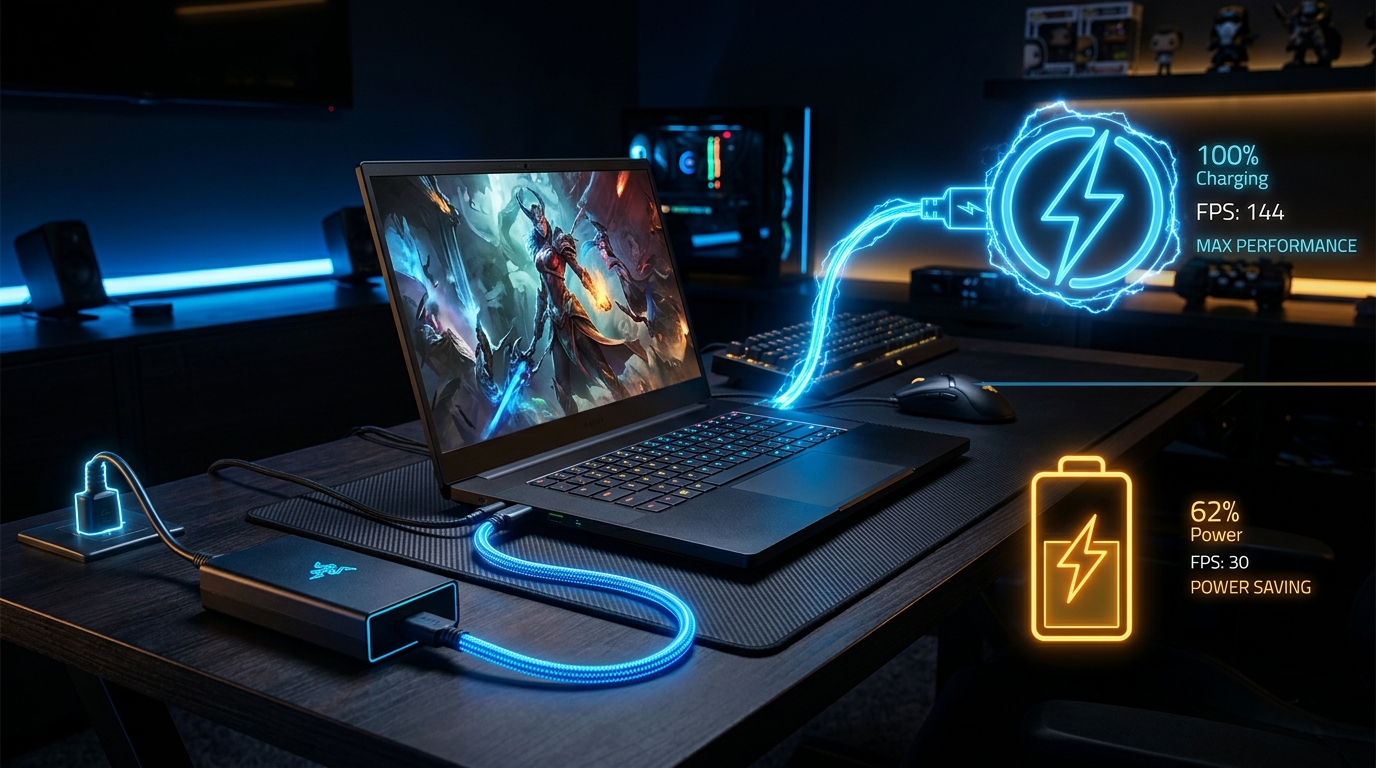
On battery, the chip can’t draw the watts it needs. The plug is worth more FPS than any setting you’ll ever change.
This is the laptop-specific companion to our desktop-focused Best Windows Power Plan for Gaming. The plumbing overlaps, but on a laptop the plugged-in-versus-battery split changes everything.
Why battery kills FPS (it’s not a Windows setting)
When you unplug, two things happen: Windows shifts to battery behaviour, and the laptop firmware slashes the power limit delivered to the CPU and GPU — because the battery physically can’t supply the sustained current a 150W+ gaming load demands. That power cut, not core parking, is what halves your frame rate. No Windows tweak overrides it. Plug in.
Step 1: The vendor performance mode (most important)
Your laptop’s app controls the real power limit and fan curve — set it before anything in Windows:
- ASUS → Armoury Crate → Turbo / Performance
- Lenovo Legion → Legion Vantage / Legion Space → Performance / Custom
- MSI → MSI Center → Extreme Performance
- HP Omen → Omen Gaming Hub → Performance
This raises the wattage budget further than any Windows option can. It’s the setting that actually unlocks your hardware.
Step 2: Windows power mode and plan
- Settings → System → Power & battery → Power mode → Best Performance (do this while plugged in).
- Win+R →
powercfg.cpl→ select High Performance (or Ultimate Performance if listed). - These keep the CPU from parking cores and downclocking during brief lulls — the same micro-stutter fix described in the desktop power plan guide.
Step 3: Stop battery-saver throttling
- Turn off Battery Saver entirely while gaming (it caps performance and background work).
- Disable any “Optimize for battery” or efficiency toggles in the vendor app while plugged in.
- In Graphics settings, make sure demanding games are set to High performance so they use the discrete GPU — pair this with the MUX switch guide.
Step 4: Keep the power from turning into heat (and throttling)
More power means more heat, and heat brings throttling — which undoes the gains. Make sure your cooling can keep up: see How to Stop Your Gaming Laptop From Thermal Throttling, and consider an undervolt so the extra power produces clocks instead of just heat.
Step 5: The free latency layer
Once the chip is getting full power, lock in the free wins. The Windows timer resolution tweak lowers input latency at no power or thermal cost — apply it automatically with Tier1Suite. On a machine where every watt is budgeted, free is exactly the kind of gain you want.
Related guides
- Gaming Laptop Optimization Guide
- Best Windows Power Plan for Gaming (desktop)
- How to Stop Your Gaming Laptop From Thermal Throttling
- MUX Switch and Advanced Optimus Explained
- Windows 11 24H2 Best Gaming Settings
The best gaming-laptop power setup is plugged in, on the vendor’s performance mode, with Windows set to Best Performance and battery saver off — then cooled well enough that the extra power becomes clocks instead of throttling. Get that right and you’ve recovered most of the FPS your laptop was leaving on the table.
Frequently asked questions
Why does my laptop lose FPS on battery?
On battery, laptops cut the wattage delivered to the CPU and GPU to protect run time and because the battery cannot supply enough sustained current. That power limit, not a Windows setting, is what slashes FPS — often by half. Always game plugged in.
What power mode should a gaming laptop use?
Plugged in, use the manufacturer's Performance or Turbo profile in the vendor app, and set the Windows power mode to Best Performance. The vendor profile raises the chip's power limit further than any Windows plan can, so it matters more than the classic power plan.
Is the vendor performance mode better than the Windows power plan on a laptop?
Yes. On laptops the manufacturer's mode (Armoury Crate, Legion Vantage, MSI Center) controls the actual power limit and fan behaviour, which the Windows plan cannot touch. Set both, but the vendor mode is the one that unlocks the real performance.
Can I game on battery if I have to?
You can, but expect substantially lower and less stable FPS, and the battery will drain in under an hour under load. If you must, set the vendor performance mode, cap FPS low for stability, and lower in-game settings. Plugging in is always far better.