Best Fortnite Visibility Settings to See Enemies Clearly
Published
On this page
Fortnite gets much easier to read when you strip out the effects that blur movement and hide distant players. The best Fortnite visibility settings turn Motion Blur off, push View Distance to Far or Epic, keep Shadows off, lift Brightness to around 130–150, and add a Colorblind Mode for extra contrast — so enemies, edits, and builds stand out against the terrain instead of blending into it.
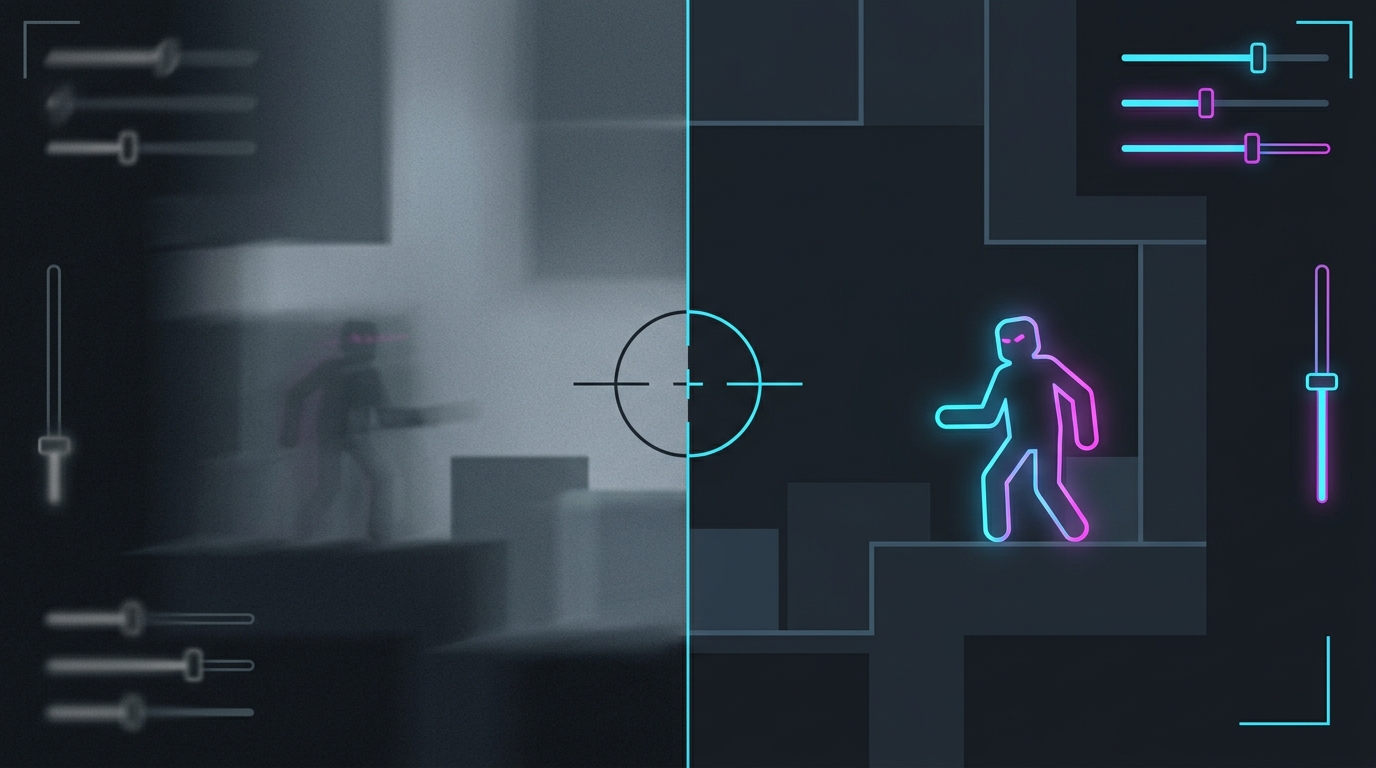
A cleaner, higher-contrast image wins more fights than a prettier one — especially at build-fight range.
Best Fortnite visibility settings
Set these in Settings → Video and Settings → Accessibility:
| Setting | Recommended value |
|---|---|
| Motion Blur | Off |
| View Distance | Far or Epic |
| Shadows | Off |
| Post Processing | Low |
| Anti-Aliasing | TSR or Off (test for clarity) |
| Brightness | 130–150 (monitor-dependent) |
| Colorblind Mode | Deuteranope / Protanope / Tritanope (test) |
| Colorblind Strength | 5–7 |
| Visualize Sound Effects | On (extra positional read) |
If a patch renames or moves one of these, keep the same goal: remove blur, keep distant targets rendered, and raise contrast so player outlines separate from the map.
Turn off Motion Blur first
Motion Blur is the single worst visibility setting in Fortnite. It smears the frame every time you strafe, edit, or flick, which is exactly when you need a trustworthy read of where the enemy is.
Turn it Off in Video settings. It costs you nothing competitively and can even give back a little FPS on lower-end systems.
Keep View Distance far so enemies don’t vanish
Lowering View Distance to Near or Medium culls distant objects and players earlier to save frames. The problem: it can hide an enemy who is still visible on your screen at range, so you lose the early read on a rotating team.
Set View Distance to Far or Epic. On any modern CPU the FPS cost is small, and spotting a distant push before it reaches you is worth far more than a couple of frames.
Shadows off, Post Processing low
Shadows and heavy post-processing hurt both visibility and performance at once. Dynamic shadows create dark pools that swallow crouched players, and high post-processing adds bloom and glare that flatten the image.
- Set Shadows to Off — cleaner silhouettes and a solid FPS gain.
- Keep Post Processing at Low to cut bloom and glare.
- Test Anti-Aliasing: TSR smooths jagged edges but can soften distant players, while Off is sharper but shimmery. Pick whichever lets you read movement at range on your monitor.
Brightness and colorblind modes for contrast
The two most underrated visibility levers in Fortnite are brightness and the colorblind options.
- Raise Brightness to roughly
130–150. This lifts detail out of dark builds and shaded tree lines. Stop before highlights blow out and the picture goes flat. - Open Accessibility → Colorblind Mode and cycle Deuteranope, Protanope, and Tritanope on the preview screen. Each shifts the palette so player outlines, storm walls, and loot glints pop more.
- Set Colorblind Strength to
5–7. Many competitive players run one of these purely for contrast, not because they are colorblind — keep whichever makes movement easiest to track.
Visibility only helps if your frame rate is stable
Clean settings mean little if the game stutters or your input feels laggy in the middle of a build fight. Lock in steady frame pacing and a responsive feel alongside these visibility tweaks:
- Best Fortnite Settings for FPS
- Fortnite Stuttering Fix
- Fortnite Lowest Input Lag Settings
- Best Fortnite Audio Settings for Competitive Play
A lower timer resolution also keeps frame delivery consistent, which makes tracking a moving target feel sharper on top of these visual changes.
Related guides
- Best Fortnite Settings for FPS
- Fortnite Stretched Resolution Guide
- How to Minimize Input Delay for Competitive Gaming
- How to Optimize Your Monitor for Gaming
The best Fortnite visibility settings remove blur and clutter, keep distant enemies rendered, and raise contrast so you read fights faster. Turn Motion Blur off, keep View Distance far, drop Shadows, lift Brightness, and let a colorblind mode do the rest.
Frequently asked questions
What are the best visibility settings in Fortnite?
Turn Motion Blur off, set View Distance to Far or Epic, keep Shadows off, raise Brightness to around 130–150 (test on your monitor), and pick a Colorblind Mode plus Strength that makes builds and player outlines pop against the terrain. These changes make distant enemies and edited walls far easier to read without costing meaningful FPS.
Should I turn off Motion Blur in Fortnite?
Yes. Motion Blur smears the image during fast strafes, edits, and 360 flicks — exactly the moments you need a clean read of an enemy's position. It adds nothing competitive and can lower FPS slightly, so turn it off in Video settings and leave it off.
Does a colorblind mode help you see enemies in Fortnite?
Yes, even if you are not colorblind. Colorblind modes shift the game's palette so player outlines, storm edges, and item glints separate more from the background. Many competitive players run Deuteranope or Tritanope at Strength 5–7 purely for the extra contrast — test each one on Fortnite's own preview screen and keep whichever makes movement easiest to track.
What View Distance should I use in Fortnite for visibility?
Use Far or Epic. Lower View Distance culls distant props and players sooner, which can actually hide an enemy who is still on your screen at range. Far and Epic keep long-range targets rendered; the FPS difference is small on modern CPUs and worth it for spotting rotations early.
Should I raise brightness to see better in Fortnite?
Slightly, yes. Raising Brightness to roughly 130–150 lifts detail out of dark interiors and shadowed tree lines without washing the whole image out. Push it too high and highlights blow out and the picture flattens, so raise it in small steps and stop once dark corners are readable but the scene still has contrast.