Gaming Services Repair Tool: Fix Xbox & Game Pass Errors
Updated Published
On this page
The Gaming Services Repair Tool is Microsoft’s free, portable GamingRepairTool.exe (linked from Xbox Support, also on winget) that repairs the Xbox app, Xbox Identity Provider, Game Bar and Gaming Services in one run — and if it doesn’t stick, a Microsoft Store update sweep or a PowerShell reinstall clears the rest. If your Xbox Game Pass games won’t launch, get stuck at installing, or throw error codes like 0x80073D26, 0x80070422, or “Gaming Services not found,” this guide walks the fixes in the right order.
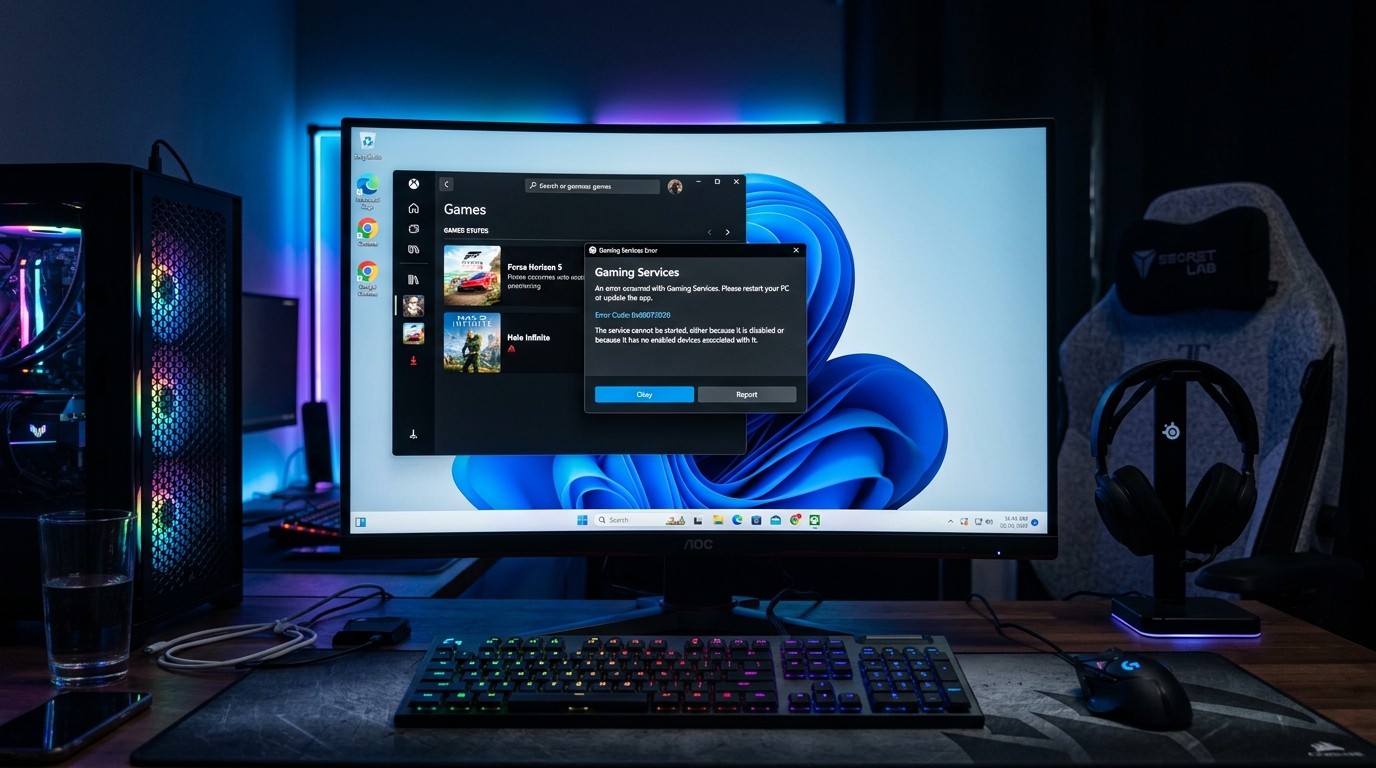
Gaming Services errors are one of the most searched PC gaming problems in 2026 — they’re common, frustrating, and fixable in a few minutes.
What breaks Gaming Services
- A Windows Update partially updating one of the Gaming Services components
- A Microsoft Store update that corrupted the Gaming Services package
- Installing or uninstalling other Microsoft Store apps disrupting the package dependencies
- Windows security changes that tightened app package permissions
- An aggressive system cleaner or antivirus quarantining a Gaming Services file
Fix 1 — Update all apps via Microsoft Store (do this first)
Many Gaming Services failures resolve with a single Store update sweep:
- Open Microsoft Store.
- Click Library (bottom-left or in the sidebar).
- Click Get Updates — let all pending updates install.
- Restart your PC.
- Try launching your game.
Microsoft silently delivers Gaming Services updates through the Store. A corrupted version often self-heals when the latest version installs over it.
Fix 2 — Repair and Reset Gaming Services
- Press Win + I → Apps → Installed Apps.
- Search for Gaming Services.
- Click the three-dot menu → Advanced Options.
- Click Repair. Wait for it to complete.
- Try the game. If still broken: click Reset.
- Repeat steps 2–5 for the Xbox app as well.
- Restart your PC.
Repair reinstalls corrupted files without touching your data. Reset clears the app’s local cache and data — if the corruption is in stored state rather than program files, Reset clears it.
Fix 3 — Use the official Gaming Services Repair Tool
The Gaming Services Repair Tool is a small (~750 KB) portable executable from Microsoft. It does not install anything itself — you run it, it checks the Xbox gaming components, and it repairs, updates or reinstalls whichever one is broken.
What the Gaming Services Repair Tool checks and repairs:
| Component | What it does | Symptom when broken |
|---|---|---|
| Gaming Services | Installs, licenses and launches Game Pass / Store games | Games stuck on “Install”, won’t launch, 0x80073D26 |
| Xbox app | PC game library front-end | App won’t open, “content failed to load” |
| Xbox Identity Provider | Xbox sign-in for PC games | Sign-in loops, games say you’re offline |
| Game Bar | Overlay, captures, party chat | Win + G does nothing |
Where to get the Gaming Services Repair Tool (official sources only):
- Xbox Support: the Gaming Services Repair Tool for PC article has the download button. The file it gives you is named
GamingRepairTool.exeand comes from Microsoft’s Xbox download server,dlassets-ssl.xboxlive.com. - winget: in a terminal, run
then runwinget install -e --id Microsoft.Gaming.GamingServicesRepairToolgamingrepairtoolfrom an elevated terminal.
Don’t download a “gaming repair tool” from third-party download sites — the real one is free and only comes from Microsoft.
How to run the Gaming Services Repair Tool:
- Right-click
GamingRepairTool.exe→ Run as administrator. - A console window opens and checks each component. Let it finish — it may open Microsoft Store pages to update or reinstall a component, so don’t close those.
- Answer any prompt it shows in the console window.
- Restart your PC and launch the game again.
If the tool reports nothing wrong but games still fail, the corruption is usually in the package registration rather than the files — go to Fix 4.
Fix 4 — Reinstall Gaming Services via PowerShell
If Repair and the official tool don’t work, a clean reinstall usually does:
Open PowerShell as Administrator (search “PowerShell” → right-click → Run as administrator):
Step 1 — Remove the broken package:
Get-AppxPackage *gamingservices* -allusers | Remove-AppxPackage -allusersStep 2 — Reinstall from the Store:
start ms-windows-store://pdp/?productid=9MWPM2CQNLHNThis opens the Gaming Services Store page — click Install and wait for it to complete.
Step 3 — Restart your PC.
After reinstalling, also repair the Xbox app via Settings → Apps → Xbox → Advanced Options → Repair.
Fix 5 — Clear Microsoft Store cache
A corrupted Store cache can block Gaming Services from updating or installing correctly:
- Press Win + R → type
wsreset.exe→ press Enter. - A black command window opens and closes automatically — the cache is being cleared.
- The Microsoft Store opens when complete.
- Try reinstalling or updating Gaming Services.
Fix 6 — Fix the Xbox Identity Provider
Some Gaming Services errors are actually an Xbox Identity Provider (sign-in component) problem:
- Settings → Apps → Installed Apps → search Xbox Identity Provider.
- Advanced Options → Repair, then Reset.
- Also repair Xbox Live In-Game Experience.
- Restart.
If you were previously signed out of the Xbox app or your Microsoft account, sign back in after repairing.
Fix 7 — Re-register all Windows Store apps (last resort)
If nothing above has worked, re-registering all Store app packages often clears stubborn Gaming Services corruption:
Open PowerShell as Administrator:
Get-AppXPackage -allusers | Foreach {Add-AppxPackage -DisableDevelopmentMode -Register "$($_.InstallLocation)\AppXManifest.xml" -ErrorAction SilentlyContinue}This command is slow (several minutes). Let it complete, then restart. It does not delete any apps — it only re-registers their manifests.
Error code reference
| Error code | Common cause | Fix |
|---|---|---|
| 0x80073D26 | Gaming Services missing or corrupted | Fix 4 (PowerShell reinstall) |
| 0x80070422 | Gaming Services Windows service stopped | Fix 2 (Repair/Reset) |
| 0x8007139F | Xbox license check failed | Fix 6 (Xbox Identity Provider) |
| 0x803F8001 | Store entitlement error | Fix 5 (wsreset) + sign out/in Xbox app |
| ”Try again later” | Store backend issue | Wait 10–15 minutes, retry Fix 1 |
Prevent future Gaming Services breakage
- Don’t use aggressive system cleaners (CCleaner, etc.) — they can delete Gaming Services registry entries or files flagged as “unused.”
- Keep Windows up to date — Gaming Services requires specific Windows version compatibility.
- Don’t uninstall Store apps used as Gaming Services dependencies (Xbox Identity Provider, Xbox Live In-Game Experience).
- Allow Microsoft Store to update automatically — updates often patch Gaming Services before issues surface.
Related guides
- Disable Xbox Game Bar and Game DVR for FPS
- How to Debloat Windows to Optimize PC for Gaming
- Windows 11 24H2 Best Gaming Settings
- Fixing DLL Errors with DISM, SFC, and Similar Methods
Start with the Microsoft Store update sweep (Fix 1) — it solves the majority of Gaming Services problems in under two minutes. If that doesn’t work, the PowerShell reinstall (Fix 4) clears the rest. Run the Xbox Identity Provider repair if sign-in related errors persist.
Frequently asked questions
Where do I download the Gaming Services Repair Tool?
Microsoft's Gaming Services Repair Tool for PC is linked from the Xbox Support article 'Gaming Services Repair Tool for PC' and is a single portable file named GamingRepairTool.exe served from Microsoft's Xbox download server (dlassets-ssl.xboxlive.com). You can also install it with winget: winget install -e --id Microsoft.Gaming.GamingServicesRepairTool. Avoid copies on third-party download sites.
What does the Gaming Services Repair Tool fix?
The tool checks and repairs four components: the Xbox app, Xbox Identity Provider, Game Bar and Gaming Services. If any of them is missing or out of date it will also try to install or update it. It is portable, so nothing is installed — you run the .exe, let its console window finish, and restart.
What is Windows Gaming Services and why is it needed?
Microsoft Gaming Services is a Windows system component required by Xbox Game Pass, Minecraft Bedrock Edition, and most Microsoft Store games. It handles download management, licensing verification, and game telemetry for these titles. When it breaks or becomes corrupted, affected games fail to launch, get stuck installing, or throw error codes.
How do I fix Gaming Services quickly?
The fastest fix for most users: open the Microsoft Store, go to Library, click Get Updates to update all apps including Gaming Services. If that doesn't work, go to Settings → Apps → Installed Apps → search Gaming Services → three dots → Advanced Options → Repair. If Repair fails, click Reset. Restart your PC after each attempt.
How do I reinstall Gaming Services using PowerShell?
Open PowerShell as Administrator and run: Get-AppxPackage *gamingservices* -allusers | remove-AppxPackage -allusers — this removes the broken package. Then reinstall by running: start ms-windows-store://pdp/?productid=9MWPM2CQNLHN — this opens the Gaming Services page in the Store for reinstallation. Restart after installing.
Why won't my Xbox Game Pass game launch after Gaming Services is fixed?
After reinstalling Gaming Services, also repair the Xbox app itself via Settings → Apps → Xbox → Advanced Options → Repair. Sometimes the Xbox app's license store gets out of sync with Gaming Services and needs its own repair. If games still don't launch, run wsreset.exe to clear the Microsoft Store cache.
Is Gaming Services the same as Xbox app or Microsoft Store?
They are separate but dependent components. Microsoft Gaming Services is the backend system service. The Xbox app is the game library front-end. The Microsoft Store is the download manager. When one breaks, the others often appear broken too. Fix Gaming Services first, then repair the Xbox app if games still don't work.