EMPULSE Stuttering Fix: Stop Frame Drops in the Movement Shooter
Published
On this page
Stutter in EMPULSE is especially disruptive because the game is built on constant movement — a hitch during a wall-run or grapple can be the difference between landing on a platform and falling into a kill zone. Here’s what causes it and how to fix each source.
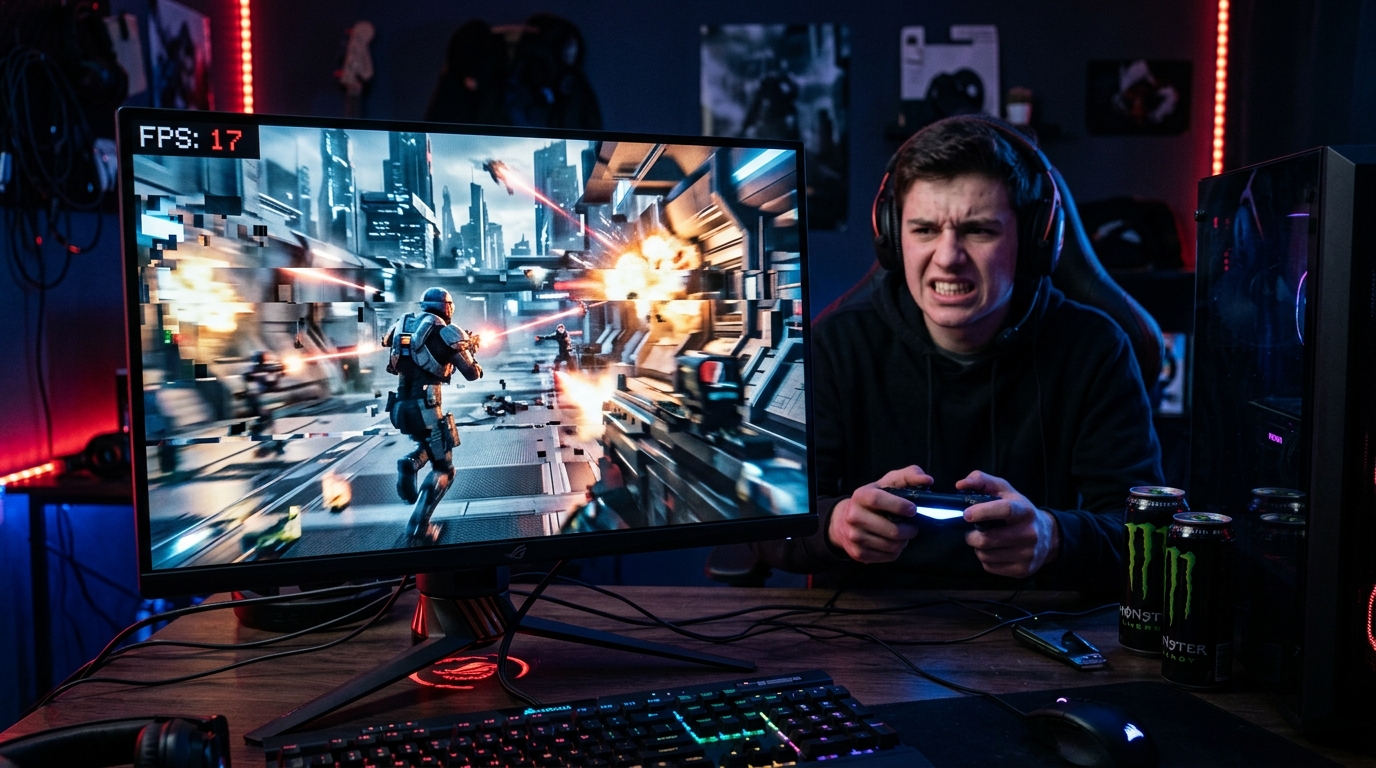
EMPULSE is a Unreal Engine movement shooter — most launch-day stutter is shader compilation. The fixes below sort it out quickly.
What EMPULSE stutter typically looks like
- Hitches on the first few uses of each movement ability or weapon effect
- Brief freezes when entering a new area of the map for the first time
- Frame drops during 6v6 teamfight particle effects
- Stutter that gradually decreases over multiple sessions as shaders warm up
If your FPS counter looks healthy but the game feels hitchy, you’re experiencing frame-time spikes — not low average FPS.
Fix 1 — Let shader compilation finish
Unreal Engine games (and EMPULSE appears to use UE) compile shaders on first launch or after a major update. This is non-optional: the game must generate GPU shader code for every effect before it runs smoothly.
- On first launch, wait for any “Compiling Shaders” or “Optimizing” progress screen to complete before entering a match.
- Play a few rounds in a casual/training mode first — stutter will reduce as shaders compile lazily during gameplay.
- Do not alt-tab during shader compilation — it pauses the process.
- After a game update that changes effects, allow another warm-up session.
Fix 2 — Increase GPU shader cache size
If the shader cache is too small, warm shaders get evicted and recompiled — reproducing stutter even in later sessions.
NVIDIA
- NVIDIA Control Panel → Manage 3D Settings → Global Settings.
- Shader Cache Size → 100 GB (or Unlimited).
AMD
- AMD Software → Settings → Graphics → Shader Cache.
- Set to a large value or disable the cap.
This is a global setting — it applies to all games. There is no downside to increasing it.
Fix 3 — Switch to exclusive Fullscreen
- EMPULSE → Options → Display → Display Mode → Fullscreen.
- Fullscreen Exclusive gives the game direct control over the display pipeline. Borderless Windowed adds Windows DWM compositor latency and can cause frame-delivery hiccups.
Fix 4 — Update or clean-install your GPU driver
New games ship with a Game Ready / Adrenalin driver. Check before your first session:
- NVIDIA: Download the June 16, 2026 Game Ready Driver (or latest) — NVIDIA released one specifically for EMPULSE’s launch.
- AMD: Update to the latest Adrenalin driver for RX series.
- If stutter started on a driver that previously worked fine, roll back one version and test.
For a clean reinstall (removes old driver state that can cause stutter): How to Clean Install GPU Drivers with DDU.
Fix 5 — Check your RAM
| RAM | EMPULSE situation |
|---|---|
| 8 GB | Minimum; streaming hitches likely if other apps are open |
| 12 GB | Recommended — comfortable for most sessions |
| 16 GB | Ideal; asset streaming and shader cache storage fully comfortable |
Close all non-essential apps before launching EMPULSE if you’re on 8–12 GB. Browsers, Discord (with video/screen share disabled), and recording software all consume RAM that competes with game asset streaming.
Fix 6 — Stop CPU and GPU power throttling
Stutter that appears specifically on thermal load (action-heavy moments, large team fights) points to throttling:
- Windows Power Plan → High Performance.
- On laptops, plug in and disable battery-saver modes.
- GPU Power Management → Prefer Maximum Performance in NVIDIA Control Panel.
- Monitor temperatures during play — see How to Check for a CPU or GPU Bottleneck.
Fix 7 — Background app interference
- Disable Discord overlay (Discord → Settings → Activity Settings → Display overlay → Off).
- Disable Steam overlay (Steam → Settings → In-Game → Enable the Steam overlay while in-game → Off).
- Disable Xbox Game Bar recording — see Disable Xbox Game Bar and Game DVR.
Fix 8 — Reduce Effects Quality for teamfight FPS drops
If stutter occurs specifically in 6v6 teamfights (maximum particle load):
- Effects Quality → Low — reduces simultaneous particle count.
- Post-Processing → Low.
- Shadow Quality → Low (shadows recalculate per-frame during fast movement).
For the full settings pass, see EMPULSE Best Settings for FPS.
Fix 9 — Move EMPULSE to an SSD
If EMPULSE is installed on a hard drive (HDD), map streaming and texture loading cause hitches as the drive seeks. Move it to any SSD — even a SATA SSD eliminates most streaming-based stutter.
Quick-reference checklist
- Shader compilation complete before ranked play
- Shader Cache Size: 100 GB in GPU driver panel
- Display Mode: Fullscreen (exclusive)
- GPU driver: updated to latest (NVIDIA June 16 Game Ready or later)
- RAM: 12–16 GB, background apps closed
- Power Plan: High Performance, plugged in if laptop
- Overlays (Discord, Steam, Xbox Game Bar): disabled
- Effects Quality: Low for teamfight FPS stability
- EMPULSE installed on SSD
Related guides
- EMPULSE Best Settings for FPS
- How to Clean Install GPU Drivers with DDU
- How to Disable VBS to Fix Low FPS in Games
- Clear Shader Cache to Fix Stuttering
- How to Check for a CPU or GPU Bottleneck
Most EMPULSE stutter on launch day is shader compilation — give it a warm-up session and it clears. Persistent stutter points to shader cache size, Borderless mode, a driver update, or a RAM bottleneck. Work through the checklist above and EMPULSE will be smooth as its wall-runs.
Frequently asked questions
Why does EMPULSE stutter on my PC?
The most common cause on launch day is shader compilation — EMPULSE (like most Unreal Engine titles) compiles graphics shaders as new effects appear for the first time. Let the shader compilation screen complete before playing ranked, and wait out the hitches in the first few minutes of a match. Other causes include running in Borderless mode instead of Fullscreen, insufficient RAM (8GB is the practical minimum, 16GB eliminates most streaming stutters), or outdated GPU drivers.
How do I fix shader compilation stutter in EMPULSE?
You can't skip shader compilation — you can only let it happen. After first launch, wait for the compiling/optimizing screen to complete. Then play a few rounds in a low-stakes mode before ranked. After each major update the process repeats. Increasing Shader Cache Size to Unlimited in your GPU driver panel (NVIDIA Control Panel or AMD Software) prevents the shader cache from being evicted before it's fully warmed up.
Does EMPULSE need 16GB of RAM to avoid stuttering?
12GB is the recommended minimum. At 8GB, Windows swap file activity during map loading can cause brief hitches. At 16GB, asset streaming and shader storage are fully comfortable. If you're on 8GB and experiencing stutter outside of shader compilation, upgrading RAM to 16GB is the single most cost-effective fix.
Should I use DX11 or DX12 in EMPULSE?
EMPULSE launches with DirectX 11 as its default API. DX12 typically offers better multi-core CPU utilization which can reduce CPU-bound frame time spikes in busy team fights, but it also introduces more driver-level stutter on some configurations. Start with DX11 (default), and only switch to DX12 if you're seeing CPU-bound frame drops during heavy fights.
EMPULSE stutters only during wall-runs and grapple — what's causing it?
Movement ability triggers often coincide with new particle effects, audio events, and geometry loading. If the stutter happens specifically on ability use in the first session, that is shader compilation — it will stop after the shaders for those effects are cached. If it persists across multiple sessions, the GPU may be hitting a VRAM limit from too-high texture settings, or the CPU is spiking on ability-related code. Lower Effects Quality and Texture Quality one step and test.