SSD TRIM for Gaming: How to Check It's On and Why It Matters
Published
On this page
TRIM is the command that tells your SSD which blocks are no longer in use, and without it a drive gradually loses sustained write speed as its controller runs out of pre-erased blocks to write into. Windows enables it automatically for internal SSDs, but there are enough exceptions that checking takes one command and is worth doing.
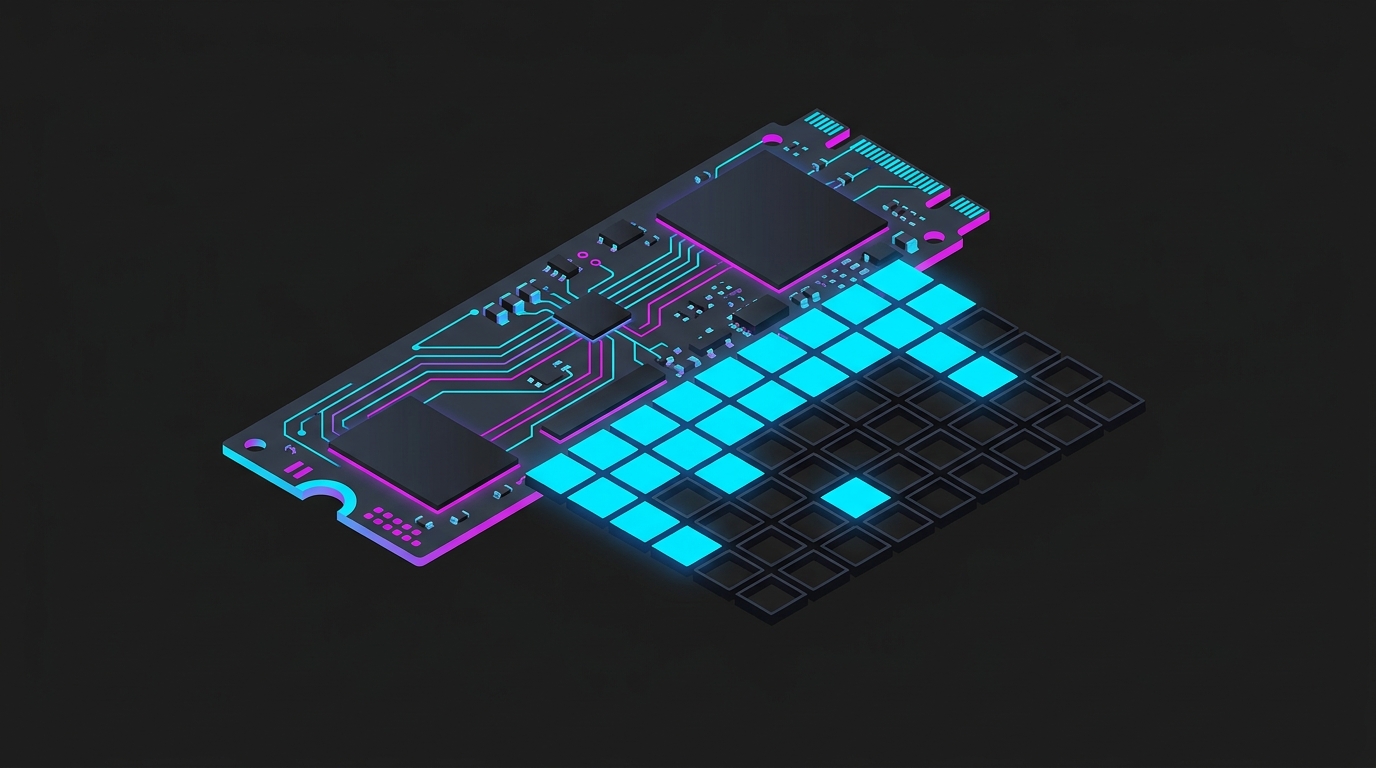
Why an SSD slows down without TRIM
An SSD can write to an empty page immediately, but it cannot overwrite a used one — it must erase a whole block first, and erasing is slow. The controller therefore keeps a pool of pre-erased blocks ready.
When you delete a file, the filesystem marks the space free but the drive has no idea: to the controller those blocks still hold data. Without TRIM the pool shrinks until every write turns into a read-modify-erase-write cycle, and sustained write speed can fall to a fraction of the drive’s rating.
TRIM closes that gap by telling the drive which blocks the filesystem no longer needs, so the controller can erase them in the background before you need them.
How to check TRIM is enabled
Open an elevated command prompt and run:
fsutil behavior query DisableDeleteNotifyRead the result against this table:
| Output | Meaning |
|---|---|
DisableDeleteNotify = 0 | TRIM is enabled — nothing to do |
DisableDeleteNotify = 1 | TRIM is disabled |
| Separate NTFS / ReFS lines | Check the line matching your filesystem |
If it reports 1, enable it with:
fsutil behavior set DisableDeleteNotify 0The change takes effect immediately. On a drive that has gone a long time without TRIM, open Defragment and Optimize Drives, select the SSD and click Optimize to send a full TRIM pass — expect it to take a few minutes.
When TRIM is actually off
Windows gets this right on internal drives, so a 1 almost always has a specific cause:
- Older RAID controllers. RAID modes on some chipsets historically did not pass TRIM through. Modern Intel RST and AMD drivers do, but a legacy array may not.
- USB and Thunderbolt enclosures. Many bridge chips silently drop TRIM. If you game from an external SSD, this is the case worth checking.
- A past “optimization” guide. Some older tweak lists told people to disable delete notification. It was wrong then too.
- A drive Windows thinks is a hard disk. If the drive is misidentified, Windows schedules defragmentation instead of TRIM — which is actively harmful. Check that Optimize Drives lists the media type as Solid state drive.
What this does and doesn’t fix for gaming
Be realistic about the effect. TRIM protects sustained write performance, and games are overwhelmingly read-heavy. You will not gain frames from enabling it.
Where it shows up is a drive that is heavily used and close to full: slower level loads, longer shader-cache rebuilds after a driver update, and occasional hitching while a game streams assets and writes at the same time. If you are chasing stutter, check shader cache and DPC latency first — both are far more likely causes.
The related storage decision that does affect load times is the interface itself, covered in NVMe vs SATA SSD for gaming.
Keep it healthy
- Leave 10-15% free. Both TRIM and wear levelling need spare blocks; a drive at 99% capacity will be slow regardless.
- Never defragment an SSD. It writes for no benefit and consumes endurance.
- Leave the weekly Optimize schedule on. It is TRIM, not defragmentation, on a correctly identified SSD.
- Check external drives explicitly. Do not assume an enclosure passes TRIM through.
If you would rather not run the command by hand, Tier1Suite reports TRIM status alongside your drive type as a read-only system fact — one of the checks it runs before recommending anything, and free regardless of tier.
Related guides
Frequently asked questions
Is TRIM enabled by default in Windows 11?
Yes. Windows 10 and 11 enable TRIM automatically for any drive Windows identifies as an SSD, and run it as part of the weekly Optimize Drives task. It is worth verifying rather than assuming, because TRIM can end up disabled on drives behind an older RAID controller, on some USB and Thunderbolt enclosures, and on systems where a past 'optimization' guide turned it off.
How do I check if TRIM is on?
Open an elevated command prompt and run 'fsutil behavior query DisableDeleteNotify'. A result of 0 means TRIM is enabled, and 1 means it is disabled. Modern Windows reports separate values for NTFS and ReFS, so check that the line matching your filesystem reads 0.
Does TRIM improve FPS or reduce stutter?
Not directly. TRIM protects sustained write performance over the life of the drive, so its absence shows up as slower level loading, longer shader-cache writes and occasional hitching on a heavily used drive rather than a lower frame rate. A drive that has never been trimmed and is nearly full is the case where you would actually feel it.
Should I manually run TRIM or defragment my SSD?
Never defragment an SSD — it causes writes with no benefit and shortens drive life. Running TRIM manually is harmless but usually unnecessary, since Windows already schedules it weekly; use Optimize Drives and click Optimize if you want to trigger it, which sends TRIM rather than defragmenting on a correctly identified SSD.
Does TRIM work on external USB SSDs?
Often not. Many USB and Thunderbolt bridge chips do not pass TRIM commands through to the drive, so an external SSD can go untrimmed indefinitely. This matters little for a backup drive, but it is a real consideration if you install and play games from an external SSD.