Modern Warfare 4 Lowest Input Lag Settings for Competitive Play
Published
On this page
The lowest input lag in Modern Warfare 4 comes from five changes: Fullscreen Exclusive, NVIDIA Reflex Low Latency on On + Boost, V-Sync off, a frame cap a few frames below your refresh rate, and Frame Generation off. Together they strip out most of the delay you can actually control between your mouse click and a shot registering on screen. This guide works through the in-game menu, the GPU driver, and the Windows layer underneath both.
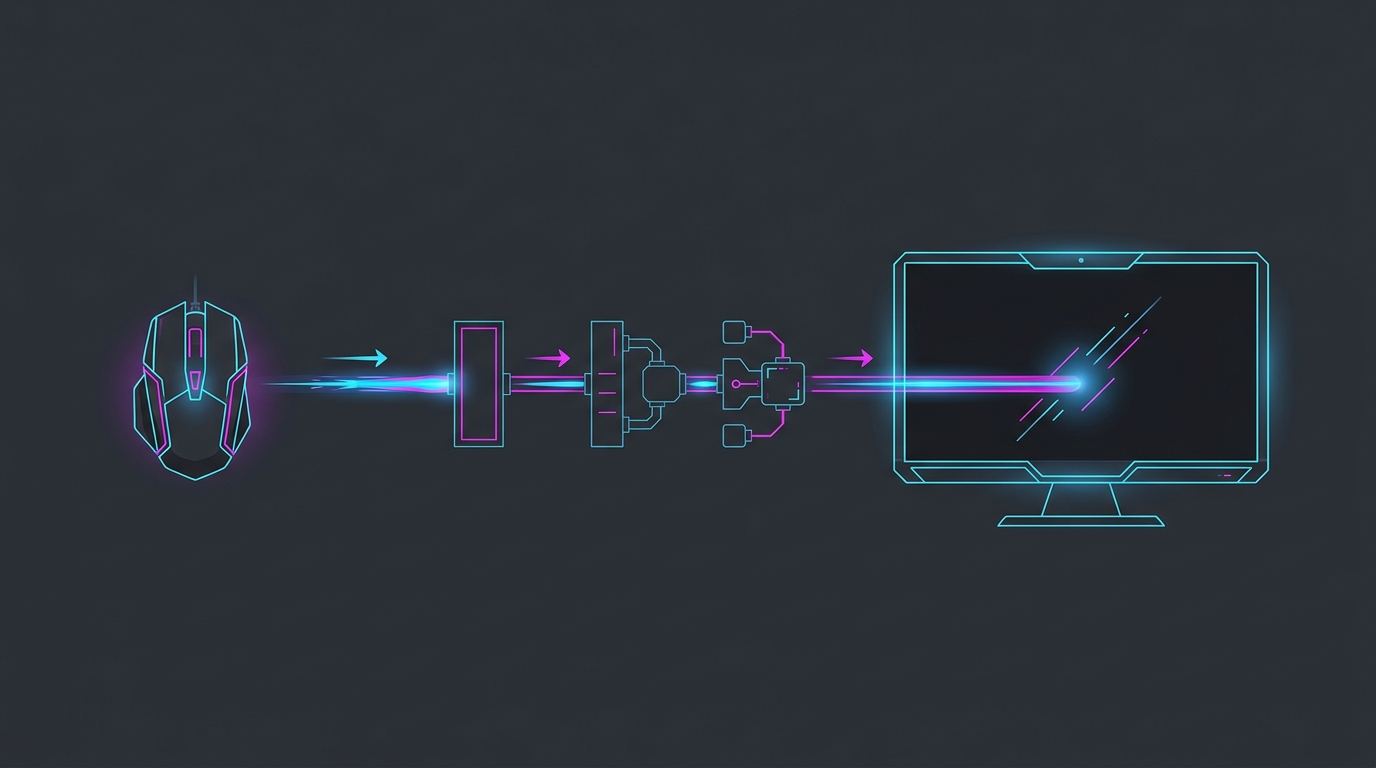
MW4 removed hip-fire bloom this year, which makes precise, low-latency input more rewarding — not less.
The biggest input-lag reductions, in order
Do these first. Everything below them is a smaller refinement:
- Run in Fullscreen Exclusive. Borderless goes through the Windows desktop compositor, which adds at least one frame of delay. Fullscreen gives MW4 direct control of the display.
- Set NVIDIA Reflex Low Latency to On + Boost. Reflex keeps the render queue empty so your input reaches the GPU immediately instead of waiting behind queued frames. On AMD, use Anti-Lag in the Adrenalin driver.
- Turn V-Sync off — gameplay and menus. V-Sync forces frames to wait for the display refresh and can add a full frame or more of delay.
- Cap your frame rate below refresh. An uncapped GPU builds a queue; the cap prevents it.
- Turn Frame Generation off. Generated frames raise the counter, not the responsiveness.
In-game settings for the lowest latency
Display tab:
| Setting | Value | Why |
|---|---|---|
| Display Mode | Fullscreen Exclusive | Bypasses the desktop compositor |
| V-Sync (Gameplay) | Off | Removes a frame of queue delay |
| V-Sync (Menus) | Off | Prevents mode changes mid-session |
| NVIDIA Reflex Low Latency | On + Boost | Largest single in-game latency win |
| Custom Frame Rate Limit | Refresh minus 3 | Keeps the render queue empty |
| Screen Refresh Rate | Highest available | Shorter gap between frames |
| High Dynamic Range | Off | Some panels add processing latency in HDR |
Quality tab:
| Setting | Value | Why |
|---|---|---|
| Frame Generation | Off | Interpolation adds latency by design |
| Ray Tracing (all options) | Off | Higher FPS means shorter frame intervals |
| Dynamic Resolution | Off | Resolution swings cause uneven frame pacing |
| Upscaling / Sharpening | DLSS / FSR / XeSS Quality | Raises real FPS, which lowers latency |
| Shadow Quality | Low | Frees GPU headroom |
| Particle Resolution | Low | Keeps frame times flat during explosions |
Frame cap values by refresh rate
| Refresh rate | Cap | Frame interval |
|---|---|---|
| 144 Hz | 141 | ≈ 6.9 ms |
| 165 Hz | 162 | ≈ 6.1 ms |
| 240 Hz | 237 | ≈ 4.2 ms |
| 360 Hz | 355 | ≈ 2.8 ms |
The frame interval is the floor on how quickly a new input can appear on screen — at 144 Hz a fresh frame is at best about 6.9 ms away, at 360 Hz about 2.8 ms. That is the real reason refresh rate matters for feel.
Reflex vs frame cap vs V-Sync — what each one does
| Lever | What it changes | Latency effect |
|---|---|---|
| NVIDIA Reflex | Keeps the CPU from running ahead and queuing frames | Large reduction when GPU-bound |
| Frame rate cap | Prevents the GPU saturating and building a queue | Moderate reduction, plus steadier pacing |
| V-Sync On | Frames wait for the display refresh | Adds latency — leave it off |
| G-Sync / FreeSync | Display refreshes when the frame is ready | Removes tearing at near-zero latency cost, when capped below refresh |
| Frame Generation | Inserts synthetic frames | Adds latency, raises FPS counter |
The correct competitive combination is G-Sync or FreeSync on, V-Sync off, Reflex On + Boost, frame cap 3 below refresh.
GPU driver settings
NVIDIA
In the NVIDIA app or Control Panel, set a Modern Warfare 4 profile:
- Low Latency Mode —
Off. In-game Reflex supersedes it and the two should not be stacked. - Power management mode —
Prefer maximum performance. - Vertical sync —
Off. - Monitor Technology —
G-SYNC Compatible, enabled for full screen. - Max Frame Rate — leave to the in-game cap; do not set two competing caps.
AMD
In Adrenalin:
- Radeon Anti-Lag —
Enabled(the AMD equivalent of Reflex). - Radeon Chill —
Disabled. It varies frame rate, which varies latency. - Wait for Vertical Refresh —
Always off, unless application specifies. - Radeon Enhanced Sync —
Disabled.
Windows and peripheral settings
Latency does not begin at the game. Fix these underneath it:
- Mouse polling rate — 1000 Hz or higher. At 125 Hz your mouse only reports every 8 ms; at 1000 Hz it is 1 ms. Set this in your mouse software.
- Turn Enhance Pointer Precision off. Mouse acceleration makes identical hand movements produce different in-game results.
- Raise the Windows timer resolution. The default 15.6 ms tick makes input sampling and frame delivery less consistent, and it sits underneath Reflex rather than competing with it. The free Tier1Suite applies it per game automatically — learn why it helps in the ultimate guide to timer resolution for gaming.
- High Performance power plan. Prevents cores parking and clocks dropping mid-match.
- Turn off VBS / Memory Integrity. It costs CPU performance, and CPU headroom is latency headroom.
- Disable Game DVR / background recording. Recording overhead lands directly on the frame pipeline.
- Check your monitor’s own settings. Overdrive on its middle setting, any “Game Mode” low-latency option on, and dynamic contrast or motion smoothing off — panel processing can add more latency than everything above combined.
Verify it worked
Do not trust feel alone. Use the NVIDIA app’s performance overlay to read PC latency in milliseconds, or the frame-time graph in your overlay of choice. Change one setting, play two matches, and compare. Real latency reductions show up as a lower average latency figure and a tighter spread — if only the feel changed and the numbers did not, it was placebo.
What does not reduce input lag
Being honest about this saves you time:
- Lowering resolution below what you need. Once you are CPU-bound, dropping resolution stops helping frame rate and therefore stops helping latency.
- Every “FPS booster” registry pack. Most of the popular ones do nothing on modern Windows, and some make things worse. The measured list is in Windows gaming tweaks that actually work.
- Disabling the page file. No latency benefit, and it can cause crashes in a game that streams as aggressively as MW4.
- Frame Generation. Worth repeating — it raises the number on screen while adding delay behind it.
Related guides
Frequently asked questions
How do I reduce input lag in Modern Warfare 4?
Run Modern Warfare 4 in Fullscreen Exclusive, set NVIDIA Reflex Low Latency to On + Boost, turn V-Sync off for both gameplay and menus, cap your frame rate a few frames below your refresh rate, and turn Frame Generation off. Those five in-game changes remove most of the controllable latency in MW4. Pair them with a high mouse polling rate and a raised Windows timer resolution to finish the job.
Should I use NVIDIA Reflex in Modern Warfare 4?
Yes. Modern Warfare 4 exposes NVIDIA Reflex Low Latency on the Display tab, and setting it to On + Boost drains the render queue so your inputs reach the GPU sooner. It is the single biggest latency reduction available inside the game, it costs no visual quality, and it matters most exactly when you are GPU-bound in a busy lobby. There is no competitive reason to leave it off.
Does Frame Generation add input lag in Modern Warfare 4?
Yes. Frame Generation synthesizes frames between rendered ones, so the on-screen frame counter climbs while your inputs still wait on the real render pipeline — and the interpolation itself adds delay. In Modern Warfare 4 multiplayer, keep Frame Generation off and use DLSS, FSR or XeSS upscaling instead, which raises real frame rate and lowers latency rather than raising it.
Does ray tracing increase input lag in Modern Warfare 4?
Indirectly, yes. Ray tracing does not add latency by itself, but it lowers your frame rate substantially, and a lower frame rate means a longer gap between your click and the next rendered frame. Turning off ray-traced reflections, shadows and ambient occlusion in Modern Warfare 4 raises FPS enough that measured end-to-end latency drops noticeably, which is why competitive players run it off.
What frame rate cap should I use in Modern Warfare 4?
Cap a few frames below your monitor's refresh rate — 141 on a 144 Hz panel, 162 on 165 Hz, 237 on 240 Hz — using Display, Custom Frame Rate Limit. Capping below refresh keeps you inside the G-Sync or FreeSync range and stops the GPU from building a frame queue, which is one of the largest avoidable sources of input lag. It works alongside Reflex rather than replacing it.