EMPULSE Stretched Resolution Guide for Wider Models and More FPS
Published
On this page
To get stretched resolution in EMPULSE, force full-panel GPU scaling in your NVIDIA or AMD driver first, then set Display Mode to Fullscreen in EMPULSE and pick a 4:3 resolution like 1280x960 — the driver step is what stretches the image across the whole panel instead of leaving black bars. EMPULSE is a 6v6 movement shooter built around wall-runs, grapple hooks and holojumps, so wider player models and a higher, steadier frame rate both help in the same way: they make fast-moving targets easier to track.
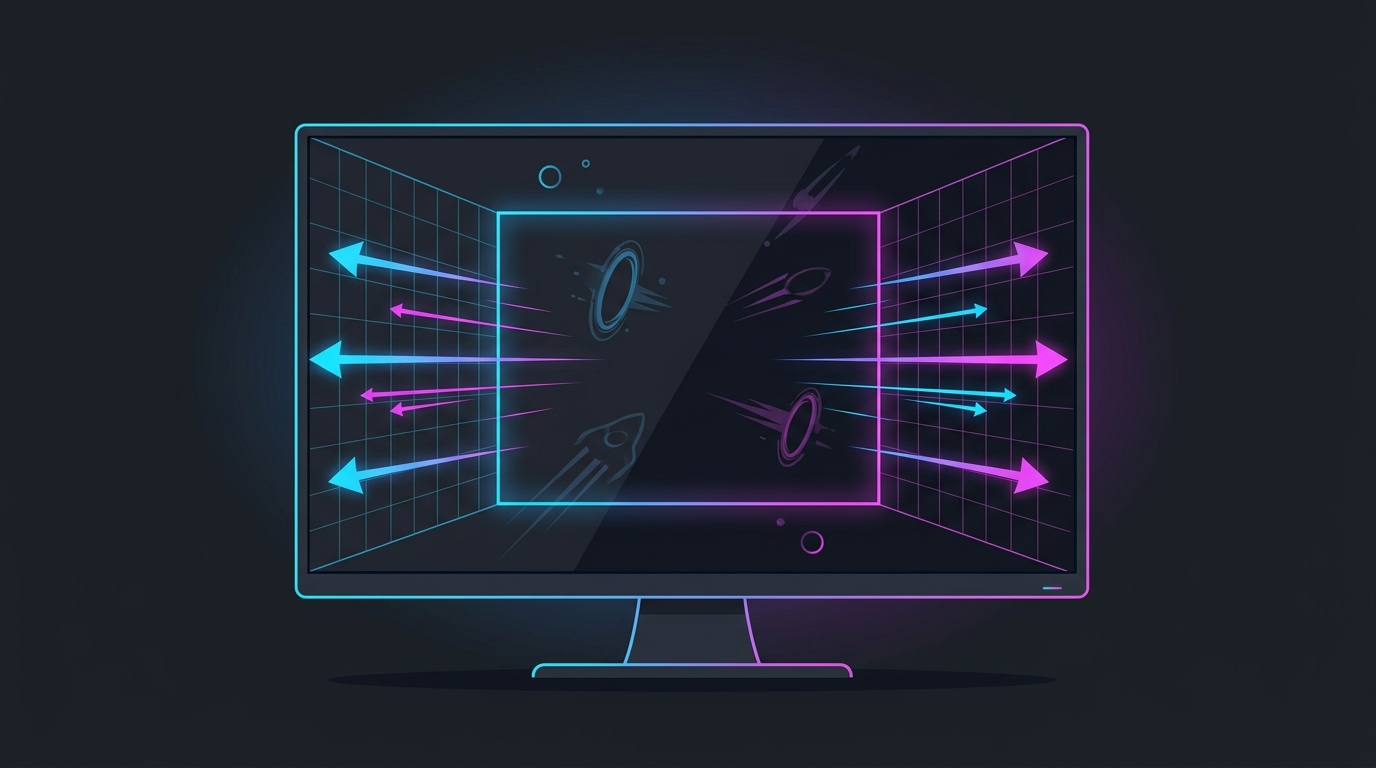
Stretched res is a preference, not a cheat code. It widens models and raises FPS on GPU-limited systems — test it against native 16:9 and keep whatever makes your aim more consistent.
Why a 4:3 resolution shows black bars
When you pick a 4:3 resolution, something has to fit that narrower image onto a 16:9 panel. By default the GPU centers it and pillarboxes the sides with black bars rather than stretching it horizontally. The component that stretches the image to fill the panel is the GPU driver, not EMPULSE — which is why the real fix lives in NVIDIA Control Panel or AMD Software, not the game’s video menu.
Best EMPULSE stretched resolutions
| Resolution | Aspect | Pixels | Feel in EMPULSE |
|---|---|---|---|
| 1280 x 960 | 4:3 | 1.23 M | Widest models, lowest pixel load, most FPS |
| 1440 x 1080 | 4:3 | 1.56 M | Still wide but visibly sharper |
| 1024 x 768 | 4:3 | 0.79 M | Maximum FPS, softest image |
| 1728 x 1080 | widescreen | 1.87 M | Mild stretch, small FPS gain, least distortion |
1280 x 960 is the default competitive choice and the one to try first. Because EMPULSE fights happen in three dimensions — enemies wall-running above you, grappling across the map — heavy 4:3 distortion can make vertical tracking feel unfamiliar at first. If it never clicks after a few matches, 1728 x 1080 gives you the pixel savings with a much gentler stretch.
Step 1 — Force full-panel GPU scaling
NVIDIA
- Open NVIDIA Control Panel → Display → Adjust desktop size and position.
- Scaling mode: Full-screen.
- Perform scaling on: GPU.
- Tick Override the scaling mode set by games and programs, then Apply.
AMD
- Open AMD Software → Settings → Display.
- Set GPU Scaling to On.
- Set Scaling Mode to Full Panel.
Intel Arc
- Open Intel Graphics Software → Display → General.
- Set Scaling to Stretched (or Full Screen) and apply per-display.
If the 4:3 resolution you want isn’t in EMPULSE’s list, create it first with Create Custom Resolution (NVIDIA), Custom Resolutions (AMD), or see the custom resolution guide. If custom resolutions are greyed out on your system, the greyed-out custom resolution fix covers the usual causes. Doing this by hand every time is exactly the job Tier1Suite automates.
Step 2 — Set the resolution in EMPULSE
- Launch EMPULSE → Settings → Video.
- Set Display Mode to Fullscreen (not Borderless or Windowed — scaling overrides don’t apply there).
- Set Resolution to your chosen 4:3 value, e.g.
1280 x 960. - Apply, then restart the game if the stretch doesn’t take effect immediately.
- Confirm your refresh rate is still at the panel’s maximum after the resolution change — dropping to 60Hz silently undoes most of the benefit.
Step 3 — Keep the FPS you just gained
Stretched resolution frees GPU headroom; these settings turn that headroom into a lower, steadier frame time:
- NVIDIA Reflex: On + Boost if EMPULSE exposes it — the single largest input-lag reduction available in Unreal-engine shooters.
- V-Sync: Off, and cap your FPS a few frames below your refresh rate rather than letting it run uncapped. See the best FPS cap for low latency.
- Motion blur: Off. In a game with this much airborne movement it actively hides target detail.
- Anti-aliasing: low or TAA. Stretching a lower base resolution already softens edges; heavy AA costs frames without buying back clarity.
Full per-setting values are in the EMPULSE best settings for FPS guide.
If the stretch doesn’t hold
- Black bars are back after a driver update. GPU driver updates commonly reset the scaling override. Re-check Step 1 — the full walkthrough is in how to fix black bars with stretched resolution.
- The resolution resets when you alt-tab or relaunch. This is usually the desktop resolution reasserting itself; see stretched resolution keeps resetting.
- The image looks mushy, not just wide. That’s the base resolution being too low for your panel. Step up from 1280x960 to 1440x1080 — how to fix blurry stretched resolution covers the rest.
- Your monitor is doing its own scaling. Set the monitor’s OSD aspect option to Full/Wide, or the panel will re-letterbox whatever the GPU sends.
Is it actually worth it in EMPULSE?
Honestly: it depends on what limits you. If your GPU is the bottleneck at native 1080p, the pixel reduction is a real, measurable frame-rate gain and the wider models are free on top. If you already hold your refresh-rate cap at native, the FPS argument disappears and you’re left with a preference about how models look — which is worth testing, not assuming. Movement shooters also punish inconsistency more than raw average FPS, so pair whatever resolution you choose with a steady frame-time setup: see how to minimize input delay for competitive gaming and the timer resolution pillar guide.
Related guides
Frequently asked questions
How do I get stretched resolution in EMPULSE?
Force full-panel scaling in the GPU driver first, then set the resolution in EMPULSE. On NVIDIA, open NVIDIA Control Panel → Adjust desktop size and position, set Scaling mode to Full-screen, Perform scaling on GPU, and tick Override the scaling mode set by games and programs. On AMD, set GPU Scaling On and Scaling Mode to Full Panel. Then in EMPULSE go to Settings → Video, set Display Mode to Fullscreen, and pick a 4:3 resolution such as 1280x960. The driver step is what actually stretches the image instead of pillarboxing it.
What is the best stretched resolution for EMPULSE?
1280x960 is the standard 4:3 pick and gives the widest player models with the lowest pixel load — useful because EMPULSE duels are fought against wall-running, grappling and holojumping targets. 1440x1080 is also 4:3 but renders 1.56 million pixels instead of 1.23 million, so it looks noticeably sharper while keeping the wide look. If full 4:3 distortion makes tracking vertical movement harder, 1728x1080 is a mild widescreen stretch that still drops pixels for FPS.
Does stretched resolution increase FPS in EMPULSE?
If you are GPU-limited, yes. 1280x960 renders about 1.23 million pixels versus 2.07 million at 1920x1080, roughly 40% less GPU work per frame. EMPULSE is a fast 6v6 movement shooter where frame rate and frame-time consistency directly affect how well you track airborne targets, so the extra headroom is worth having. If you are CPU-limited — common in busy mech fights — the FPS gain shrinks and the wider models become the main benefit.
Is stretched resolution bannable in EMPULSE?
No. Stretched resolution is a display-scaling setting in your GPU driver plus a resolution choice in the game's own menu. You are not editing game files, injecting code, or altering how the game reports information — you are picking a supported resolution and telling the GPU how to scale the output. Anti-cheat does not flag driver scaling options.
Why does EMPULSE show black bars when I pick a 4:3 resolution?
Black bars mean the GPU is preserving the 4:3 aspect ratio and pillarboxing it inside your 16:9 panel instead of stretching it. Full-panel GPU scaling with the override enabled removes the bars. Two things commonly undo it: running the game in Borderless or Windowed instead of exclusive Fullscreen, and the monitor's own OSD aspect setting, which should be set to Full or Wide.