Best The Finals Settings for FPS and Performance
Published
On this page
The Finals runs best when you treat clarity, frame pacing, and input feel as the priority instead of chasing flashy effects. These settings are the strongest starting point for higher FPS, lower input delay, and cleaner target visibility on PC.
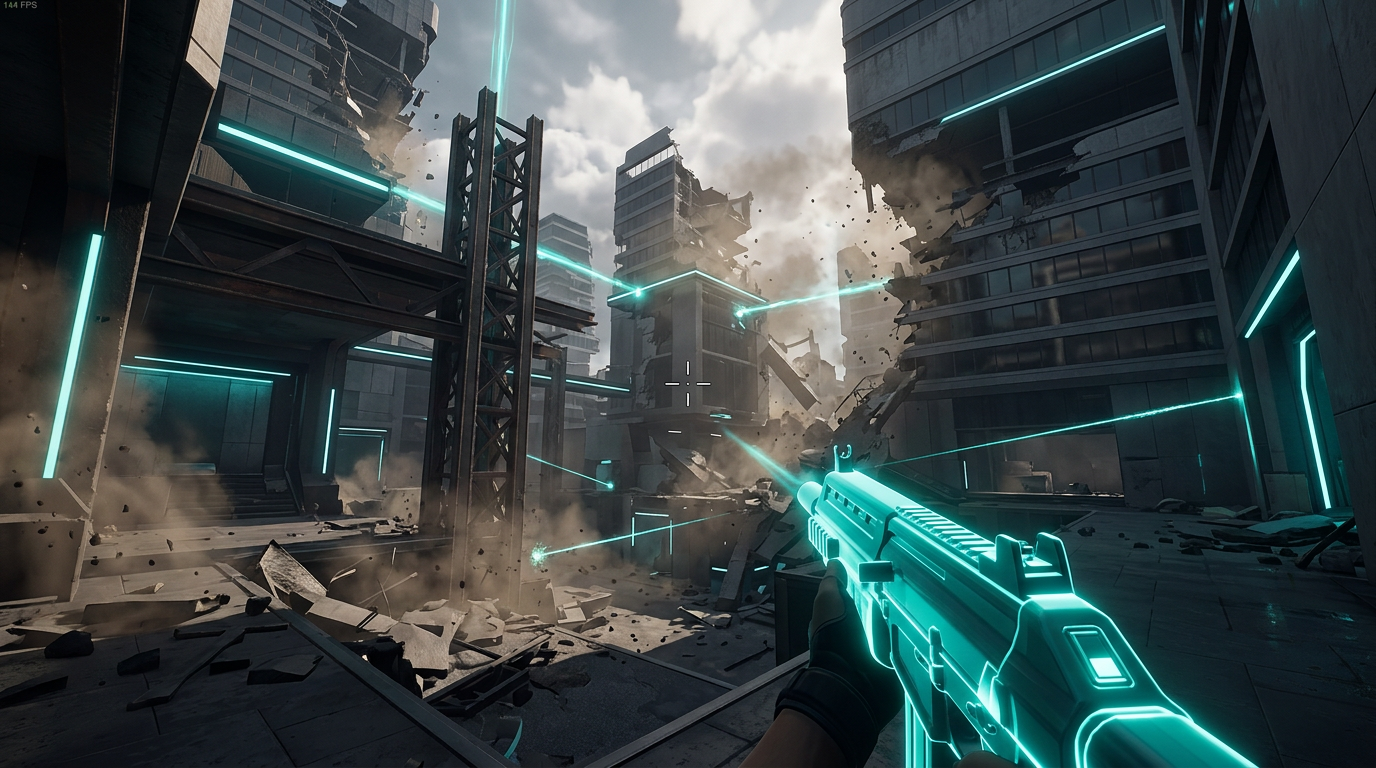
The goal is not maximum eye candy. The goal is making chaotic fights easier to track and react to.
Best The Finals settings
| Setting | Recommended value |
|---|---|
| Window Mode | Fullscreen |
| Resolution | Native |
| V-Sync | Off |
| NVIDIA Reflex Low Latency | On |
| Frame Rate Limit | Match refresh rate or cap slightly below it |
| Field of View | 95 to 100 |
| Motion Blur | Off |
| Lens Distortion | Off |
| Ray Tracing | Off |
| Shadow Quality | Low |
| Effects Quality | Low |
| Post Processing | Low |
| Texture Quality | Medium or High depending on VRAM |
| Upscaling | Off at high FPS, or Quality/Balanced if needed |
If a menu label changes after an update, keep the same logic: lower the settings that add clutter or heavy GPU load first, and preserve the settings that help you read the fight.
Why The Finals is demanding
The Finals can hit your system harder than a normal arena shooter because destruction, particles, and busy fight effects all stack on top of each other. A setup that looks fine in the practice range can still fall apart in a full match when buildings start collapsing and gadgets go off at once.
That is why this guide focuses on settings that improve real match performance, not just standing-still benchmark numbers.
Display and latency settings first
These options usually give the biggest competitive improvement immediately:
- Use Fullscreen so the game has cleaner focus and fewer display-related issues.
- Turn V-Sync off to avoid the extra input lag it adds.
- Set NVIDIA Reflex Low Latency to On if you have an NVIDIA GPU.
- Start with 95 to 100 FOV for a strong balance of awareness and target size.
- Cap your FPS near your monitor refresh if uncapped play feels unstable.
Good FPS cap starting points
141 FPSfor 144 Hz237 FPSfor 240 Hz117 FPSfor 120 Hz
If your frame times feel worse when uncapped, a clean cap is often better than chasing the highest possible number.
Graphics settings that matter most
Some settings in The Finals cost far more performance than they are worth in competitive play.
Lower these first
- Shadows
- Effects
- Post Processing
- Ray Tracing
- Motion Blur
- Lens Distortion
These settings either add heavy GPU load, extra visual clutter, or both. In a game built around movement and destruction, that clutter can make enemies harder to track at the exact moment you need fast reads.
Keep textures sensible for your VRAM
Texture quality does not always destroy FPS by itself, but it can create ugly hitching if your VRAM is running out. As a rule:
- use High if your card has enough memory headroom
- drop to Medium if you have
8 GB VRAMor less and see stutter - avoid maxing textures just because average FPS still looks good
If your performance is unstable rather than simply low, read The Finals Stuttering Fix: Stop FPS Drops and Frame Time Spikes on PC.
Best upscaling choice
Upscaling can help, but only if you use it carefully.
Start here
- keep it Off if your PC already delivers stable FPS at native resolution
- use Quality first if you need extra performance without a big clarity hit
- move to Balanced only if native and Quality still are not enough
- avoid very aggressive performance modes unless your hardware is genuinely struggling
For a full breakdown of when to use DLSS, FSR, or frame generation, use The Finals DLSS, FSR, and Frame Generation Best Settings.
Best settings by hardware goal
If you want smoother 1080p on a weaker PC
- lower shadows, effects, and post processing first
- use a sensible FPS cap
- test Quality or Balanced upscaling
- keep ray tracing off
- drop textures one step if frame times get messy
If you want a cleaner high-refresh competitive setup
- stay close to native resolution if possible
- keep FOV around
95to100 - disable blur-heavy image effects
- use Reflex on NVIDIA GPUs
- prioritize visibility and stability over ultra settings
Windows-side checks that are actually worth doing
Do not turn this into a random tweak hunt. The most useful system-side checks are:
- Make sure the game is installed on an SSD.
- Close overlays, browsers, and recording tools you do not need.
- Use the correct discrete GPU on laptops.
- Set Windows to a solid gaming power mode.
- Reboot before long sessions if your system has been running for hours.
For deeper system optimization, use these existing guides instead of repeating the same steps here:
- How to Minimize Input Delay for Competitive Gaming
- The Ultimate Guide to Timer Resolution for Gaming + Tier1Suite
- How to Optimize Your Monitor for Gaming
- How to debloat Windows to optimize PC for Gaming - Fortnite, Apex, Warzone, COD, Valorant
Build your Finals settings cluster
If you are creating a full competitive setup, these are the next pages to read:
- The Finals Stuttering Fix: Stop FPS Drops and Frame Time Spikes on PC
- The Finals DLSS, FSR, and Frame Generation Best Settings
- The Finals Best Audio Settings for Footsteps and Directional Sound
- The Finals Best Visibility Settings for Competitive Play
Related guides
- The Finals Stuttering Fix: Stop FPS Drops and Frame Time Spikes on PC
- The Finals DLSS, FSR, and Frame Generation Best Settings
- How to Minimize Input Delay for Competitive Gaming
- How to Optimize Your Monitor for Gaming
The best The Finals settings are the ones that keep your frame rate stable, your input responsive, and your screen easy to read once the match gets messy. Start by cutting the expensive effects, keep Reflex on where available, and use upscaling only when it helps more than it hurts.
Frequently asked questions
What are the best The Finals settings for high FPS?
Set Shadow Quality, Effects Quality, and Post Processing all to Low, turn Ray Tracing, Motion Blur, and Lens Distortion Off, and keep Texture Quality at Medium or High depending on your VRAM. Enable NVIDIA Reflex Low Latency On and turn V-Sync Off. The Finals stacks destruction, particles, and gadget effects in real matches, so cutting those first gives the most headroom.
How do I boost FPS in The Finals?
The fastest improvements come from turning Ray Tracing Off and lowering Shadows and Effects to Low, since The Finals layers a lot of destruction and gadget effects that compound in full matches. Make sure Lens Distortion and Motion Blur are Off as well, then cap your frame rate near your monitor refresh for stable pacing rather than chasing the highest uncapped number.
Should I use upscaling in The Finals?
Only enable upscaling if your PC cannot deliver stable FPS at native resolution. Start with Quality mode, which gives a meaningful frame boost with minimal clarity loss. If native and Quality are still not enough, try Balanced. Keep upscaling Off if you are already hitting your target frame rate, since the native image is cleaner for tracking enemies in chaotic fights.
What are the best The Finals settings for a low-end PC?
Lower Shadows, Effects, and Post Processing to Low, turn Ray Tracing, Motion Blur, and Lens Distortion Off, and try Quality or Balanced upscaling. Drop Texture Quality one step if your VRAM is 8 GB or under and you see frame time spikes. Install the game on an SSD and close overlays and recording tools to free up resources.
What settings give a competitive advantage in The Finals?
Effects Quality Low stops gadgets and destruction from burying enemies at the worst moments of a fight. Lens Distortion Off and Motion Blur Off keep the image clean when chasing or dodging. Keep FOV between 95 and 100 for a solid balance of peripheral awareness and target size, and use NVIDIA Reflex On to reduce the delay between your inputs and what you see on screen.