Windows Game Mode: On or Off for Gaming?
Published
On this page
For most players, the answer is leave Windows Game Mode on. On modern Windows 11 it is generally beneficial or at worst neutral, and its core value — pausing background activity like Windows Update and driver installs while you play, and prioritizing resources for the game in focus — is genuinely useful for avoiding mid-match stutters. It is not a dramatic FPS booster, and the cases for turning it off are rare, so the sensible default is to keep it enabled.
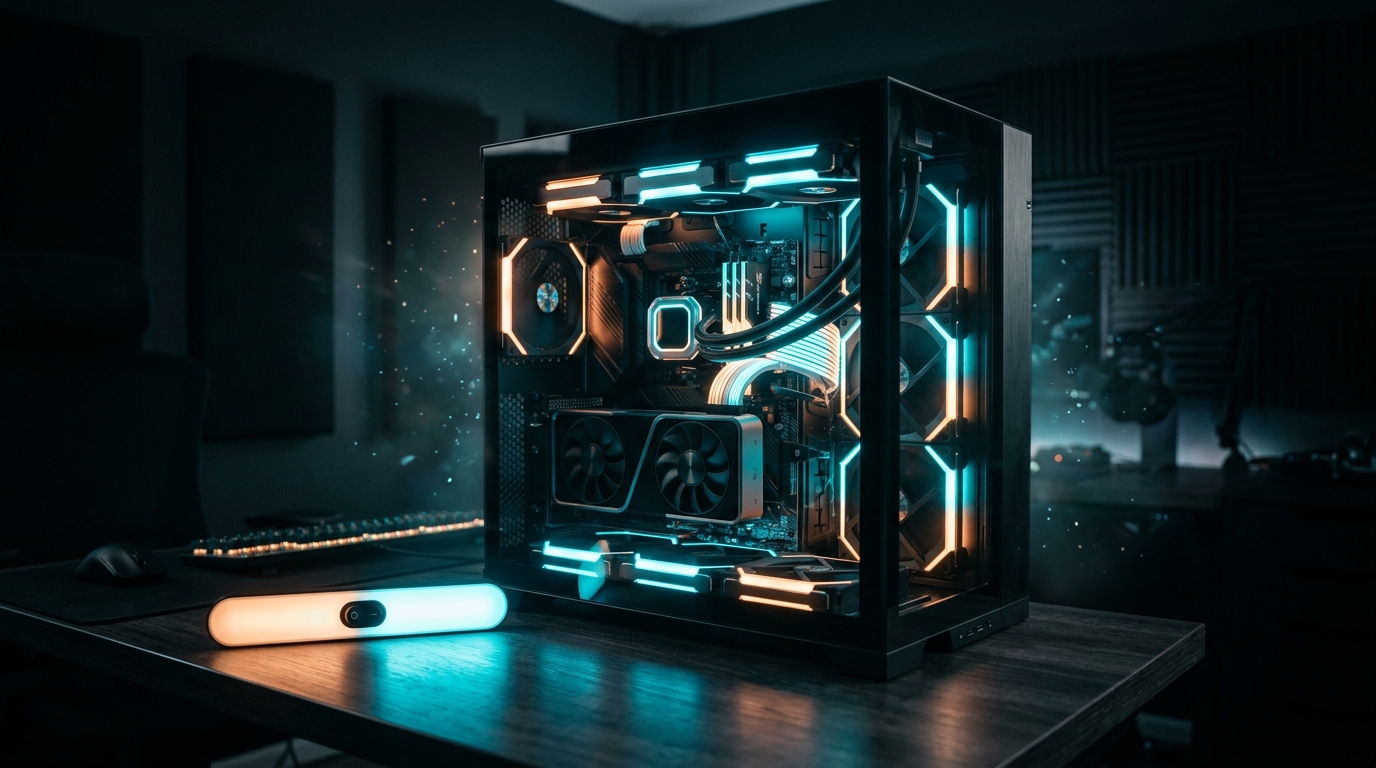
Game Mode’s real job is keeping Windows from doing something dumb mid-match — not magically adding frames.
What Game Mode actually does
Game Mode is a Windows 10 and 11 feature, found under Settings → Gaming → Game Mode, that flags the foreground app as a game and adjusts system behavior accordingly. Specifically, it:
- Prioritizes CPU and GPU scheduling toward the game in focus.
- Defers background work such as Windows Update installations and driver installs until after you finish playing.
- Suppresses interruptions like automatic restart prompts.
In other words, its biggest practical job is making sure Windows does not decide to install an update or run a background task in the middle of your match. That is a consistency feature far more than a raw-speed one.
Does it actually help FPS or latency?
Here is the honest version: the direct effect on average frame rate is usually small and system-dependent. You should not expect a meaningful FPS jump from toggling it.
What it does more reliably is improve frame-time consistency. By keeping background work from firing while you game, it reduces the stutters and spikes that come from Windows doing something else at the worst moment. Smoother frame delivery is the real benefit, and that can feel better than a slightly higher average FPS number even though the average barely moves.
On or off: the decision
| Your situation | Game Mode |
|---|---|
| Typical gamer, modern Windows 11 | On — beneficial or neutral, blocks mid-game updates |
| You want fewer interruptions while playing | On — this is its strongest use |
| Unexplained stutter tied to an overlay or capture app | Test off to isolate it |
| Streaming/recording with a conflicting tool | Test both, keep whatever is smoother |
The pattern is clear: leave it on by default, and only turn it off as a diagnostic step if you are chasing a specific stutter that appeared without another obvious cause. There have been isolated historical reports of Game Mode conflicting with certain apps, but they are exceptions, not the norm.
Why it is not a latency fix
It is worth being blunt: Game Mode is not where input lag is won or lost. It manages background scheduling and interruptions — useful, but minor. If you enabled it expecting your aim to feel sharper, that is not what it does.
The settings that genuinely reduce input lag operate on the render and display pipeline, not on background task scheduling. Game Mode is a “set it and forget it” default, not a tuning lever.
What actually moves input lag
For real responsiveness, focus on the chain that touches your inputs and frames directly. Get your Windows timer resolution right with Tier1Suite for tighter input registration and steadier frame pacing, enable NVIDIA Reflex or AMD Anti-Lag, and cap your FPS a few frames below your refresh rate. Then confirm the result by measuring your input lag. Those changes do far more than any Game Mode toggle. The complete modern setup is in our Windows 11 24H2 best gaming settings guide.
Related guides
- How to Minimize Input Delay for Competitive Gaming
- Windows 11 24H2 Best Gaming Settings
- The Ultimate Guide to Timer Resolution for Gaming
- Best Power Plan for Gaming (High Performance vs Ultimate)
- How to Measure Input Lag
Leave Windows Game Mode on — it quietly prevents mid-game updates and interruptions and is beneficial or neutral on modern Windows, with only rare app-specific reasons to disable it. Just do not mistake it for a latency fix; timer resolution, Reflex, and a proper FPS cap are where responsiveness actually comes from.
Frequently asked questions
What does Windows Game Mode actually do?
Game Mode tells Windows that the app in focus is a game, so it prioritizes CPU and GPU resources for it and holds back background activity like Windows Update installs and driver installations while you play. It also helps prevent interruptions such as restart prompts. It is a light-touch scheduling and interruption manager, not a dramatic performance booster.
Should I turn Windows Game Mode on or off?
For most players, leave Game Mode on. On modern Windows 11 it is generally beneficial or neutral, and its main value — suppressing background updates and interruptions mid-game — is genuinely useful. The cases for turning it off are rare and specific, such as a particular app conflict, so leaving it enabled is the sensible default.
Does Game Mode increase FPS or reduce input lag?
Its direct effect on average FPS is usually small and varies by system; do not expect a big frame-rate jump. Its more reliable benefit is consistency — by deferring background work it can reduce stutters and frame-time spikes caused by Windows doing something else mid-game. That smoother frame delivery matters more than a headline FPS number.
Can Game Mode cause problems or lower performance?
Occasionally. There have historically been isolated reports of Game Mode interacting badly with specific apps, overlays, or recording software, causing stutter for those users. These are exceptions rather than the rule. If you experience odd stutter that started without another change, toggling Game Mode off to test is reasonable, but it is not a common culprit.
Is Game Mode enough on its own for low latency?
No. Game Mode is a minor, mostly background-management feature. The settings that meaningfully reduce input lag are correct timer resolution, NVIDIA Reflex or AMD Anti-Lag, an FPS cap below your refresh rate, and a tuned display pipeline. Treat Game Mode as a sensible default to leave on, not as a real latency fix.