Best Power Plan for Gaming (High Performance vs Ultimate)
Published
On this page
For most gamers, the High Performance power plan is the practical best choice, and the hidden Ultimate Performance plan is just a slightly more aggressive version of the same thing. Both work by keeping your CPU from downclocking and parking cores, so the chip stays ready to respond instantly instead of ramping up from a low-power state. The honest caveat: the benefit over Balanced is mostly about consistency, not a real FPS jump, and Ultimate over High Performance is marginal at best.
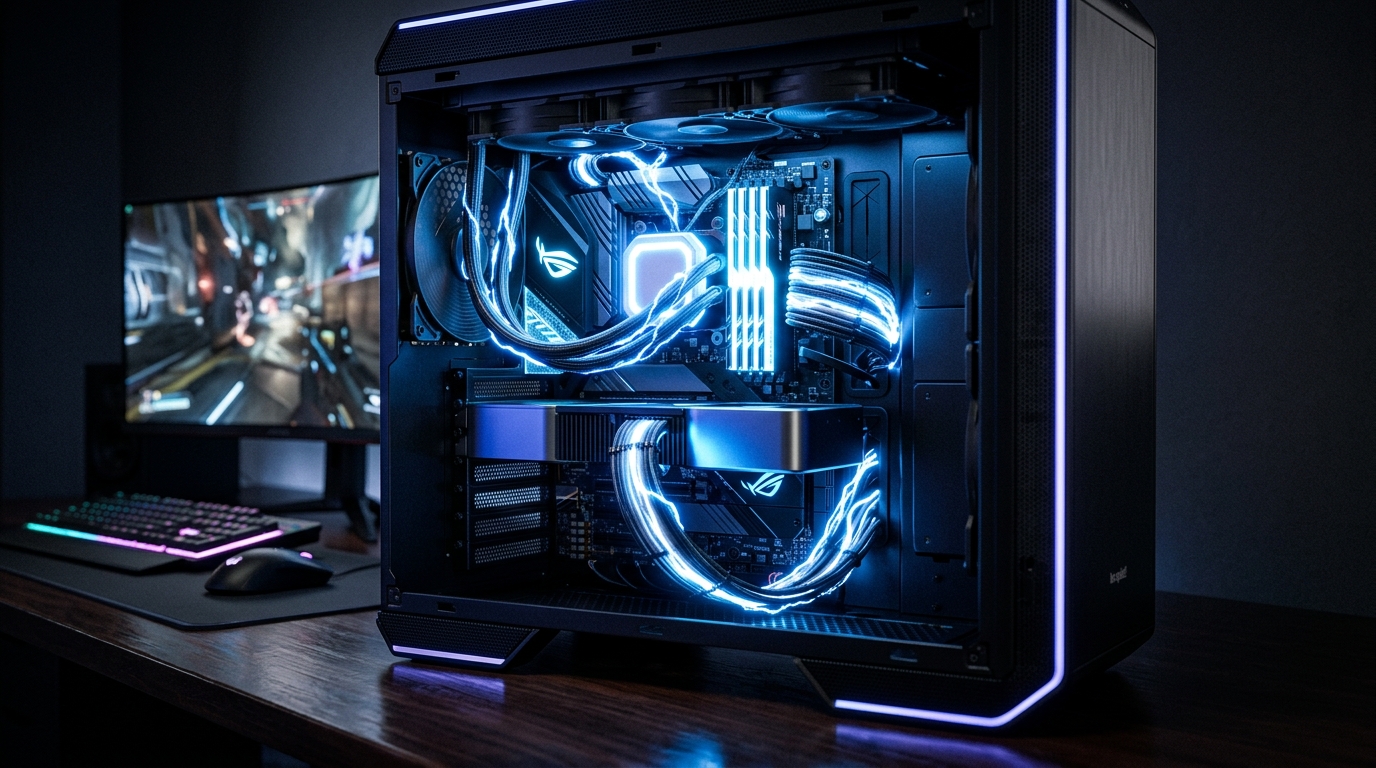
A performance power plan doesn’t make your CPU faster — it just stops it from napping when a game suddenly needs it.
What a performance power plan actually changes
The core thing every “gaming” power plan does is prevent your CPU from saving power in ways that introduce small, inconsistent delays. On the default Balanced plan, Windows aggressively lowers clock speeds and parks idle cores to save energy. When a game suddenly demands power, the CPU has to ramp clocks back up and unpark cores — a brief, variable delay.
A High Performance or Ultimate Performance plan largely disables that behavior: clocks stay high and cores stay active and ready. The key point is that this does not make your CPU faster than its rated capability. It only removes the power-saving ramp-up, which can shave tiny, inconsistent latency and smooth frame-time variance. Useful, but modest.
High Performance vs Ultimate Performance
| High Performance | Ultimate Performance | |
|---|---|---|
| Prevents CPU downclocking | Yes | Yes, slightly more aggressive |
| Prevents core parking | Yes | Yes |
| Visible by default | Yes | No — must be unlocked |
| Available on all systems | Yes | Not all (often hidden/absent on laptops) |
| Real-world gaming difference | Baseline good | Marginal vs High Performance |
The truth is the two plans are close cousins. Ultimate Performance pushes the same anti-downclock, anti-parking ideas a little harder, but the practical gap for gaming is small. Either is a fine choice over Balanced for a competitive desktop; do not expect a meaningful frame-rate difference between them.
How to unlock Ultimate Performance
Ultimate Performance is hidden by default. To add it to your power plan list, open an elevated terminal (Run as administrator) and run:
powercfg -duplicatescheme e9a42b02-d5df-448d-aa00-03f14749eb61After that, it appears in Control Panel → Power Options alongside Balanced and High Performance, and you can select it. If the command does nothing or the plan never appears, your system — commonly some laptops — does not support it, and High Performance is your ceiling there.
The honest take on the benefit
This is where most guides overpromise, so to be clear: the benefit is consistency, not raw speed. Preventing downclocking and core parking can reduce the occasional micro-stutter or latency blip caused by the CPU waking up, which is a real if small win for competitive play. It will not add FPS in any way you can reliably measure.
So set High Performance (or Ultimate if you like and it is available) and move on — it is a reasonable default, not a performance unlock. On a laptop, weigh it carefully: keeping clocks pinned high raises heat and power draw, and on a thermally limited chassis that can trigger throttling that hurts more than the plan helps. Many laptops also ship vendor performance modes that are better tuned than the generic Windows plans.
What actually reduces latency more than the power plan
The power plan is a small, set-once lever. The changes that genuinely tighten input lag act on the input and frame pipeline: get your Windows timer resolution right with Tier1Suite for steadier frame delivery and faster input registration, enable NVIDIA Reflex or AMD Anti-Lag, and cap your FPS just below your refresh rate. Then verify with measuring your input lag. Those move the needle far more than any power-plan choice. The full modern checklist lives in our Windows 11 24H2 best gaming settings guide.
Related guides
- Windows 11 24H2 Best Gaming Settings
- How to Minimize Input Delay for Competitive Gaming
- Use Timer Resolution to Increase Frames and Reduce Input Delay
- Windows Game Mode: On or Off for Gaming?
- How to Measure Input Lag
Pick High Performance (or unlock Ultimate Performance if you want and your system supports it) to stop your CPU from downclocking and parking cores mid-game — a sensible default for consistency. Just keep expectations honest: the real responsiveness wins come from timer resolution, Reflex, and a proper FPS cap, not the power plan.
Frequently asked questions
Which Windows power plan is best for gaming?
High Performance is the practical best choice for most gamers, and the hidden Ultimate Performance plan is a slightly more aggressive version of the same idea. Both keep your CPU from downclocking and parking cores so the chip stays ready to respond instantly. The difference between them is small; either one is a sensible pick over the default Balanced plan for competitive play.
What does a high-performance power plan actually change?
It mainly stops the CPU from aggressively lowering its clock speed and parking cores during light load, keeping frequencies high and cores active so there is no brief ramp-up delay when a game suddenly needs power. It does not add raw performance beyond what the hardware already offers; it just prevents the power-saving behavior that can introduce tiny, inconsistent latency.
How do I unlock the Ultimate Performance power plan?
Open an elevated terminal and run: powercfg -duplicatescheme e9a42b02-d5df-448d-aa00-03f14749eb61. This adds Ultimate Performance to your power plan list so you can select it in Control Panel power options. It is hidden by default and not available on all systems, particularly some laptops, but the command makes it appear when supported.
Is the Ultimate Performance plan worth it for gaming?
The benefit over High Performance is marginal and mostly about consistency rather than higher FPS. It prevents downclocking and core parking a bit more aggressively, which can slightly smooth frame-time variance, but you should not expect a measurable frame-rate increase. It is a reasonable pick for a desktop, just not a meaningful performance upgrade on its own.
Should I use a high-performance power plan on a gaming laptop?
On a laptop, an aggressive plan keeps clocks high but increases heat and power draw, which on a thermally limited machine can cause throttling that hurts performance more than the plan helps. Many laptops also expose their own vendor performance modes that are better tuned. Test it, watch your temperatures, and on battery prefer a balanced approach.