Warzone Black Ops Royale Lowest Input Lag Settings
Published
On this page
Warzone Black Ops Royale rewards the player who fires first. Input lag is the gap between your trigger finger and the frame your opponent sees — every setting here shrinks that gap.
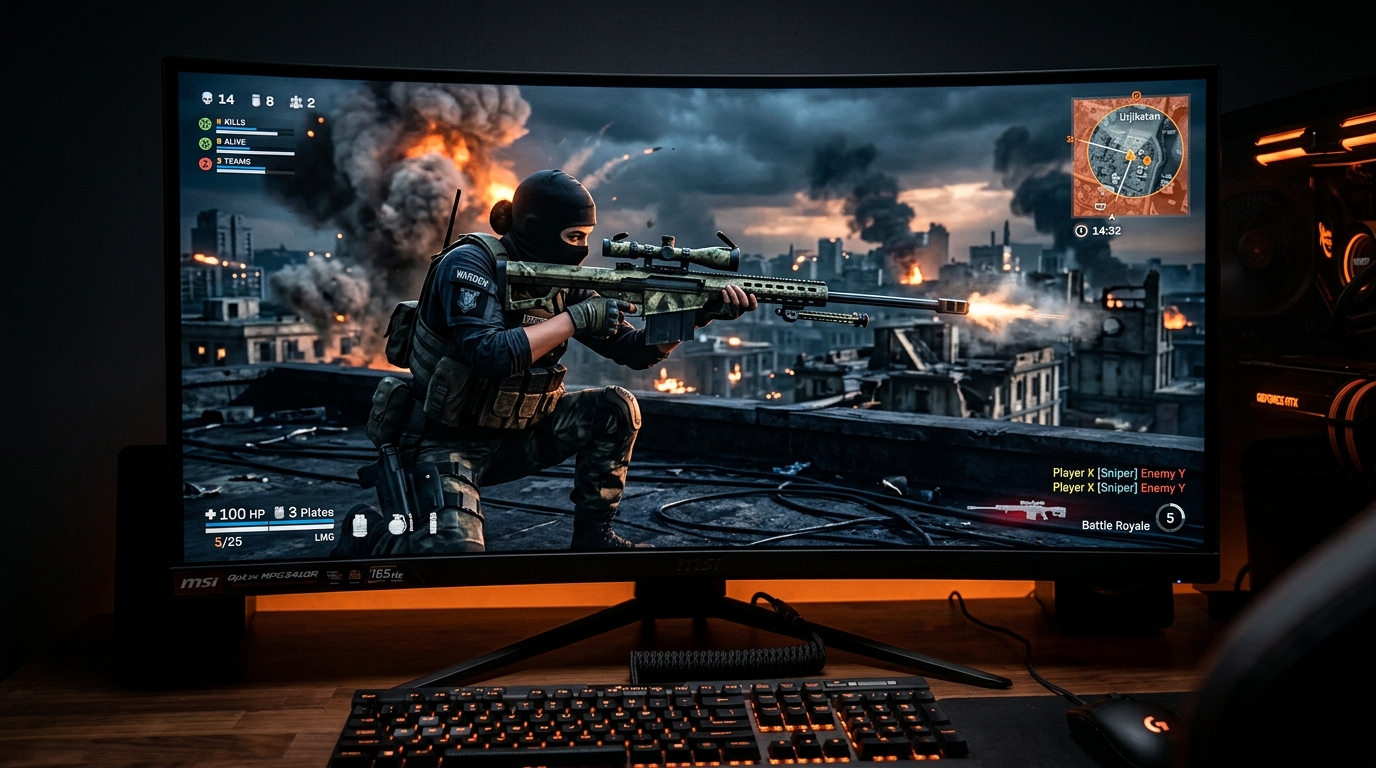
Warzone’s long-range engagements and chaotic final circles amplify input lag more than most games. The settings below eliminate every source you control.
The fast checklist
Do these first — they cover most of the gain:
- Exclusive Fullscreen — Settings → Display → Display Mode → Fullscreen Exclusive.
- V-Sync: Off — Settings → Display → VSync → Disabled. Also off in GPU driver.
- Frame Rate Limit: refresh − 3 — Settings → Display → Frame Rate Limit.
- Ultra-Low Latency Mode (NVIDIA) or Anti-Lag (AMD) in your GPU driver.
- Timer resolution via Tier1Suite.
Display settings
Display Mode
Settings → Display → Display Mode → Fullscreen Exclusive.
Exclusive Fullscreen allows the game to present frames directly to the display without the Windows compositor in the path. Borderless Windowed routes through the Desktop Window Manager, which adds a frame of latency. For competitive Warzone, Fullscreen Exclusive is mandatory.
V-Sync
Settings → Display → VSync → Disabled.
Also disable it in your GPU driver:
- NVIDIA Control Panel → Manage 3D Settings → Vertical sync → Off.
- AMD Software → Gaming → Vertical Refresh → Off.
V-Sync introduces a full-frame buffer delay — at 144Hz that’s ~7ms added to every input. Cap the frame rate instead.
Frame Rate Limit
Settings → Display → Frame Rate Limit → [your refresh − 3].
| Monitor refresh | Cap |
|---|---|
| 360Hz | 357 |
| 240Hz | 237 |
| 165Hz | 162 |
| 144Hz | 141 |
| 120Hz | 117 |
This tight cap prevents the GPU from queuing frames in the render buffer while keeping it busy enough to hit the cap reliably. The result is consistently low and predictable frame delivery latency.
Refresh Rate
Settings → Display → Refresh Rate — confirm it matches your monitor’s maximum. Check your monitor’s settings OSD if it’s stuck at 60Hz.
In-game graphics for minimum latency
Lower GPU load = shorter frame time = less lag. Set these settings to keep your GPU from bottlenecking:
| Setting | Value |
|---|---|
| Render Resolution | 100 (no upscaling penalty; use DLSS/FSR for FPS instead) |
| DLSS / FSR | Quality or Performance (no Frame Generation) |
| Anti-Aliasing | Filmic SMAA T2X or Off |
| Shadow Quality | Low |
| Shadow Cache | Enabled |
| Ambient Occlusion | Disabled |
| Screen Space Reflections | Disabled |
| Texture Resolution | Low–Medium (matched to VRAM) |
| Particle Quality | Low |
| Bullet Impacts & Sprays | Enabled (this is gameplay-relevant, not a graphics load) |
| On-Demand Texture Streaming | Disabled if you have ≥8GB VRAM |
Shadow Quality and Ambient Occlusion are the largest GPU consumers. Disabling them frees significant frame time in dense firefights. Frame Generation (DLSS FG or FSR FG) adds synthesized frames to the pipeline — avoid it for competitive play as it adds input lag. FOV also raises GPU load because a wider view renders more scene per frame — our Warzone Black Ops Royale FOV guide covers the sweet spot between awareness and frame time.
See the full settings guide at Best Warzone Black Ops Royale Settings.
GPU driver settings
NVIDIA — NVIDIA Control Panel
- Manage 3D Settings → Program Settings → Add Warzone / Call of Duty HQ.
- Low Latency Mode → Ultra — eliminates the render queue that builds up in intense Warzone scenes.
- Power Management Mode → Prefer Maximum Performance — prevents GPU frequency from dipping between frames.
- Vertical sync → Off.
- Shader Cache Size → Unlimited — Warzone has a large shader cache; limiting it causes stutter.
AMD — AMD Software: Adrenalin
- Gaming → Warzone (or add it manually).
- Anti-Lag → Enabled.
- V-Sync → Off.
- Power → Performance mode.
System settings for lowest latency
Windows power plan
Control Panel → Power Options → High Performance (or Ultimate Performance via PowerShell).
High Performance keeps CPU cores at max frequency. The Balanced plan lets cores idle between frames, adding scheduler jitter that shows up as inconsistent input timing.
Timer resolution
Windows fires its system timer every 15.6ms by default. Precision software like Tier1Suite lowers this to 0.5ms, giving Windows 31× more resolution to schedule CPU and GPU work. In a battle royale where final-circle fights involve dozens of players and peak frame times, tighter scheduling means more frames arrive when they should instead of queuing.
Read The Ultimate Guide to Timer Resolution for Gaming for the full breakdown.
Game Mode and overlays
- Windows Game Mode: On (Settings → Gaming → Game Mode).
- Xbox Game Bar: Off — see Disable Xbox Game Bar and Game DVR.
- Disable Discord, Steam, and NVIDIA overlays during competitive play — each one can cause brief frame-delivery interruptions.
CPU priority
Warzone on PC responds well to CPU priority tweaks. One approach: launch the game, then in Task Manager set the main process priority to High (not Realtime — that can cause system instability). Some players automate this via a launcher script.
Peripherals and monitor
- Wired peripherals — a wired mouse at 1000Hz polling eliminates any wireless radio round-trip.
- Monitor game mode — ensure your display is in its lowest-latency preset (Game or FPS mode, not Cinema). Many monitors have 1–4ms of extra display latency in non-game modes.
- HDMI vs DisplayPort — DisplayPort carries high refresh rates with less overhead; prefer it when your GPU and monitor support it.
For the full peripheral setup, see How to Minimize Input Delay for Competitive Gaming.
Network latency
Input lag and network ping are separate problems but they compound. If your shots feel registered late:
- How to Fix Lag Spikes in Games
- How to Fix High Ping and Packet Loss
- How to Optimize Your Internet Connection for Gaming
Quick-reference checklist
- Display Mode: Fullscreen Exclusive
- V-Sync: Disabled (in-game and driver)
- Frame Rate Limit: refresh − 3
- DLSS/FSR: Quality or Performance (no Frame Generation)
- Shadows: Low, AO: Off, Reflections: Off
- NVIDIA: Low Latency Mode → Ultra / AMD: Anti-Lag → On
- Power Management Mode: Max Performance
- Windows Power Plan: High Performance
- Timer resolution: Tier1Suite applied
- Game Mode: On, overlays: off
- Wired mouse + monitor in game mode
Related guides
- Warzone Black Ops Royale Stuttering Fix
- Best Warzone Black Ops Royale Settings
- Warzone Black Ops Royale DLSS / FSR / Frame Generation Settings
- How to Minimize Input Delay for Competitive Gaming
- The Ultimate Guide to Timer Resolution for Gaming
Exclusive Fullscreen, a tight frame cap just below your refresh, Ultra-Low Latency Mode or Anti-Lag, V-Sync off, and Tier1Suite cover the vast majority of controllable input lag in Warzone. Stack every item on the checklist and your gunfights will respond as fast as your hardware and connection allow.
Frequently asked questions
How do I reduce input lag in Warzone Black Ops Royale?
The biggest controllable reductions come from running in exclusive Fullscreen mode, disabling V-Sync, capping your frame rate to refresh rate minus 3, and enabling Ultra-Low Latency Mode on NVIDIA or Anti-Lag on AMD. Combine those with timer resolution via Tier1Suite for the lowest system-level latency.
Does exclusive Fullscreen reduce input lag in Warzone?
Yes. Exclusive Fullscreen bypasses the Windows compositor and gives the game direct flip access to the display. Borderless Windowed runs through the Desktop Window Manager, adding one or more frames of extra latency. In a game with long-range engagements like Warzone, that delay is noticeable.
What frame rate cap should I use in Warzone to minimize input lag?
Set your cap to your refresh rate minus 3 in the Warzone in-game limiter. At 240Hz cap at 237, at 144Hz cap at 141. Running uncapped in a battle royale creates GPU render queues that spike input lag during busy scenes like final circles and close-range firefights.
Does DLSS or FSR affect input lag in Warzone?
DLSS and FSR reduce GPU load by rendering at a lower resolution and upscaling, which can lower frame times and reduce latency in GPU-bound scenarios. DLSS Frame Generation adds input lag (extra synthesized frames in the pipeline), so avoid Frame Generation for competitive play and stick to DLSS Quality or Performance for the FPS gain without the latency cost.
Does V-Sync cause input lag in Warzone?
Yes, considerably. V-Sync buffers one or more frames to synchronize to the refresh, adding 8–16ms of input lag at 120–144Hz. Turn it off in-game and in your GPU driver settings. Use a frame rate cap close to your refresh rate instead — you get smooth pacing without the latency penalty.