OneXPlayer 3 Optimization Guide: Best Settings for Intel Arc G3 Extreme
Published
On this page
The OneXPlayer 3 brings Intel Arc G3 Extreme to an 8.8-inch AMOLED 144Hz handheld with a 3-in-1 form factor — one of the most capable handheld PCs of 2026. The Arc G3 Extreme’s XeSS 3 Multi-Frame Generation is a genuine differentiator. Here’s how to tune it from day one.
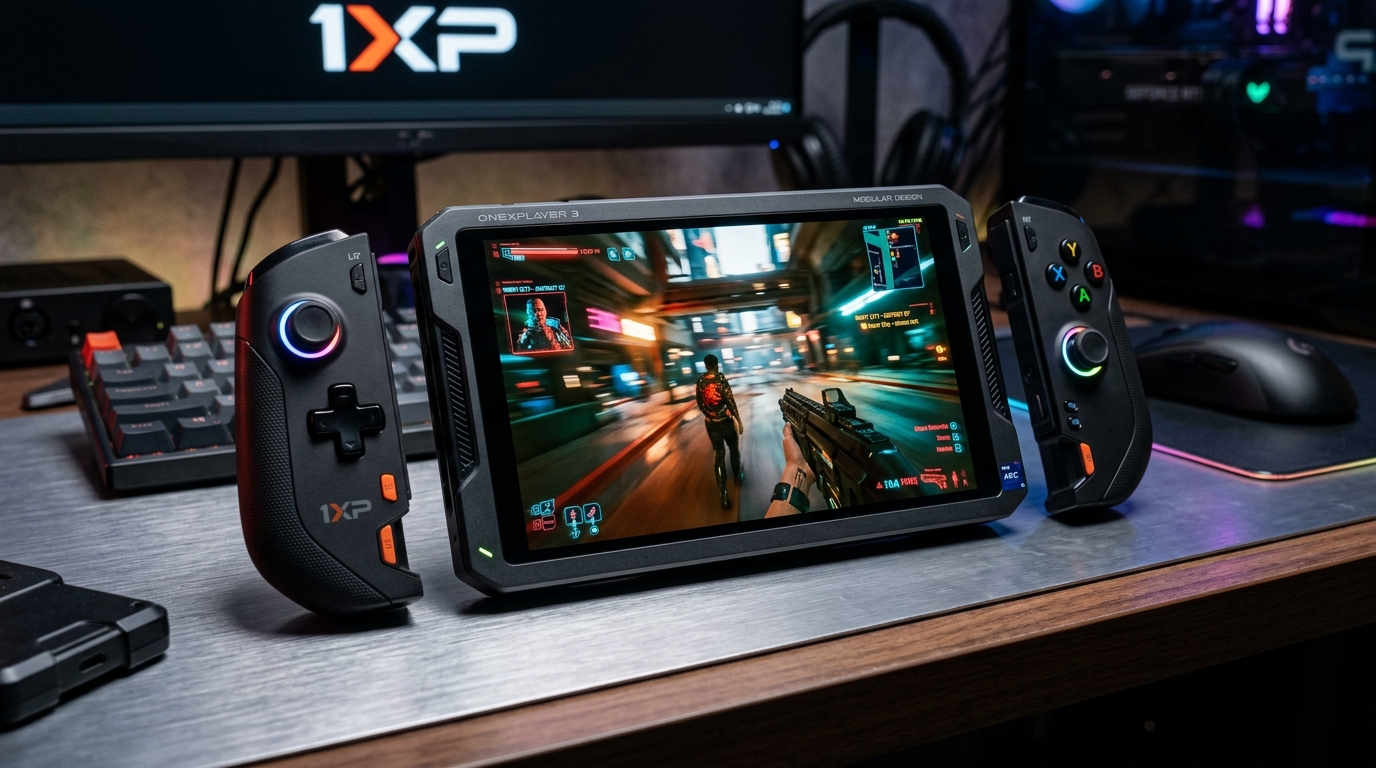
XeSS 3 Multi-Frame Generation on the Arc G3 Extreme is the OneXPlayer 3’s standout feature — in single-player games it can triple your effective frame rate.
Also see MSI Claw 8 EX AI+ Optimization Guide — both devices use the Intel Arc G3 Extreme, so their XeSS 3 setup and Windows optimization is nearly identical.
Quick wins — do these first
- Enable XeSS 3 Super Resolution in every demanding game.
- Set TDP to Performance in OneXPlayer Quick Settings when plugged in.
- Cap the frame rate and enable VRR on the AMOLED panel.
- Set Windows Power Plan to High Performance.
- Run Tier1Suite for lower input latency.
TDP management in OneXPlayer Quick Settings
The OneXPlayer 3 exposes TDP controls through its built-in Quick Settings overlay (hardware button or software shortcut). Recommended targets:
| Mode | TDP | Best for |
|---|---|---|
| Eco | 8W | Very light games, maximum battery |
| Balanced | 12–15W | All-day gaming on battery |
| Performance | 20–25W | Demanding titles, plugged in |
| Turbo | 28–30W | Maximum performance, plugged in only |
| Custom | Adjustable | Per-game tuning |
Custom TDP per game is the most efficient approach: set the lowest TDP that holds your frame cap target. The vapor chamber cooling handles sustained loads well — the 85Wh battery is large enough that thermal throttling is rare at reasonable TDP levels.
AMOLED display tuning
The 8.8-inch AMOLED 144Hz panel is the OneXPlayer 3’s showcase feature:
- Brightness: AMOLED pixels draw power proportional to displayed brightness. Gaming at 40–50% brightness saves meaningful battery vs. 80%+.
- Refresh rate: Match the panel refresh to your frame cap. Running 144Hz while capping at 60 FPS wastes power. Set the display to 60Hz or 90Hz in Windows Display Settings when targeting those frames.
- VRR: Enable FreeSync/VRR in both the display and in-game to smooth out frame delivery without V-Sync’s latency penalty.
- True blacks: AMOLED’s per-pixel illumination means dark games (RPGs, ARPGs, dark fantasy) look extraordinary with no brightness floor.
XeSS 3 — the complete setup
XeSS 3 is Intel’s AI upscaling suite with three modes:
Super Resolution
Renders at a lower resolution internally and reconstructs sharpness using AI. Available in-game on supported titles:
| XeSS Mode | Internal resolution (from 1920p) | Use case |
|---|---|---|
| Quality | ~1440p | Always-on for quality balance |
| Balanced | ~1080p | Battery gaming target |
| Performance | ~720p | Maximum FPS, handheld distance |
| Ultra Performance | ~540p | Extreme FPS, larger displays |
For a handheld at 8.8 inches, Balanced looks sharp at gaming distance and gives substantial FPS gains.
Multi-Frame Generation
Inserts up to 3 synthesized frames between each genuinely rendered frame — effectively 3–4× frame multiplier on top of Super Resolution. This is XeSS 3’s unique capability.
Use it for: single-player games, RPGs, action-adventure titles where input lag is less critical. Avoid it for: competitive multiplayer — synthesized frames add input lag between your input and the next genuinely rendered frame.
Low-Latency Optimization
AMD Anti-Lag equivalent for Intel. Enable alongside Super Resolution for competitive games.
Games without native XeSS
For games that don’t support XeSS in their settings menu, Intel Arc Control exposes driver-level XeSS — similar to AMD’s RSR or NVIDIA’s NIS. Enable it there for any game.
Frame cap strategy
| Target | When |
|---|---|
| 30 FPS | Battery-critical, heavy games |
| 40 FPS | The sweet spot for battery + playability with VRR |
| 60 FPS | Standard target, most games at Balanced TDP |
| 90 FPS | Light/competitive games, plugged in |
| 144 FPS | Plugged in, light titles only |
Cap via the in-game limiter or Intel Arc Control → Frame Rate Target Control. Match the display refresh rate to your cap. See How to Cap Your FPS Correctly.
Windows and system settings
The OneXPlayer 3 runs Windows, so the full desktop optimization playbook applies:
- Power Plan → High Performance (Control Panel → Power Options).
- Game Mode → On (Settings → Gaming → Game Mode).
- Keep Intel Arc drivers updated — Intel frequently releases performance-focused updates.
- Apply Windows 11 24H2 Best Gaming Settings for a comprehensive OS tune.
- Disable Xbox Game Bar recording during gaming sessions.
3-in-1 mode tips
- Handheld mode: full cooling from both controller grips and rear vents — best thermal performance.
- Tablet mode: slightly reduced airflow, consider dropping TDP by 2–3W for thermal headroom.
- Laptop mode (with keyboard): most similar to a thin-and-light laptop thermally. Works well for less GPU-intensive games and productivity.
Timer resolution and input latency
Tier1Suite applies the optimal Windows timer resolution (0.5ms vs default 15.6ms), tightening frame scheduling on the Arc G3 Extreme’s driver stack. Read The Ultimate Guide to Timer Resolution for Gaming — it applies to any Windows handheld including the OneXPlayer 3.
Stretched resolution on the OneXPlayer 3
The 1920×1200 AMOLED panel accepts custom resolutions through Intel Arc Control. Setup follows the same steps as the MSI Claw 8 EX AI+ Stretched Resolution Guide — both devices use Intel Arc G3 Extreme.
Related guides
- MSI Claw 8 EX AI+ Optimization Guide
- MSI Claw 8 EX AI+ Stretched Resolution Guide
- Legion Go 2 Optimization Guide
- ROG Ally X20 Preview
- DLSS vs FSR vs XeSS for Gaming
- The Ultimate Guide to Timer Resolution for Gaming
Enable XeSS 3 Super Resolution in every demanding game, set TDP to Performance when plugged in, match the AMOLED refresh rate to your frame cap with VRR, and run Tier1Suite. The Arc G3 Extreme is a strong iGPU — XeSS 3 Multi-Frame Generation is the feature that makes it genuinely impressive for single-player gaming.
Frequently asked questions
How do I increase FPS on the OneXPlayer 3?
The biggest gains come from: enabling XeSS 3 Super Resolution in demanding games, setting TDP to Performance mode in OneXPlayer's Quick Settings while plugged in, capping your frame rate to a sustainable target with VRR, and using the Windows High Performance power plan. XeSS 3 Multi-Frame Generation can multiply frame rates in single-player games on the Arc G3 Extreme's XE3 GPU cores.
How much better is the Intel Arc G3 Extreme than the Arc on the original MSI Claw?
The Arc G3 Extreme uses Intel's 18A process node and has 12 Xe3 GPU cores, offering an estimated 50–77% graphics performance improvement over the original Claw's Xe GPU. This puts it competitive with AMD's Ryzen Z2 Extreme (Radeon RDNA 4) in most gaming workloads. XeSS 3 with Multi-Frame Generation also gives Intel a unique frame-multiplying upscaling path.
Does the OneXPlayer 3 support XeSS 3?
Yes. The Intel Arc G3 Extreme in the OneXPlayer 3 fully supports XeSS 3 including Super Resolution, Multi-Frame Generation (up to 3 generated frames per rendered frame), and low-latency optimization. XeSS 3 is the primary upscaling path — use it in every compatible game for the best FPS-to-quality trade-off.
What is the OneXPlayer 3's 3-in-1 design and when should I use each mode?
The OneXPlayer 3 is a handheld, tablet, and laptop in one. In Handheld mode (controllers attached), it works like any other gaming handheld. In Tablet mode (controllers detached), it suits touch-first apps and lighter gaming. In Laptop mode (with the optional magnetic keyboard attached), it functions as a compact Windows laptop. For gaming optimization, all advice in this guide applies in Handheld and Laptop modes — Tablet mode may run at a lower TDP to account for thermal dissipation without controllers.
How long does the OneXPlayer 3 battery last?
The 85Wh battery is one of the largest in any 2026 handheld. At a balanced 15W TDP targeting 40–60 FPS, expect 3–4 hours. At 8–10W for light games, 4–5+ hours is achievable. Enabling VRR and capping the frame rate matters significantly because the 144Hz AMOLED panel draws much more power at 144Hz than at 60Hz.