MSI Claw 8 EX AI+ Stretched Resolution Guide: Custom Res on Arc G3 Extreme
Published
On this page
The MSI Claw 8 EX AI+ has a 1920×1200 FHD+ panel — not the standard 1080p found in most handhelds. That extra vertical resolution changes which stretched-res values work best and how the image stretches. Here’s the exact setup for the Arc G3 Extreme.
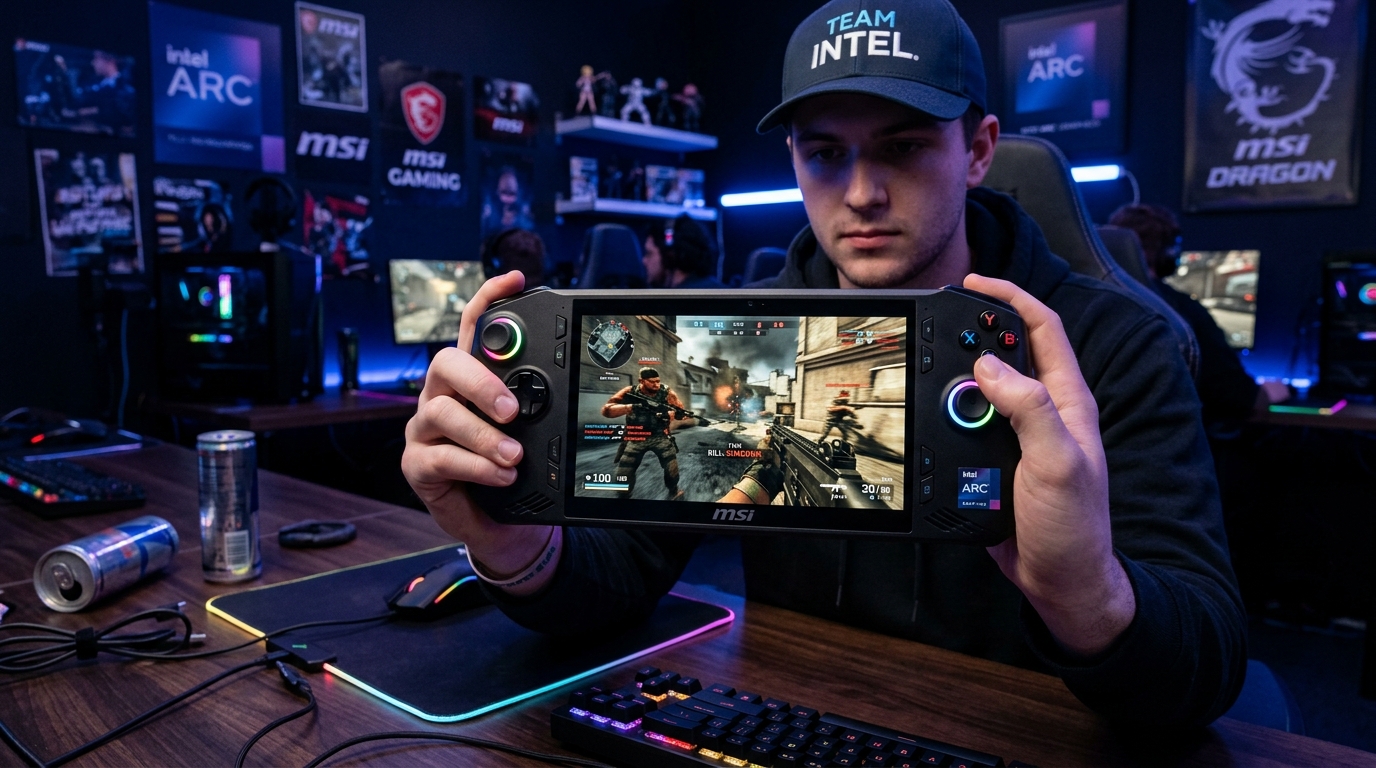
The 16:10 panel on the Claw 8 EX AI+ changes the stretch math from a standard 16:9 device. Use the resolutions in the table below for the right feel.
For the performance picture alongside stretched res, see the MSI Claw 8 EX AI+ Optimization Guide. For the original Claw A1M, see the MSI Claw Stretched Resolution Guide.
Understanding the 1920×1200 (16:10) panel
Most handheld stretched-res guides target 1920×1080 (16:9). The Claw 8 EX AI+‘s 1920×1200 FHD+ panel is 16:10 — 120 extra vertical pixels. This means:
- A 1440×1080 render stretched to fill 1920×1200 produces a slightly different aspect ratio than on a 1080p display
- The stretch is vertically compressed vs. a pure 16:9 stretch — some players prefer this feel
- The FPS gain per pixel reduction is the same — fewer pixels = more GPU headroom for the Arc G3 Extreme
| Render resolution | Aspect | Stretched to 1920×1200 | Feel |
|---|---|---|---|
| 1440 × 1080 | 4:3 | Stretched 4:3 on 16:10 | Classic, widest models |
| 1440 × 1200 | 6:5 | Very subtle horizontal stretch | Minimal distortion |
| 1280 × 960 | 4:3 | Widest stretch, most FPS | More FPS, slightly softer |
| 1600 × 1200 | 4:3 native | Near-native stretch | Gentle wider feel |
Start with 1440×1080 — the classic competitive feel. Move to 1440×1200 if you prefer a subtler stretch that better matches the 16:10 panel.
Step 1 – Create the custom resolution in Intel Arc Control
- Open Intel Arc Control (search in Start menu or right-click desktop).
- Go to Display → look for Custom Resolutions or Manage Custom Resolutions.
- Click Add or Create.
- Enter: Width
1440, Height1080, Refresh Rate120(match the panel). - Save and confirm the test prompt.
Repeat to add a second option if you want to compare (e.g. also add 1440×1200).
If Intel Arc Control doesn’t show Custom Resolutions
Use CRU (Custom Resolution Utility) — a free universal tool that edits the display EDID and works with all GPU vendors:
- Download CRU, run it.
- Click Add in the Detailed Resolutions box.
- Enter 1440×1080 at 120Hz.
- Click OK, then run restart64.exe (in the same folder) — no reboot needed.
- The resolution now appears in Display Settings and in-game menus.
Step 2 – Enable Full Screen scaling in Intel Arc Control
- Open Intel Arc Control → Display.
- Find Scaling (sometimes labeled Display Scaling).
- Set to Full Screen — not Aspect Ratio or Centered.
Full Screen scaling stretches the 1440×1080 image to fill the entire 1920×1200 panel. Without it, you’ll see black bars on the sides.
Step 3 – Apply in-game
- Launch your game → Video / Display Settings.
- Display Mode → Fullscreen (exclusive — not Borderless Windowed).
- Resolution → 1440×1080 (or your chosen custom res).
- Apply and confirm.
Borderless Windowed mode bypasses Intel’s driver-level scaling — if you’re getting black bars or the native res snapping back, switch to exclusive Fullscreen.
Combining stretched resolution with XeSS
The Arc G3 Extreme supports XeSS 3 Super Resolution. You can layer it on top of a stretched res for maximum FPS:
- Set game to 1280×960 (4:3) — reduced GPU load.
- Enable XeSS Quality or Balanced in-game — AI upscaling back toward 1920×1200.
- GPU Scaling set to Full Screen — stretch the 1280×960 source.
The combined result: native-ish visual quality with significantly more FPS than rendering at 1920×1200 native. This stacks the pixel-count reduction from stretched res with XeSS’s render resolution reduction.
FPS impact on the Arc G3 Extreme
The Arc G3 Extreme iGPU is powerful but still GPU-bound in demanding titles at 1920×1200. Dropping to 1440×1080 cuts pixel count by ~43%, which translates to a proportionally large FPS gain in GPU-bound scenarios. Combined with XeSS and a matching TDP in MSI Quick Settings, competitive games at 1440×1080 can sustain 60–90 FPS comfortably.
Troubleshooting
| Symptom | Fix |
|---|---|
| Black bars on left/right | Scaling → Full Screen in Intel Arc Control |
| Native res snapping back in-game | Game is in Borderless — switch to Fullscreen |
| Custom res not in game menu | Use CRU to add it at EDID level |
| Stretched image looks too compressed vertically | Try 1440×1200 instead for a subtler stretch |
| Image reverts after Arc driver update | Recreate custom res in Arc Control post-update |
Timer resolution
Tier1Suite tightens the Windows scheduler on the Arc G3 Extreme’s driver stack, reducing input latency at no thermal cost. Essential for competitive play where stretched res and XeSS are already optimizing the visual side. Read The Ultimate Guide to Timer Resolution for Gaming.
Related guides
- MSI Claw 8 EX AI+ Optimization Guide
- MSI Claw Stretched Resolution Guide (original A1M)
- ROG Ally Stretched Resolution Guide
- Legion Go Stretched Resolution Guide
- How to Get Custom Resolution / Stretch Res for Any Game
- The Ultimate Guide to Timer Resolution for Gaming
Create 1440×1080 in Intel Arc Control (or CRU as fallback), set Scaling to Full Screen, force exclusive Fullscreen in-game, and the Claw 8 EX AI+ delivers wider player models alongside a meaningful FPS gain on the Arc G3 Extreme. Combine with XeSS Super Resolution for maximum effect.
Frequently asked questions
Can you use stretched resolution on the MSI Claw 8 EX AI+?
Yes. The Claw 8 EX AI+ runs Windows and Intel Arc G3 Extreme, which supports custom resolutions and driver-level display scaling. Create the custom res in Intel Arc Control, set Scaling to Full Screen, and select it in-game with the game set to exclusive Fullscreen.
What stretched resolution should I use on the MSI Claw 8 EX AI+?
The Claw 8 EX AI+ has a 1920×1200 FHD+ panel (16:10 aspect ratio), which is different from the standard 1080p panels. Good starting options: 1440×1080 for a classic 4:3 feel stretched to fill the 16:10 panel, or 1440×1200 for a more subtle stretch maintaining the 16:10 height. Both cut render load on the Arc G3 Extreme and benefit competitive play.
Is the MSI Claw 8 EX AI+ stretched resolution setup different from the original MSI Claw?
Yes. The original Claw has a 1920×1080 (16:9) panel, while the Claw 8 EX AI+ has a 1920×1200 (16:10) FHD+ panel. This changes the aspect ratio math: stretched resolutions that look correct on the original Claw (like 1440×1080) will appear slightly different on the 16:10 panel. The setup process is the same (Intel Arc Control), but the optimal resolutions differ.
How does XeSS interact with stretched resolution on the Claw 8 EX AI+?
They work independently and can be combined. Stretched resolution reduces the render pixel count for a FPS boost. XeSS Super Resolution can then upscale the stretched image back toward the native display resolution. For example: render at 1280×960 (4:3), XeSS upscales to something close to 1920×1200. The combined effect is more FPS than either alone.
Why does my stretched resolution show black bars on the Claw 8 EX AI+?
Intel Arc Control's Scaling is set to Maintain Aspect Ratio instead of Full Screen. Open Intel Arc Control → Display → Scaling → Full Screen. Also confirm the game is in exclusive Fullscreen mode — Borderless Windowed bypasses driver-level scaling entirely.