MSI Claw Stretched Resolution Guide: Custom Res on Intel Arc
Published
On this page
The MSI Claw is the first mainstream handheld to run Intel Arc integrated graphics, and stretched resolution works on it just like it does on AMD or NVIDIA systems — you create a custom resolution, enable full-panel scaling, and apply it in-game. Here’s exactly how.
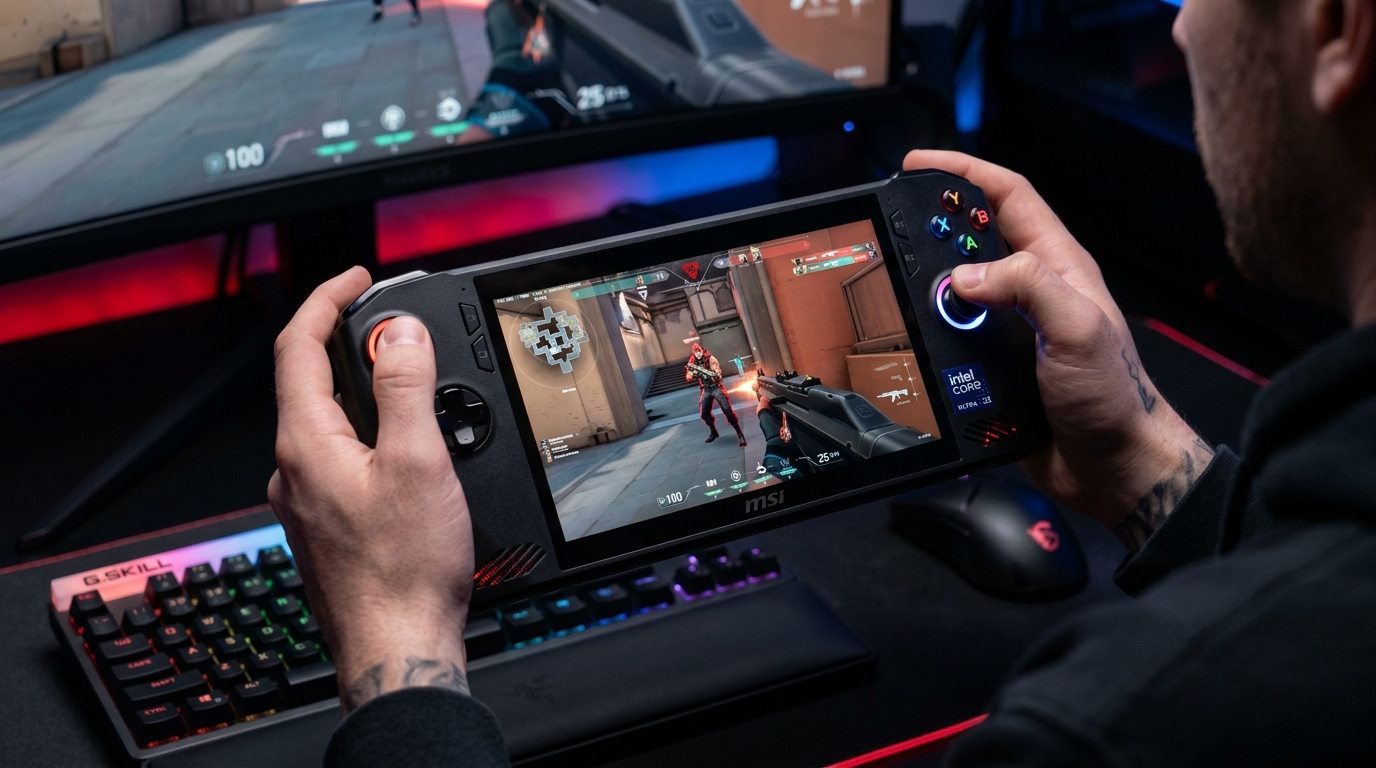
The Claw’s 1920x1080 panel at 7 inches responds well to stretched res — 1440x1080 gives you wider models and a real FPS lift from the Intel Xe iGPU.
For the full Claw performance setup, see the MSI Claw Optimization Guide. Stretched res is one piece of the puzzle.
Best stretched resolutions for the MSI Claw
The MSI Claw has a 1920×1080 (FHD) 120Hz 7-inch display.
| Render resolution | Aspect | Effect |
|---|---|---|
| 1440 × 1080 | 4:3 stretched | Classic, widest models, most FPS gain |
| 1600 × 1080 | 3:2 stretched | Balanced — wider models, subtler look |
| 1280 × 960 | 4:3 stretched | More FPS, noticeably softer on the small screen |
Start with 1440×1080. It’s the most tested choice across the competitive community and gives a meaningful FPS improvement without the image looking blurry on a 7-inch panel.
Step 1 – Create the custom resolution
The MSI Claw uses Intel Arc graphics, which exposes custom resolution creation through the standard Windows Display path:
Method A — Intel Arc Control
- Open Intel Arc Control (search in Start or right-click desktop).
- Navigate to Display → Custom Resolution.
- Enter Width
1440, Height1080, Refresh Rate120. - Click Add and confirm the test prompt.
Method B — Windows Display Settings (if Arc Control isn’t available)
- Right-click desktop → Display settings.
- Scroll to Advanced display → Display adapter properties for Display 1.
- Go to the Monitor tab → List all modes, or use the Intel Graphics Command Center if installed.
- If neither exposes a custom res UI, use CRU (Custom Resolution Utility) — a free tool that edits the display EDID and works with all GPU vendors. Add 1440×1080 there, restart, and the resolution will appear in Display Settings and in-game menus.
CRU is the universal fallback for any system. Download it, add your target resolution, run restart64.exe (no reboot needed), and the new res appears immediately.
Step 2 – Enable full-panel display scaling
- Open Intel Arc Control → Display.
- Find Scaling or Display Scaling.
- Set to Full Screen (not Aspect Ratio or Centered).
If Arc Control doesn’t show a Scaling option, check Intel Graphics Command Center (older Claw A1M units) or look in Display Settings → Advanced display → Intel display settings.
Step 3 – Apply in-game
- Launch your game → Video / Display settings.
- Display Mode → Fullscreen (exclusive — not Borderless Windowed).
- Resolution → 1440×1080.
- Apply and confirm.
Exclusive Fullscreen is required. Borderless Windowed bypasses GPU scaling at the driver level, so you’ll get black bars or revert to native.
FPS benefit on the Intel Xe iGPU
The Claw’s Intel Xe integrated GPU shares the same fundamental constraint as AMD’s Radeon iGPU in the ROG Ally and Legion Go: it’s the bottleneck in demanding titles. Cutting the render resolution from 1920×1080 to 1440×1080 reduces GPU load by ~25%, which is a significant gain given the Claw’s thermal envelope. Pair it with:
- A frame cap at a sustainable target (see How to Cap Your FPS Correctly).
- XeSS upscaling in supported games (Intel’s AI-based upscaler, analogous to DLSS/FSR) to reconstruct sharpness.
- MSI Center power mode set to Performance while plugged in.
Troubleshooting
| Symptom | Fix |
|---|---|
| Black bars | Set Scaling to Full Screen in Intel Arc Control |
| Image fills screen but game runs native | Custom resolution not applied in-game |
| Custom res not visible in-game | Use CRU to add it at EDID level |
| Scaling settings missing from Arc Control | Try Intel Graphics Command Center instead |
| Stretched image reverts on relaunch | Game config file may be pinning native — set res again after every launch |
Timer resolution and latency
The MSI Claw runs full Windows, so Tier1Suite works here just as it does on a desktop. It locks the Windows timer resolution to the optimal value, tightening frame pacing and reducing input latency with no thermal or battery cost. Read The Ultimate Guide to Timer Resolution for Gaming for the background.
Related guides
- MSI Claw Optimization Guide
- ROG Ally Stretched Resolution Guide
- Legion Go Stretched Resolution Guide
- How to Get Custom Resolution / Stretch Res for Any Game
- DLSS vs FSR vs XeSS for Gaming
- The Ultimate Guide to Timer Resolution for Gaming
Create 1440×1080 in Intel Arc Control or via CRU, set display scaling to Full Screen, and make sure your game is in exclusive Fullscreen. The Claw’s Intel Xe GPU responds well to the reduced pixel count — expect a real FPS lift alongside the wider competitive view.
Frequently asked questions
Can you use stretched resolution on the MSI Claw?
Yes. The MSI Claw runs full Windows, and Intel Arc graphics support custom resolutions and display scaling. You create the custom res in Intel Arc Control or via the Display Settings custom resolution option, enable GPU scaling to fill the panel, and select it in-game.
What stretched resolution works best on the MSI Claw?
1440x1080 is the standard starting point for a 4:3 stretch on the Claw's 1920x1080 panel. It widens player models and reduces the pixel count by about 25%, which helps the Claw's integrated Xe GPU. 1600x900 is a lighter option if you want a very subtle change with a small FPS boost.
How do I set GPU scaling on the MSI Claw?
Open Intel Arc Control (or Windows Display Settings → Advanced display → Display adapter properties), then look for the Scaling setting. Set it to Full Screen or Stretched rather than Aspect Ratio or Centered. Make sure the game is in exclusive Fullscreen mode or the scaling won't apply.
Does stretched resolution improve FPS on the MSI Claw?
Yes. The Intel Xe iGPU in the Claw benefits from lower render resolutions in the same way AMD and NVIDIA integrated graphics do. Running 1440x1080 instead of native 1920x1080 cuts pixel count by ~25%, giving you a free FPS bump in GPU-bound scenarios.
Why does my MSI Claw show black bars with stretched resolution?
The display scaling is set to Maintain Aspect Ratio instead of Full Screen. Change this in Intel Arc Control or your Intel Display settings to stretch the image to fill the full 1920x1080 panel. Also confirm the game is in exclusive Fullscreen, not Borderless.