Legion Go Stretched Resolution Guide: Set It Up the Right Way
Published
On this page
The Legion Go’s 2560×1600 144Hz screen is stunning, but that resolution is a heavy load for its Radeon 780M iGPU. Stretched resolution solves two problems at once: it cuts the render workload for meaningful FPS gains, and in competitive games it widens player models. Here’s the full setup.
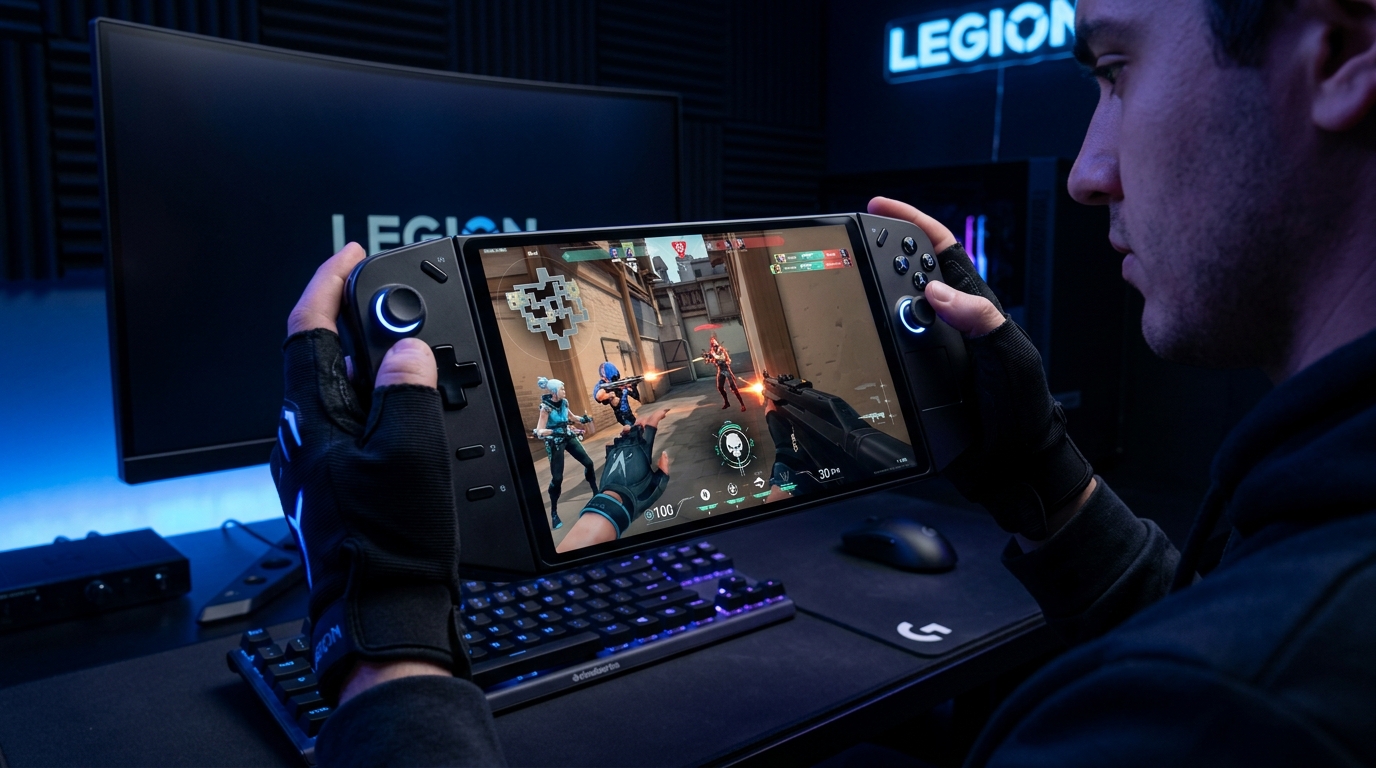
The 1600p panel makes stretched res especially impactful on the Legion Go — the FPS gain is larger here than on any 1080p handheld.
See the Legion Go Optimization Guide for the full tuning picture — TDP, frame caps, VRR, and upscaling all work together with stretched res.
Understanding the Legion Go’s native 16:10 panel
Most stretched-resolution guides target 16:9 displays. The Legion Go’s panel is 2560×1600 (16:10), which changes the math slightly:
| Render resolution | Aspect | Relative to 2560×1600 | Feel |
|---|---|---|---|
| 1920 × 1200 | 16:10 (same) | −44% pixels | Lighter, same proportions, subtle stretch |
| 1920 × 1080 | 16:9 | −56% pixels | 16:9 stretched to 16:10, mild vertical squeeze |
| 1920 × 1440 | 4:3 | −57% pixels | Classic 4:3 feel, widest models |
| 1280 × 960 | 4:3 | −76% pixels | Maximum FPS, significantly softer |
Start with 1920×1200 if you want the FPS gain without a jarring aspect change. Try 1920×1440 if you’re after the classic competitive 4:3 stretch.
Step 1 – Create the custom resolution in AMD Adrenalin
- Right-click the desktop → AMD Software: Adrenalin Edition (or open via Legion Space).
- Settings (gear icon) → Display.
- Custom Resolutions → Create.
- Enter your target — e.g. Horizontal
1920, Vertical1200, Refresh144. - Confirm the test and save.
Repeat for a second option if you want to compare (e.g. also add 1920×1440).
Step 2 – Enable GPU Scaling to “Full Panel”
- In AMD Software → Settings → Display.
- GPU Scaling: On.
- Scaling Mode: Full Panel.
Full Panel stretches the image to fill the 2560×1600 panel regardless of aspect ratio. Maintain Aspect Ratio will letterbox with black bars — not what you want.
Step 3 – Apply in-game
- Launch your game → Video / Display settings.
- Display Mode → Fullscreen (exclusive, not Borderless).
- Resolution → 1920×1200 (or your chosen res).
- Apply.
Borderless Windowed bypasses GPU scaling entirely — if you see black bars or the native res snaps back, the mode is wrong.
The FPS gain on the Legion Go
Because the native 2560×1600 resolution is so high, the gain from dropping to 1920×1200 is larger than on any 1080p handheld. In GPU-bound scenarios expect 20–40% more frames — comparable to dropping from high to medium settings, but with no visual quality loss in distant geometry. Combined with a matching frame cap and VRR, the gameplay becomes significantly smoother.
For maximum FPS floor stability, also:
- Set TDP to Performance/Custom in Legion Space.
- Cap the frame rate to a sustainable target — see How to Cap Your FPS Correctly.
- Use FSR in-game or RSR in AMD Software to reconstruct sharpness at the panel’s native res.
Troubleshooting
| Symptom | Fix |
|---|---|
| Black bars on top/bottom | Scaling Mode → Full Panel |
| Image looks squished vertically | Expected if using a 16:9 res on a 16:10 panel — try 1920×1200 instead |
| Native res snapping back | Game is in Borderless — switch to Fullscreen |
| Custom res missing after update | Recreate in AMD Software post-driver update |
Timer resolution and input latency
Stretched res boosts FPS; timer resolution tightens how those frames arrive. The Legion Go runs full Windows, so Tier1Suite applies the optimal Windows timer setting automatically — lower input latency with zero battery cost.
Related guides
- Legion Go Optimization Guide
- ROG Ally Stretched Resolution Guide
- MSI Claw Stretched Resolution Guide
- How to Get Custom Resolution / Stretch Res for Any Game
- DLSS vs FSR vs XeSS for Gaming
- The Ultimate Guide to Timer Resolution for Gaming
Create your target resolution in AMD Software, set GPU Scaling to Full Panel, lock the game to exclusive Fullscreen, and pick the resolution in-game. The Legion Go’s high native resolution means stretched res pays off more here than on any other handheld — expect a 20–40% FPS lift alongside the competitive feel.
Frequently asked questions
Can you use stretched resolution on the Legion Go?
Yes. The Legion Go runs full Windows and AMD Adrenalin, so you can create a custom resolution in AMD Software, enable GPU Scaling to Full Panel, and apply it in-game just like on a desktop AMD system.
What stretched resolution should I use on the Legion Go?
The Legion Go has a native 2560x1600 (16:10) panel, so the best starting point is 1920x1200 — same aspect ratio as native, lower render load, and a slight stretch toward 4:3 proportions. For a more pronounced 4:3 stretch, try 1920x1440 rendered and scaled to fill the 2560x1600 panel.
Does stretched resolution increase FPS on the Legion Go?
Significantly. The Legion Go's 2560x1600 native resolution is very demanding for its Radeon 780M iGPU. Dropping to 1920x1200 or 1920x1080 and stretching to fill the panel cuts the pixel count by 40–55%, which is one of the biggest single FPS gains you can make on the device.
Why does my Legion Go show black bars instead of stretching?
GPU Scaling is set to Maintain Aspect Ratio instead of Full Panel. Open AMD Software → Settings → Display → Scaling Mode and set it to Full Panel. Also make sure the game is running in exclusive Fullscreen — Borderless mode bypasses GPU scaling.
Is stretched resolution worth it on the Legion Go's large 1600p screen?
Yes, especially for the FPS gain. The Legion Go's 8.8-inch 1600p panel is beautiful but hard to drive at high frame rates. Running at a lower custom resolution and stretching to fill it is more effective on the Legion Go than on almost any other handheld, precisely because the native res is so high.