Legion Go Optimization Guide: Best Settings for FPS and Battery
Published
On this page
The Lenovo Legion Go pairs a big, sharp 144Hz screen with a full Windows handheld PC — a great combination that also makes smart settings essential, because that high-resolution panel is hungry. Tune TDP, frame caps, and upscaling and the Legion Go gets both smoother and longer-lasting.
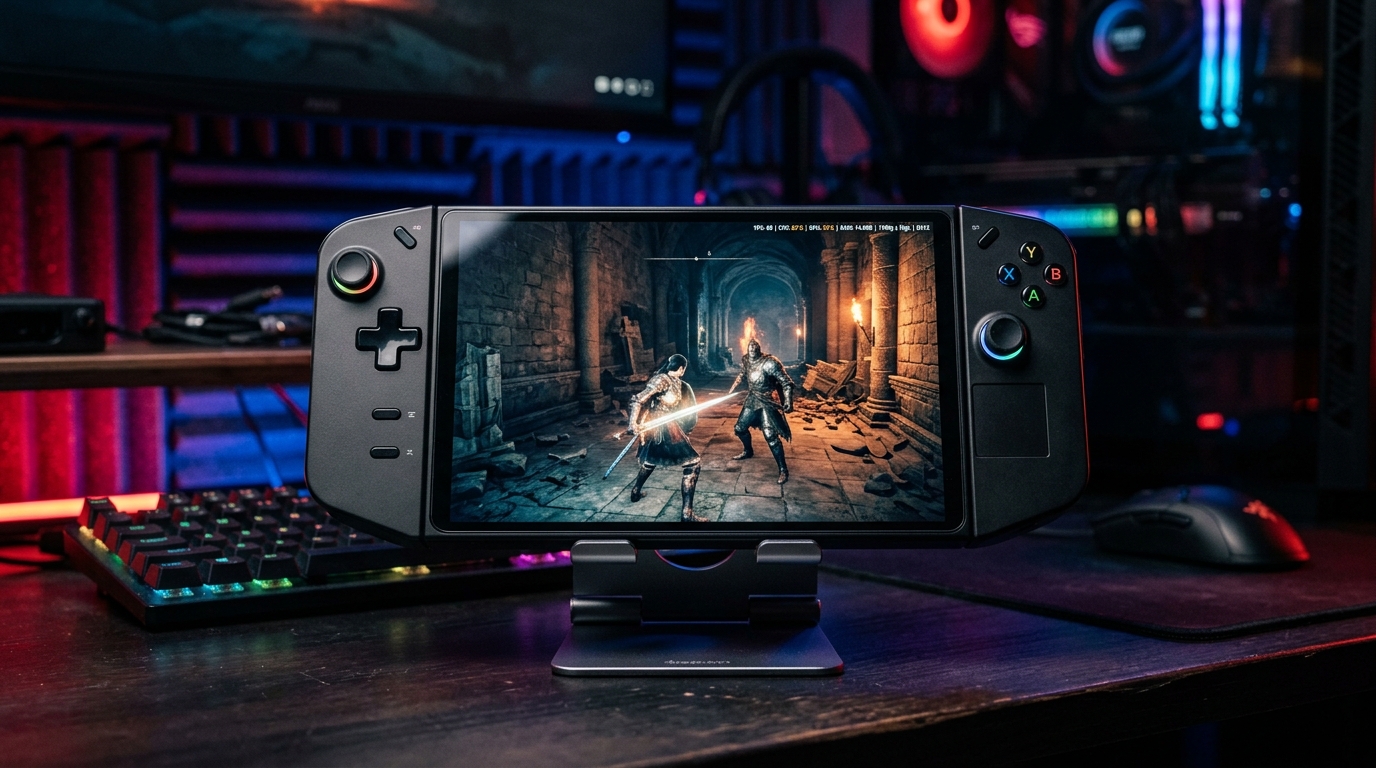
That big 144Hz screen is gorgeous — and demanding. Upscaling and a sensible frame cap are what keep it smooth and the battery alive.
The handheld fundamentals are shared across devices — see our Steam Deck and ROG Ally guides too. The Legion Go’s twist is its higher-resolution, higher-refresh display.
Set the power mode (TDP) in Legion Space
Open Legion Space and choose a power/thermal mode:
- Quiet (~8–10W) — light games, maximum battery.
- Balanced (~15W) — the everyday default on battery.
- Performance / Custom (20–30W, plugged in) — demanding titles; set this while charging.
Legion Space also exposes a Custom mode with manual TDP — tune it per game to the lowest wattage that holds your target FPS.
Tame the high-res 144Hz screen
This is the Legion Go’s defining setting. Its 1600p panel is lovely but brutal to drive:
- For demanding games, render at 1200p or 800p (or use the built-in 1280×800 mode) and let upscaling rebuild the image.
- Match the refresh rate to your frame cap — you rarely need the full 144Hz on the move, and capping it saves significant battery.
- Enable VRR to keep pacing smooth and avoid screen tearing.
Cap the frame rate
A locked frame rate beats a fluctuating one every time on a handheld:
- Pick a target your TDP can sustain (40–60 FPS depending on the game).
- Cap it via the in-game limiter or RTSS — see How to Cap Your FPS Correctly.
- Match your refresh/VRR window to the cap.
Upscaling and in-game settings
- Use FSR in-game or RSR driver-level upscaling — essential on this high-res screen. See DLSS vs FSR vs XeSS.
- Consider AFMF frame generation for smoothness in single-player games — mind the frame-generation latency trade-off.
- Cut shadows, volumetrics, and post-processing first, as in our per-game settings guides.
Windows handheld tweaks
Full Windows means the desktop playbook applies:
- Game plugged in for full TDP — the plugged-in rule is the same as on a laptop.
- Apply Windows 11 24H2 best gaming settings.
- Keep GPU drivers current.
The free win: timer resolution
Like the Ally and unlike the SteamOS Deck, the Legion Go runs Windows — so the timer resolution tweak works here. It tightens frame pacing and trims input latency for free, with no battery or thermal cost.
Read The Ultimate Guide to Timer Resolution for Gaming, then grab Tier1Suite to apply and lock the optimal timer automatically.
Recommended gear
A couple of cheap add-ons make the biggest difference on a Legion Go:
- Storage — game installs fill the internal SSD fast; a high-speed SanDisk Extreme 1TB microSD is the single best value upgrade.
- A JSAUX 6-in-1 dock (HDMI 2.1 4K@120Hz, 100W PD, Gigabit Ethernet) for docked play, charging, and a monitor.
- A protective carrying case so the screen and sticks survive your bag.
Related guides
- ROG Ally Optimization Guide
- MSI Claw Optimization Guide
- Steam Deck Optimization Guide
- How to Cap Your FPS Correctly
- DLSS vs FSR vs XeSS for Gaming
Optimize the Legion Go by matching TDP to each game in Legion Space, taming the high-res 144Hz screen with upscaling and a capped refresh, locking your frame rate with VRR, and applying the Windows tweaks plus low-latency timer resolution via Tier1Suite.
Frequently asked questions
What is the best way to get more FPS on the Legion Go?
Set a custom power mode with enough TDP (max it while plugged in), cap the frame rate and match it with VRR, and use FSR or RSR upscaling. Because the Legion Go has a high-resolution 144Hz screen, dropping the render resolution with upscaling is especially effective.
Should I game at the Legion Go's native resolution?
Not for demanding games. The Legion Go's 1600p screen is sharp but very hard to drive at high FPS. Render at 1200p or 800p and use FSR/RSR upscaling, or run games at 1280x800 mode, to get far higher and more stable frame rates with little visible loss on the small panel.
How do I improve Legion Go battery life?
Lower the TDP to the minimum that holds your target FPS, cap the frame rate, enable VRR, reduce brightness, and use upscaling to render fewer pixels. The high-res 144Hz panel can drain the battery quickly, so capping refresh and FPS matters a lot here.
Does the Legion Go run competitive games well?
Yes. It runs full Windows, so anti-cheat titles work, and its larger 144Hz screen suits fast games. Cap FPS for stable pacing, game plugged in on max TDP, and apply Windows tweaks like timer resolution for the lowest input latency.