How to Fix Screen Tearing in Games (With or Without V-Sync)
Published
On this page
Screen tearing has exactly one cause — unsynchronized frame delivery — and three real fixes. Which one you should use depends on whether your monitor has VRR and how much you care about input lag. Here’s the decision tree.
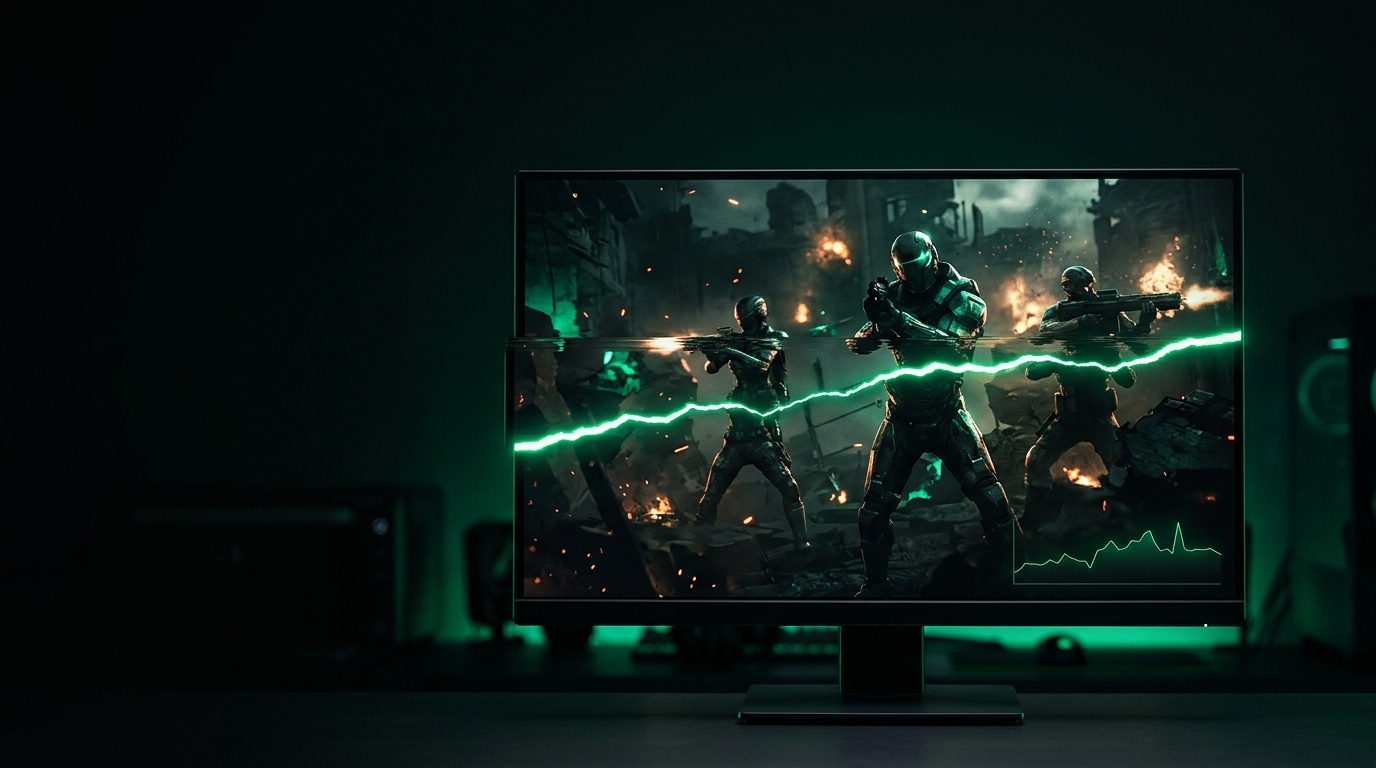
One frame on top, a different frame below: that’s a tear. Sync the delivery and it’s gone.
Fix 1 (best): VRR — G-Sync or FreeSync
If your monitor supports it (most gaming monitors since ~2019 do), this is the answer:
- Enable Adaptive-Sync in the monitor OSD.
- Enable G-Sync or FreeSync in the driver.
- Driver V-Sync on, in-game V-Sync off.
- Cap FPS 3–5 below refresh.
Tear-free, no added latency. The exact six steps with verification are in the G-Sync/FreeSync setup guide.
Fix 2: frame cap near refresh (no VRR)
No VRR monitor? You can make tearing barely visible without V-Sync:
- Cap FPS just below your refresh rate — the tear line drifts slowly instead of flickering randomly.
- Or run FPS far above refresh — tear slices become thin enough to ignore. This is the classic esports approach.
The right limiter for this is covered in how to cap your FPS correctly.
Fix 3 (last resort): V-Sync
V-Sync eliminates tearing completely but queues finished frames, adding noticeable input delay — typically 1–3 frames. Acceptable in slow single-player games; a real handicap in shooters.
If you must use it:
- Prefer Fast Sync (NVIDIA) or Enhanced Sync (AMD) when your FPS far exceeds refresh — they drop late frames instead of queuing them.
- Never stack in-game V-Sync with driver V-Sync.
Why you tear in borderless mode
Windows’ compositor (DWM) force-syncs borderless windows, which usually prevents tearing — but games sometimes bypass it, and multi-monitor setups with mixed refresh rates confuse it. If you tear in borderless:
- Switch to exclusive fullscreen — see fullscreen vs borderless vs windowed.
- Match refresh rates across monitors, or close video content on the second screen while playing.
Quick decision tree
| Your setup | Do this |
|---|---|
| VRR monitor | G-Sync/FreeSync + driver V-Sync + cap (Fix 1) |
| No VRR, high FPS | Uncapped or cap just below refresh (Fix 2) |
| No VRR, single-player | V-Sync / Fast Sync (Fix 3) |
| Tearing only in borderless | Exclusive fullscreen |
Tearing fixed but the game still feels choppy? That’s frame pacing, not tearing — start with the stutter-focused lag spike guide and consider Tier1Suite for smoother frame delivery.
Related guides
Frequently asked questions
What causes screen tearing?
The GPU sends a new frame while the monitor is mid-refresh, so the screen shows parts of two frames at once. It happens whenever frame delivery and refresh are not synchronized.
How do I stop tearing without V-Sync input lag?
Use G-Sync or FreeSync with a frame cap below your refresh rate. The monitor syncs to the GPU instead of the other way around, removing tearing with no queuing delay.
Why do I get tearing even with V-Sync on?
Usually the game is running in borderless mode where Windows compositing takes over, or an overlay/second monitor interferes. Exclusive fullscreen plus driver-level settings normally fixes it.
Does higher FPS reduce tearing?
Tear lines get thinner and less noticeable at very high FPS, which is why esports players often play uncapped without sync. It reduces visibility, not the tearing itself.