ROG Ally Stretched Resolution Guide: How to Set It Up
Published
On this page
The ASUS ROG Ally runs full Windows and AMD Adrenalin, which means stretched resolution works exactly like it does on a desktop AMD system — you just need to create the custom res and tell AMD to stretch it. Here’s the exact setup with no fluff.
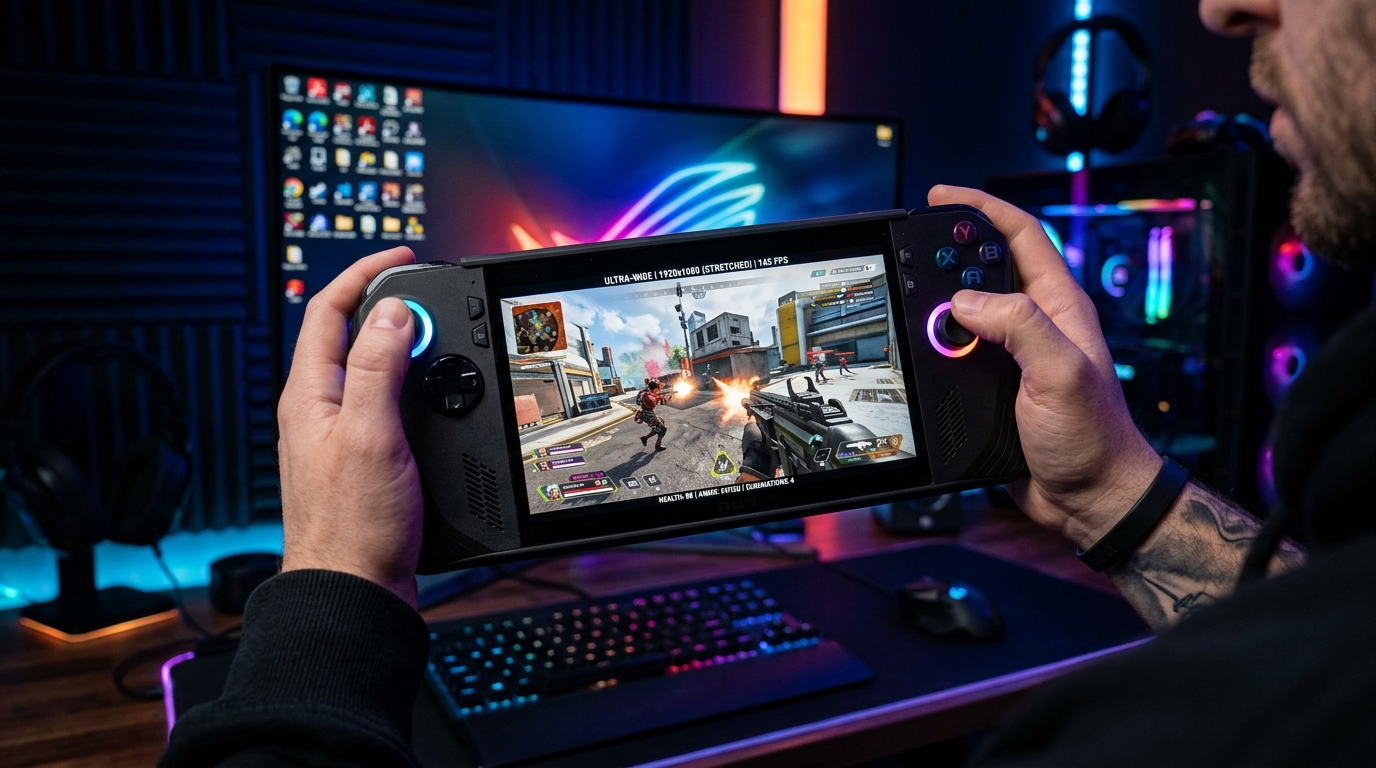
Stretched res on a handheld works best at 1440x1080 — wide enough to feel the difference without making the small screen look soft.
For the full performance picture, see the ROG Ally Optimization Guide. Stretched res is one piece of the puzzle.
Best stretched resolutions for the ROG Ally
The ROG Ally has a 1920×1080 (FHD) 120Hz display at 7 inches.
| Render resolution | Aspect ratio | Feel |
|---|---|---|
| 1440 × 1080 | 4:3 → stretched | Classic, widest models, most FPS gain |
| 1600 × 900 | 16:9 | Same res as native only lower — not a true stretch but lighter |
| 1280 × 960 | 4:3 → stretched | Wider stretch, more FPS, noticeably softer on 7” |
1440×1080 is the go-to. It gives you the widest player models at a clean output and the most meaningful FPS lift.
Step 1 – Create the custom resolution in AMD Adrenalin
- Open AMD Software: Adrenalin Edition (right-click the desktop → AMD Software, or search in Start).
- Go to Settings (gear icon, top right) → Display.
- Find Custom Resolutions and click Create.
- Enter: Horizontal resolution
1440, Vertical resolution1080, Refresh rate120(match the Ally’s panel). - Click Create and confirm the test.
The custom res now appears as an option in-game.
Step 2 – Enable AMD GPU Scaling to “Full Panel”
This is what actually stretches the image instead of adding black bars.
- In AMD Software → Settings → Display.
- GPU Scaling: On.
- Scaling Mode: Full Panel (not Maintain Aspect Ratio).
If you see black bars instead of a stretched image, this is the setting to check first.
Step 3 – Apply it in-game
- Launch your game → Video / Display settings.
- Set Display Mode to Fullscreen (not Windowed or Borderless — GPU scaling won’t apply otherwise).
- Set Resolution to 1440×1080 (or whichever res you created).
- Apply and confirm.
If the game defaults back to native res on next launch, confirm the custom resolution still exists in AMD Software — the Ally’s AMD driver occasionally resets custom entries after a driver update.
FPS impact and the iGPU benefit
The ROG Ally’s Radeon 780M iGPU is the bottleneck in most games. Running at 1440×1080 instead of 1920×1080 cuts the rendered pixel count by about 25%, which translates directly into more headroom. Combined with a reasonable TDP in Armoury Crate, this is one of the easiest free-FPS changes on the device.
Pair it with:
- A frame cap matched to your target (40–60 FPS is typical on battery; uncapped while plugged in) — see How to Cap Your FPS Correctly.
- RSR (Radeon Super Resolution) at the driver level for a sharpened upscale back to 1080p, or FSR in-game.
Troubleshooting
| Symptom | Fix |
|---|---|
| Black bars, not stretched | GPU Scaling → Full Panel |
| Game runs at native res | Not in exclusive Fullscreen |
| Custom res disappeared | Recreate in AMD Software after driver update |
| Resolution not listed in-game | Custom res creation failed — redo Step 1 |
| Stretched res reverts on relaunch | Check game’s cfg file isn’t overriding resolution |
Reducing input lag on the Ally
Stretched res gives you more FPS — Timer Resolution tightens what you do with them. The Ally runs Windows, so Tier1Suite applies the optimal timer for free, trimming input latency with no battery cost.
Related guides
- ROG Ally Optimization Guide
- Legion Go Stretched Resolution Guide
- MSI Claw Stretched Resolution Guide
- How to Get Custom Resolution / Stretch Res for Any Game
- DLSS vs FSR vs XeSS for Gaming
- The Ultimate Guide to Timer Resolution for Gaming
Create 1440×1080 in AMD Software, flip GPU Scaling to Full Panel, set the game to exclusive Fullscreen, and you have stretched res on the ROG Ally. The iGPU benefit is real — expect a noticeable FPS bump alongside the wider player models.
Frequently asked questions
Can you use stretched resolution on the ROG Ally?
Yes. The ROG Ally runs full Windows and uses AMD Adrenalin, so you can create a custom resolution like 1440x1080 in AMD Software, enable GPU Scaling set to Full Panel, and then select it in-game exactly as you would on a desktop AMD system.
What stretched resolution should I use on the ROG Ally?
1440x1080 is the most popular choice for a classic 4:3 stretch on the Ally's 1920x1080 panel — it gives wider player models and a slight FPS gain. 1600x900 is also valid for a subtler feel with more headroom. Avoid anything below 1280x720 as the small 7-inch screen will look noticeably soft.
Does stretched resolution give more FPS on the ROG Ally?
Yes. Rendering at 1440x1080 instead of native 1920x1080 reduces the pixel count, which lowers the load on the Radeon 780M iGPU and typically gains you 10–20% more frames. On the Ally this matters because the integrated GPU is the bottleneck in demanding titles.
Why won't stretched resolution work on my ROG Ally?
The two most common causes are: (1) the game is not running in exclusive Fullscreen mode — Borderless/Windowed prevents GPU Scaling from applying; (2) AMD GPU Scaling is set to Maintain Aspect Ratio instead of Full Panel. Make sure both are set correctly and restart the game after changing them.
Does stretched resolution work in competitive games on the ROG Ally?
For most titles yes. Fortnite banned stretched res in official competitive lobbies, but for casual play and most other titles there is no restriction. The Ally runs the full Windows PC version of every game, so the same rules apply as on a desktop.