MSI Claw 8 EX AI+ Optimization Guide: Best Settings for FPS and Battery
Published
On this page
The MSI Claw 8 EX AI+ launches today with the world’s first Intel Arc G3 Extreme processor in a handheld — 80Wh battery, XeSS 3, and a redesigned MSI Quick Settings interface. Here’s how to squeeze everything out of it from day one.
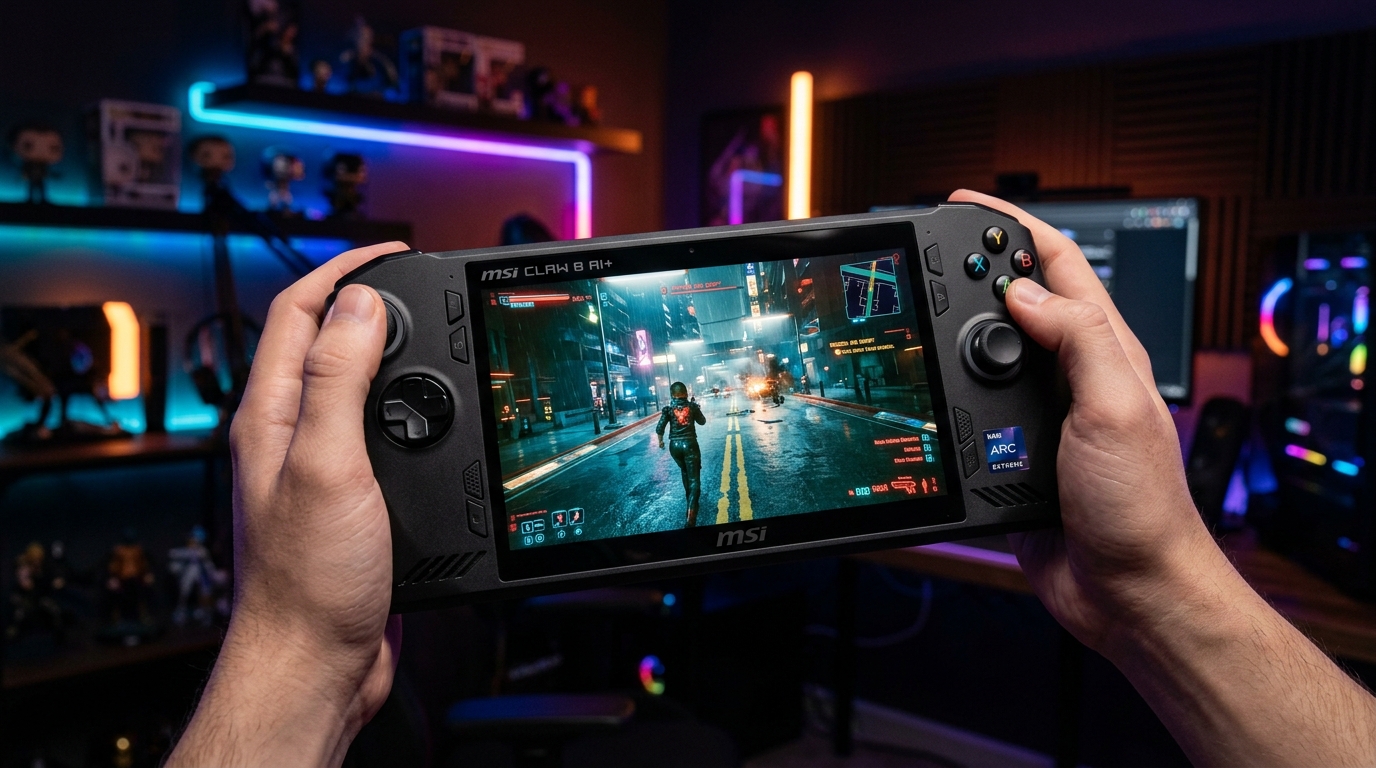
The 80Wh battery is the biggest in any handheld to date — but squeezing out battery life still means matching TDP to your FPS target.
For reference, also see the MSI Claw Optimization Guide (original A1M model) and the ROG Ally Optimization Guide and Legion Go Optimization Guide for handheld comparisons.
Quick wins — do these first
- Set TDP to Performance in MSI Quick Settings while plugged in.
- Cap the frame rate to a target your TDP can hold.
- Enable XeSS Super Resolution in every demanding game.
- Match refresh rate to your frame cap and enable VRR.
- Run Tier1Suite for tighter frame pacing and lower input latency.
Manage TDP in MSI Quick Settings
The redesigned MSI Quick Settings panel (accessible from the taskbar or a hardware shortcut) exposes TDP modes:
| Mode | TDP | When to use |
|---|---|---|
| Silent | ~8W | Very light games, maximum battery |
| Balanced | ~15W | Default on battery, most games |
| Performance | ~25–30W | Demanding titles, plugged in |
| Custom | Adjustable | Set per-game to lowest that holds your FPS target |
Custom mode is the highest-leverage setting. For a game that comfortably runs at 60 FPS at 20W, dropping to 20W instead of 30W extends battery by a meaningful margin without losing a frame.
Tame the 1920×1200 display
The Claw 8 EX AI+ has an 8” FHD+ 1920×1200 IPS panel at 120Hz. The extra vertical pixels vs. 1080p add GPU load:
- Demanding games: use XeSS Super Resolution to render at a lower internal resolution and reconstruct to 1920×1200. This is the most effective free FPS boost.
- Cap refresh rate to match your frame target — 60Hz costs far less battery than 120Hz if you’re only hitting 60 FPS.
- Enable VRR for smooth variable-frame pacing and to eliminate screen tearing.
XeSS 3 — what to enable and when
XeSS 3 has three distinct features. Use them differently depending on the game type:
| Feature | What it does | Use for |
|---|---|---|
| Super Resolution | AI upscale from lower render res | All demanding games — always on |
| Multi-Frame Generation | Inserts up to 3 synthetic frames per rendered frame | Single-player / cinematic games for smoothness |
| Low-Latency Optimization | Reduces input delay | Competitive games — enable alongside Super Resolution |
Avoid Multi-Frame Generation in competitive multiplayer. Synthetic frames add latency between your input and the next genuinely rendered frame — in competitive games this is measurable. For Elden Ring or Cyberpunk, it’s transformative.
In games that don’t yet support XeSS natively, Intel Arc Control exposes driver-level XeSS — similar to AMD’s RSR or NVIDIA’s NIS.
Frame cap strategy
A locked frame rate is almost always smoother than uncapped on a handheld:
- Pick a target: 40, 60, or 90 FPS (round numbers VRR can work with cleanly).
- Set the cap in-game or via Intel Arc Control → Per-game settings → Frame Rate Target Control.
- Match the panel refresh to your cap in Windows Display Settings.
- Enable VRR to absorb any frames that miss the cap window.
See How to Cap Your FPS Correctly for the full methodology.
Windows and system settings
Full Windows means the full desktop playbook applies:
- Power plan: High Performance (or plug in and switch to Ultimate Performance).
- Game Mode: On (Settings → Gaming → Game Mode).
- Run Windows 11 24H2 Best Gaming Settings for the full OS tweak list.
- Keep Intel Arc drivers current — Intel updates frequently for handheld performance.
- Disable background apps (Discord overlay, Xbox Game Bar recording) during sessions.
Timer resolution and latency
The Claw 8 EX AI+ runs Windows, so timer resolution matters here. The Windows default 15.6ms timer adds scheduler jitter that shows up as inconsistent frame delivery. Tier1Suite applies the optimal 0.5ms timer setting automatically — free, no battery cost, works immediately.
Stretched resolution on the Claw 8 EX AI+
The 1920×1200 panel accepts custom resolutions. See the MSI Claw 8 EX AI+ Stretched Resolution Guide for the Intel Arc G3 specific setup — note that the Claw 8 EX AI+ has a 16:10 panel, unlike the original Claw’s 1080p screen, which changes the recommended res choices.
Related guides
- MSI Claw Optimization Guide (original A1M)
- MSI Claw 8 EX AI+ Stretched Resolution Guide
- ROG Ally Optimization Guide
- Legion Go 2 Optimization Guide
- DLSS vs FSR vs XeSS for Gaming
- The Ultimate Guide to Timer Resolution for Gaming
Set TDP to Performance in MSI Quick Settings, enable XeSS Super Resolution in every demanding game, cap the frame rate and match VRR to it, and run Tier1Suite for lower latency. The 80Wh battery means longer sessions than any competing handheld — use Custom TDP to squeeze every drop out of it.
Frequently asked questions
How do I get more FPS on the MSI Claw 8 EX AI+?
Set TDP to Performance mode in MSI Quick Settings while plugged in, enable XeSS 3 Super Resolution in supported games, cap your frame rate to a target your TDP can sustain, and apply standard Windows tweaks like High Performance power plan and timer resolution via Tier1Suite. XeSS 3 Multi-Frame Generation can also multiply your frame rate in supported titles — use it for single-player games where input lag is less critical.
How long does the MSI Claw 8 EX AI+ battery last while gaming?
The 80Wh battery is the largest in any handheld as of mid-2026. At a balanced 15W TDP targeting 40–50 FPS you can expect 2–3 hours of continuous gaming, and with a lower 8–10W cap in lighter titles up to 4+ hours. Enabling VRR and capping the refresh rate significantly extends battery life by reducing unnecessary GPU work.
What is XeSS 3 on the MSI Claw 8 EX AI+ and should I use it?
XeSS 3 is Intel's AI upscaling suite with three components: Super Resolution (render at lower res, reconstruct sharpness), Multi-Frame Generation (insert up to 3 synthesized frames between rendered frames to multiply framerate), and low-latency optimization. Use Super Resolution always in demanding games. Use Multi-Frame Generation in single-player titles for maximum smoothness — avoid it in competitive games as it adds synthesized-frame input lag.
Is the MSI Claw 8 EX AI+ better than the ROG Ally for gaming?
It depends on the workload. The Intel Arc G3 Extreme offers strong rasterization performance competitive with the AMD Ryzen Z2 Extreme. The Claw 8 EX AI+ has the largest battery of any handheld (80Wh vs ~74Wh on the Ally/Legion Go), which means longer battery sessions at the same FPS target. The ROG Ally ecosystem has more maturity. Intel's XeSS 3 Multi-Frame Generation is a differentiator for single-player FPS.
Does timer resolution work on the MSI Claw 8 EX AI+?
Yes. The Claw 8 EX AI+ runs full Windows 11, so timer resolution works exactly as it does on a desktop. Tier1Suite applies the optimal 0.5ms timer resolution automatically, tightening frame pacing and reducing input latency with no battery or thermal cost.