Legion Go 2 Optimization Guide: SteamOS Settings for FPS and Battery
Published
On this page
The Lenovo Legion Go 2 is a significant upgrade over the original: OLED display, Ryzen Z2 Extreme, and SteamOS as the default OS. The jump to SteamOS changes how you optimize it — TDP lives in the Steam Quick Access Menu instead of a Windows app, and Proton handles compatibility automatically. Here’s how to get the most out of it.
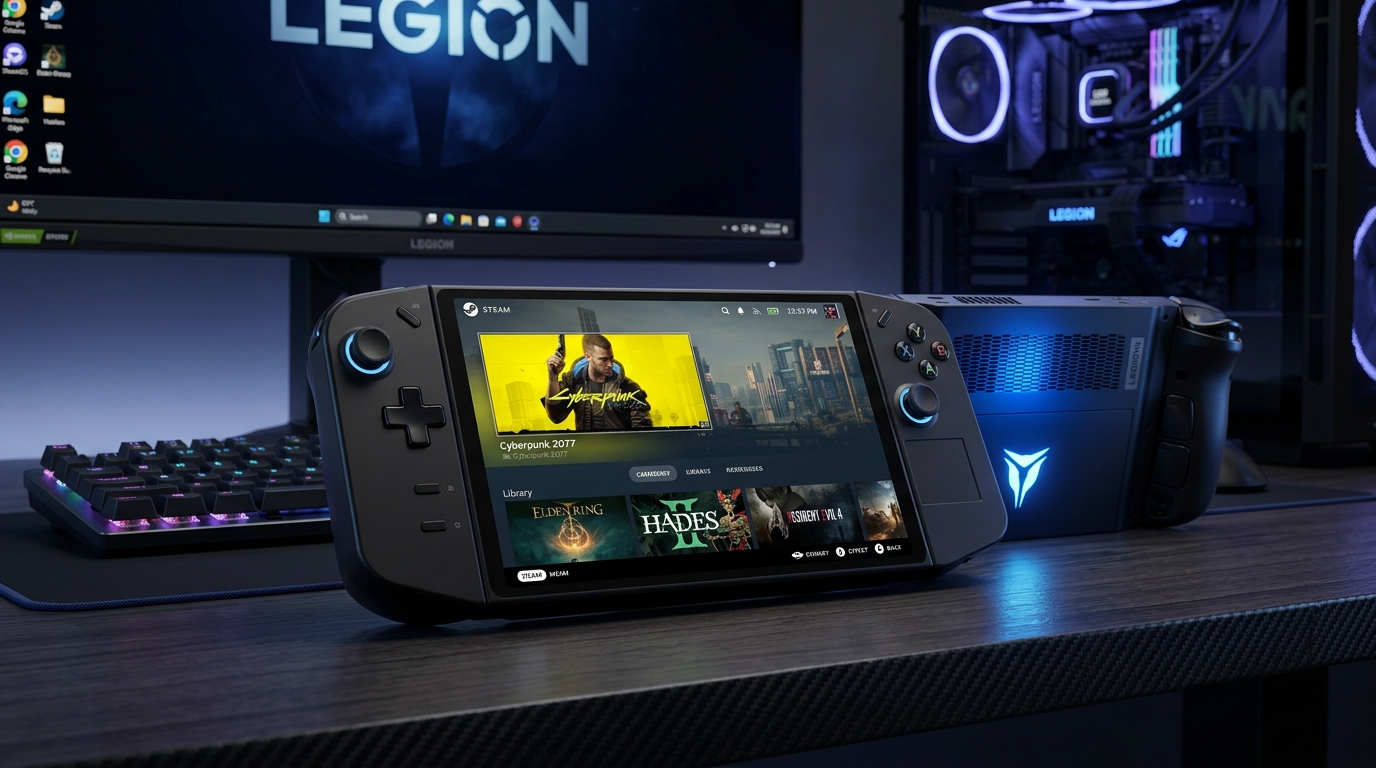
SteamOS on the Legion Go 2 makes TDP control simpler and battery life better than Windows — but some competitive titles still need a dual-boot Windows partition.
Already have the original? See the Legion Go Optimization Guide for the Windows-based tuning approach that still applies to the Go 2 when dual-booting.
What’s new on the Legion Go 2
| Feature | Legion Go (original) | Legion Go 2 |
|---|---|---|
| Display | 8.8” IPS 2560×1600 144Hz | 8.8” OLED 1920×1200 144Hz VRR |
| APU | AMD Ryzen Z1 Extreme | AMD Ryzen Z2 Extreme |
| Default OS | Windows 11 | SteamOS |
| GPU perf. | ~Radeon 780M | ~Radeon 890M (est. +30–40%) |
| Battery | 74Wh | 74Wh |
| Controllers | Detachable | Detachable (unchanged) |
| Price | ~$699 (launch) | $1,199 |
The OLED panel and Z2 Extreme are the meaningful hardware upgrades. The OS shift to SteamOS is the largest behavioral change.
Step 1 — Set TDP in Steam Quick Access Menu
Press the Steam button to open the Steam overlay, then navigate to the battery / performance icon (plug symbol) in the Quick Access Menu.
| TDP mode | Watts | Use case |
|---|---|---|
| Low | 8–10W | Very light games, maximum battery |
| Balanced | 12–15W | Everyday gaming on battery |
| Performance | 20–25W | Demanding titles on battery |
| Max (plugged in) | 28–30W | Plugged in, maximum performance |
Per-game TDP is the best approach: set a custom limit just high enough to hold your frame target in each specific game. SteamOS saves these per-game, so the setting automatically applies next launch.
Step 2 — Frame rate cap in Steam QAM
Immediately below TDP in the QAM is a frame rate cap slider. Always set a cap:
- 40 FPS — battery-efficient, very playable with VRR
- 60 FPS — standard target, comfortable for most genres
- 90 FPS — high-refresh gaming, higher TDP required
A locked frame rate uses less battery than an uncapped one and produces smoother pacing. Enable Allow Tearing (VRR mode in SteamOS) to let the OLED panel sync to your frame cap.
Step 3 — OLED display tuning
The Legion Go 2’s OLED panel changes a few things vs. the original:
- Brightness: OLED at 30–40% brightness looks better than IPS at 60–70%, and draws significantly less power. Lower it.
- Color: SteamOS exposes color temperature settings — adjust Night Mode or color warmth for long sessions.
- Resolution: The native res is 1920×1200 (down from 2560×1600 on the original). This is actually easier to drive at high FPS. FSR upscaling from 1440×900 → 1920×1200 gives excellent visual quality.
Step 4 — FSR and upscaling in SteamOS
SteamOS exposes FSR (FidelityFX Super Resolution) at the system level for games that don’t natively support it:
Steam QAM → Scaling Filter → FSR (set render resolution lower, FSR upscales to native)
For games that support FSR or DLSS natively, use the in-game setting instead — it’s always higher quality than the system-level override. See DLSS vs FSR vs XeSS for Gaming.
Step 5 — Proton compatibility
Most Steam games work through Proton automatically. For games not tested with Proton:
- In Steam Desktop Mode → right-click game → Properties → Compatibility.
- Tick Force the use of a specific Steam Play compatibility tool.
- Select Proton Experimental or the latest stable Proton version.
Check ProtonDB for community-reported compatibility ratings before purchasing a title.
Anti-cheat games that don’t work on Proton: Valorant (Vanguard), some FACEIT CS2 modes, and other kernel-level anti-cheat titles require Windows. Use the dual-boot partition for these.
Step 6 — Dual-boot Windows for competitive titles
The Legion Go 2 can run both SteamOS and Windows:
- Install Windows on a second SSD partition (the internal SSD can be partitioned, or use a fast microSD card with a Windows-to-Go style install — performance varies).
- Boot into Windows for anti-cheat competitive games, Tier1Suite, and Windows-exclusive software.
- Return to SteamOS for everything else.
When running Windows, apply the Legion Go Optimization Guide steps — TDP via Legion Space still works in Windows.
Step 7 — Timer resolution (Windows partition only)
Tier1Suite and timer resolution only apply on the Windows partition — SteamOS manages its own kernel timer separately and doesn’t expose Windows-style timer control. When booted into Windows, run Tier1Suite to apply the 0.5ms timer and tighten frame pacing.
Battery optimization summary
| Setting | Value for max battery |
|---|---|
| TDP | 8–10W |
| Frame cap | 40 FPS |
| Display brightness | 30–40% |
| FSR render resolution | 1440×900 → upscaled |
| VRR / Allow Tearing | On |
| Wi-Fi | Off when not needed |
At these settings, expect 4–5 hours of gaming on the 74Wh battery.
Related guides
- Legion Go Optimization Guide (original)
- Legion Go Stretched Resolution Guide
- ROG Ally Optimization Guide
- MSI Claw 8 EX AI+ Optimization Guide
- DLSS vs FSR vs XeSS for Gaming
- The Ultimate Guide to Timer Resolution for Gaming
Set TDP via Steam QAM, match your frame cap to it, lower brightness for OLED efficiency, and use FSR for FPS headroom. For competitive anti-cheat titles, dual-boot Windows and follow the original Legion Go guide. The Z2 Extreme is a meaningful GPU step up — give it the right settings and it shows.
Frequently asked questions
How do I control TDP on the Legion Go 2?
Press the Steam button to open the Steam Quick Access Menu (QAM), then go to the battery/performance icon. From there you can set a TDP limit (in watts) and a frame rate cap. This is the primary TDP control in SteamOS. Higher TDP = more FPS but shorter battery life. Start at 15W for battery gaming and up to 25–30W plugged in.
Does the Legion Go 2 run Windows games?
Yes, through Proton — SteamOS's compatibility layer. Most Steam games run through Proton automatically with no setup required. Anti-cheat titles (Valorant, FACEIT CS2, some competitive games) do NOT work through Proton due to anti-cheat kernel requirements. For those titles, dual-boot Windows on the Legion Go 2's second partition.
How is the Legion Go 2 different from the original Legion Go?
The Legion Go 2 upgrades to an OLED 8.8-inch display (vs IPS on the original), the AMD Ryzen Z2 Extreme APU (vs Z1 Extreme), and ships with SteamOS by default instead of Windows. The detachable controllers and kickstand remain. The OLED display significantly improves color accuracy and battery life at equal brightness, and the Z2 Extreme GPU has roughly 30–40% more graphics performance than the Z1 Extreme.
Should I use the SteamOS version or dual-boot Windows on the Legion Go 2?
SteamOS is the better daily driver for most gamers: better battery life, simpler TDP management, automatic game optimization, and no Windows bloat. Dual-boot Windows when you need anti-cheat competitive games (Valorant, FACEIT CS2), full timer resolution control, or software that only runs on Windows. For Tier1Suite and Windows-specific tweaks, boot into Windows.
What is the best way to extend battery life on the Legion Go 2?
Set a TDP cap of 10–15W in Steam QAM, cap the frame rate to 40–60 FPS, enable VRR, reduce display brightness (the OLED panel is efficient at lower brightness), and use FSR upscaling to reduce the GPU load per frame. At 10W TDP targeting 40 FPS, the Legion Go 2 can sustain 4–5 hours.