Best Apex Legends Audio Settings for Footsteps and Directional Sound
Published
On this page
Footstep audio wins fights in Apex Legends, and most players lose that edge to layers of processing they never turned off. The best Apex Legends audio settings keep Sound Effects loud, Music at 0, and your headphones on plain Stereo output in Windows with all spatial ‘enhancements’ disabled — because Apex already renders directional audio itself, and every extra surround layer only blurs where the footsteps are coming from.
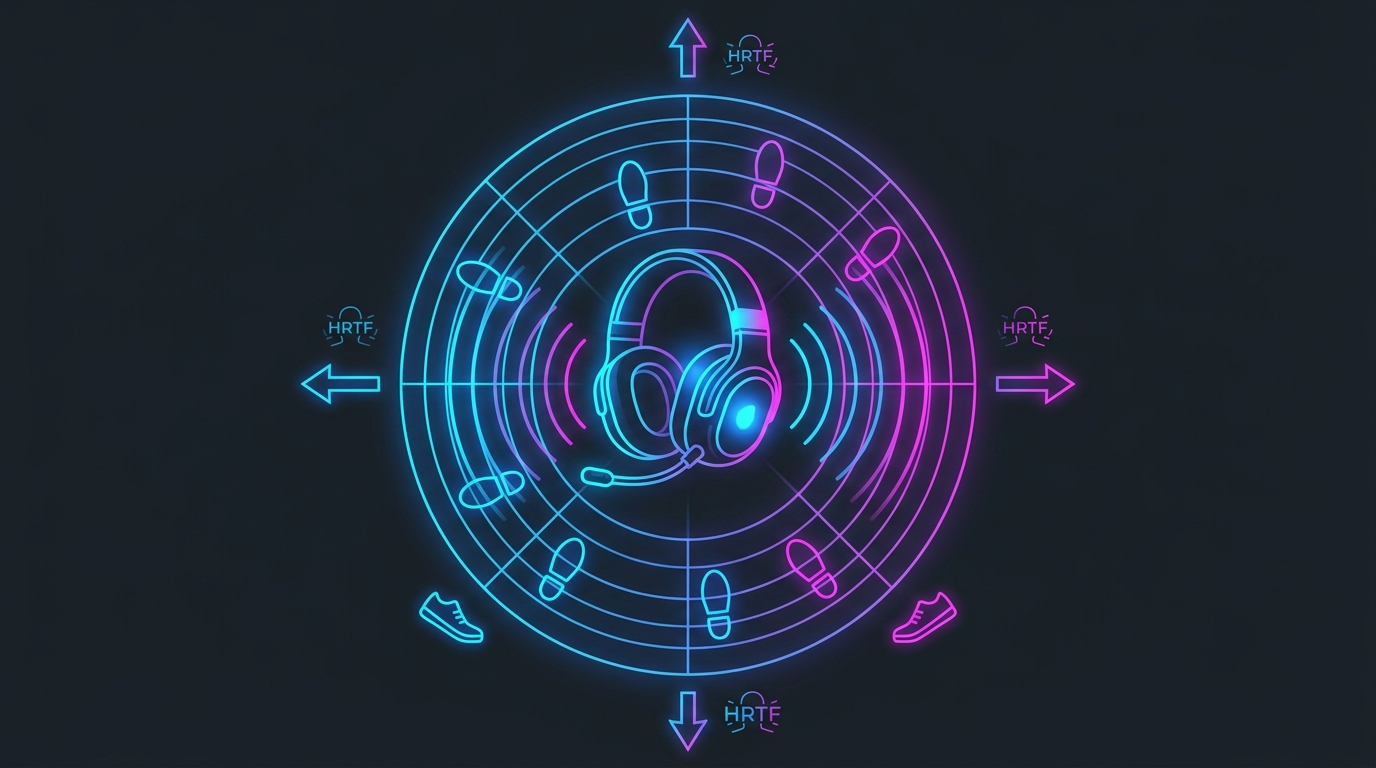
Apex outputs clean 3D audio to stereo headphones — your job is to stop everything else from muddying it.
Best Apex Legends audio settings
Set these in Settings → Audio and in Windows Sound settings:
| Setting | Recommended value |
|---|---|
| Master Volume | 70–100 (comfortable but loud) |
| Sound Effects | 100 |
| Music | 0 |
| Dialogue / Voice Narration | Low or Off |
| Lobby Music | Off |
| Windows audio format | Stereo (2 channel) |
| Windows Sonic / Dolby Atmos / DTS:X | Off |
| Headset virtual surround (7.1) | Off (use Stereo mode) |
| Windows Audio Enhancements | Off |
The goal is one clean spatialization pass — Apex’s own — with nothing stacked on top of it.
Why stereo beats surround in Apex
Apex Legends renders 3D positional audio for stereo headphones. It calculates whether a footstep is left, right, in front, behind, above, or below and mixes that into a two-channel signal.
When you enable Windows Sonic, Dolby Atmos for Headphones, DTS:X, or a headset’s built-in 7.1 virtual surround, you add a second spatialization pass that reinterprets Apex’s already-positioned audio. The result is reverb, smearing, and directional cues that fight each other — which is why players on “surround” headsets so often say footsteps sound muffled or vague.
Fix it in one place: right-click the speaker icon → Sound settings → your headset → set the format to Stereo, and turn off any surround mode in your headset’s companion app.
Turn the noise down so footsteps come through
Footsteps, weapon swaps, healing, and ability audio are the information you fight on. Everything else masks them.
- Set Sound Effects to
100. - Set Music to
0— the in-match music and ring stinger only cover quiet cues. - Lower Dialogue and any voice-narration sliders; you rarely need them loud in a ranked fight.
- Turn Lobby Music off so you are not desensitized before you drop.
Kill the Windows and third-party processing
The most common “I can’t hear footsteps” cause is software you did not know was running.
- Open Sound settings → your device → Properties and turn off Audio Enhancements (loudness equalization, bass boost, and similar). These compress the signal and flatten the near-vs-far volume gap that tells you how close an enemy is.
- Disable third-party audio suites like Nahimic or Sonic Studio, or set them to a flat/off profile — their reverb and “3D” presets smear direction.
- Keep your headset on Stereo in its own app.
Once Windows and your headset stop editing the sound, Apex’s dynamic range comes back and distance reads correctly again.
Audio helps most with a stable, low-latency setup
Clear audio and a responsive game go together — audio cues arriving on a stuttering frame still cost you the fight. Pair these settings with a clean-running Apex:
- Best Apex Legends Settings for FPS
- Apex Legends Stuttering Fix
- Apex Legends Lowest Input Lag Settings
A lower timer resolution keeps frame pacing consistent, so the moment you react to a footstep your input lands without extra delay.
Related guides
- Best Apex Legends Settings for FPS
- Apex Legends Stretched Resolution Guide
- How to Minimize Input Delay for Competitive Gaming
- How to Optimize Your Monitor for Gaming
The best Apex Legends audio settings let the game’s own 3D audio do its job: keep Sound Effects loud, Music silent, output on Stereo, and every extra surround or enhancement turned off. Clean the signal and footsteps tell you exactly where the enemy is.
Frequently asked questions
What are the best audio settings for footsteps in Apex Legends?
Set the Sound Effects/Master volume high, Music to 0, and use headphones set to plain Stereo output in Windows (no virtual surround). Apex has no in-game HRTF toggle — it renders directional audio itself — so the key is stopping Windows or headset software from adding a second layer of spatial processing on top, which is what muffles and smears footstep direction.
Should I use surround sound or stereo for Apex Legends?
Use Stereo. Apex Legends already renders 3D positional audio for stereo headphones, so enabling Windows Sonic, Dolby Atmos, DTS:X, or a headset's 7.1 virtual surround stacks a second spatialization pass on top and blurs footstep direction. Right-click your audio device in Windows Sound settings, set the format to Stereo, and let the game handle positioning.
Why can't I hear footsteps in Apex Legends?
The usual causes are virtual surround or spatial audio overriding the game (disable Windows Sonic, Dolby Atmos, and any headset surround mode), Music and other non-essential volumes masking footstep layers, or third-party audio software like Nahimic adding reverb. Set output to Stereo, drop Music to 0, and disable audio 'enhancements' in Windows to restore clean footstep audio.
Should I turn off music in Apex Legends?
Yes. Set Music volume to 0. In-match music and the ring-close stinger add no tactical information and can mask quiet audio cues like distant footsteps or an enemy healing nearby. Keeping Sound Effects loud and Music silent gives you the clearest read on what actually matters in a fight.
Do audio enhancements in Windows help Apex Legends?
No — disable them. Windows 'Audio Enhancements' (formerly Loudness Equalization and similar) and third-party effects like Nahimic or Sonic Studio compress and reverb the signal, which flattens the volume difference between near and far footsteps. Turn enhancements off in Sound settings so Apex's own dynamic range and directional mix come through cleanly.