How to Set Up a CRT for PC Gaming (Best Settings)
Published
On this page
Setting up a CRT for a modern gaming PC takes three things: the right adapter to connect it, custom resolutions to unlock its refresh-rate flexibility, and a few minutes in the on-screen menu to square up the picture. Do all three and you get the CRT’s headline benefits — instant response and blur-free motion at exactly the resolution and refresh you want. Here’s the full setup.
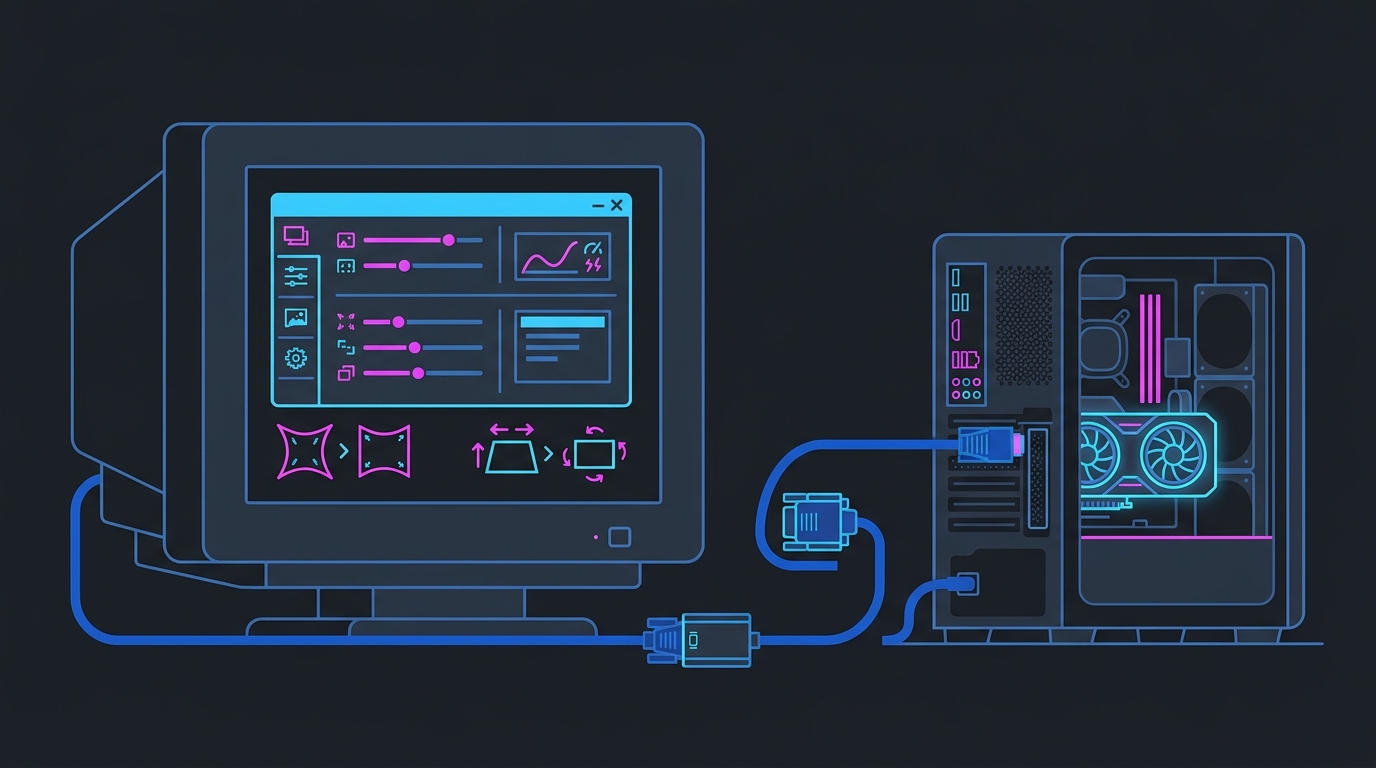
An active adapter, custom resolutions in CRU, and OSD geometry — that’s the whole setup.
1. Connect it to a modern GPU
Modern graphics cards no longer output analog VGA, so you can’t plug a CRT straight in. You need an active DisplayPort-to-VGA (or HDMI-to-VGA) adapter that supports a high pixel clock:
- Plug the active adapter into a DisplayPort or HDMI output on your GPU.
- Run a quality VGA cable (or BNC, on premium tubes) from the adapter to the CRT.
- Power on — Windows detects it as an analog display.
Don’t use cheap passive adapters; they cap out at low refresh rates. See the CRT gaming accessories guide for adapter picks.
2. Create custom resolutions and refresh rates
A CRT has no native resolution, so its superpower is running any resolution/refresh combination within its scan limits. Unlock that with Custom Resolution Utility (CRU) or your GPU’s built-in custom-resolution tool:
- Find your monitor’s maximum horizontal and vertical scan frequencies (from its spec sheet or manual).
- In CRU, add resolution/refresh combos that stay within those limits.
- Restart the graphics driver (CRU includes a restart tool) and select the new mode in Windows display settings.
This is the same custom-resolution workflow behind stretched resolution — on a CRT it’s even more flexible because there’s no fixed pixel grid to fight.
3. Pick the best resolution and refresh for the game
Because the CRT scales anything cleanly, match the mode to what you’re playing:
| Use case | Suggested mode |
|---|---|
| Fast competitive shooters | 1024x768 or 1280x960 at 100–160 Hz (if supported) |
| Balanced gaming | 1280x1024 at 100 Hz |
| Retro / single-player detail | 1600x1200 at 85 Hz |
| Desktop use | Highest resolution at a flicker-free 85 Hz+ |
The rule for competitive play: favor refresh over resolution. A CRT at 120 Hz with perfect motion clarity feels incredible in a fast shooter. Always keep the desktop at 85 Hz or higher so there’s no eye-straining flicker.
4. Square up the geometry
New tubes almost always need geometry tuning. Use the monitor’s on-screen menu (OSD):
- Adjust width, height, and position so the image fills the screen.
- Correct pincushion and trapezoid until edges are straight.
- Run degauss to clear color blotches caused by magnetic fields (do it a few times, waiting between passes).
All of these are external controls. Never open the CRT’s casing — it stores a dangerous high-voltage charge even when unplugged.
5. Fix Windows-level latency
The CRT removes display lag; now clean up the rest of the chain so your low-latency display isn’t held back:
- Set a high-performance power plan.
- Enable and test Hardware-Accelerated GPU Scheduling.
- Cap FPS correctly for your refresh — see how to cap your FPS.
- Raise your Windows timer resolution with Tier1Suite for more consistent input sampling and frame pacing — a natural pairing with a zero-lag display. See the ultimate guide to timer resolution.
Related guides
- Why CRT Monitors Are Making a Comeback for Gaming
- Best CRT Monitors for Gaming
- CRT Gaming Accessories You Need
- How to Minimize Input Delay for Competitive Gaming
Connect with a proper active adapter, build the custom modes your tube supports, favor refresh rate for competitive games, and spend a few minutes on geometry. Set up right, a CRT gives you sharp, instant motion at whatever resolution the game calls for — the payoff that’s driving the whole comeback.
Frequently asked questions
How do I connect a CRT monitor to a modern PC?
Use an active DisplayPort-to-VGA (or HDMI-to-VGA) adapter, because modern GPUs no longer output analog VGA. Plug the adapter into your GPU, run a quality VGA (or BNC) cable to the CRT, and Windows will detect it as an analog display. Get a high-bandwidth active adapter — cheap passive ones can't drive high refresh rates at competitive resolutions.
How do I set custom resolutions and refresh rates on a CRT?
Use Custom Resolution Utility (CRU) or your GPU's custom-resolution tool to add resolution/refresh combinations the CRT supports. Because a CRT has no native resolution, you can pick the exact refresh you want at a given resolution — for example 1024x768 at 120 Hz or 1600x1200 at 85 Hz. Stay within the monitor's documented horizontal and vertical scan limits to avoid an out-of-range image.
What's the best resolution and refresh rate for gaming on a CRT?
For fast competitive play, favor refresh rate over pixel count: 1024x768 or 1280x960 at 100–160 Hz (if the tube supports it) gives razor-sharp, high-refresh motion. For slower or retro games, a higher resolution like 1600x1200 at 85 Hz looks crisp and detailed. A CRT scales any resolution cleanly, so match it to the game.
How do I fix the image geometry on a CRT?
Use the monitor's on-screen menu (OSD) to adjust width, height, position, pincushion, and trapezoid until the image fills the screen squarely. Run the degauss function to clear color distortion from magnetic fields. These are all external controls — never open the CRT's casing, as it holds a dangerous high-voltage charge even when unplugged.